> ## Documentation Index
> Fetch the complete documentation index at: https://docs.vizcom.com/llms.txt
> Use this file to discover all available pages before exploring further.
# Color Variation
## Explore colorways instantly with Color Variation
Extract a palette from any image and generate multiple shuffled colorways in one click.
## When to use Color Variation
Color Variation helps you explore CMF directions quickly from a single concept. Instead of manually recoloring designs, you can extract an existing palette and automatically generate multiple coordinated alternatives.
Use Color Variation when:
* Exploring CMF options
* Preparing presentation ready colorways
* Testing visual directions quickly
* Building inspiration from a strong base render
This workflow is ideal for footwear, apparel, automotive, industrial design, and concept art.
## How to use Color Variation
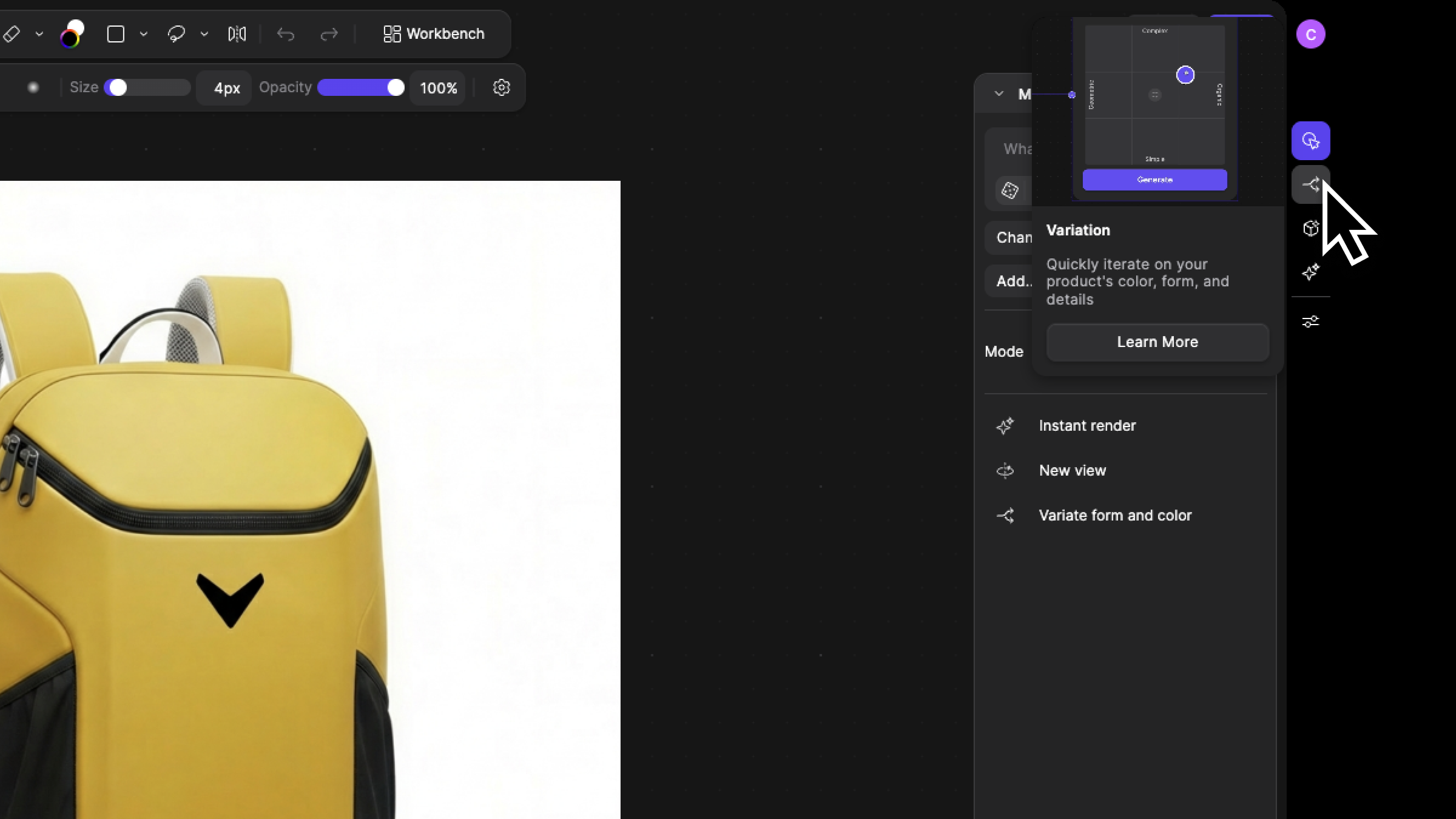
Using Color Variation in Workbench:
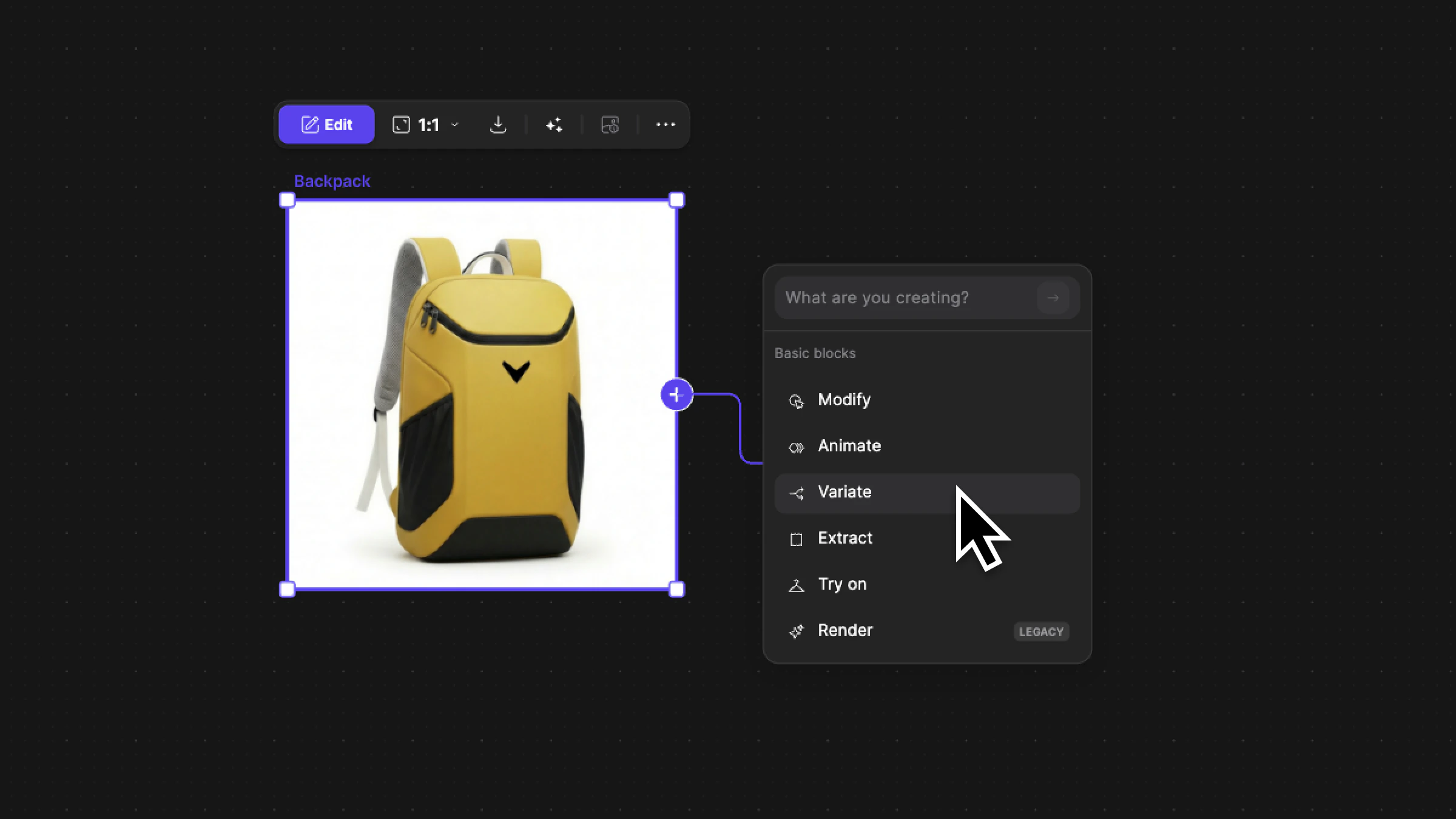
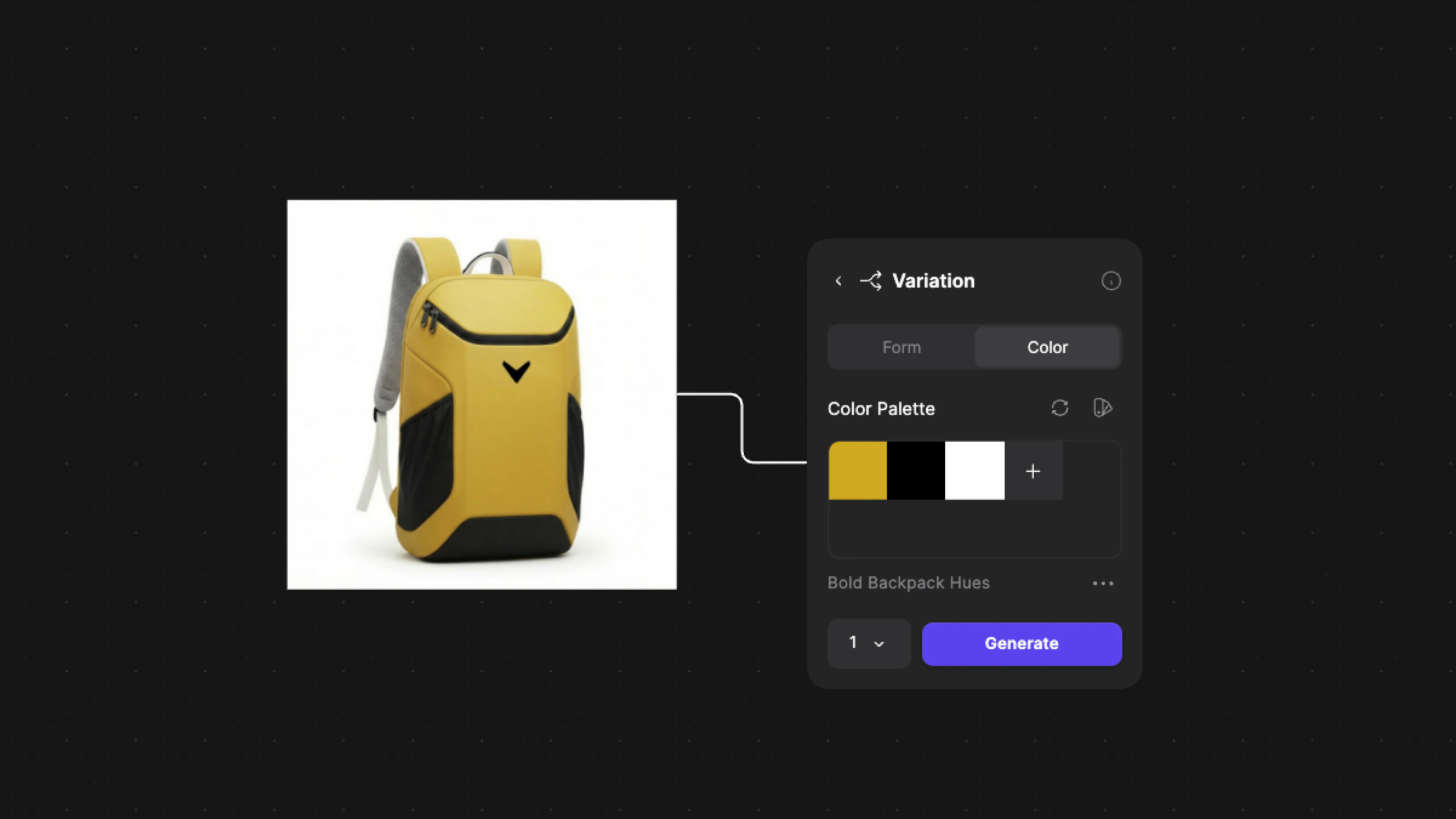
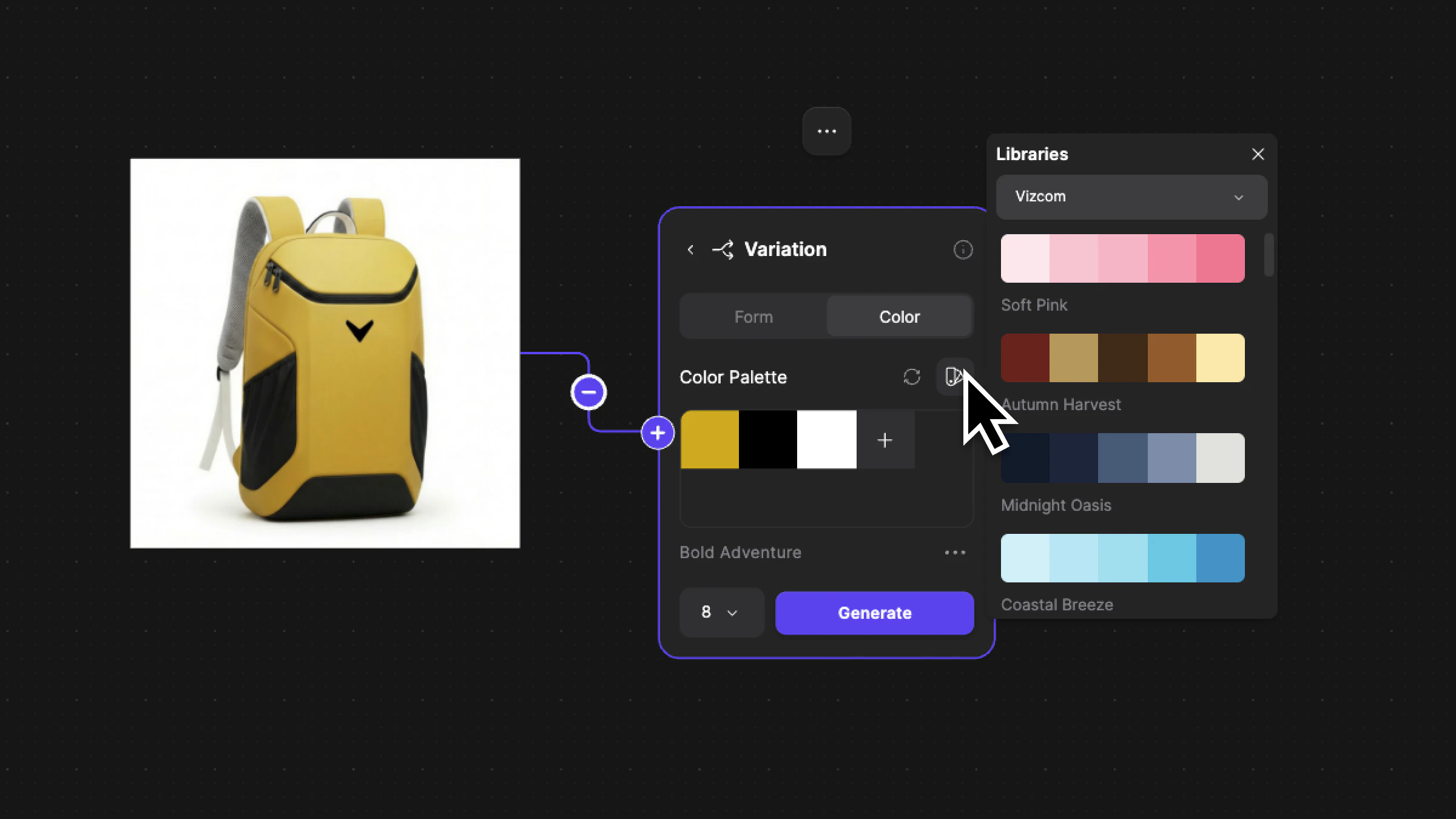
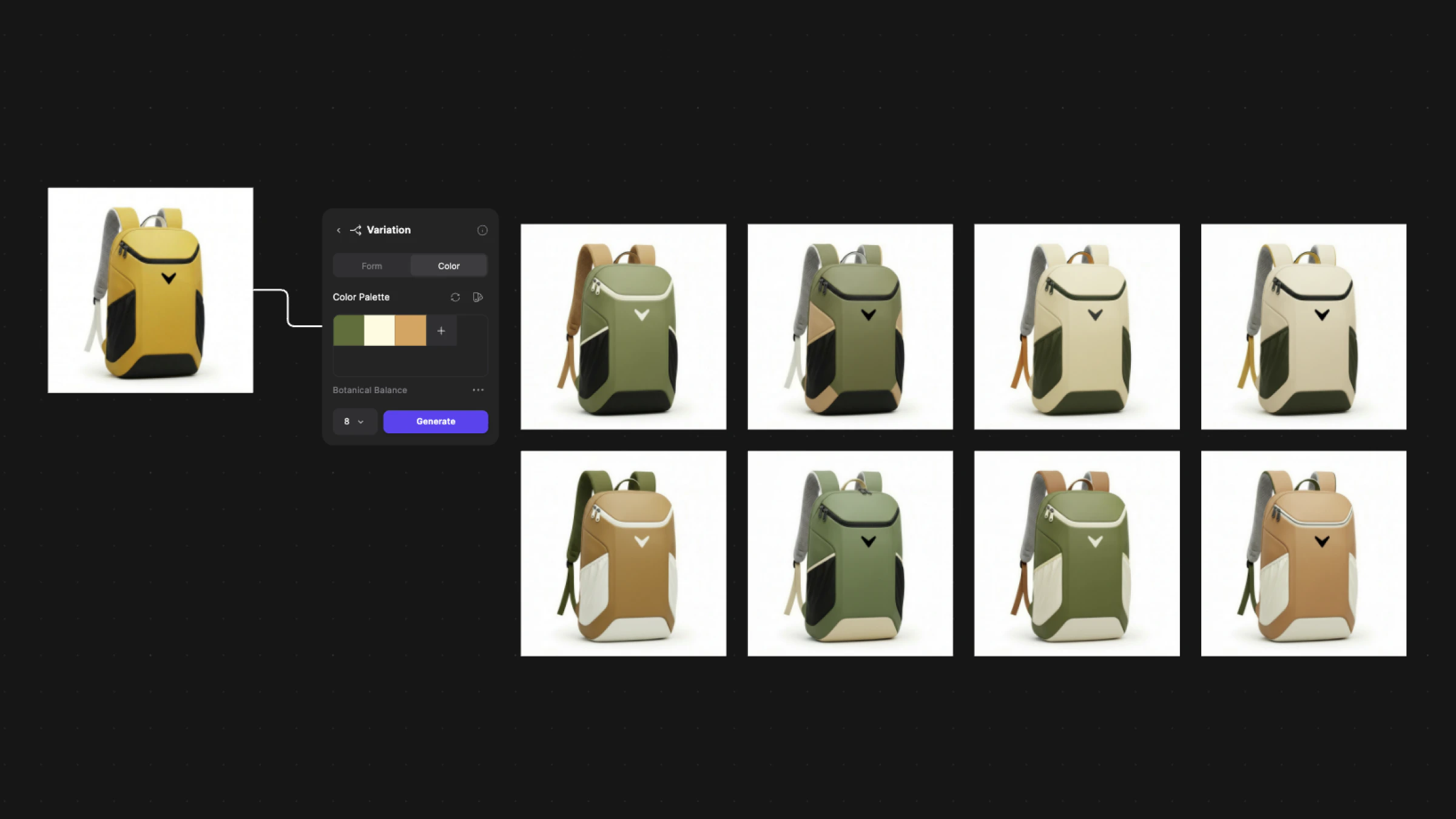 Using Color Variation in Studio:
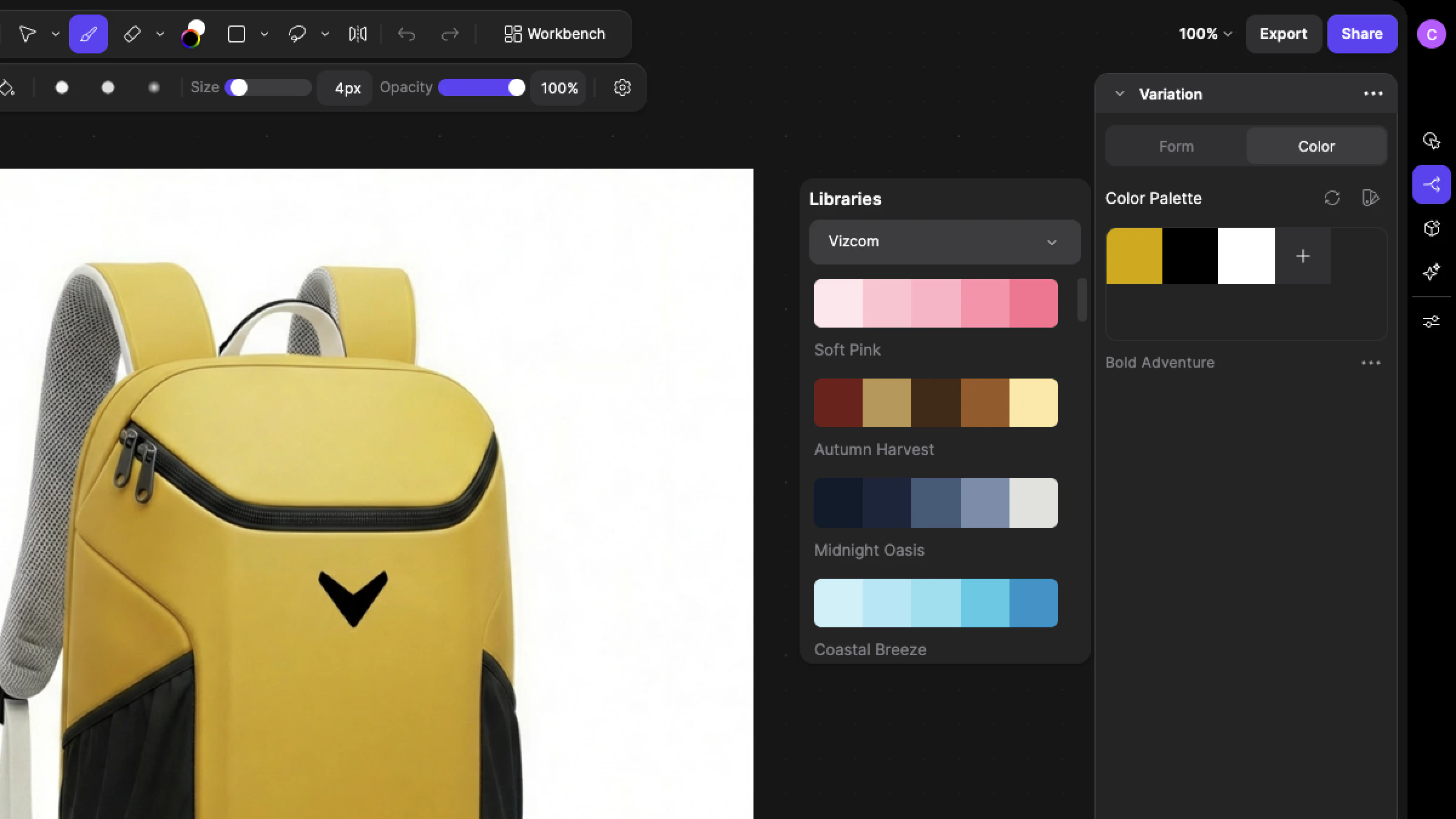
 Select a color to change individually, or adjust the entire palette to transform your design
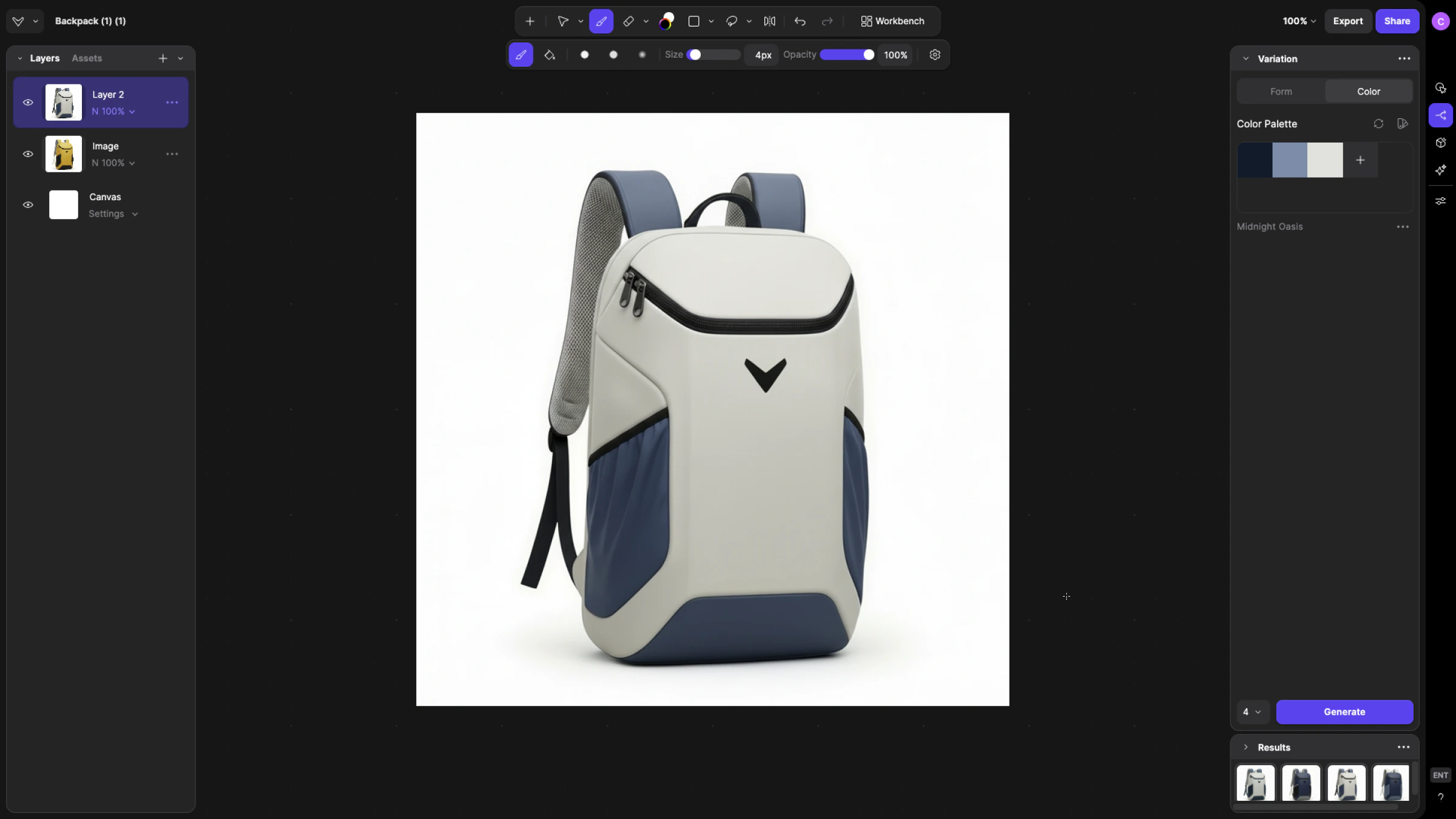
 Within studio, generations appear within the results panel
 ## Best practices when using Color Variation
* **Start from a strong base**
* Clean materials and lighting produce clearer color swaps.
* If the base render is muddy, variations will feel inconsistent.
* **Mix manual and preset palettes**
* Use presets for quick exploration.
* Use manual selection when aligning to brand or production constraints.
* **Combine with Modify**
* After selecting a colorway, use Modify to adjust materials or proportions.
* Color Variation defines direction, Modify refines execution.
## Tips
Generate more variations than you think you need, then curate. Reviewing a range helps reveal unexpected but strong directions.
## Next steps
* Use Modify to fine tune materials after selecting a colorway.
* Combine Color Variation with Extract Material to build reusable CMF libraries.
* Apply your saved brand palettes to ensure visual consistency across projects.
## Best practices when using Color Variation
* **Start from a strong base**
* Clean materials and lighting produce clearer color swaps.
* If the base render is muddy, variations will feel inconsistent.
* **Mix manual and preset palettes**
* Use presets for quick exploration.
* Use manual selection when aligning to brand or production constraints.
* **Combine with Modify**
* After selecting a colorway, use Modify to adjust materials or proportions.
* Color Variation defines direction, Modify refines execution.
## Tips
Generate more variations than you think you need, then curate. Reviewing a range helps reveal unexpected but strong directions.
## Next steps
* Use Modify to fine tune materials after selecting a colorway.
* Combine Color Variation with Extract Material to build reusable CMF libraries.
* Apply your saved brand palettes to ensure visual consistency across projects.