> ## Documentation Index
> Fetch the complete documentation index at: https://docs.vizcom.com/llms.txt
> Use this file to discover all available pages before exploring further.
# Home
> Quickly access your most recent files, manage all workspace content, and jump back into your designs from one central location.
## Workspace Home
Monitor team activity and manage your organization at a glance from a single, centralized dashboard.
## What is Workspace Home?
Workspace Home is the central hub for Org Admins and Workspace Admins to oversee activity across their entire organization. It is only visible to members with Admin-level roles — standard members will not have access to this view.
Use Workspace Home when you want to track generation activity over time, get a high-level view of your teams, or quickly navigate to a specific team's workspace.
## How to use Workspace Home
Accessing workspace home:
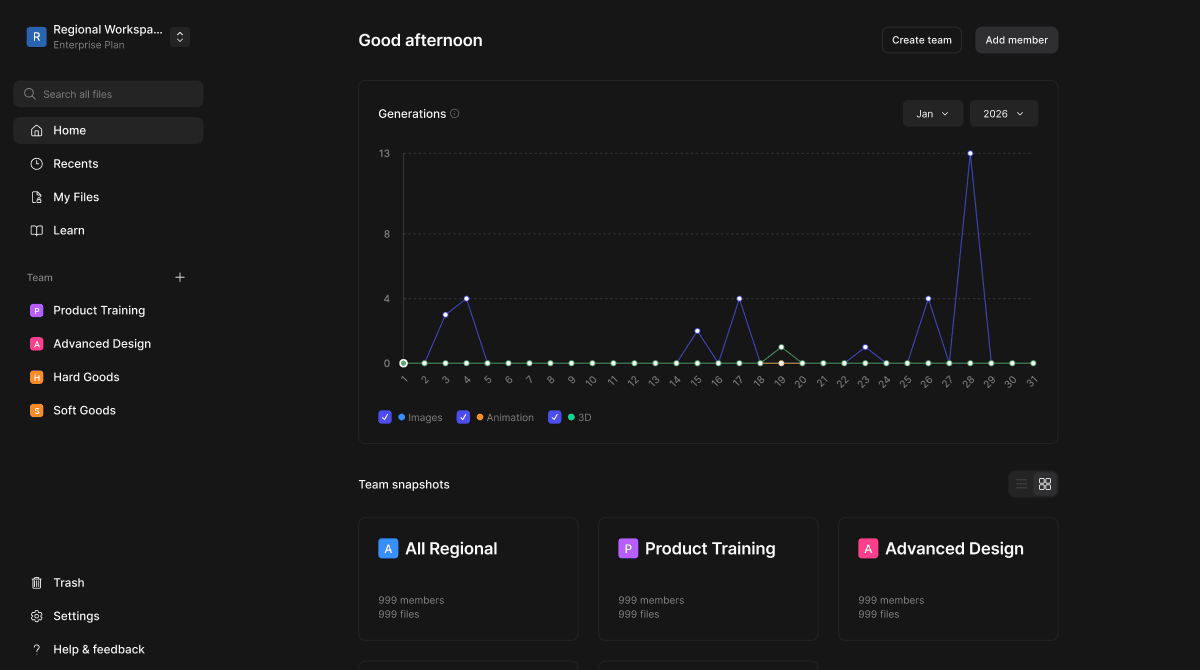 Reviewing generation activity
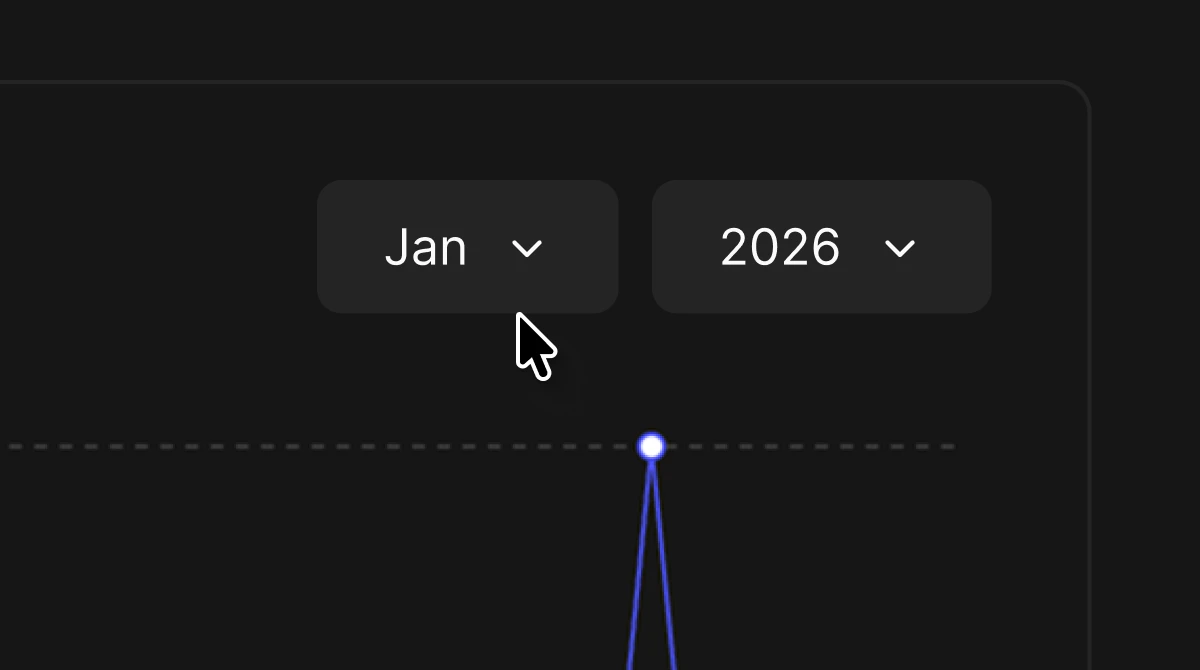
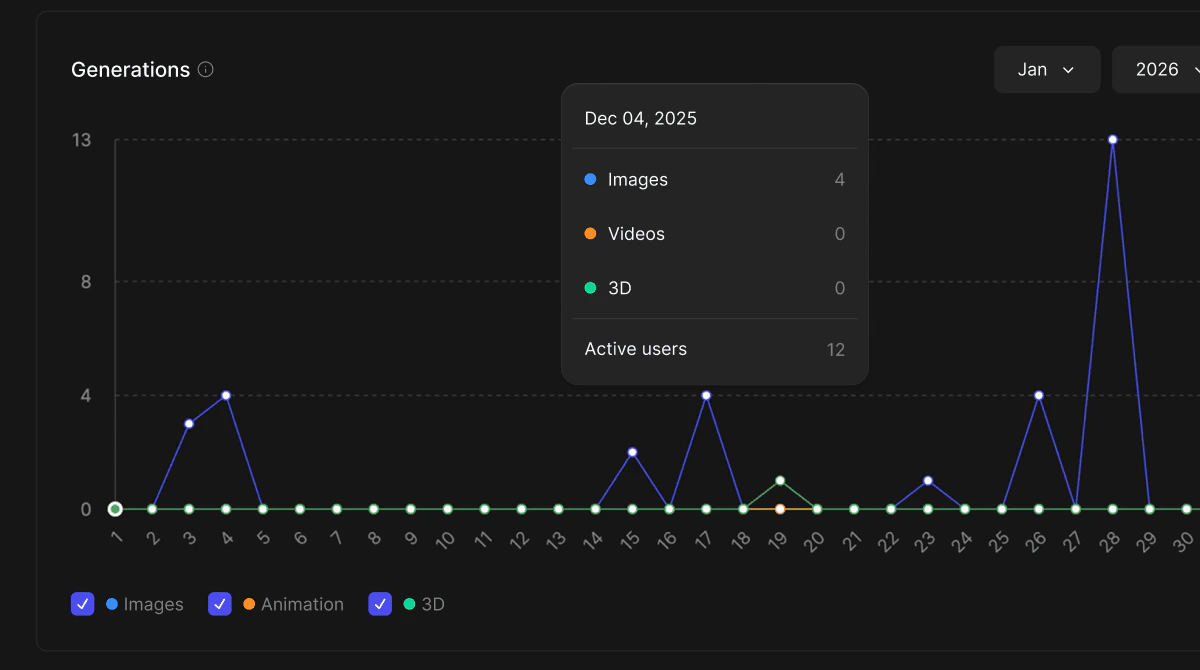 Viewing Team Snapshots:
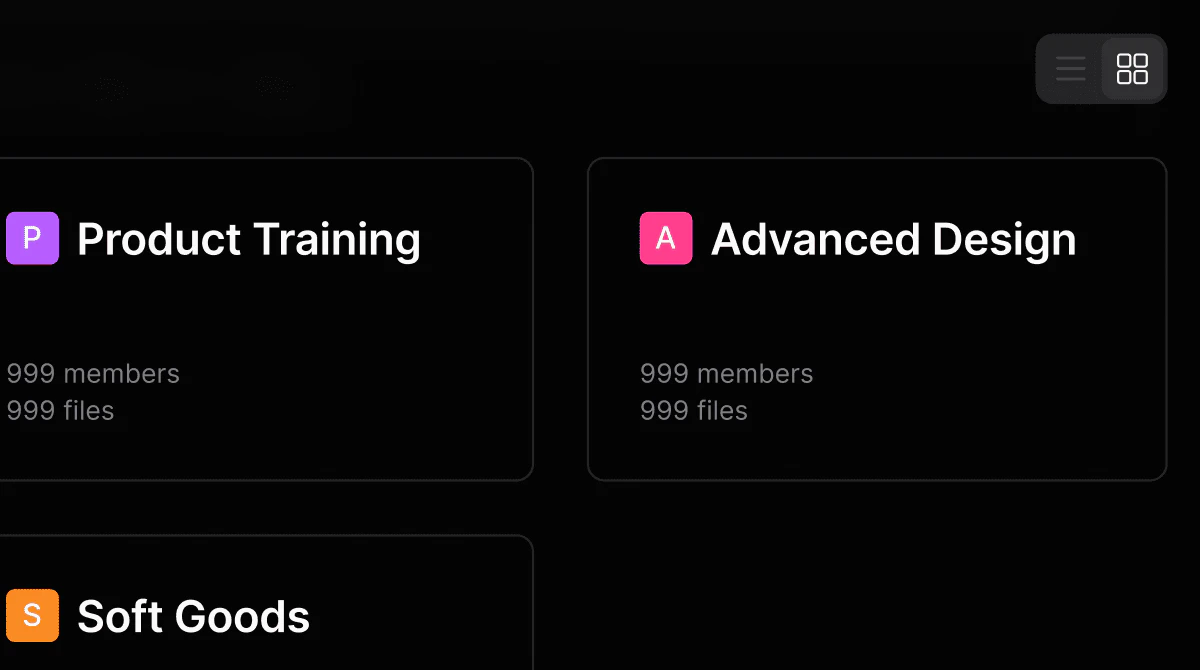 ## Core Features
### Generation Chart
* A time-series chart showing AI generation activity across your organization.
* Displays three data types — Images, Animation, and 3D — plotted over the selected month.
* Hovering over a data point surfaces a tooltip with a per-day breakdown and active user count.
* Use the month and year selectors to review historical data.
### Team Snapshots
* A card-based overview of every team in your workspace.
* Each snapshot surfaces the team name, member count, and file count, giving admins a quick pulse on team size and activity.
* Supports both list and grid view
## Tips
Use the month/year selectors on the Generations chart to compare usage across different time periods — useful for spotting trends or evaluating the impact of onboarding new team members.
The left sidebar lists your teams directly under the Team section for quick navigation without returning to Home.
### FAQ
* **Who can see the Workspace Home view?**
* Only members with Org Admin or Workspace Admin roles have access to Workspace Home. Members with other roles will not see this view.
* **What do the generation types in the chart represent?**
* Images, Animation (Videos), and 3D correspond to the three types of AI generations users can run inside Vizcom. The chart tracks how many of each type were created on any given day.
* **What does "Active users" mean in the tooltip?**
* Active users reflects the number of members in your organization who ran at least one generation on that date.
## Next Steps
* Click into any team snapshot to explore that team's files and members.
* Use the Add member button to invite new members to your organization.
* Use the Create team button to set up a new team directly from Home.
## Core Features
### Generation Chart
* A time-series chart showing AI generation activity across your organization.
* Displays three data types — Images, Animation, and 3D — plotted over the selected month.
* Hovering over a data point surfaces a tooltip with a per-day breakdown and active user count.
* Use the month and year selectors to review historical data.
### Team Snapshots
* A card-based overview of every team in your workspace.
* Each snapshot surfaces the team name, member count, and file count, giving admins a quick pulse on team size and activity.
* Supports both list and grid view
## Tips
Use the month/year selectors on the Generations chart to compare usage across different time periods — useful for spotting trends or evaluating the impact of onboarding new team members.
The left sidebar lists your teams directly under the Team section for quick navigation without returning to Home.
### FAQ
* **Who can see the Workspace Home view?**
* Only members with Org Admin or Workspace Admin roles have access to Workspace Home. Members with other roles will not see this view.
* **What do the generation types in the chart represent?**
* Images, Animation (Videos), and 3D correspond to the three types of AI generations users can run inside Vizcom. The chart tracks how many of each type were created on any given day.
* **What does "Active users" mean in the tooltip?**
* Active users reflects the number of members in your organization who ran at least one generation on that date.
## Next Steps
* Click into any team snapshot to explore that team's files and members.
* Use the Add member button to invite new members to your organization.
* Use the Create team button to set up a new team directly from Home.