> ## Documentation Index
> Fetch the complete documentation index at: https://docs.vizcom.com/llms.txt
> Use this file to discover all available pages before exploring further.
# My Files
> My Files is your personal, private space in Vizcom. Store drafts, explore ideas, and share files with your team only when you're ready.
## What are my files?
My Files is a personal, private directory available to every member. Files saved here are only visible to you — no one else in your workspace or team can access them unless you choose to share or move them.
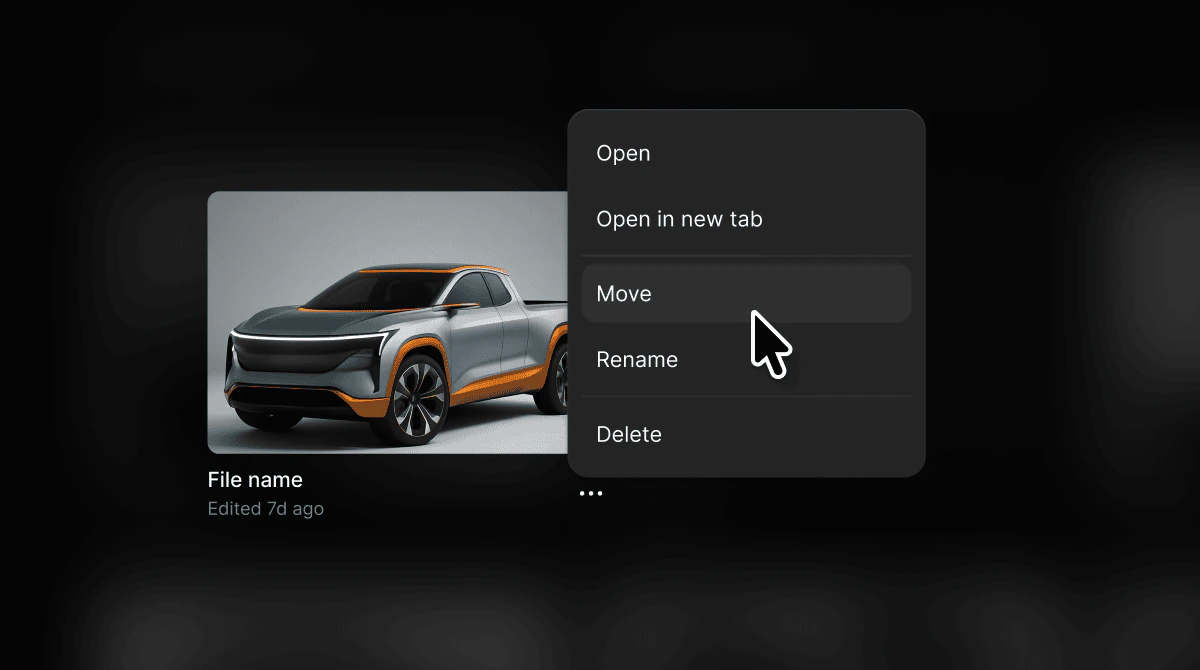
Think of My Files as your drafts folder. It's the right place to explore ideas, start new projects, and iterate freely without your work being visible to the rest of your team. When you're ready to collaborate, you can move files into a shared team space.
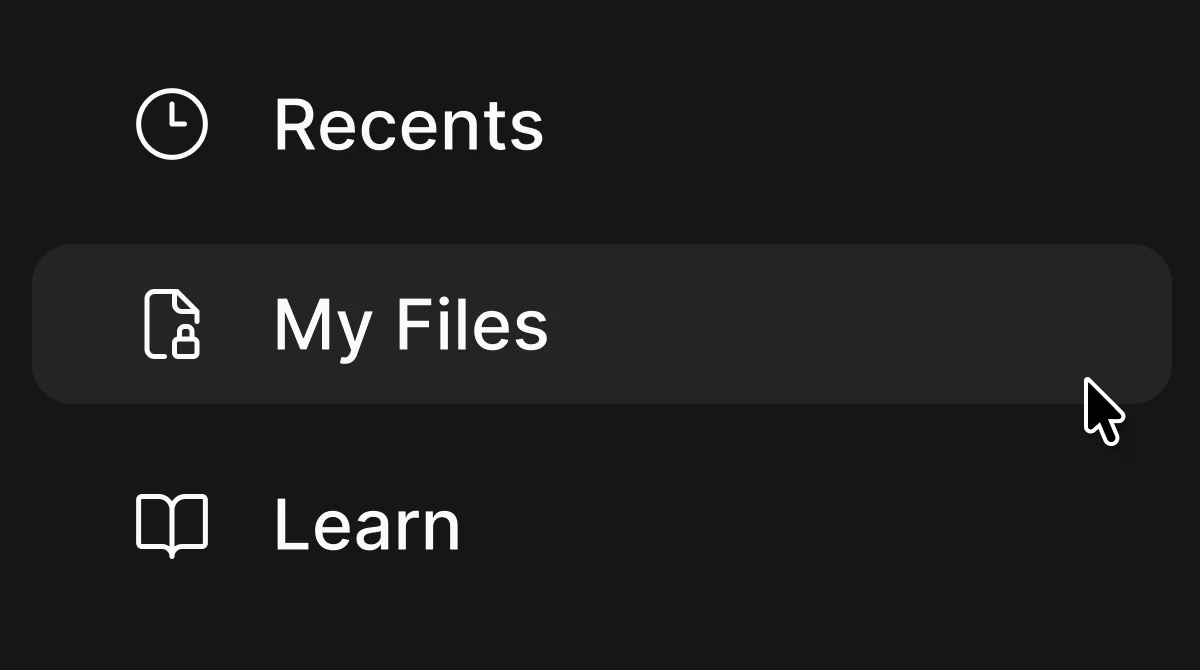
Access My Files from the left sidebar at any time.
## How to use My Files
Creating a new file
 Organizing files with folders:
Switching between views:
Organizing files with folders:
Switching between views:
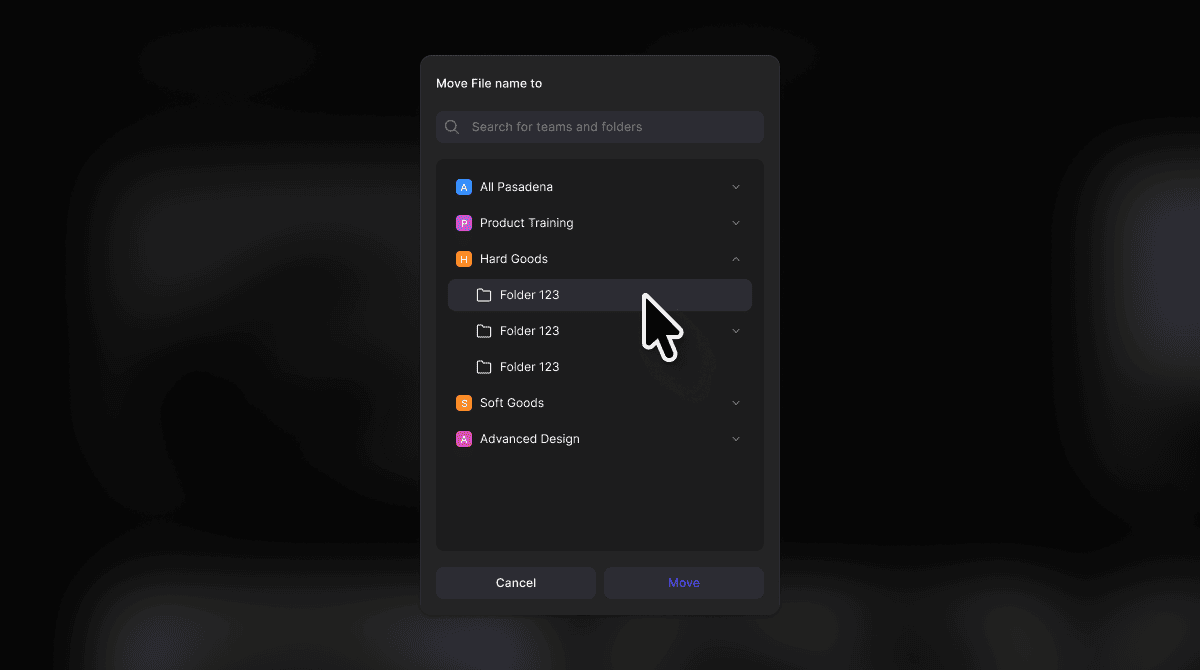
 Moving a file to a team:
 ## Core Features
### Private Directory
* My Files is entirely private. Only you can see and access files stored here. No other members, team admins, or workspace admins have visibility into your personal files.
### Files and Folders
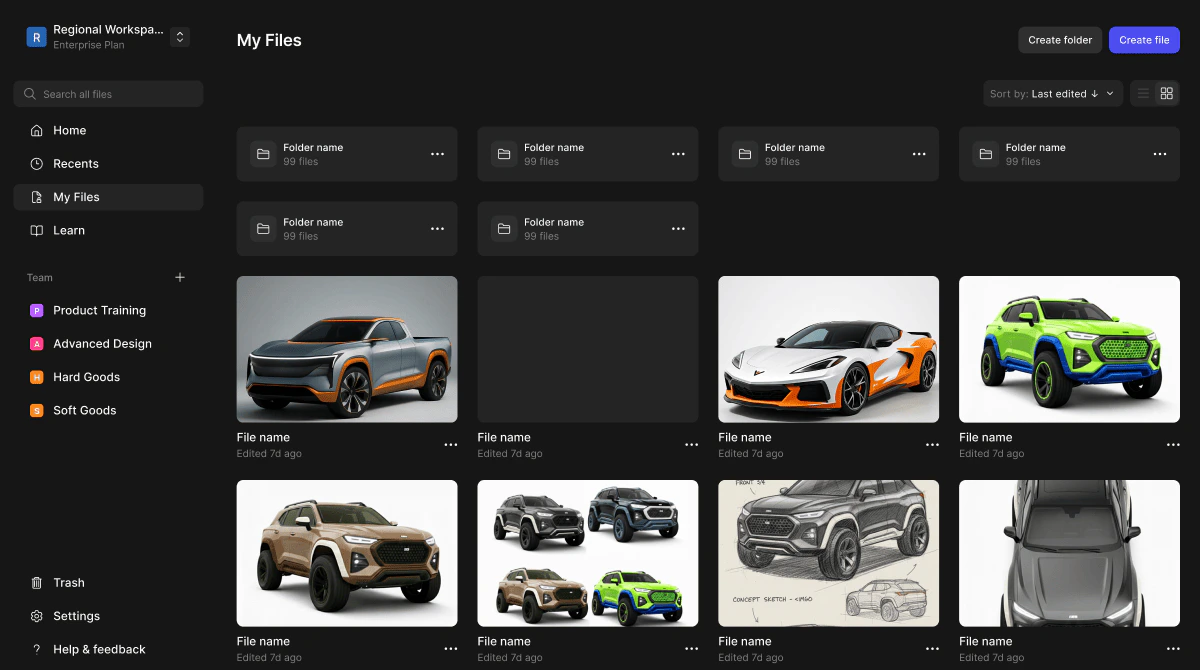
* Organize your work using folders within My Files. Folders help you group projects or separate work by theme, client, or phase. When inside a folder, the view updates to show only the contents of that folder.
### Grid and List View
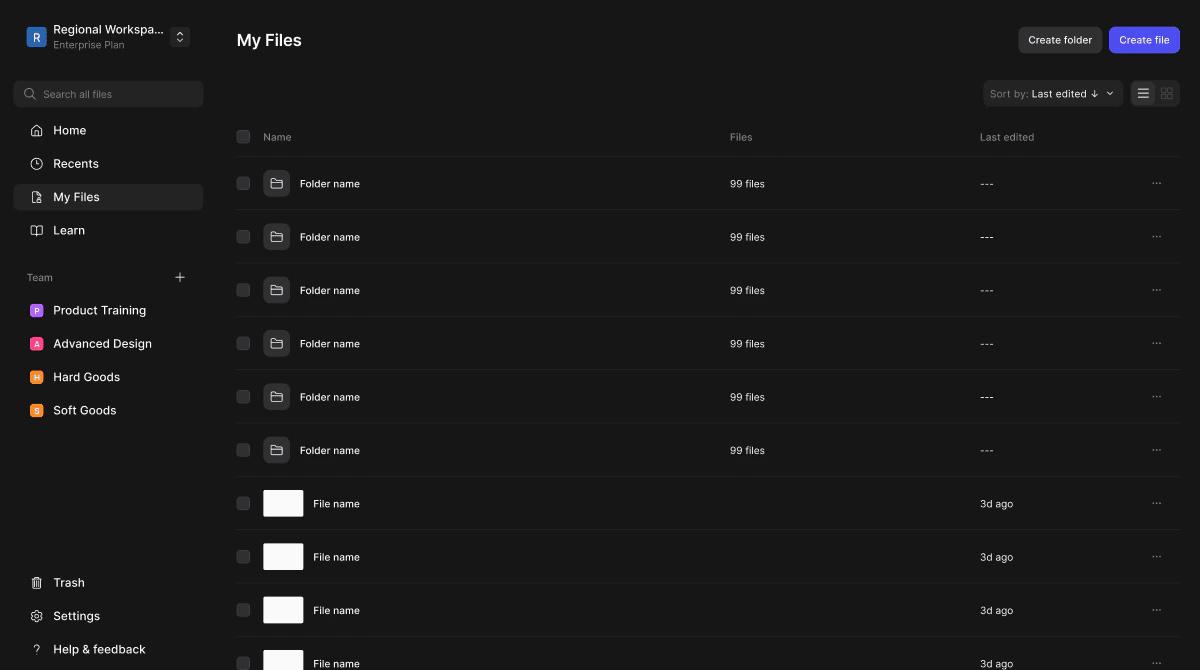
* Toggle between Grid and List view to browse your files in the way that works best for you. Grid view is ideal for visually identifying files by thumbnail. List view is better for scanning a large number of files quickly.
## Tips & FAQ
Use My Files to experiment and iterate freely. Since it's private, you don't need to worry about work-in-progress files being visible to your team.
Get into the habit of moving finalized or collaboration-ready files into a team workspace so your teammates can access them.
### FAQ
* **Can anyone else see my files in My Files?**
* No. My Files is completely private. Only you have access to files stored here.
* **How do I share a file from My Files with my team?**
* Move the file into a shared team workspace. Once moved, it will be visible to the members of that team.
## Next Steps
* Move files into a team workspace when you're ready to collaborate.
* Use Recents in the left sidebar to quickly get back to files you've been working on.
* Organize your work into folders to keep My Files easy to navigate as your library grows.
## Core Features
### Private Directory
* My Files is entirely private. Only you can see and access files stored here. No other members, team admins, or workspace admins have visibility into your personal files.
### Files and Folders
* Organize your work using folders within My Files. Folders help you group projects or separate work by theme, client, or phase. When inside a folder, the view updates to show only the contents of that folder.
### Grid and List View
* Toggle between Grid and List view to browse your files in the way that works best for you. Grid view is ideal for visually identifying files by thumbnail. List view is better for scanning a large number of files quickly.
## Tips & FAQ
Use My Files to experiment and iterate freely. Since it's private, you don't need to worry about work-in-progress files being visible to your team.
Get into the habit of moving finalized or collaboration-ready files into a team workspace so your teammates can access them.
### FAQ
* **Can anyone else see my files in My Files?**
* No. My Files is completely private. Only you have access to files stored here.
* **How do I share a file from My Files with my team?**
* Move the file into a shared team workspace. Once moved, it will be visible to the members of that team.
## Next Steps
* Move files into a team workspace when you're ready to collaborate.
* Use Recents in the left sidebar to quickly get back to files you've been working on.
* Organize your work into folders to keep My Files easy to navigate as your library grows.