

Open and close Studio
- Open: double-click an image on the Workbench, or select it and click Edit.
- Close: click Close at the right end of the toolbar, press Shift + W, or double-click outside the canvas.
Screen layout
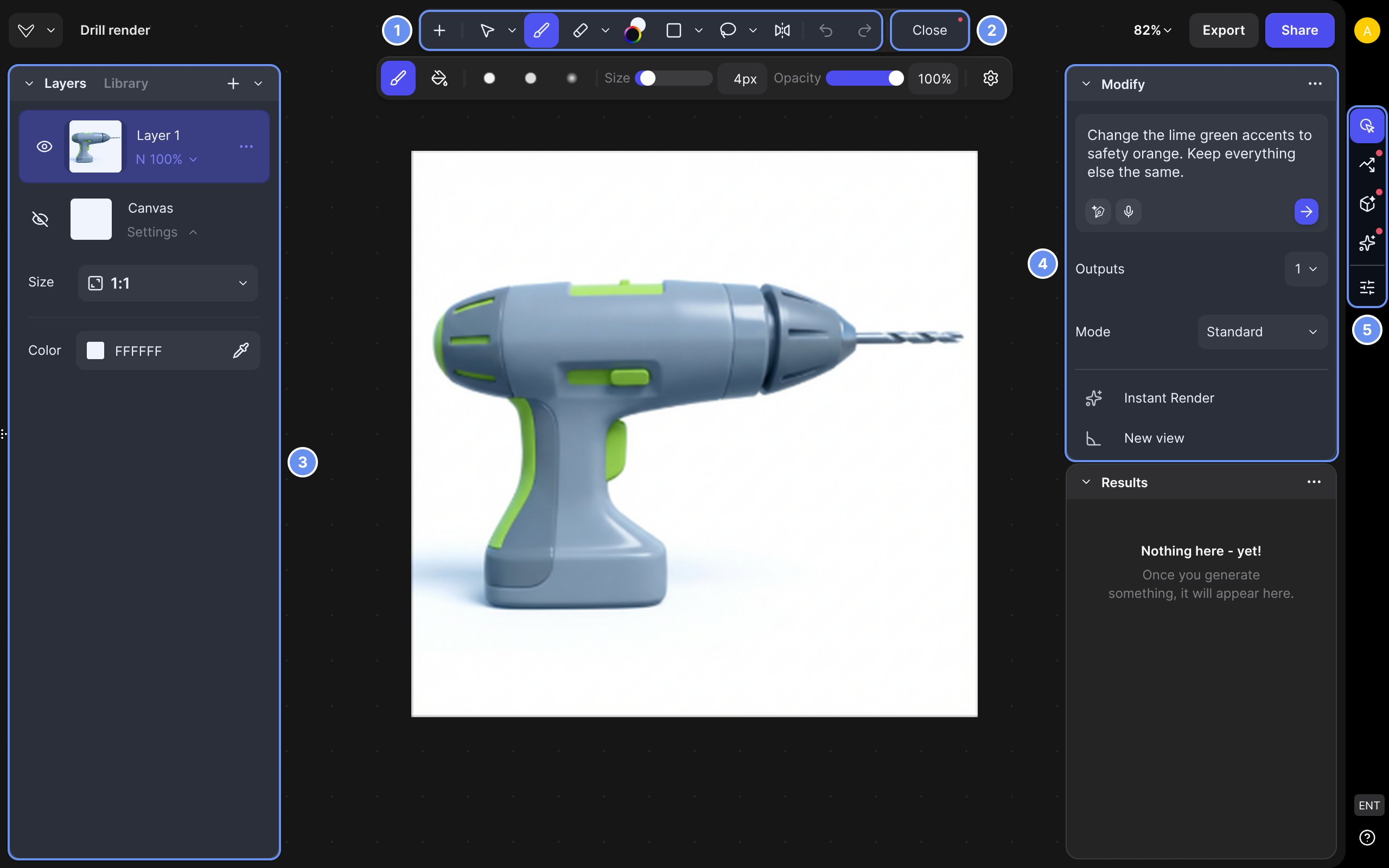
Studio: toolbar (1), Close (2), Layers and Library (3), generation panel (4), tab strip (5).
Sidebar tabs
Studio’s Modify has no Resolution menu; it follows the canvas size. Change expression and Extract are Workbench only. See Modes and models.
Toolbar
- Hold a tool’s key to borrow it; release to go back.
- The row under the toolbar holds the tool’s size, opacity and presets. Right-click the canvas for a quick brush menu.
- On a 3D layer, only Transform and the selection tools work.
Layers
- Layer menu: Add to…, Rename, Copy, Duplicate, Merge down, AI Actions (Enhance, Remove Background, Unify, Extend Image, Convert to PBR), Mirror Layer, Generate 3D, Export…, Export to Autodesk Fusion (3D layers), Delete.
- Crop or extend: select Canvas (C) and drag its edges. Extend fills new margins and uses credits.
- Layers can’t be locked.
Results
Studio menu
Layout > Default puts Layers on the left; Stacked puts every panel on the right. Drag a panel by its header to move it.