

Where each option lives
Q opens a Modify block ready for a prompt. Insert (+) > Modify opens its list first: Describe your changes, Instant Render, New view, Change expression.
Describe your changes
Edit images with a written prompt; see Write prompts that work.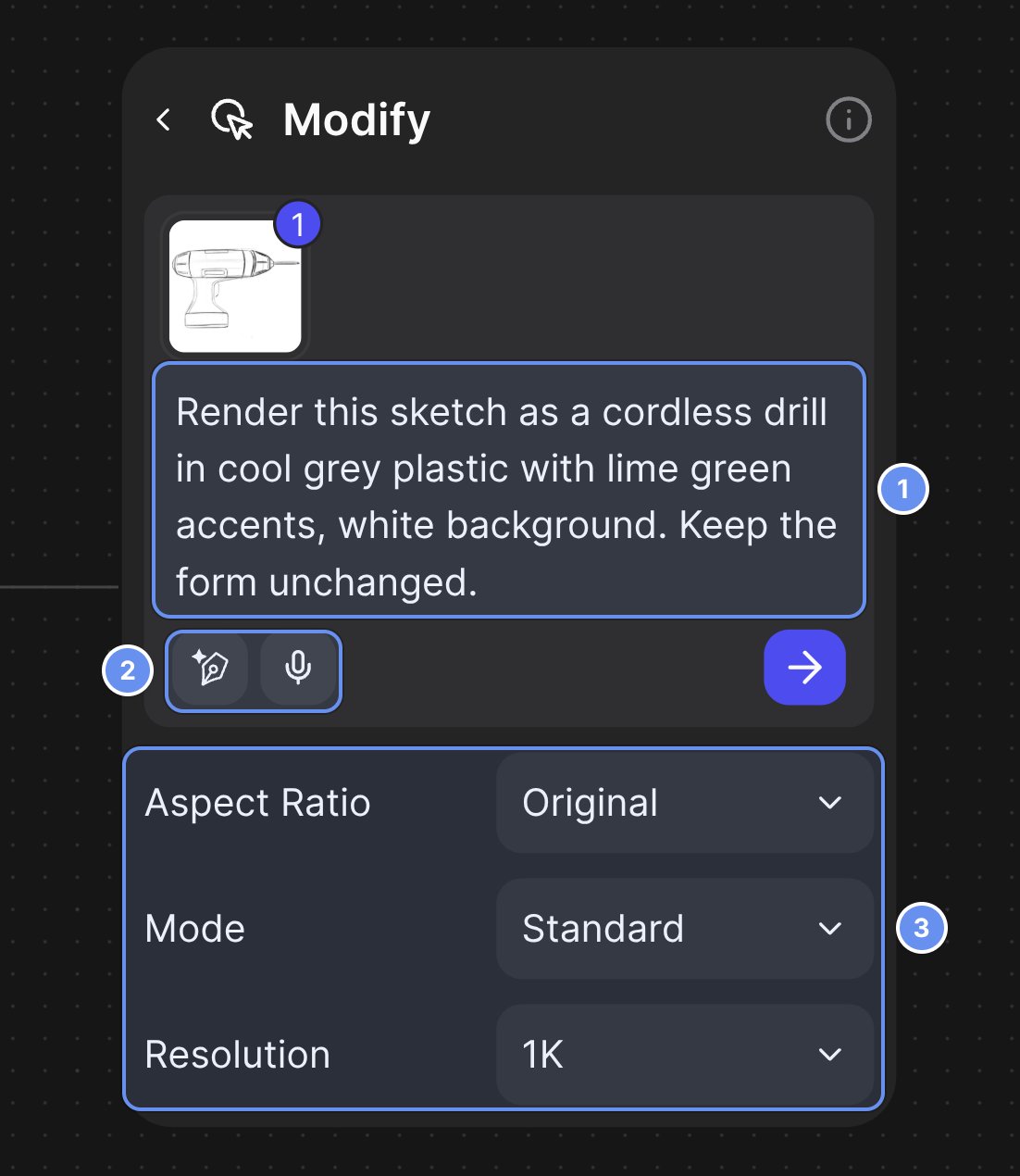
Modify block: prompt (1), Improve prompt and Voice input (2), Aspect Ratio, Mode and Resolution (3).
Mode
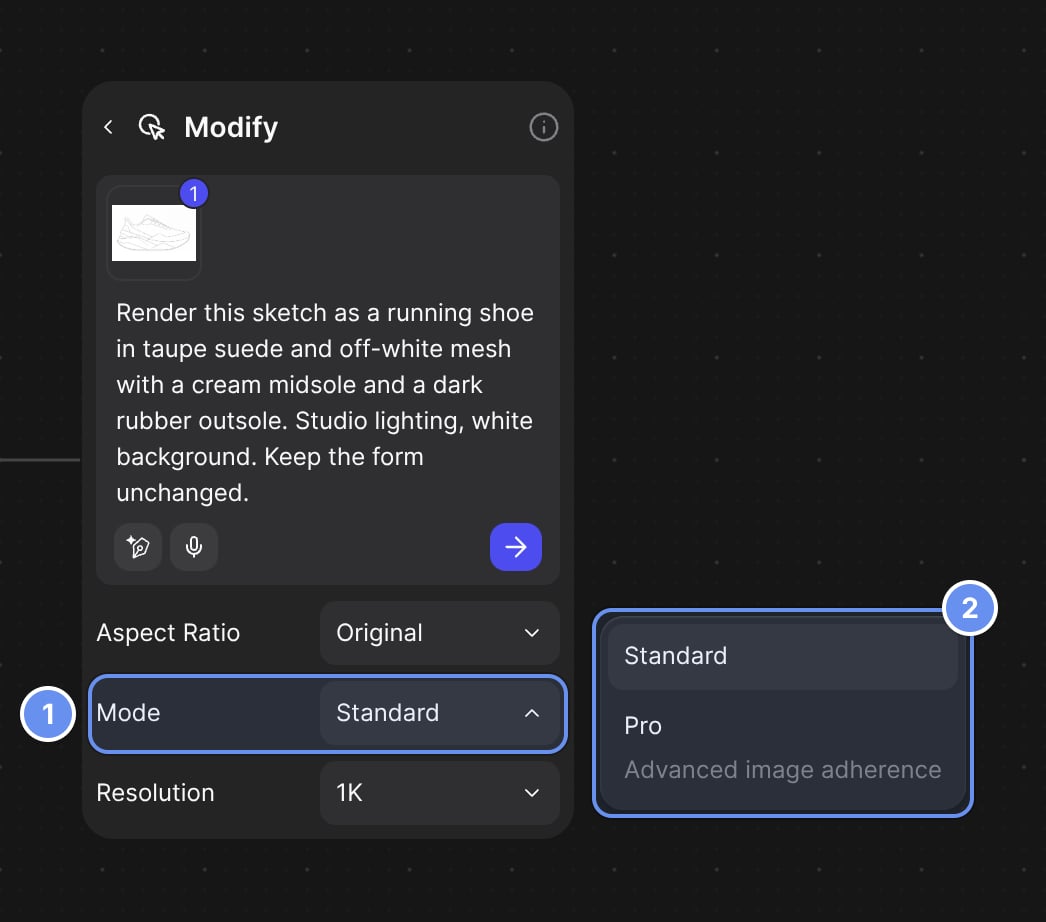
The Mode row on a Modify block (1) and its menu (2).
- Pro costs more than Standard, so test prompts on Standard. See Modify credits.
- New blocks start on Standard, then on your last pick.
Resolution
- 4K has a per-minute limit for each member, set by plan. See Plans.
- For 8K, upscale on export. See Upscale and export.
Inputs and mentions
- The last connected image is the primary one: Original and Match source use its shape and size. Drag thumbnails to reorder.
- Type @1, @2 to name connected images, or @ for Library items: up to 5 per prompt, including 3 collections and 1 folder.
- Mentioning a Library folder makes one image per item, at 1K or 2K.
Instant Render
Takes a sketch to its next stage of finish while keeping its structure.- Target fidelity: Auto (next stage) (default), Line Sketch, Color Blocking, Highlights & Shadows or Realistic.
- The Insert (+) tile is hidden on Free; the Modify list offers it on every plan.
- Remove notes and construction lines first, or they can end up in the render.
Variate form and color
Insert (+) > Variate adds a Variation block; in Studio, use the Variation tab.- Form: pick a preset (Expression, Proportion, Massing, Edge Quality, Symmetry & Balance, Flow/Continuity or Custom), then drag the point on the pad.
- Color: edit the palette taken from the image (up to 10 colors). Colorways per run: 1 on Free, 4 on Pro and Edu, 16 on Organization and Enterprise.
New view
The same product from another angle.
Start from a clean image on a plain background. The hidden side is a guess, so check text and logos there.
Change expression
Workbench only: turn the dial (Calm, Happy, Surprised and more), or choose Custom and type one. Run it on a clean image, not on earlier results, or the character can drift.Extract
Workbench only.
Extracting the palette and detecting parts are free; the rest use credits.
Make 3D
Turns images into a 3D model: a 3D layer in Studio, or a 3D card on the Workbench. See Make 3D.- Defaults: Detailed Sharp V3, Balanced mesh detail, Texture None. V2 and V1 are legacy.
- Mesh detail (Low Poly, Balanced, Highest) and Texture (None, Standard Definition, High Definition) options depend on the mode.
- Make 3D from multiple layers: Detailed Sharp takes 2 to 4 images with a Front view, Max 1 to 4, Detailed Smooth up to 5.
Animate
The Workbench Animate block makes a short video from images or a video.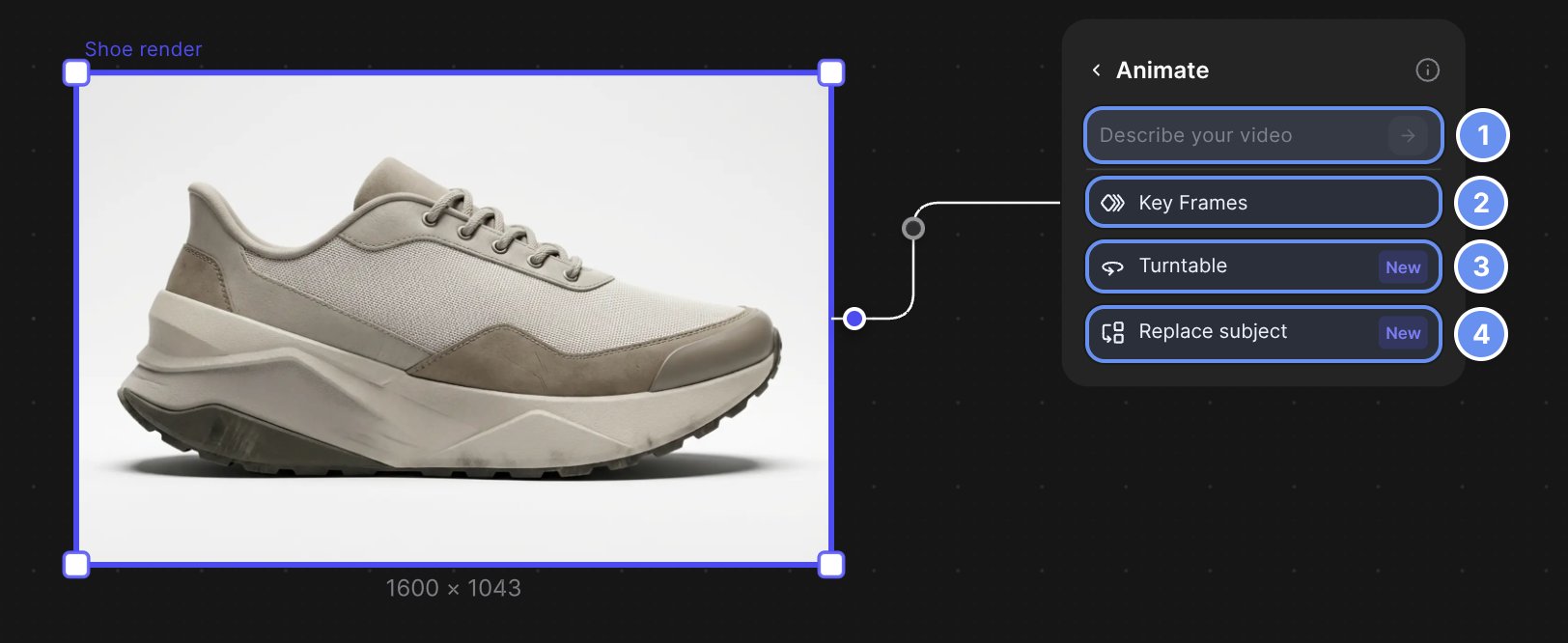
New Animate block: describe the video (1), or pick Key Frames (2), Turntable (3) or Replace subject (4).
On Free and Pro, Pro and Fast need the clip’s whole cost in your balance. See Animate credits.
Frame loop (older Animate blocks)
Older blocks keep a Start and optional End frame, a prompt, and the Standard v2 or Turbo v2 mode.Try on
The Workbench Try on block puts garments and products on a model.Legacy models
See Legacy tools.