

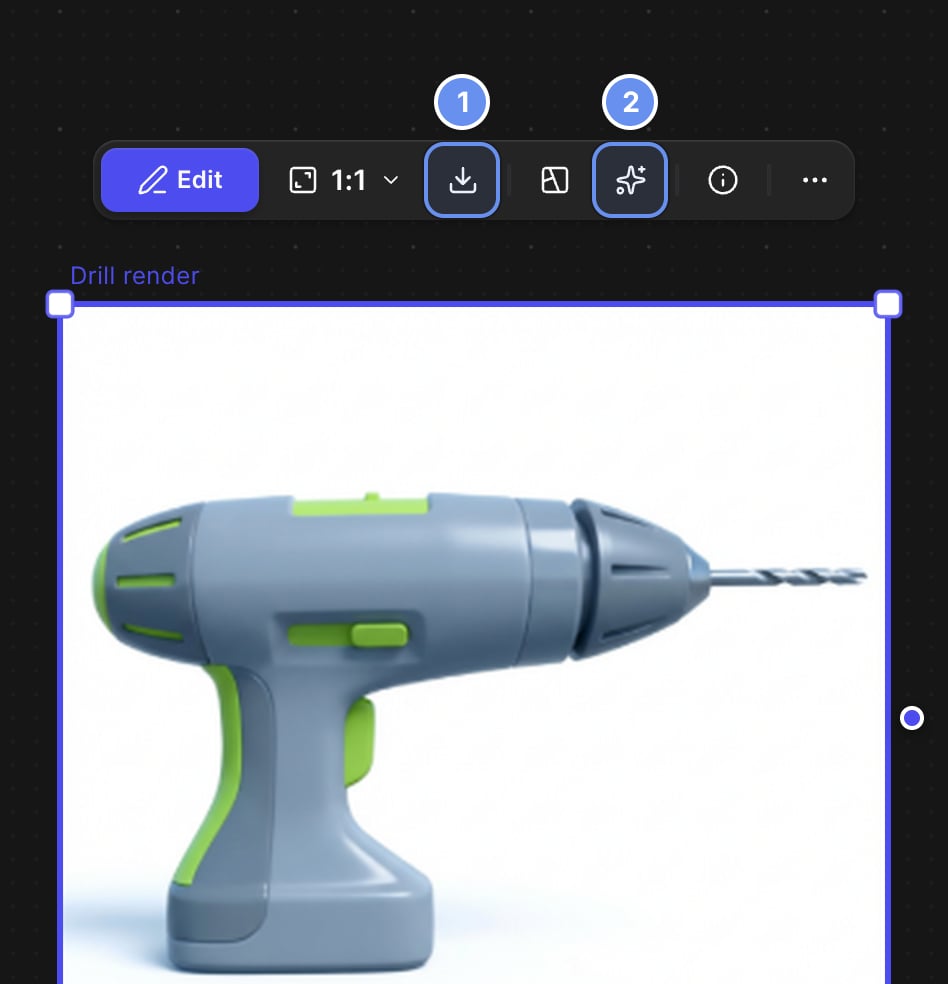
Download (1) has Export... for upscaling and formats; Quick actions (2) has Upscale 4K.
Quick answers
Generate at 2K or 4K
Set Resolution on a Workbench Modify block: 1K to explore, 2K or 4K for finals. Higher resolutions cost more credits.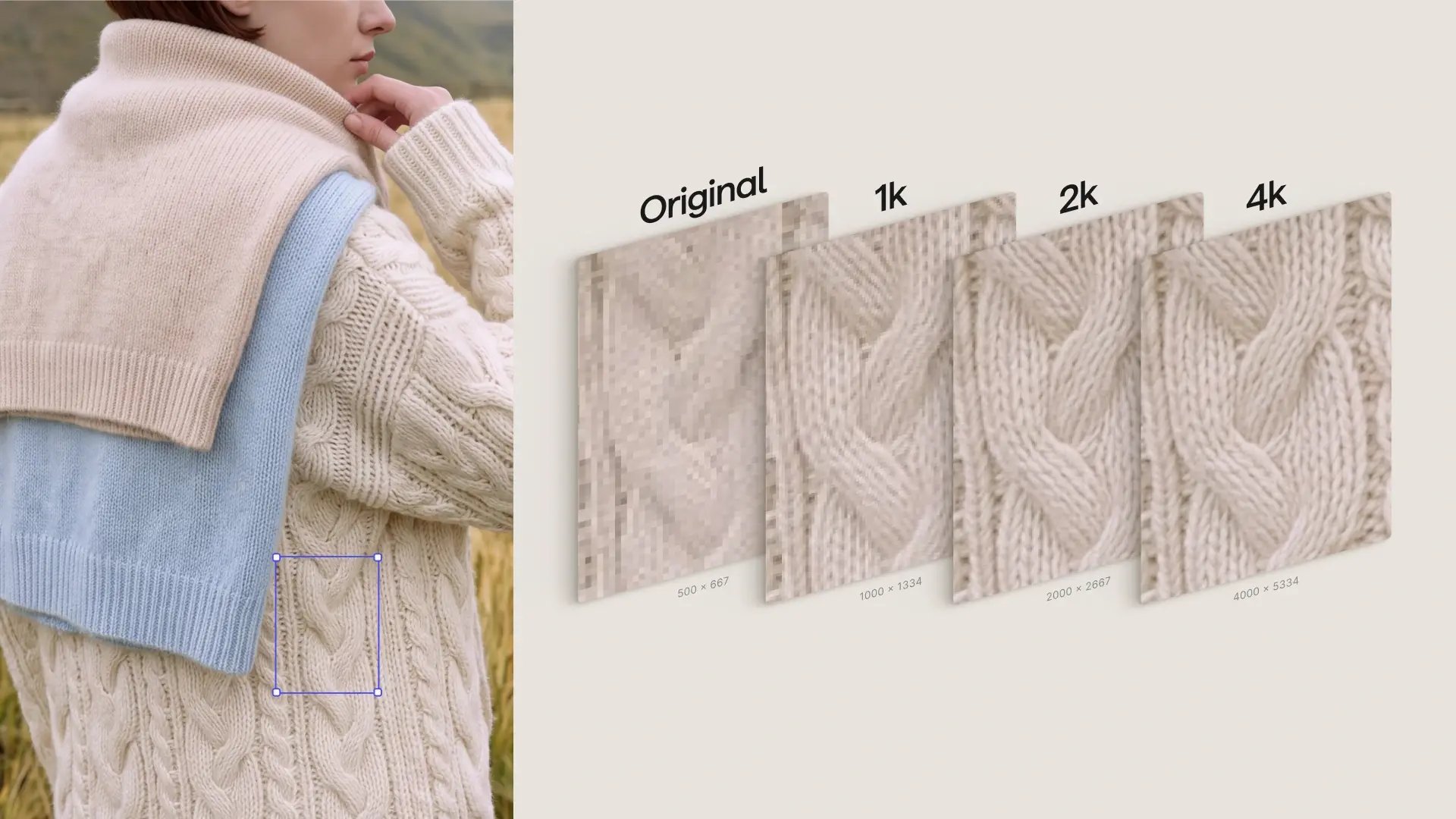
Original, 1K, 2K and 4K: each step resolves more of the knit.
Export an image
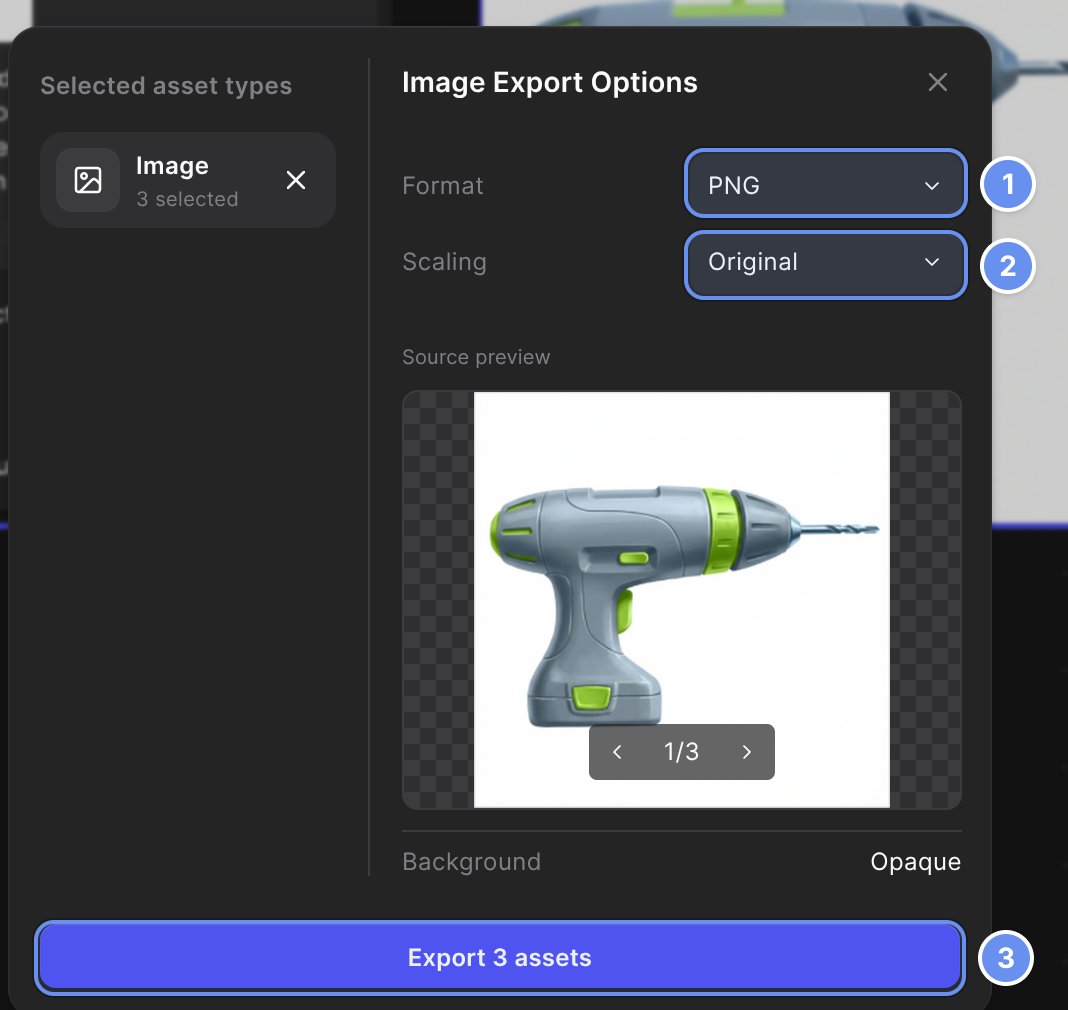
The export window: Format (1), Scaling (2) and the Export button (3).
1
Open the export window
Select images and click Export at the top right. With nothing selected, it exports every image and video.
2
Pick a format
Choose a Format 1, such as PNG, JPEG or SVG.
3
Pick a scaling option
Keep Original 2, or pick an upscale size.
4
Export
Click Export N assets 3. Several files download as a .zip.
Scaling: upscale on export
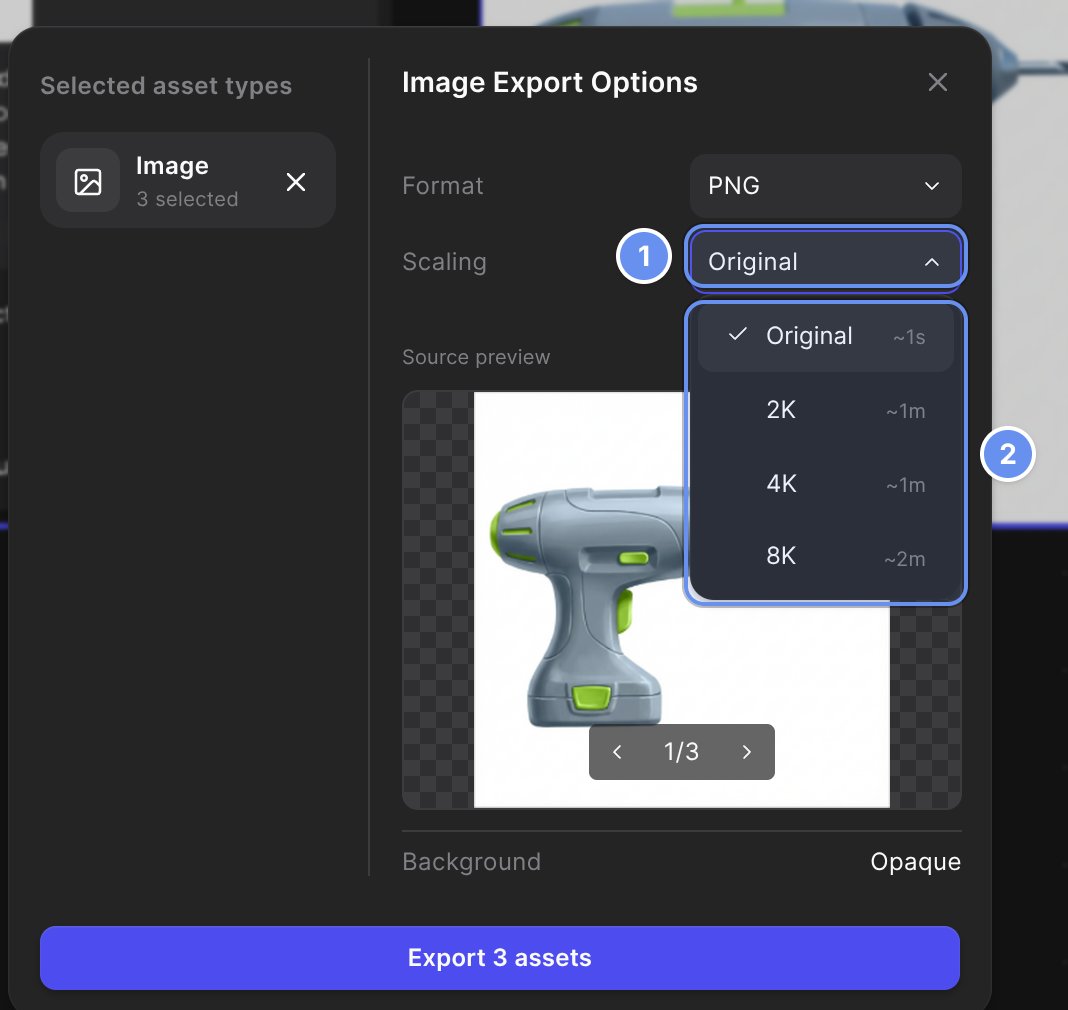
Open Scaling (1) to pick an upscale size (2).
Export a video
Select the video > Download > Export…. Choose MP4 at Original, 2K or 4K (15 or 32 credits per second to upscale), or GIF.3D models
Export on paid plans as OBJ, FBX, GLB, STL or USDZ. There’s no SketchUp, STEP or IGES export. See Make 3D from 2D.Other finishing tools
Enhance, in Studio’s Adjust tab, sharpens a layer. Remove Background is in Quick actions. See Upscale and clean up.Good to know
- Upscale last. Small text and fine lines can change.
- Exports keep running after you close the window. Follow them in the Export queue.
- Viewers export at Original only.
Related
Export
Every export option.
File formats
Every format and limit.
Make 3D from 2D
Generate and export 3D models.
Collaborate
Share a link instead.