

Accept an invite
1
Open the invite email
Find the email from [email protected], checking spam if needed.
2
Click the link in the email
Click Join workspace. Some company workspaces go straight to sign-in.
3
Sign in with the invited email
Use exactly the address the invite was sent to.
4
Enter your name
Type your Full name. Others see it on your cursor and files.
Join with your work email
- Sign in at app.vizcom.com with your work email.
- On Join an existing workspace, click Open to join, or Request to join and wait for an admin to approve you.
Sign in with SSO
- Click Continue with SSO and enter your work email.
- Sign in on your company’s page, such as Okta or Microsoft Entra ID.
Sign in with email
Choose Continue with email. Forgot password? sends a reset link.Switch between workspaces
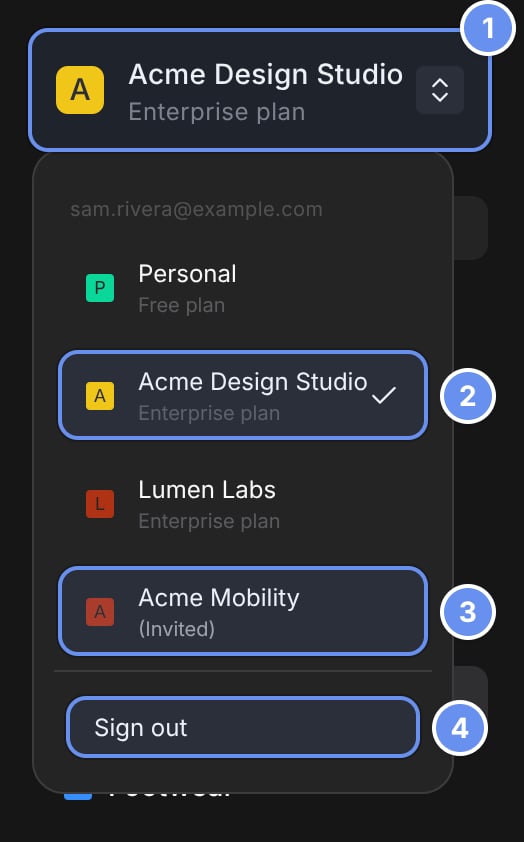
The workspace name (1) opens your workspaces (2), pending invites (3) and Sign out (4).
If you can only view files
Your role is Viewer: Create new file reads New file and is grayed out. Ask a Workspace Admin to change your role. See Roles and permissions.Problems joining
- No invite email: check spam, then ask your admin to check the address and resend.
- “Cannot accept invite for a different email address.”: click Logout and sign in with the invited address.
- “No SSO enabled workspace was found” or “Join your workspace to start using Vizcom”: ask your admin to invite you.
Related
Quickstart
Make your first render.
Files and folders
Find your way around the home page.
Teams
Join the teams you’ll work in.
Roles and permissions
What each role can do.