Show a file to anyone with a view-only link, and edit it with teammates through a team.
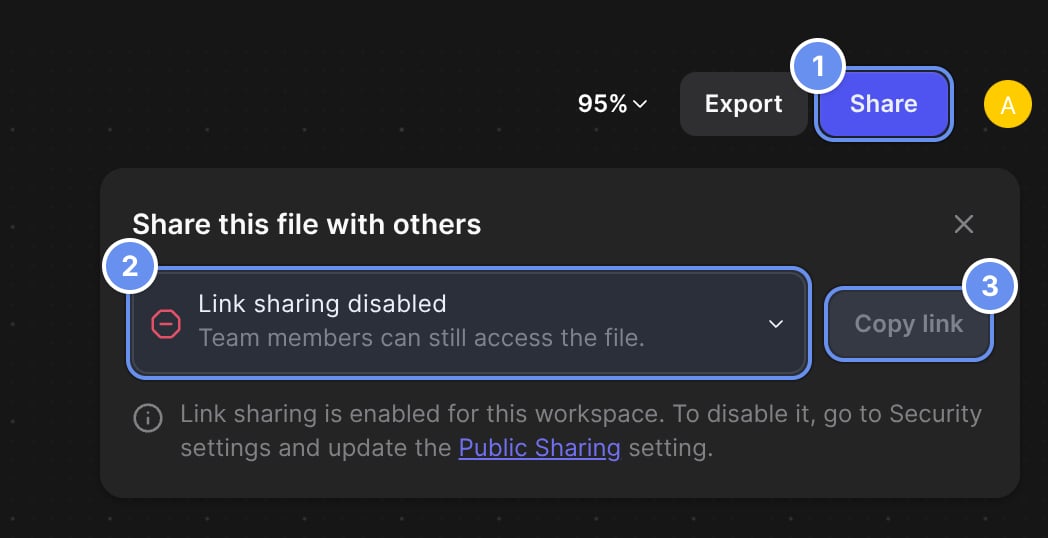
The Share this file with others panel below the Share button, marked 1. The link menu, marked 2, reads Link sharing disabled, Team members can still access the file. Copy link is marked 3. A note says link sharing is enabled for this workspace and links to the Public Sharing setting.

Share (1), who can open the link (2), and Copy link (3).

Who can open and edit a file

1

Open Share

Click Share 1 at the top right, in the Workbench or Studio.
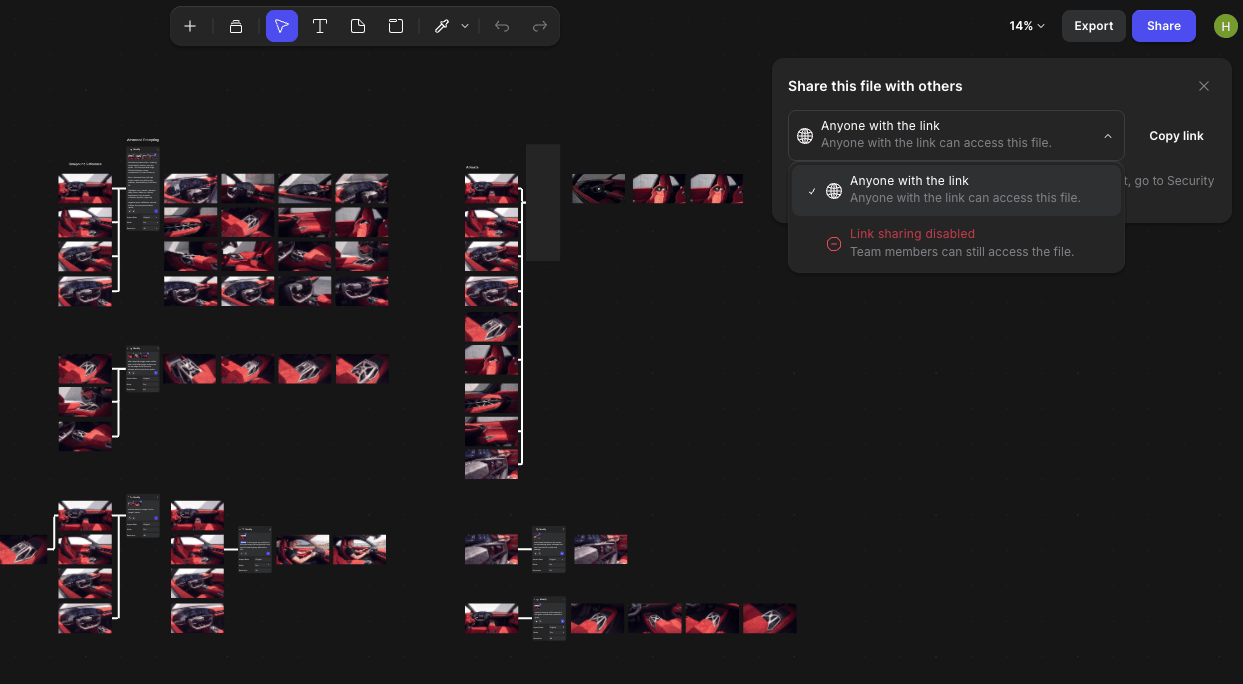
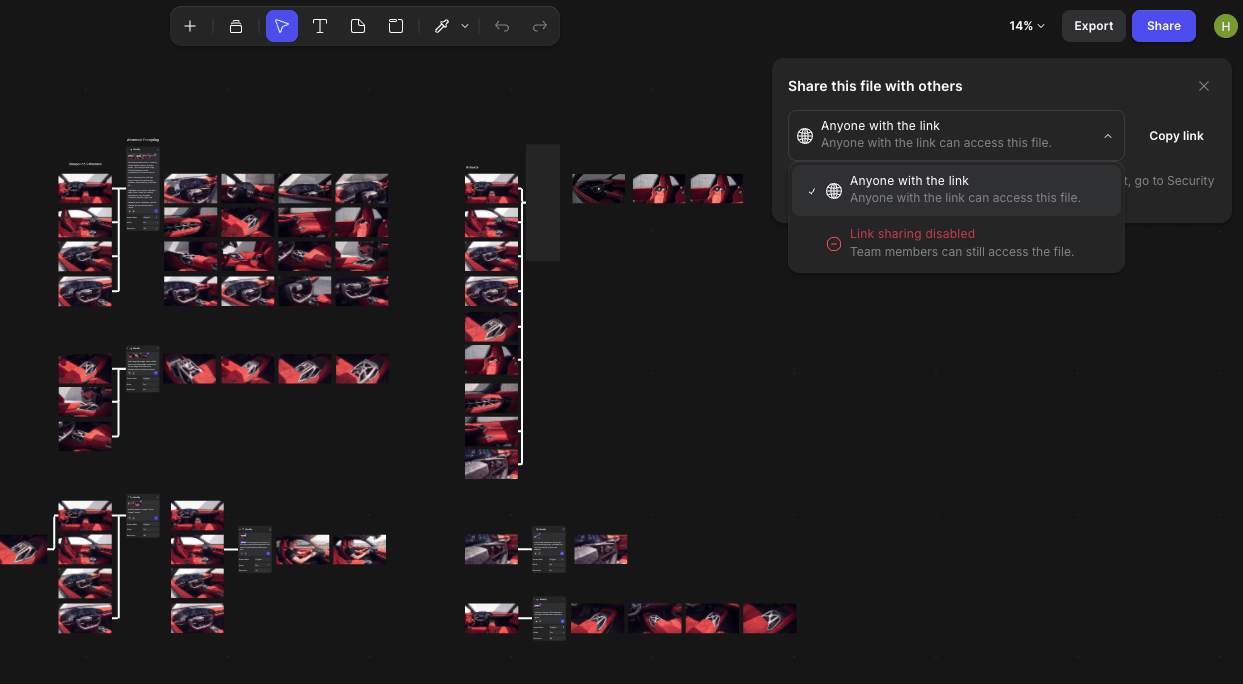
The Workbench with the Share this file with others panel open at the top right and its menu showing Anyone with the link and Link sharing disabledThe Workbench with the Share this file with others panel open at the top right and its menu showing Anyone with the link and Link sharing disabled
2

Turn on the link

Choose Anyone with the link 2.
3

Copy the link

Click Copy link 3.
People with the link can look around and download images, but can’t change anything. To stop sharing, choose Link sharing disabled; the link stops working at once.

Give teammates access with a team

1

Put the file in a team

On the home page, right-click the file, choose Move and pick a team.
2

Check your teammates are on the team

Everyone is on the workspace-wide team. For smaller teams, see Teams.
3

Open the file together

Teammates find it in the team or with Search all files.

Work together in real time
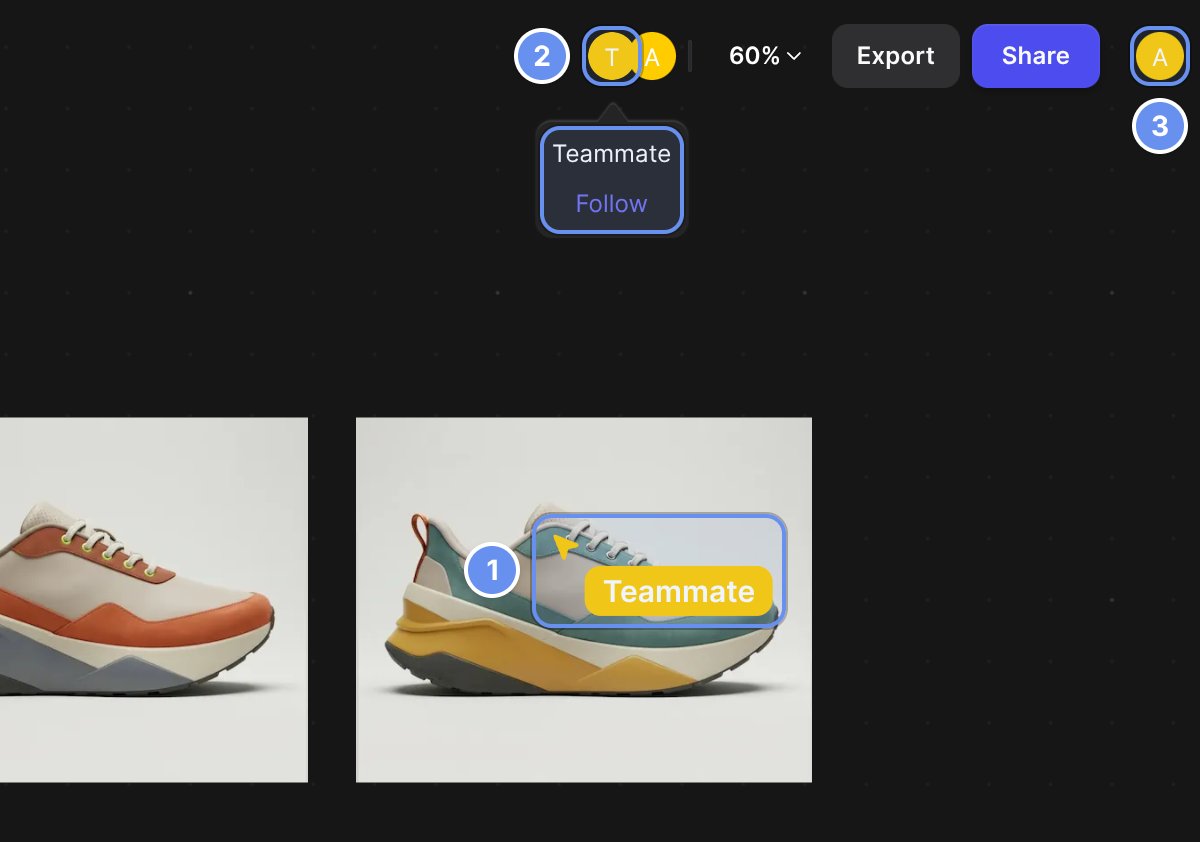
The top right of the Workbench in a file named Trail runner, with running shoe colorway renders on the canvas. A teammate's yellow cursor labeled Teammate points at a render, marked 1. At the top right, the avatars T (the teammate) and A (you) sit left of the zoom menu, Export and Share. The teammate's avatar is marked 2, and its tooltip shows the name Teammate and a Follow link. Your account avatar at the far right is marked 3.

A teammate's cursor (1), their avatar to follow (2), and your own avatar (3).

  • Follow someone: click their avatar 2. Your view moves with theirs, into Studio too.
  • Point at something: select it and press ⌘/Ctrl + L to copy a link to it.
  • Leave a note: press N for a sticky note.
Changes save automatically. Files have no comments or chat, so use sticky notes.

Good to know

  • Present by having reviewers follow you through the canvas.
  • Viewer seats are free and can’t change anything by accident.
  • Turn the link off after a client review.

Organize your work

Files, folders and teams.

Share

Every Share option.

Teams

Find and join teams.

Roles and permissions

What each role can do.