

Understand and customize your creative interface
Switch between focused drawing and infinite canvas views, and customize your layout to match your workflow.When to use the Creative Interface
Vizcom provides two main creative interfaces designed for different stages of the design process:- a focused drawing environment
- a flexible infinite canvas view.
Layouts Overview
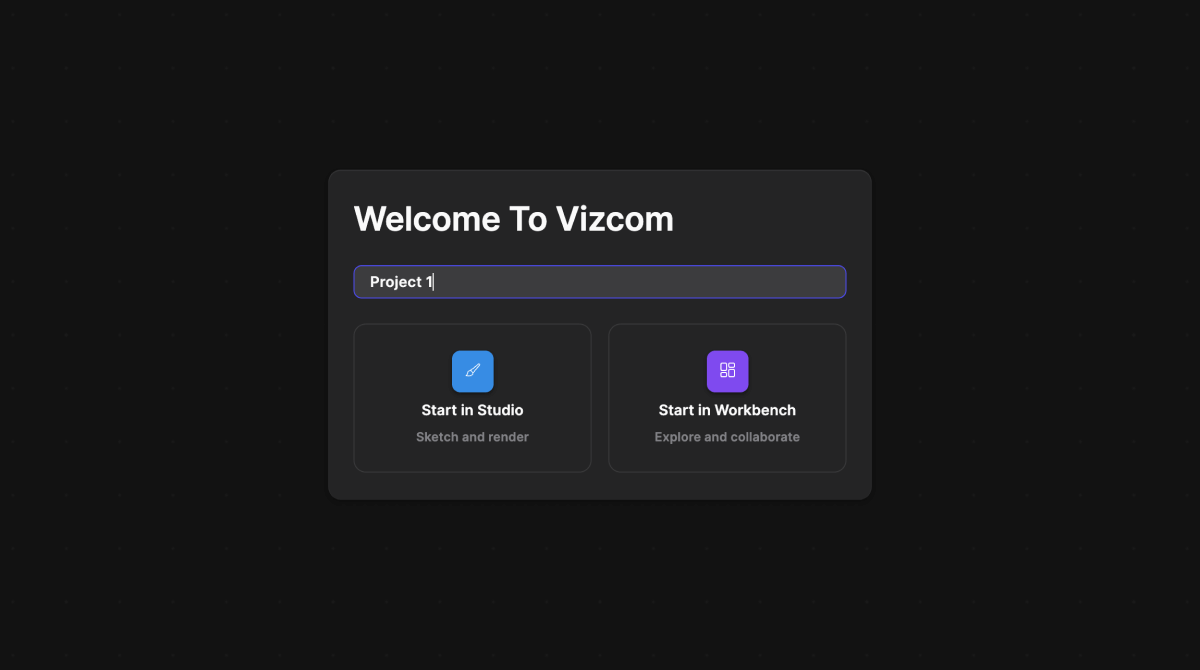
- Choose between the two main interfaces.
- Studio interface (Brush Studio): Focused drawing and rendering environment
- Workbench interface: Infinite canvas for organizing and exploring concepts
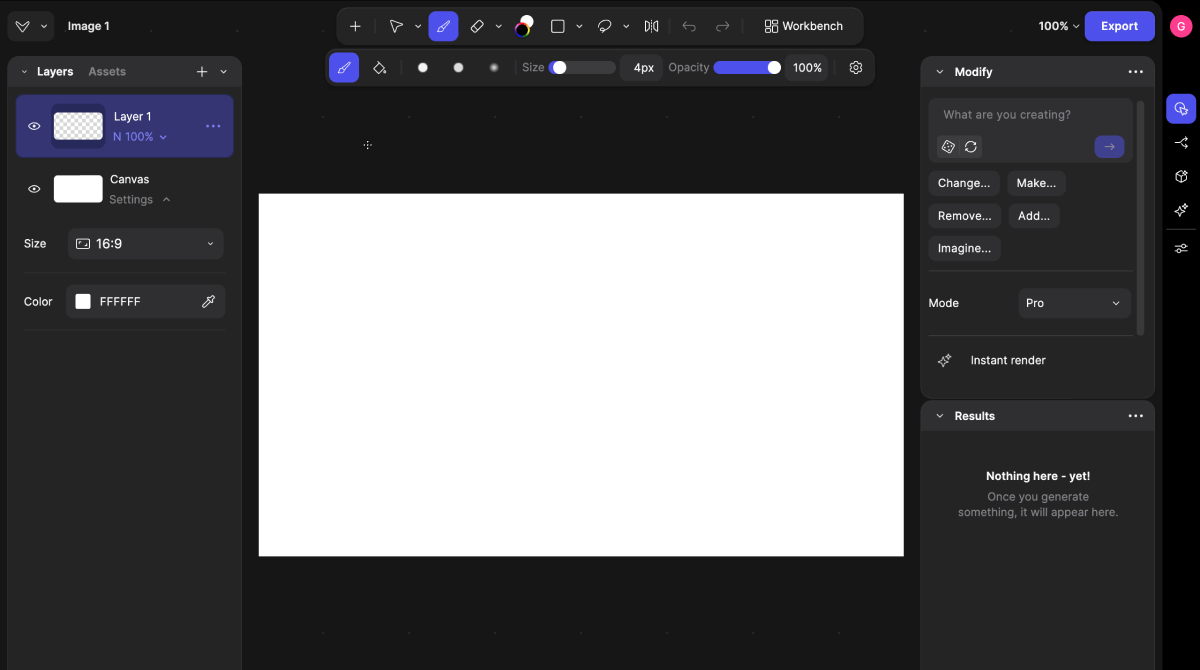
2. Open the Studio interface layout options.
-
Click the Vizcom logo in the Home panel to access layout settings.
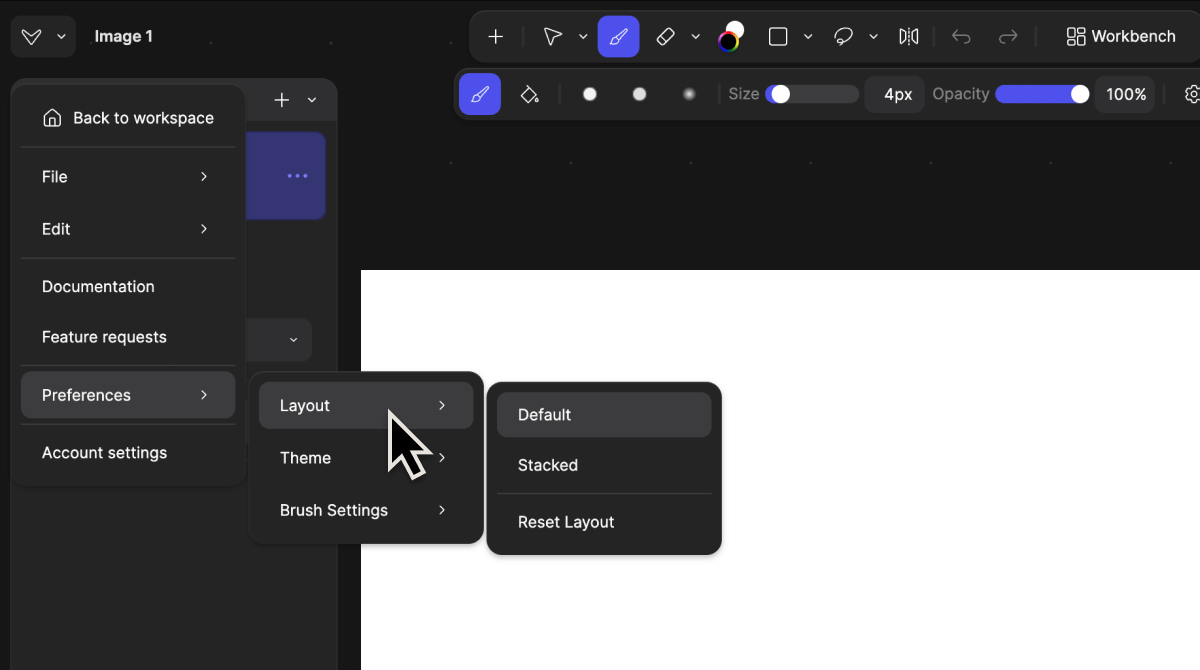
- Select the layout that fits your workflow.
-
You can choose from three layout options:
Default: Best for workflows involving image uploads, layer management, and rendering.
Classic: Provides more space for sketching, but Create and Layers panels are not visible at the same time. Stacked: Places Create and Layers panels vertically so both remain visible.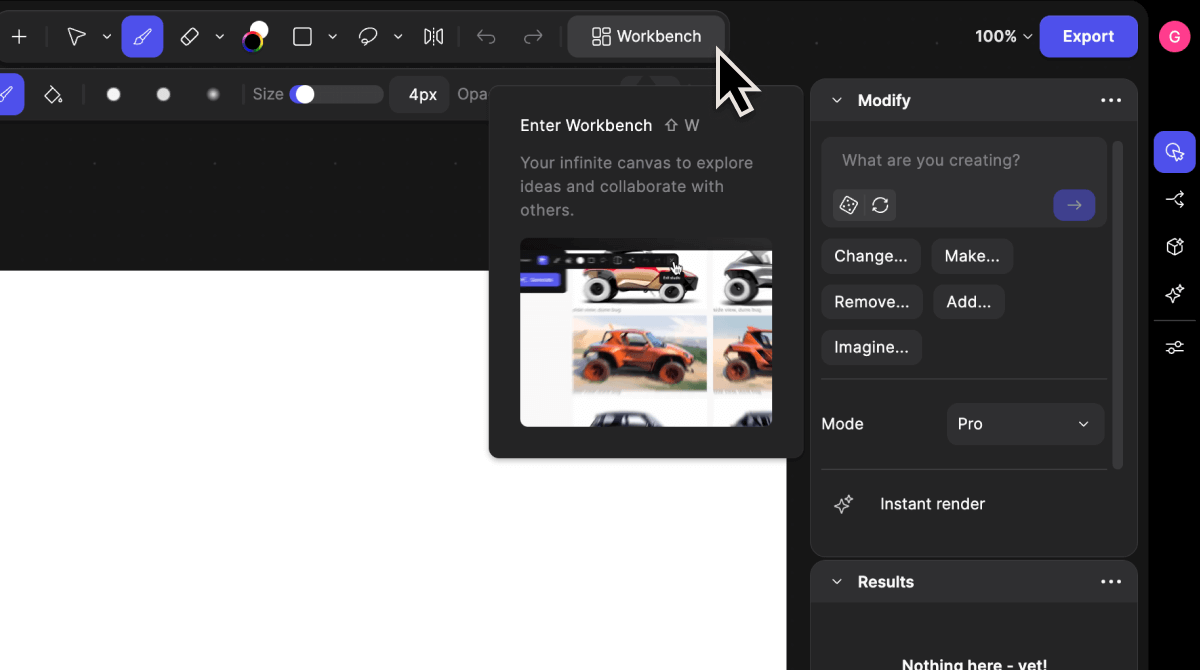
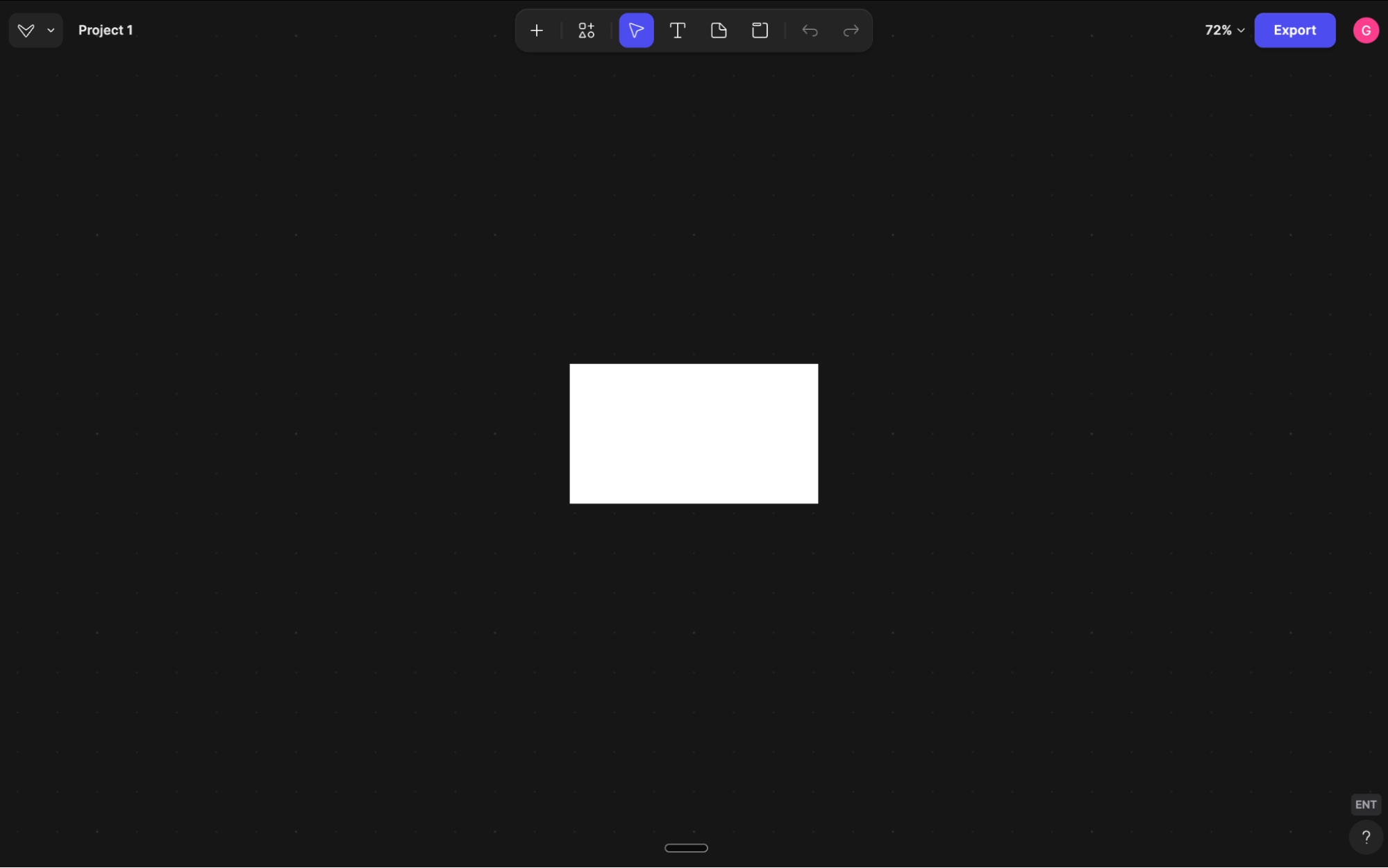
4. Switch to the Workbench interface when needed. - Use Workbench for an infinite canvas view to organize, review, and explore multiple concepts.
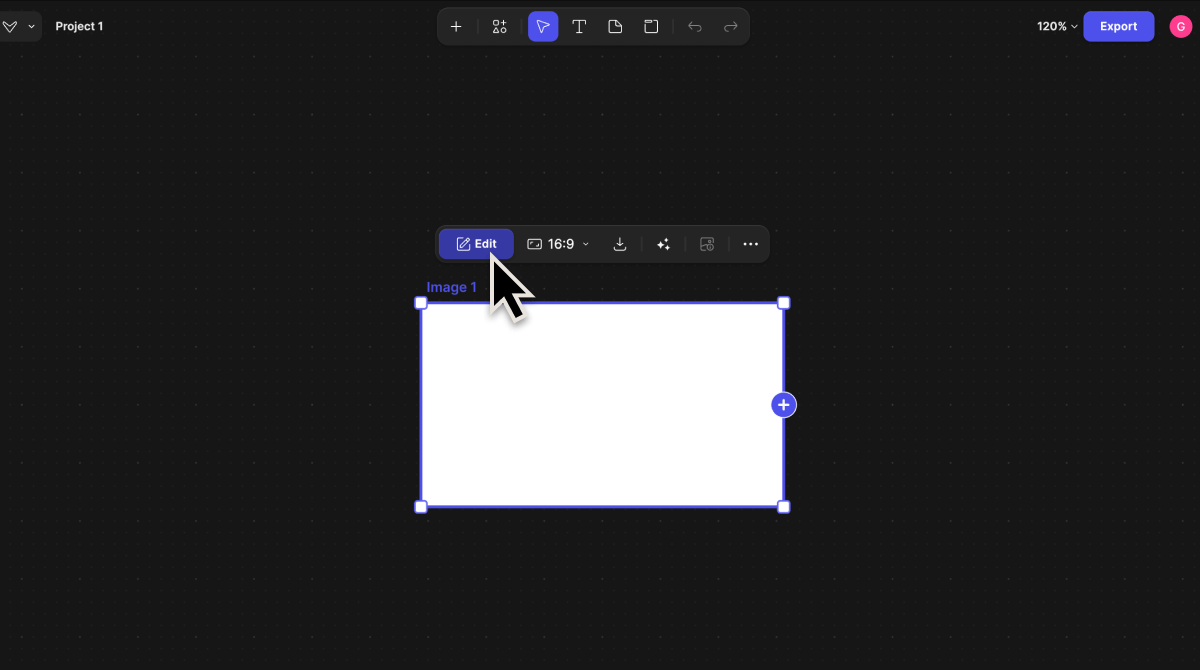
- To go back to the studio, double click on the canvas, or click the dedicated “Edit”
Tips
Customize your interface to improve speed and comfort to:- Optimize space for sketching or rendering
- Improve visibility of layers and tools
- Adapt the interface to your workflow
- Switch between focused creation and concept exploration