

What are my files?
My Files is a personal, private directory available to every member. Files saved here are only visible to you — no one else in your workspace or team can access them unless you choose to share or move them. Think of My Files as your drafts folder. It’s the right place to explore ideas, start new projects, and iterate freely without your work being visible to the rest of your team. When you’re ready to collaborate, you can move files into a shared team space. Access My Files from the left sidebar at any time.How to use My Files
Creating a new file1
Navigate to My Files from the left sidebar.
2
Click the Create new file button to start a new file.
3
Your file will be saved automatically to My Files.
1
In My Files, create a folder to group related files together by clicking New Folder at the top right
2
Drag and drop files into folders to organize your workspace.
3
Click into a folder to view its contents.
1
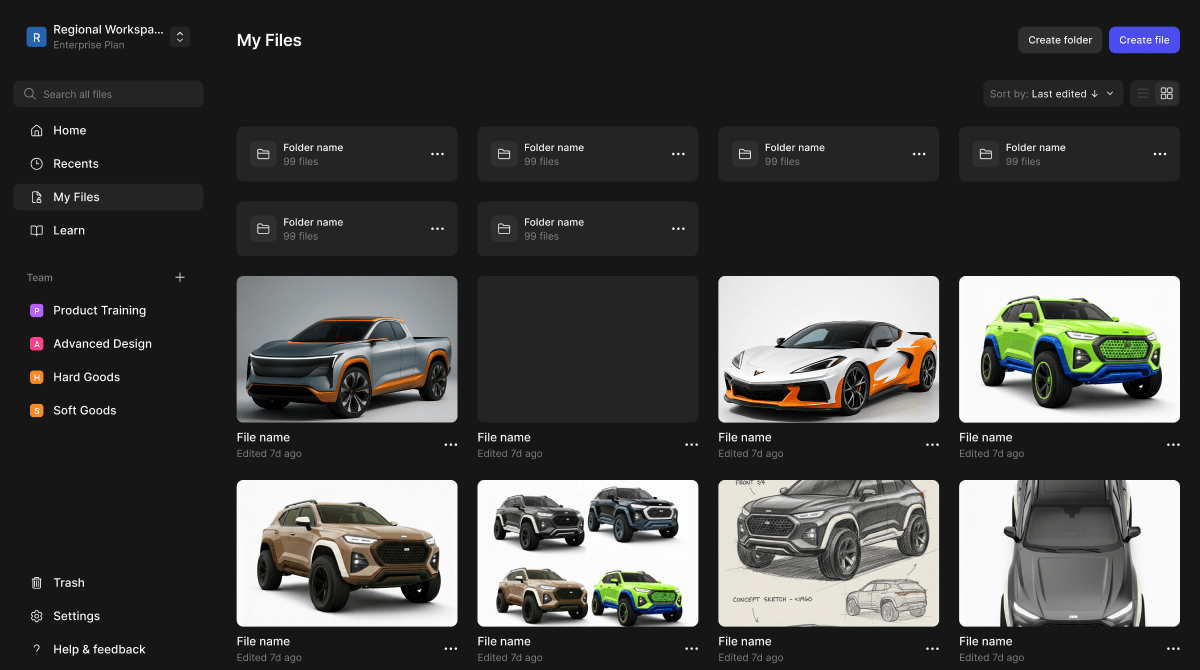
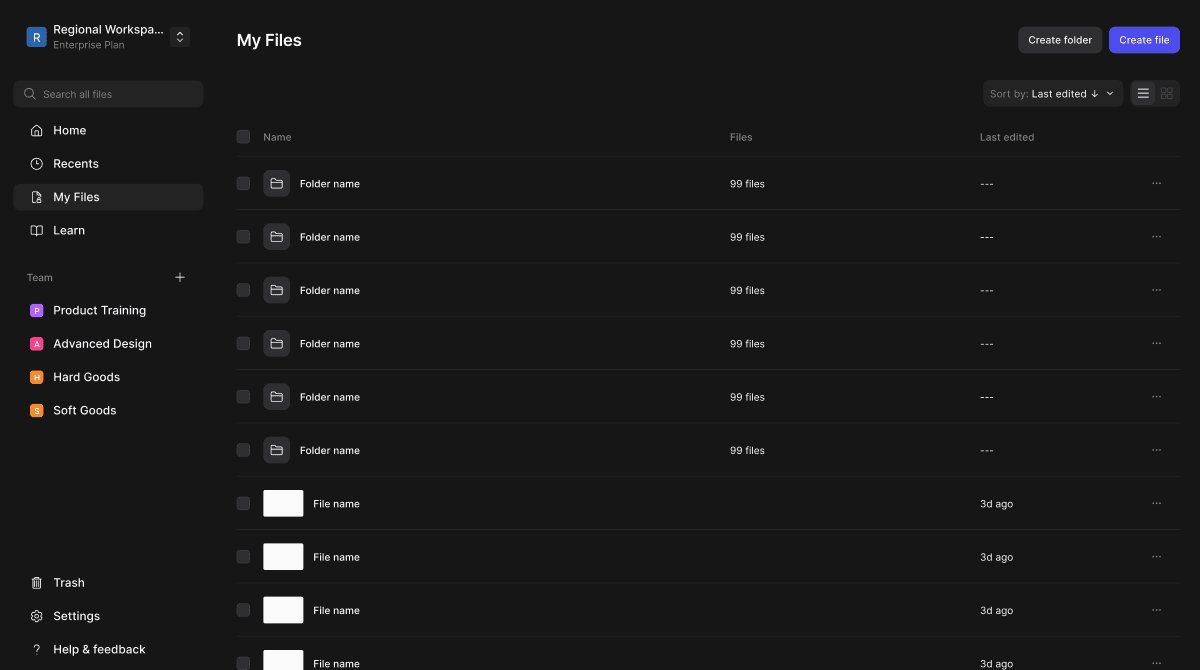
Use the view toggle in the top right to switch between Grid view and List view.
2
Grid view displays files and folders as visual thumbnails.
3
List view displays files and folders in a condensed, scannable list.
1
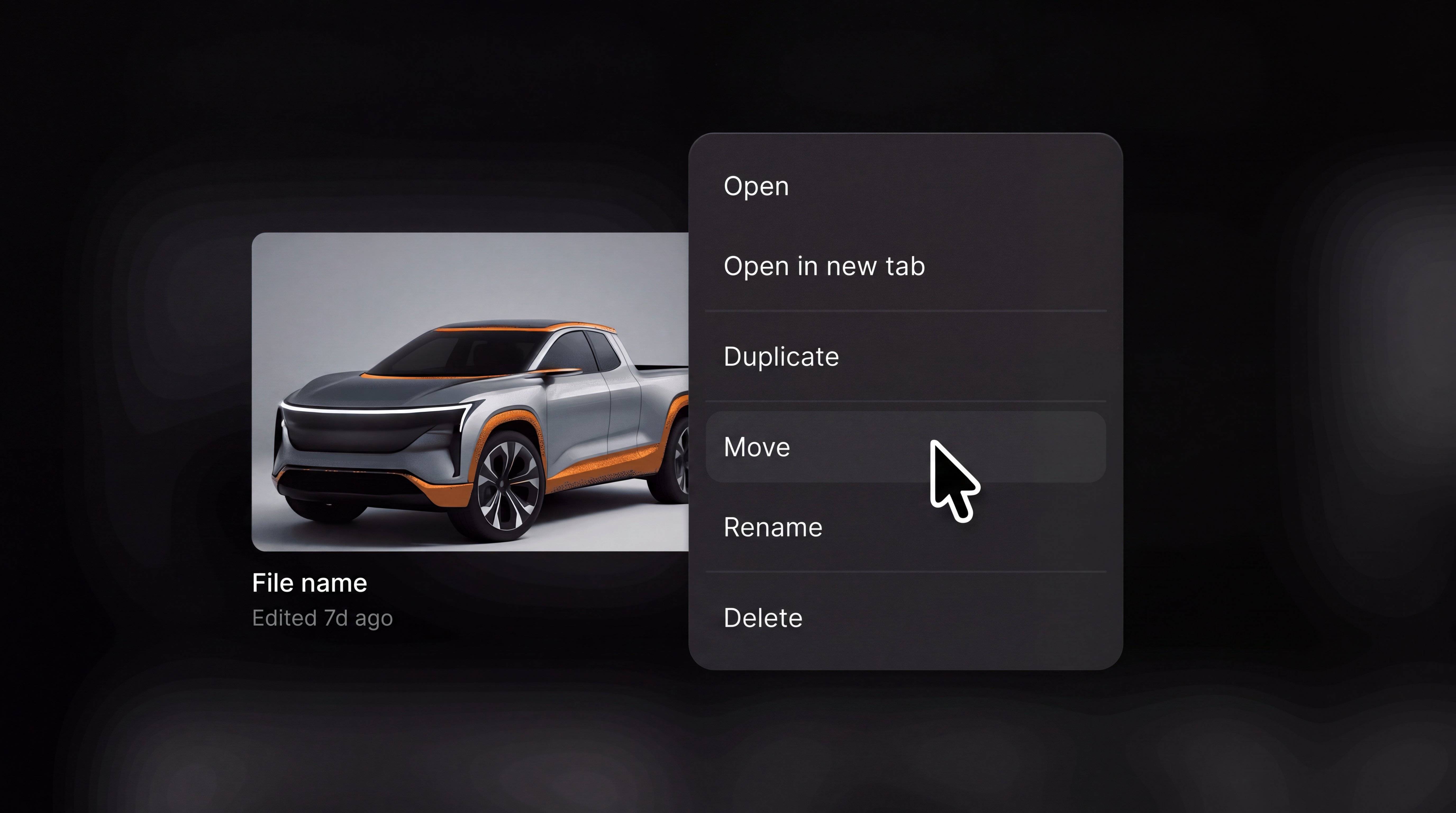
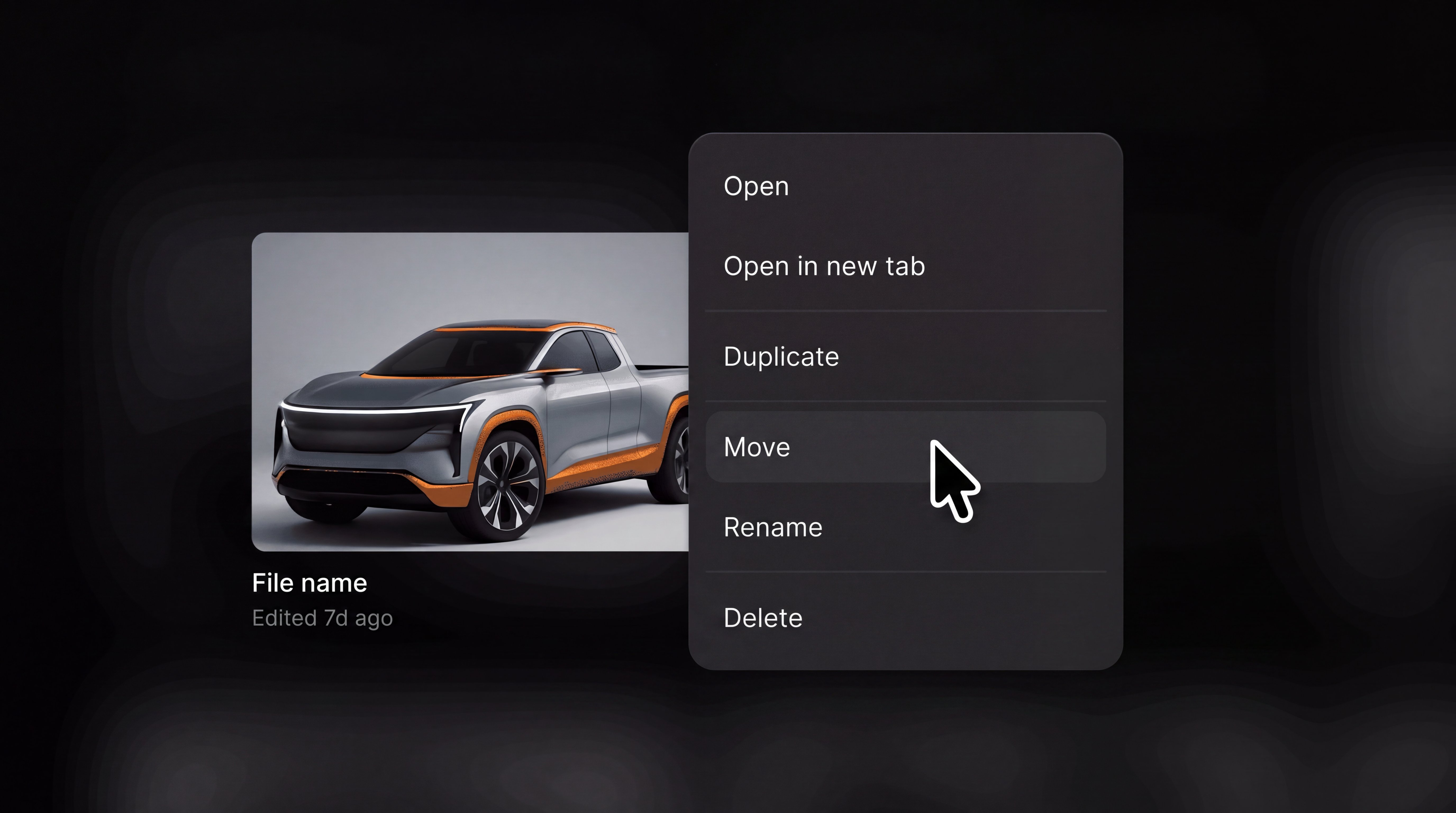
Click the 3-dot menu icon to open up the options for managing the file.
2
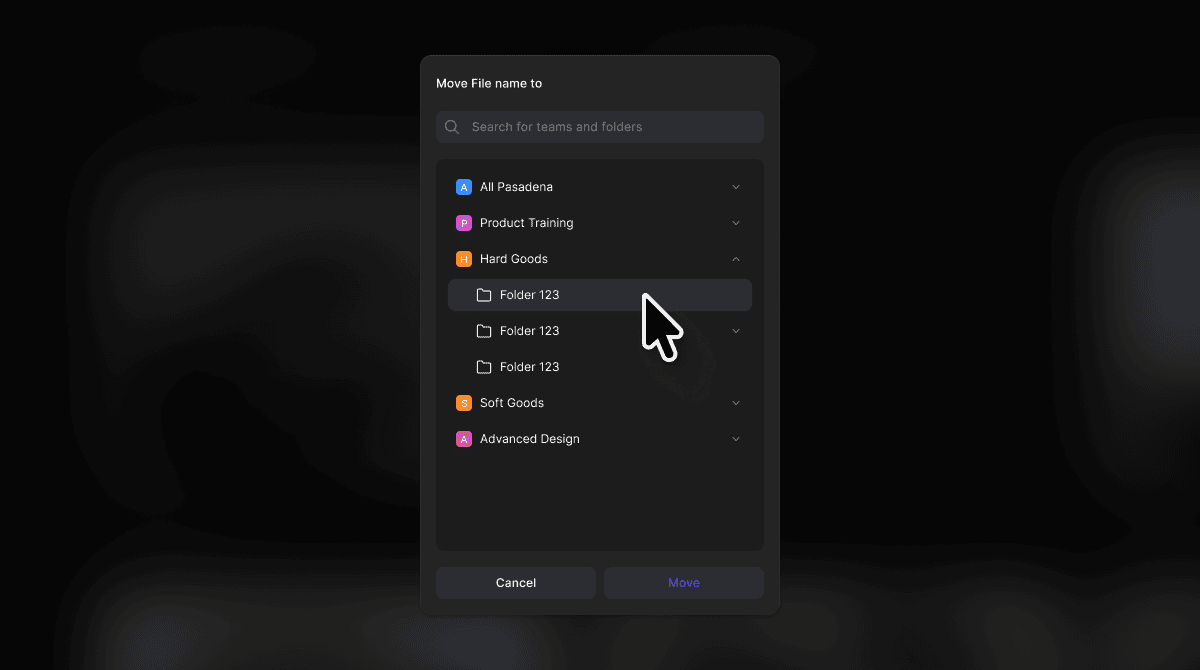
Choose the option to move it to a team workspace when you're ready to share it.
Core Features
Private Directory
- My Files is entirely private. Only you can see and access files stored here. No other members, team admins, or workspace admins have visibility into your personal files.
Files and Folders
- Organize your work using folders within My Files. Folders help you group projects or separate work by theme, client, or phase. When you open a folder, the view updates to show only its contents.
Grid and List View
- Toggle between Grid and List view to browse your files in the way that works best for you. Grid view is ideal for visually identifying files by thumbnail. List view is better for quickly scanning a large number of files.
Tips & FAQ
FAQ
- Can anyone else see my files in My Files?
- No. My Files is completely private. Only you have access to files stored here.
- How do I share a file from My Files with my team?
- Move the file into a shared team workspace. Once moved, team members can see it.
Next Steps
- Move files into a team workspace when you’re ready to collaborate.
- Use Recents in the left sidebar to quickly get back to files you’ve been working on.
- Organize your work into folders to keep My Files easy to navigate as your library grows.