

What is a Workspace?
A Workspace is the top-level environment for your organization in Vizcom. Everything your organization does in Vizcom — creating files, managing teams, running AI generations, and configuring security — happens within a workspace. Every member of your organization belongs to a workspace. What each member can see and do within the workspace depends on their role. Org Admins and Workspace Admins have full access to workspace settings and management. Billing Admins have access to member management and billing. Editors and Viewers can access teams and files but have no access to workspace-level settings. Use workspace settings to manage your organization’s members, teams, styles, security policies, data, and subscription plan.How to use a Vizcom Workspace:
Accessing Workspace Settings (Org Admins and Workspace Admins only):1
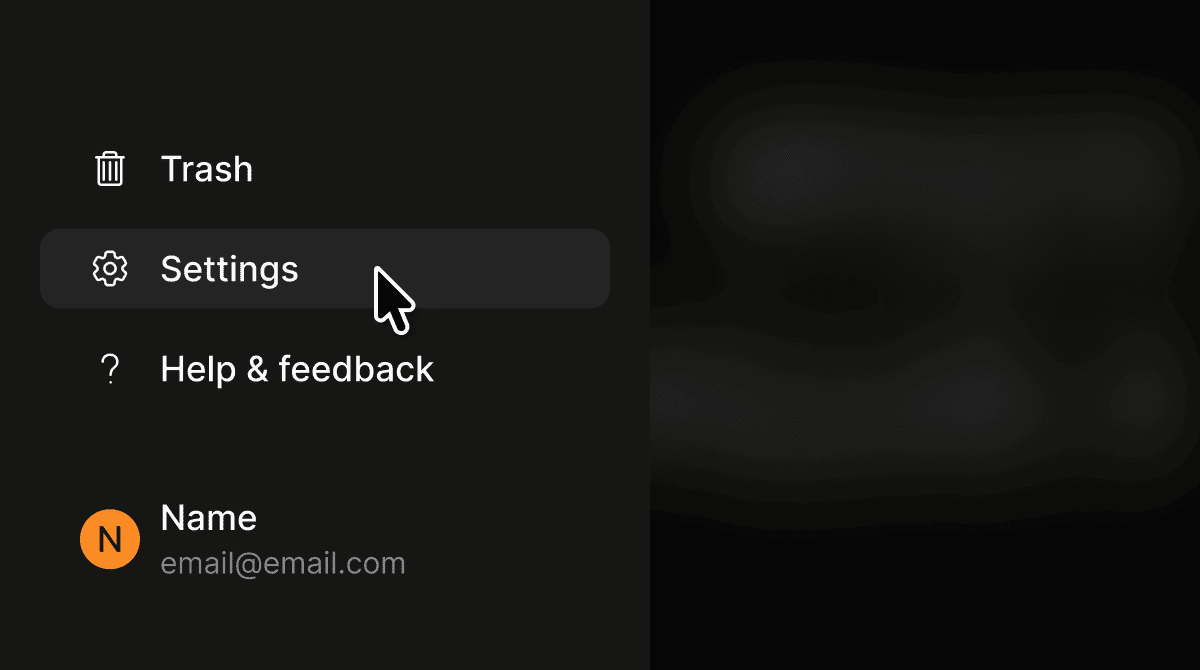
Click Settings in the bottom of the left sidebar.
2
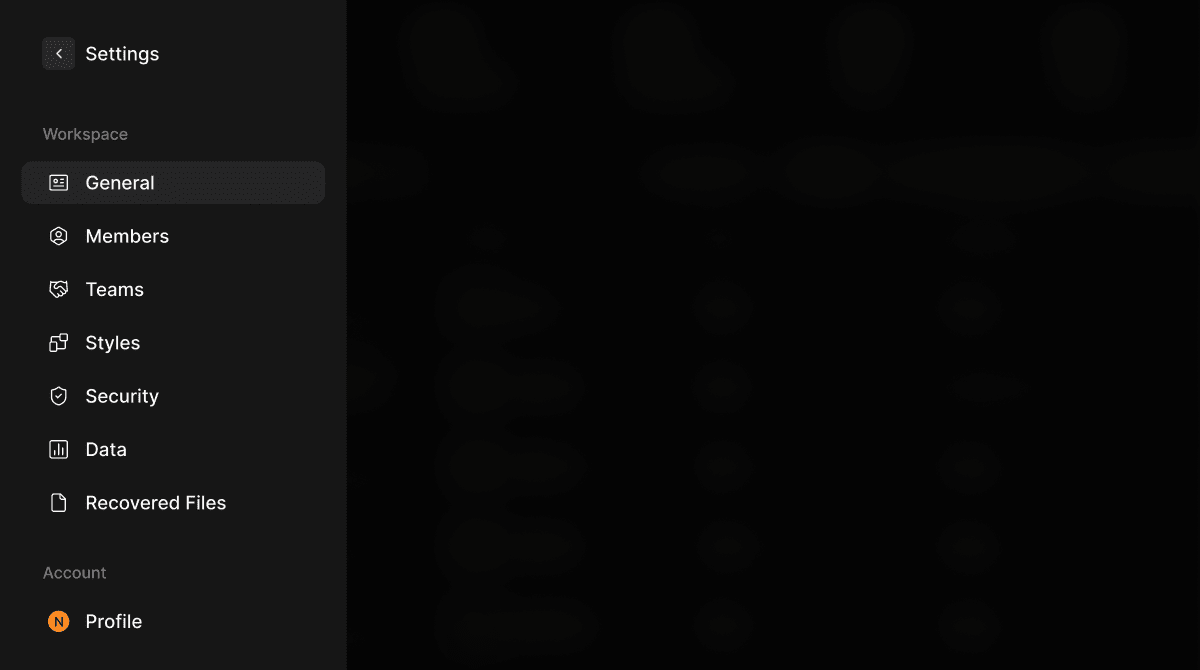
The Settings sidebar opens under the Workspace section, with access to General, Members, Teams, Styles, Security, Data, Recovered Files, and Plans & Billing.
1
Select any item in the Workspace section of the Settings sidebar to navigate to that page.
2
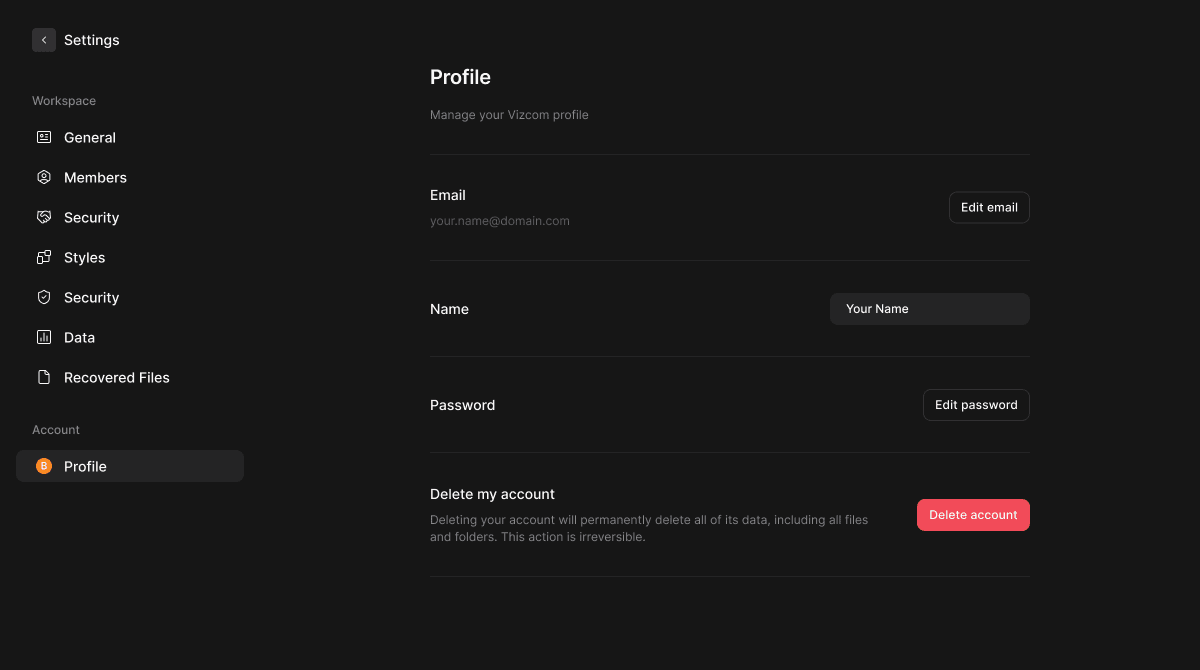
Under Account, select Profile to manage your personal account settings.
Core Features
Home
- The workspace Home page is visible to Org Admins and Workspace Admins only. It provides a high-level view of organization-wide generation activity and a snapshot of all teams, including member and file counts. See the Workspace Home documentation for full details.
Members
- Manage all members across the workspace from one centralized page. View member roles, team assignments, and activity. Invite new members, update roles, and export member data. Available to Billing Admins, Workspace Admins, and Org Admins. See the Manage Members documentation for full details.
Teams
- Create and manage the teams that organize your workspace. Each team has its own shared file library, member list, and settings. Workspace Admins and Org Admins can create teams and manage membership. See the Teams documentation for full details.
Styles
- Manage shared styles available across the workspace.
Security
- Configure security settings for the workspace, including session timeout for Enterprise organizations. Session timeout automatically logs members out after a set period of inactivity. Only Org Admins can configure security settings. See the Session Timeout documentation for full details.
Data
- Browse generation activity, access logs, and activity logs across the workspace. Admins can review per-member generation counts, monitor login history, and audit file-level actions. Data can be exported from the Access logs and Activity logs tabs. See the Data documentation for full details.
Recovered Files
- Access files that have been deleted and are eligible for recovery. Available to Org Admins and Workspace Admins only.
Plans and Billing
- View your organization’s current subscription plan, seat count, and usage. Displays how many seats are in use out of the total available, broken down by Workspace admins and Editors. Available to Org Admins and Workspace Admins.
Learn
- Accessible from the left sidebar, Learn is a library of tutorials and workflow guides to help members get the most out of Vizcom. Content is organized by topic and filterable by Basics and Workflows. Available to all members.
Tips & FAQ
FAQ
- Who can access Workspace Settings?
- The full Settings sidebar — including General, Security, Data, Recovered Files, and Plans & Billing — is only visible to Org Admins and Workspace Admins. Billing Admins can access Members and Data. Editors and Viewers do not have access to workspace settings.
- What is the difference between a Workspace and a Team?
- A Workspace is the top-level environment for your entire organization. Teams are groups within the workspace that organize members and files around a shared focus. Every team lives inside a workspace.
- Can a member belong to multiple workspaces?
- Yes. A member can belong to more than one workspace, and may have different roles in each.
- How do I see how many seats my organization is using?
- Navigate to Settings > Plans & Billing to see your current seat count and how usage is split between Workspace admins and Editors.
Next Steps
- Invite members to your workspace from Settings > Members.
- Create teams to organize your members and files from Settings > Teams.
- Review generation usage across your organization from Settings > Data.
- Configure security policies from Settings > Security.