

When to use the Members Page
The Members page in Settings gives you a workspace-wide view of all members, their assigned roles, the teams they belong to, and when they were last active. What you can see and do on this page depends on your role. Use the Members page when you want to review who has access to your workspace, invite new members, update roles, or export member data. To access Members, go to Settings in the left sidebar and select Members under Workspace.How to manage members
Viewing members:Navigate to Settings and select Members.
The member list displays each person's name, email, team assignments, role, and last active date.
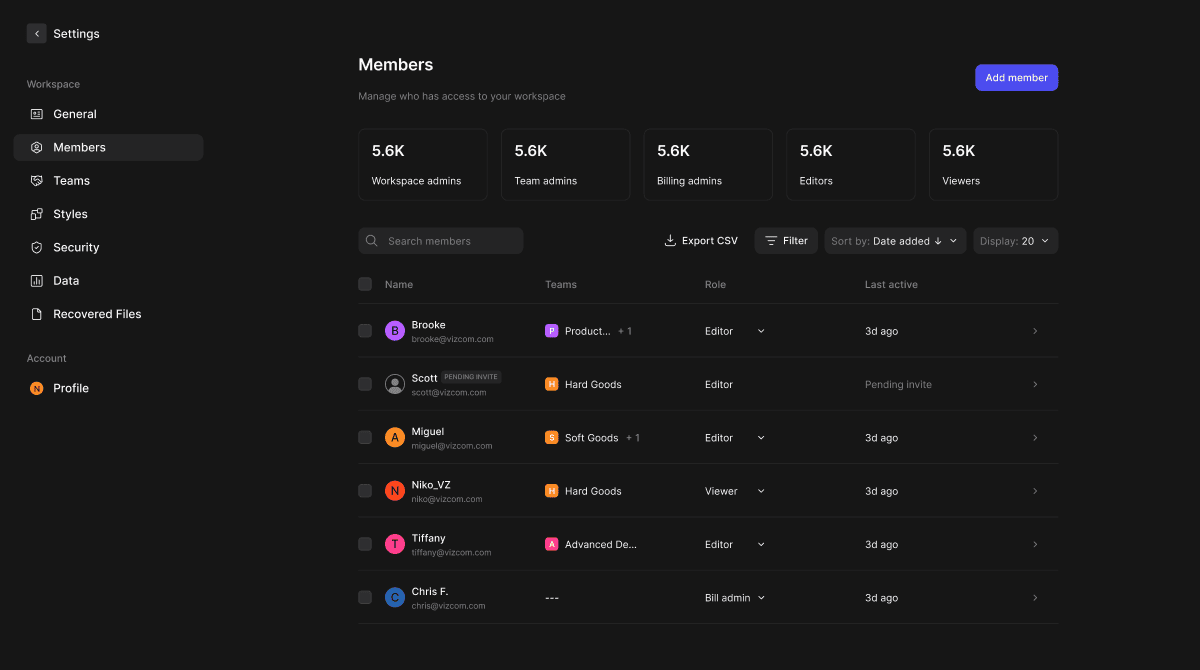
Use the Search members field to find a specific person by name or email.
Use the Sort by dropdown to reorder the list by date added or other available criteria.
Use the Display dropdown to control how many members appear per page.
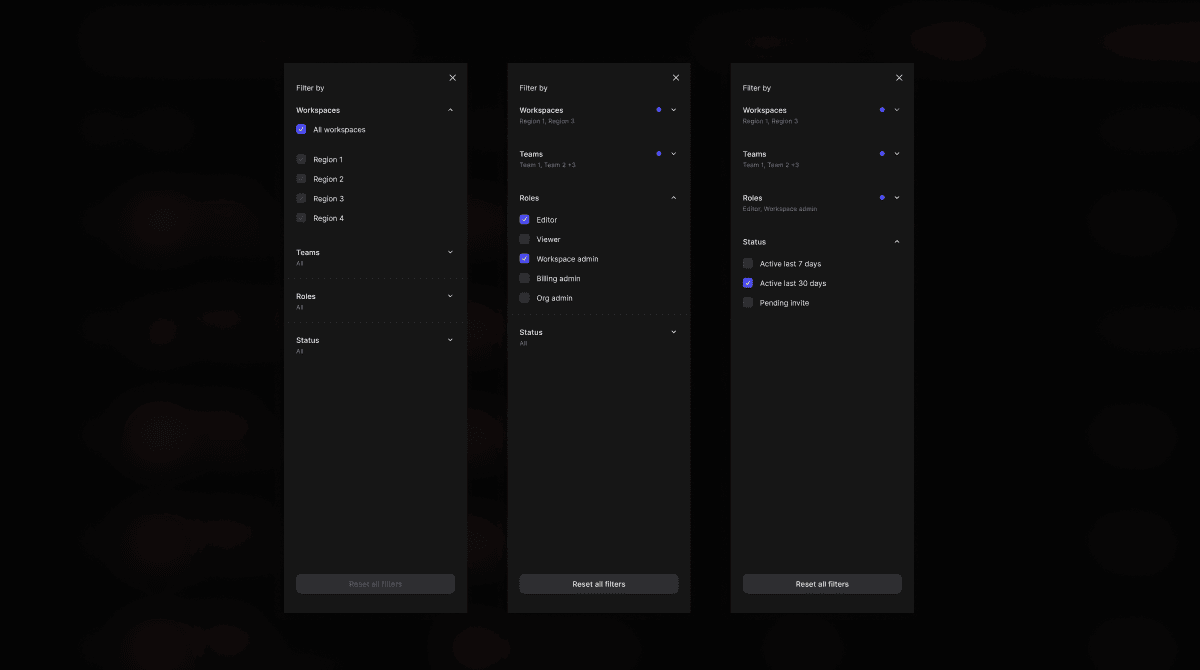
Click the Filter button to narrow the list by role or team.
Click the Add member button in the top right of the Members page.
Enter the new member's email address and assign them a role.
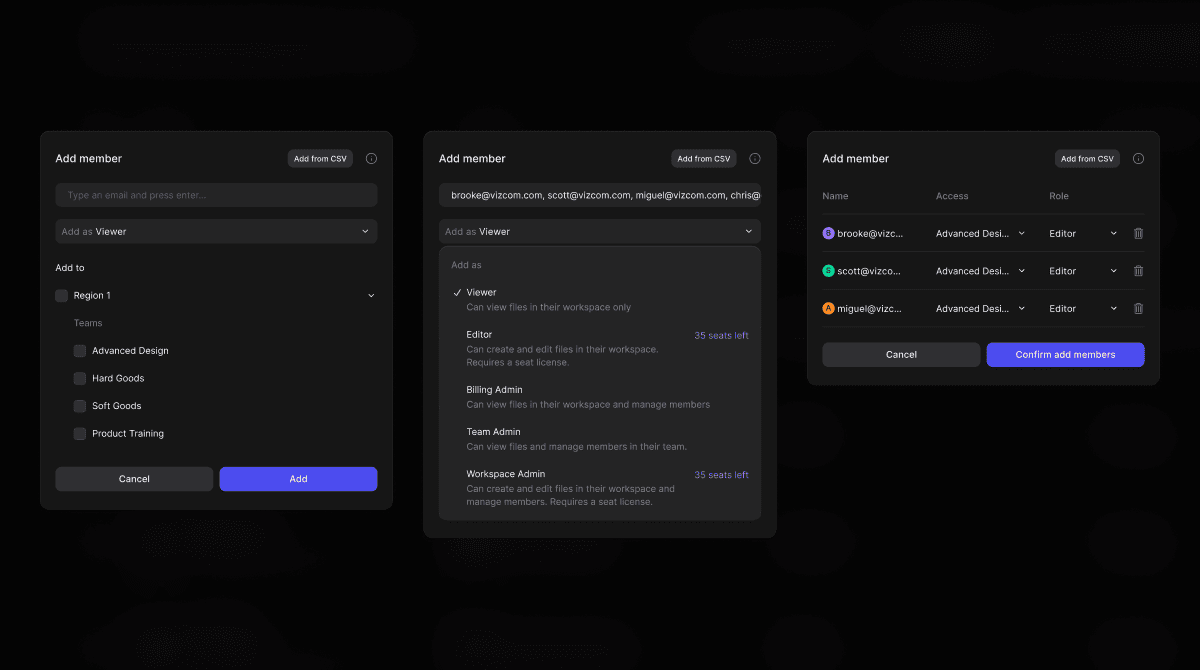
The invited member will appear in the list with a Pending invite status until they accept.
Locate the member in the list.
Click the dropdown next to their current role.
Select a new role from the available options.
Click the Export CSV button above the member list.
A CSV file containing member data will download to your device.
Core Features
Member summary cards
- At the top of the Members page, five summary cards display the total count of members by role: Workspace admins, Team admins, Billing admins, Editors, and Viewers. These give you a quick snapshot of how your workspace is structured at a glance.
Member list
- The member list shows all workspace members with their name, email, team assignments, role, and last active date. Members belonging to more than one team will show their primary team with a count of additional teams (e.g. + 4). Click on any member row to view more detail about that individual.
Role management
- Billing Admins, Workspace Admins, and Org Admins can change a member’s role directly from the list using the inline role dropdown. Role changes take effect immediately.
Pending invites
- When a member has been invited but has not yet accepted, their row will display a Pending invite badge and their avatar will appear greyed out. Their Last active column will show “Pending invite” until they join.
Export CSV
- Billing Admins, Workspace Admins, and Org Admins can export the full member list as a CSV file for reporting or record-keeping purposes.
Tips & FAQ
FAQ:
- Why don’t I see the Add member button?
- The Add member button is only available to Billing Admins, Workspace Admins, and Org Admins. If you have a different role, you will not see this option.
- Why can’t I change someone’s role?
- Role editing is only available to Billing Admins, Workspace Admins, and Org Admins. If you do not have one of these roles, the Role column will appear as static text with no dropdown.
- What does “Pending invite” mean?
- A member showing Pending invite has been sent an invitation to join the workspace but has not yet accepted it. They will not have access until they complete the sign-up process.
Next Steps
- Navigate to Teams in Settings to manage team membership and structure.
- Use the Add member button to grow your workspace.
- Use Export CSV to share a member report with your organization or finance team.