

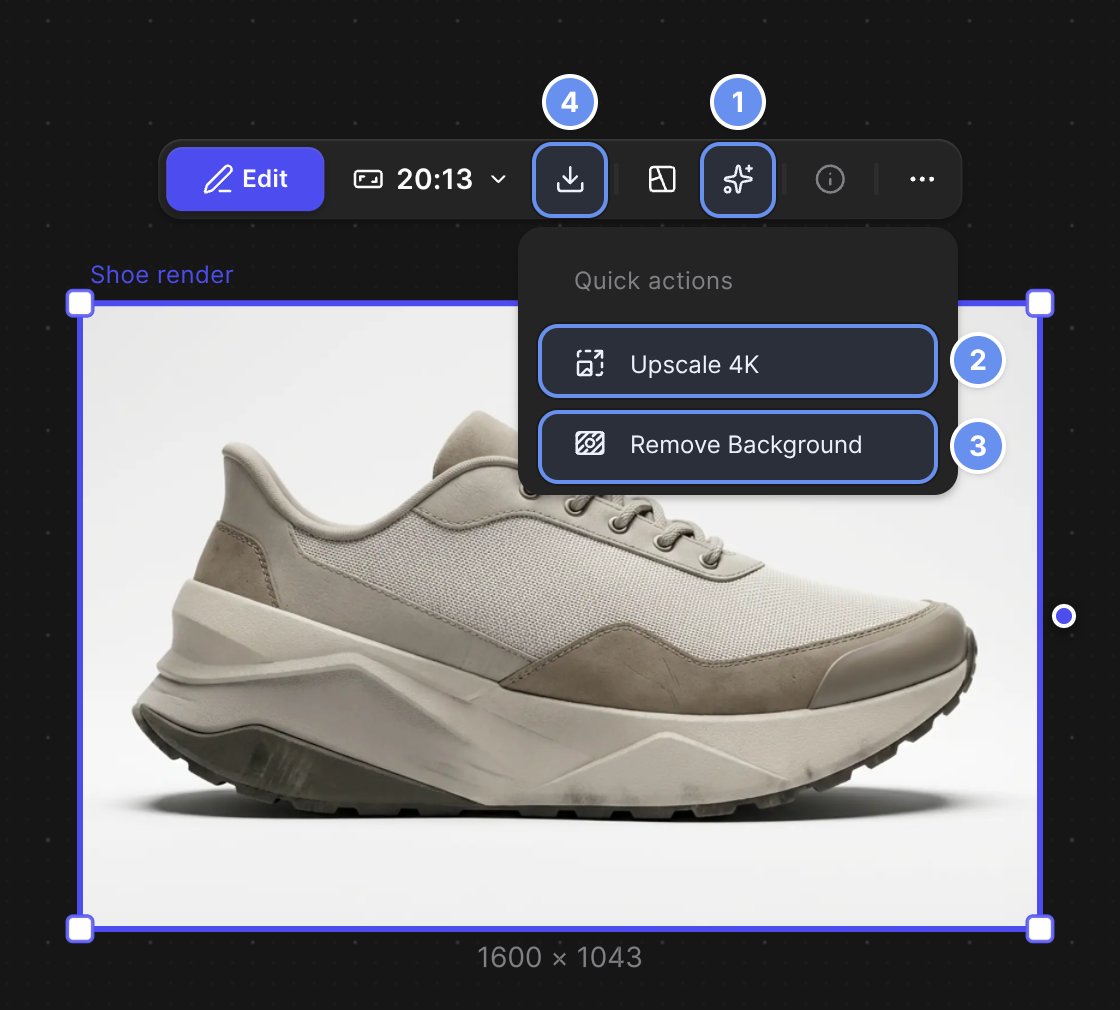
Quick actions (1), Upscale 4K (2), Remove Background (3), Download (4).
Upscale or remove a background on the Workbench
1
Open Quick actions
Select an image and click Quick actions 1.
2
Pick an action
Click Upscale 4K 2 or Remove Background 3.
3
Find the result
Look to the right of the original, which stays unchanged.
Clean up in Studio
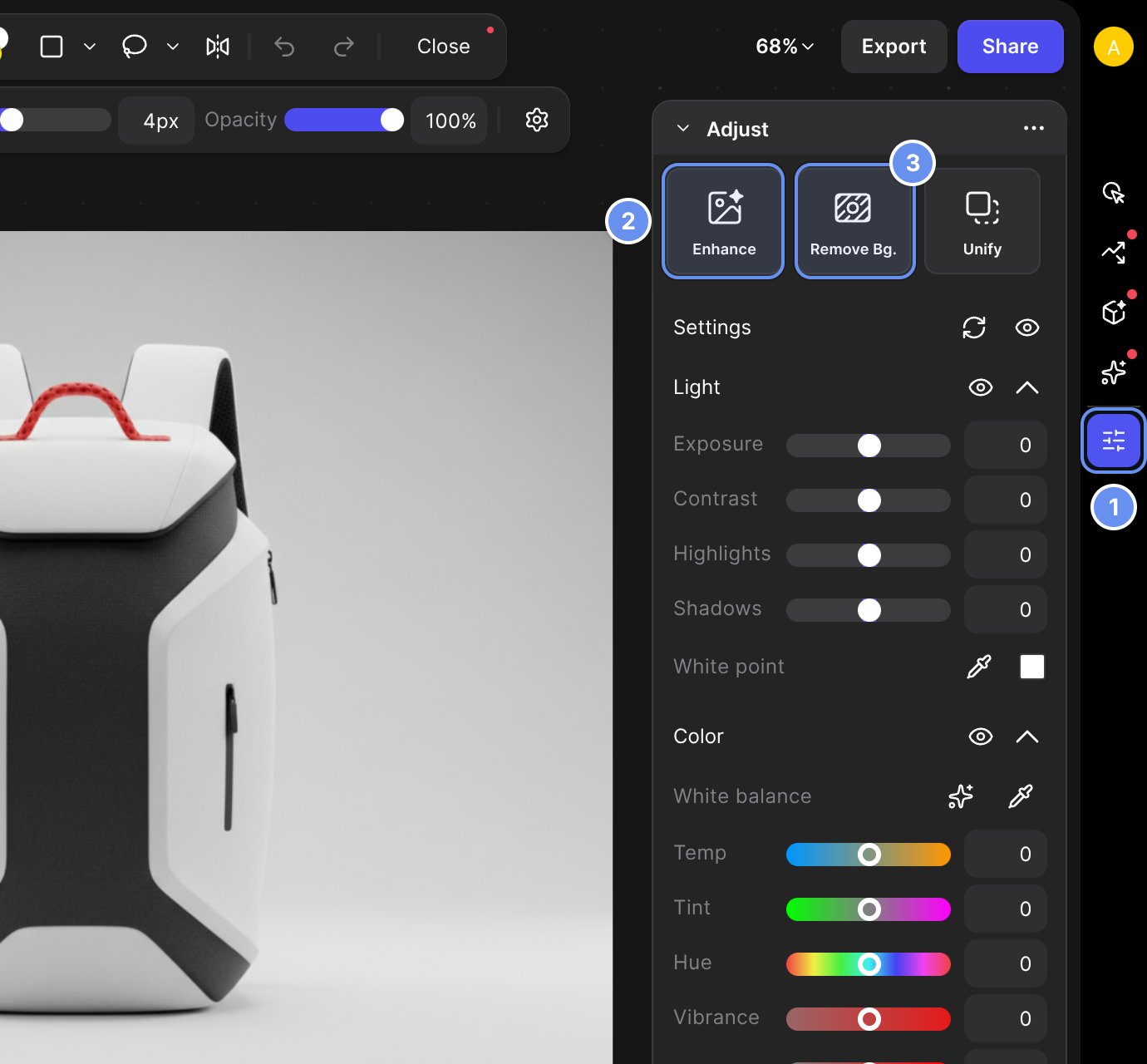
The Adjust tab (1) with Enhance (2) and Remove Bg. (3).
1
Select the layer
Open the image in Studio and click the layer.
2
Run the action
Open Adjust 1 and click Enhance 2 or Remove Bg. 3.
3
Keep it or try again
Click Approve to keep the new layer, or Retry.
Options
Examples
Enhance on a low-resolution render.Tips
- Generate finals at 2K or 4K. Upscaling enlarges; generating draws the detail. See Modes and resolution.
- Clean up phone scans with Remove Background to drop paper shadows.
- Enhance, then export with Scaling for the final size.
Good to know
- Upscale 4K is unavailable for images at or above 4K. Upscale 4× works up to 2,500 px per side.
- Viewers don’t see Quick actions.
- Free: Upscale 4K and Remove Background work and use credits.
Related
Upscale and export your work
Sizes and formats.
Export
Every format and scale.
Unify
Blend a cutout into a scene.
Drawing tools
The Magic Eraser.