

Explore colorways instantly with Color Variation
Extract a palette from any image and generate multiple shuffled colorways in one click.When to use Color Variation
Color Variation helps you explore CMF directions quickly from a single concept. Instead of manually recoloring designs, you can extract an existing palette and automatically generate multiple coordinated alternatives. Use Color Variation when:- Exploring CMF options
- Preparing presentation ready colorways
- Testing visual directions quickly
- Building inspiration from a strong base render
How to use Color Variation
Using Color Variation in Workbench:1
Start from an existing render, sketch, or generate a base concept.
2
Create a Variate block and select Color.
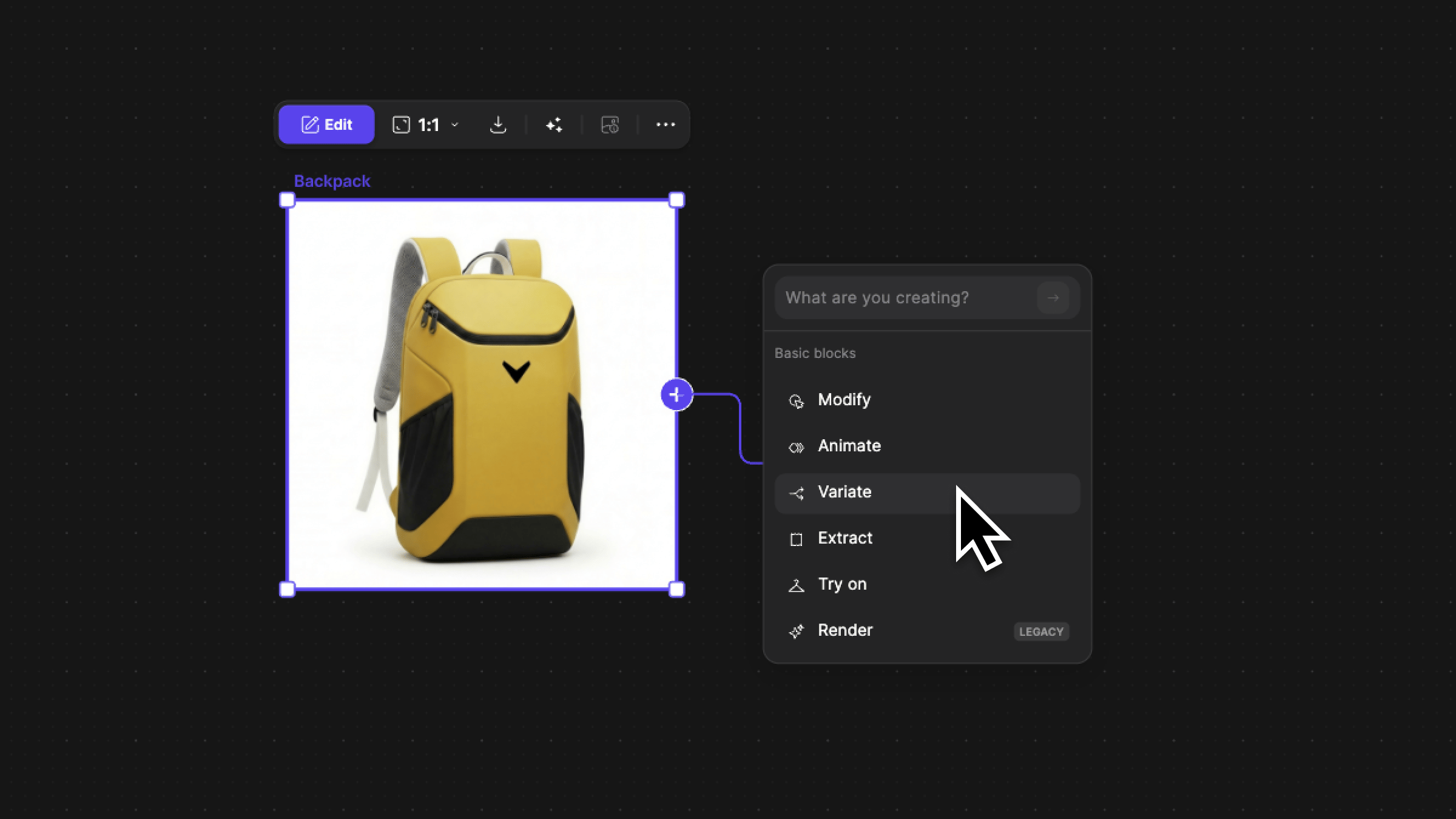
3
Let Vizcom extract the original palette from your image.
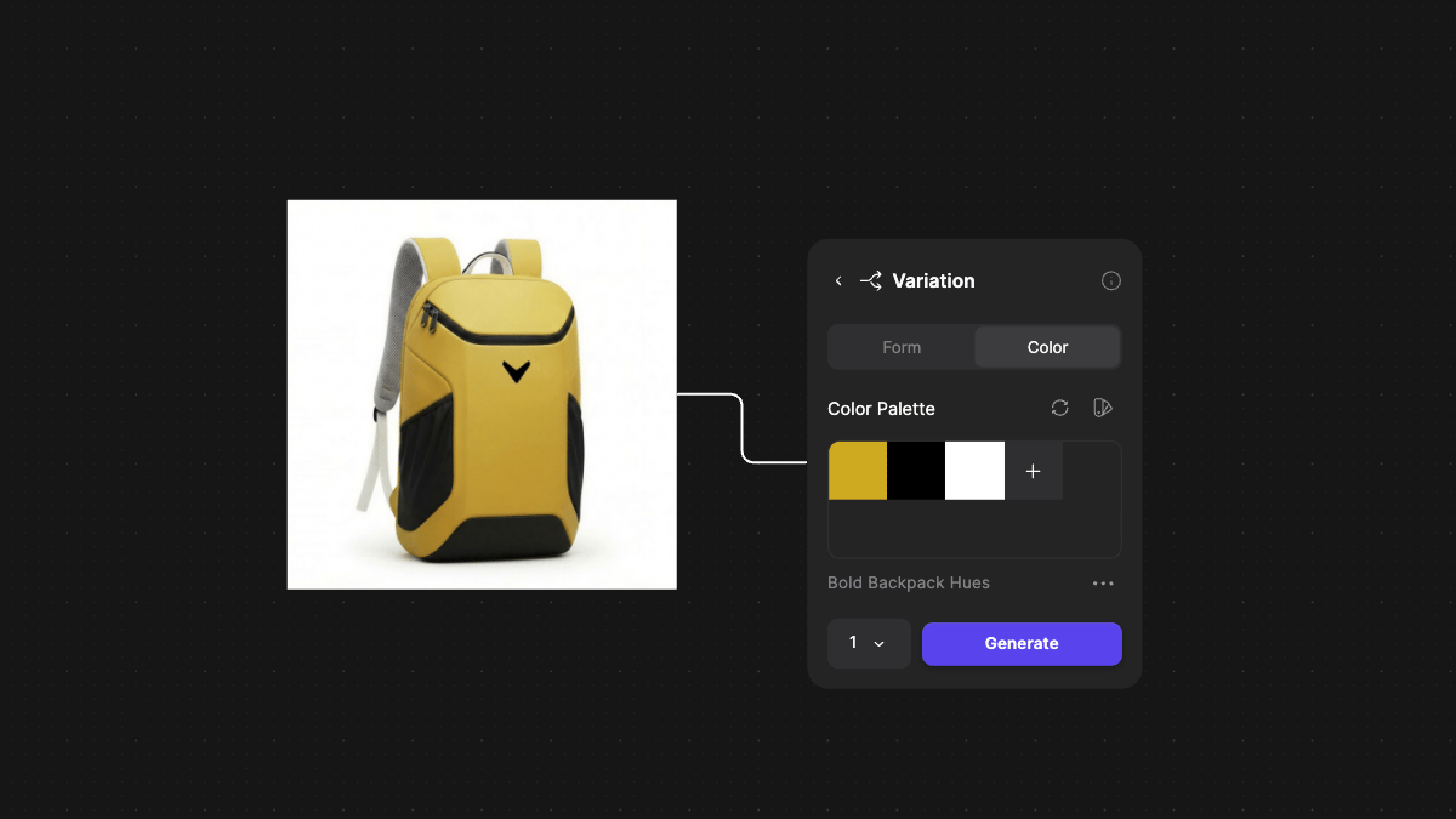
4
Adjust colors manually using the selector, or apply saved asset colors.
5
Optionally choose from preset color palettes to explore alternatives faster.
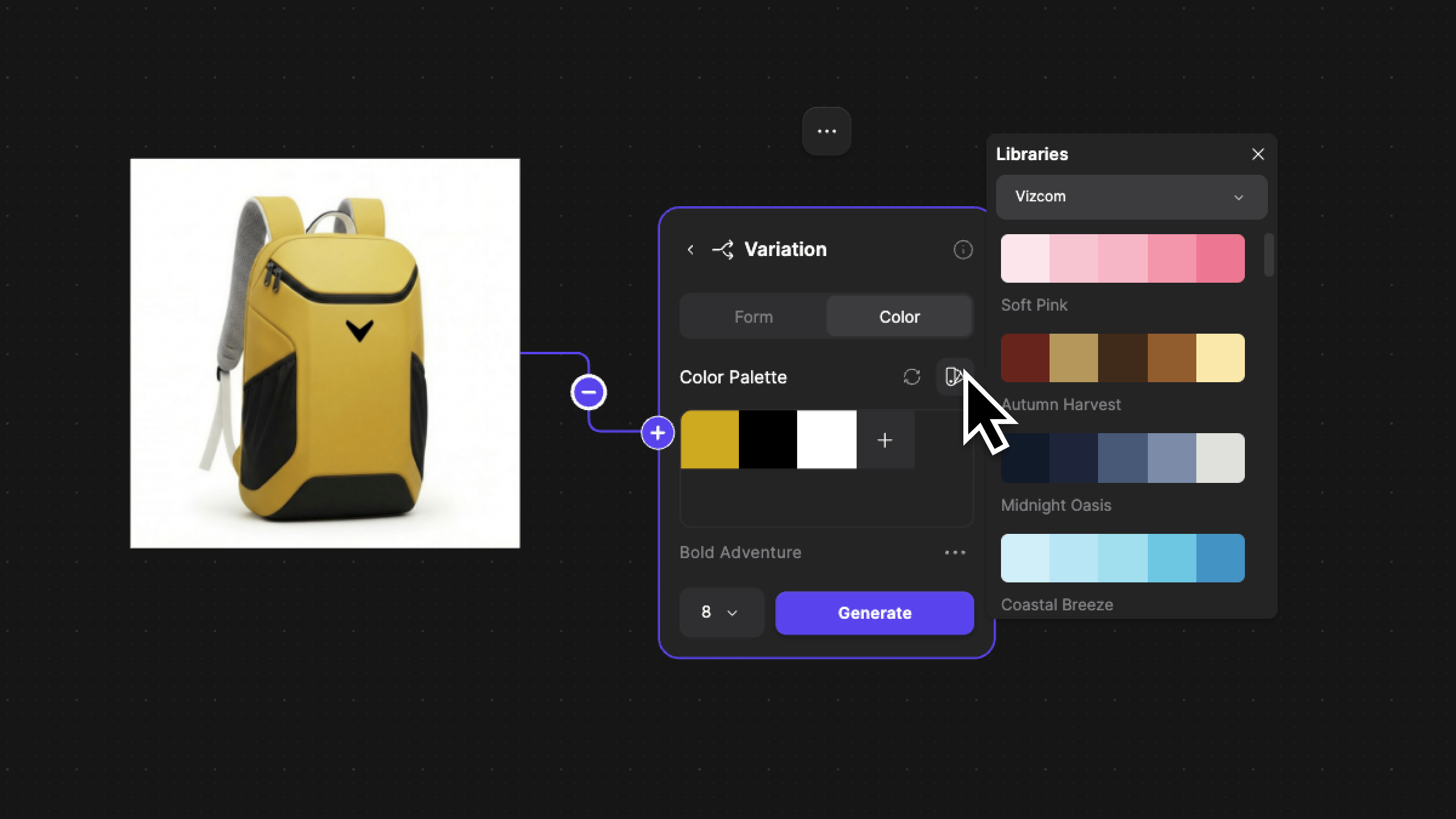
6
Select how many variations you want to generate.
7
Click Generate to produce multiple colorways.
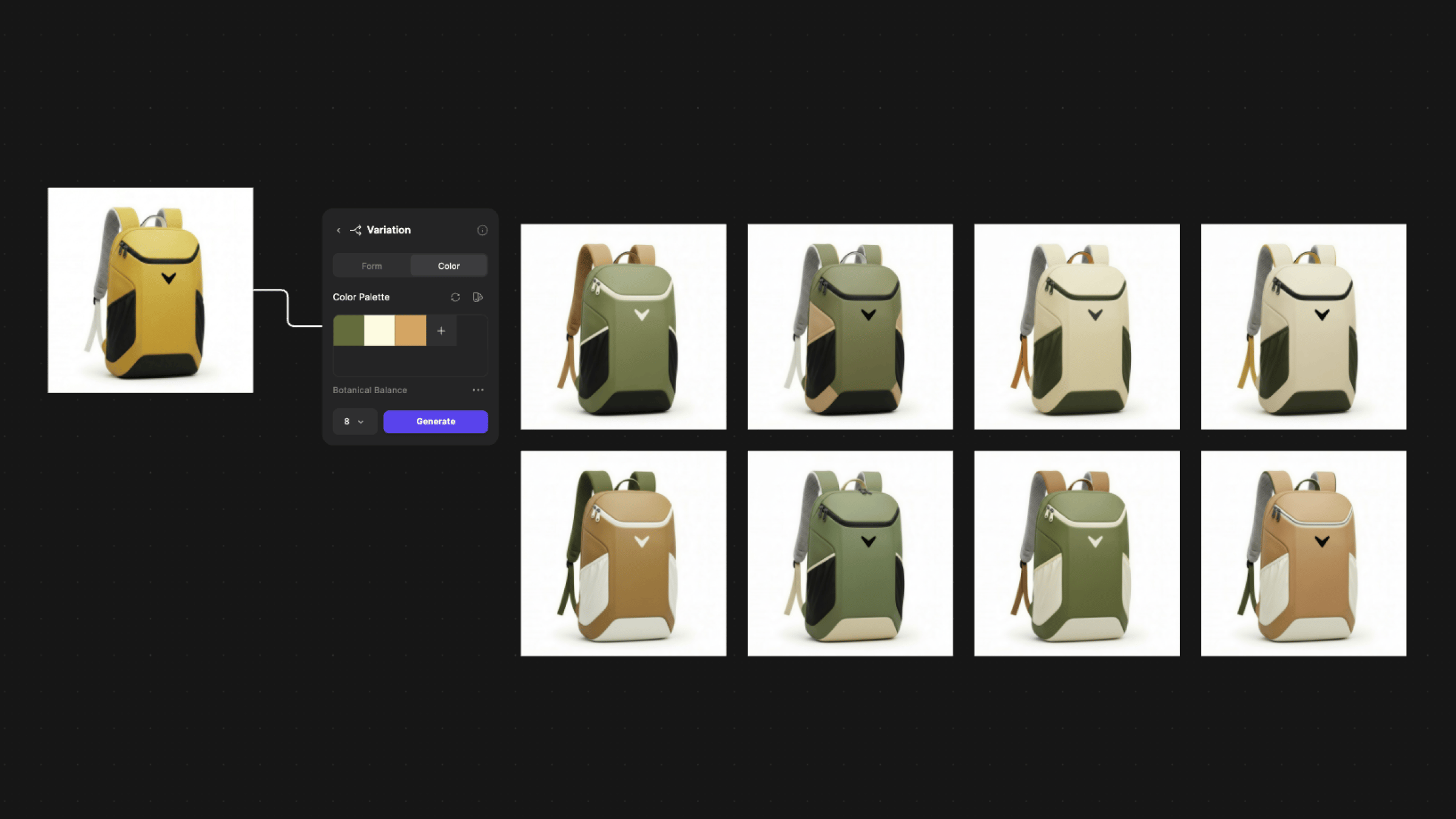
1
Double click an image to enter studio
2
From the workflow sidebar select the "Variations" tab
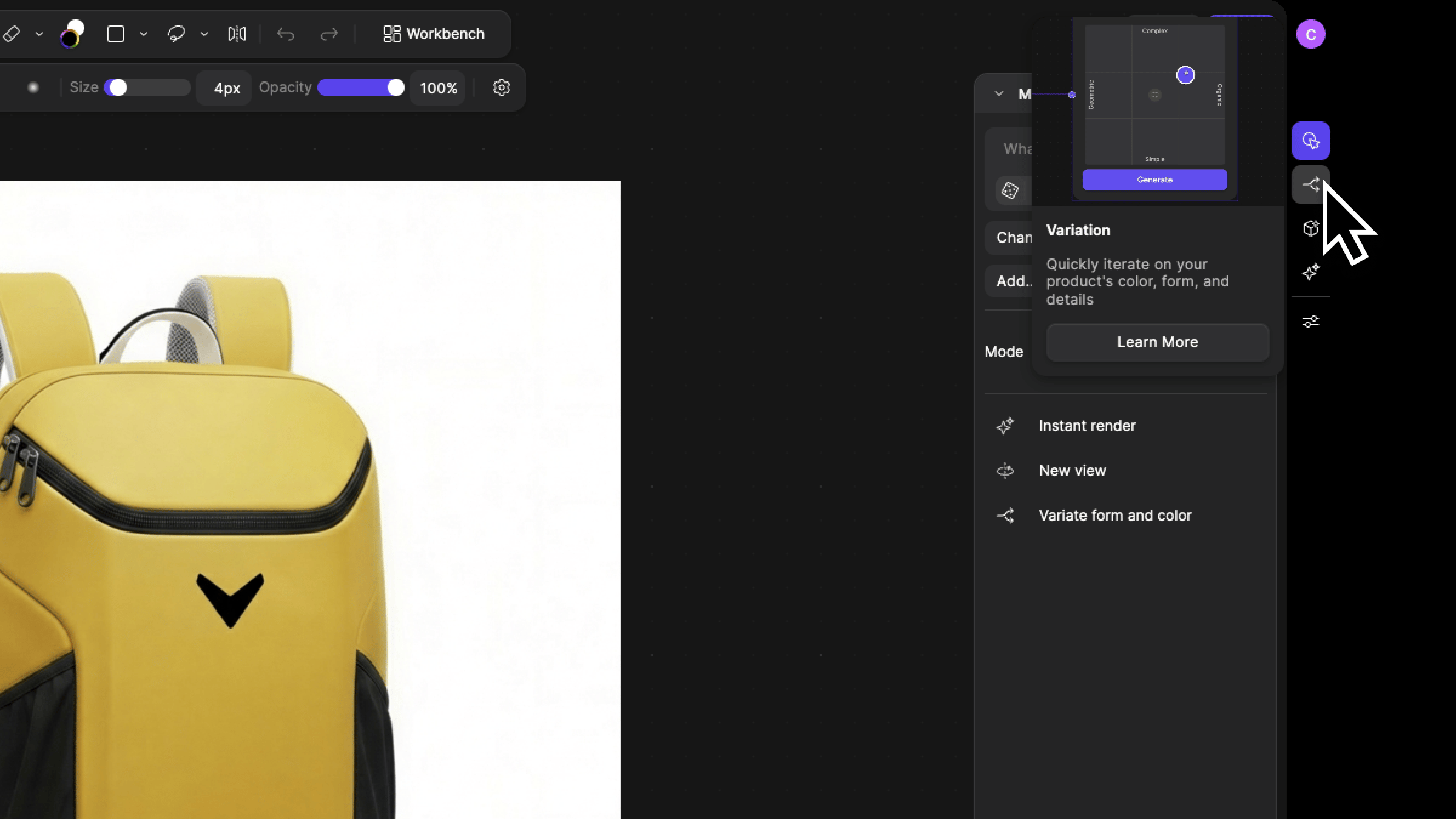
3
Let Vizcom extract the original palette from your image.
4
Adjust the colors
Select a color to change individually, or adjust the entire palette to transform your design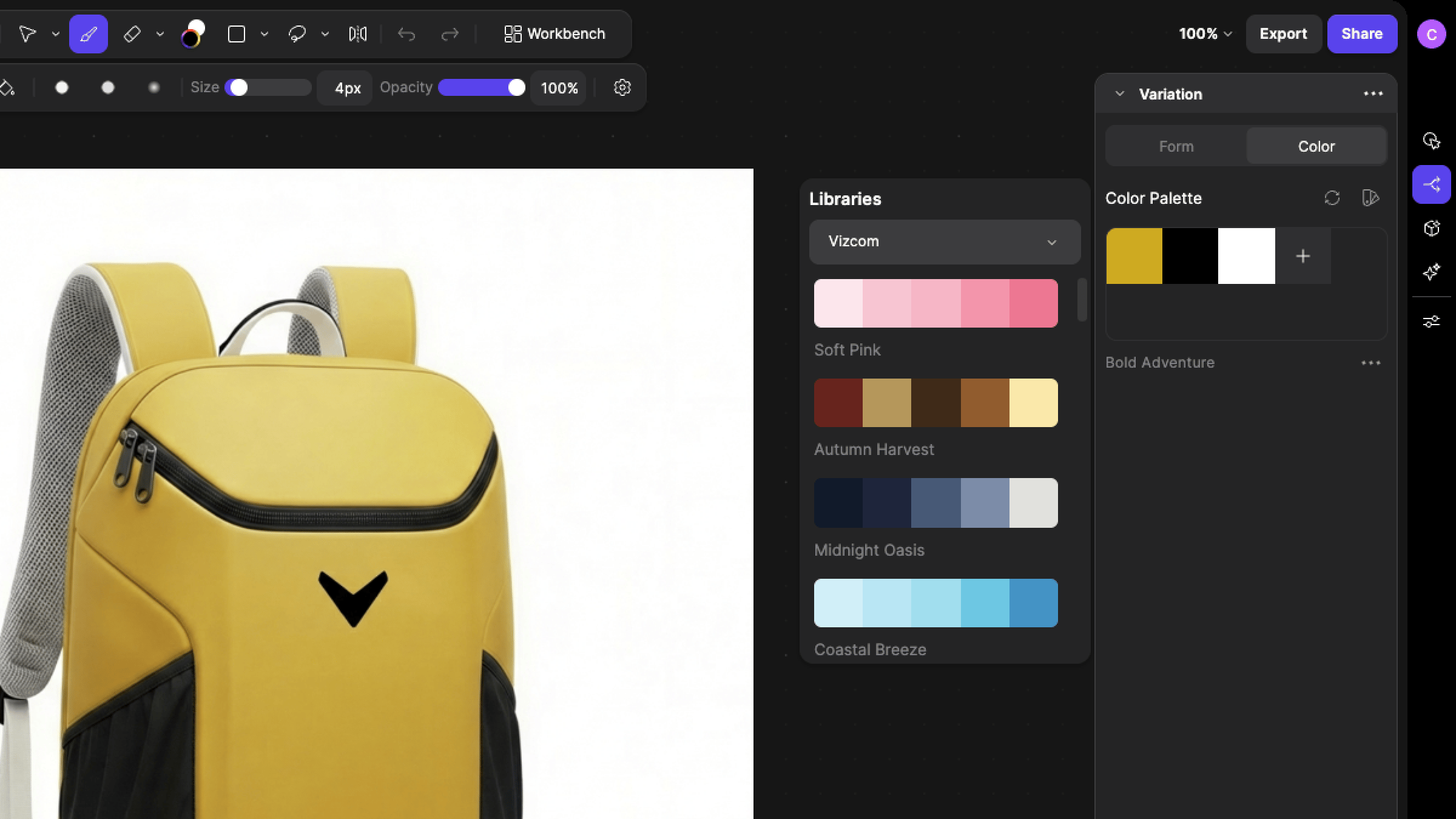
5
Generate color variations
Within studio, generations appear within the results panel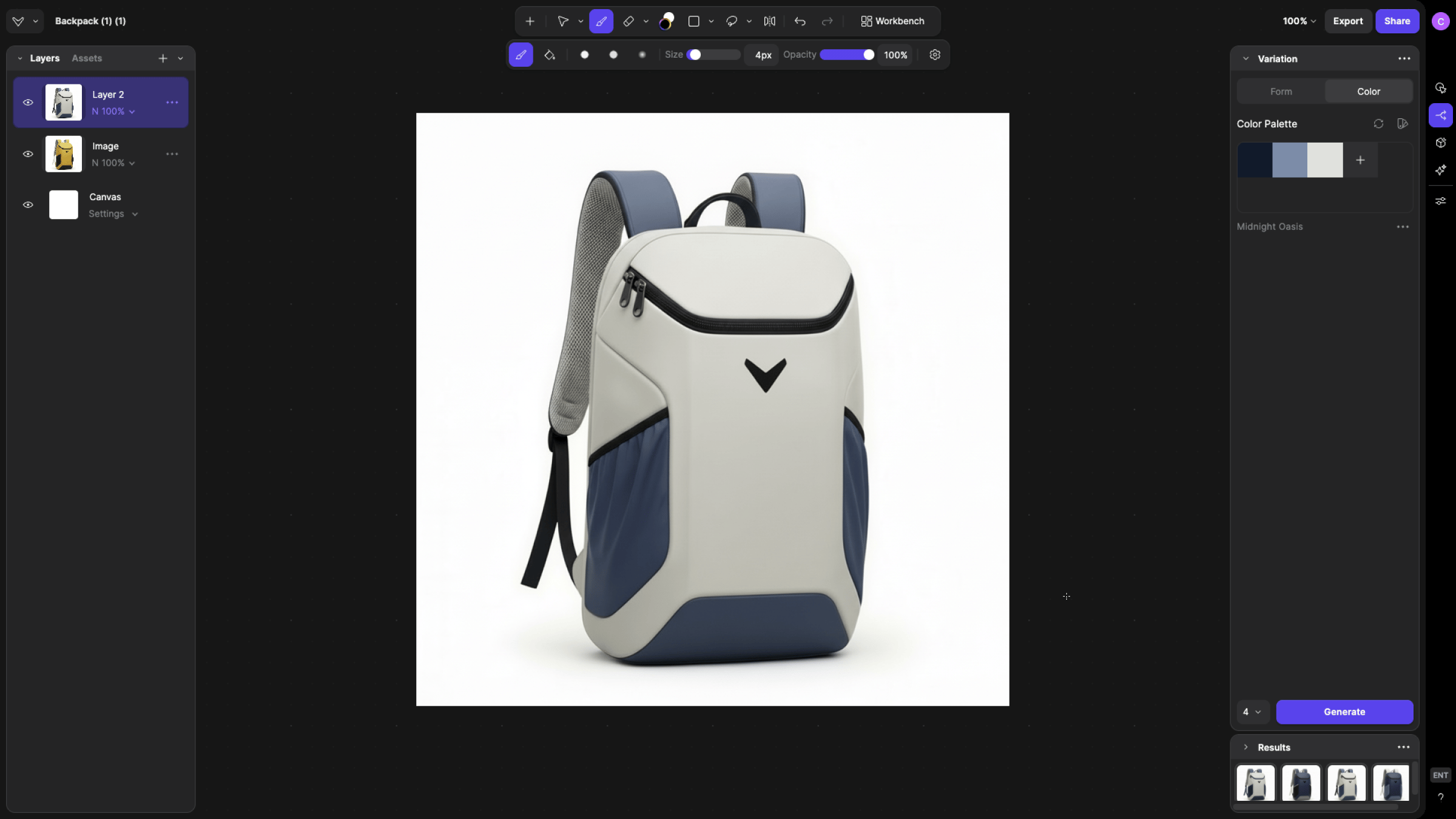
Best practices when using Color Variation
- Start from a strong base
- Clean materials and lighting produce clearer color swaps.
- If the base render is muddy, variations will feel inconsistent.
- Mix manual and preset palettes
- Use presets for quick exploration.
- Use manual selection when aligning to brand or production constraints.
- Combine with Modify
- After selecting a colorway, use Modify to adjust materials or proportions.
- Color Variation defines direction, Modify refines execution.
Tips
Next steps
- Use Modify to fine tune materials after selecting a colorway.
- Combine Color Variation with Extract Material to build reusable CMF libraries.
- Apply your saved brand palettes to ensure visual consistency across projects.