

Keep your colors consistent with Color Match
Make sure your sketch colors stay true in every render and get accurate, presentation-ready visuals.When to use Color Match
Color Match ensures that the colors you’ve sketched are accurately preserved using the Create Panel’s “Render” tool. Vizcom uses your original hue intent while enhancing material realism and detail. This feature is designed for both new and experienced users working with colored sketches who need precise, consistent hues—especially in footwear, apparel, and product design. Use Color Match when maintaining exact color fidelity is important for presentations, concept validation, or production workflows.How to use Color Match
1
Navigate to the Crete Panel in Studio
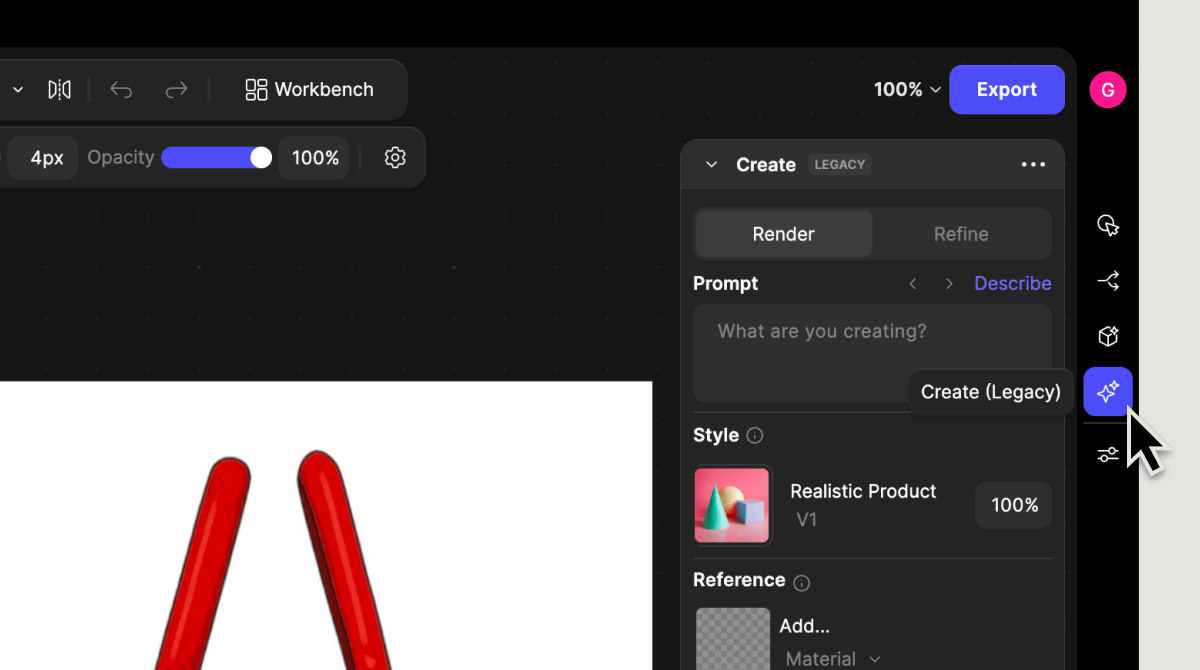
2
Scroll under the Palette selector to find Color Match
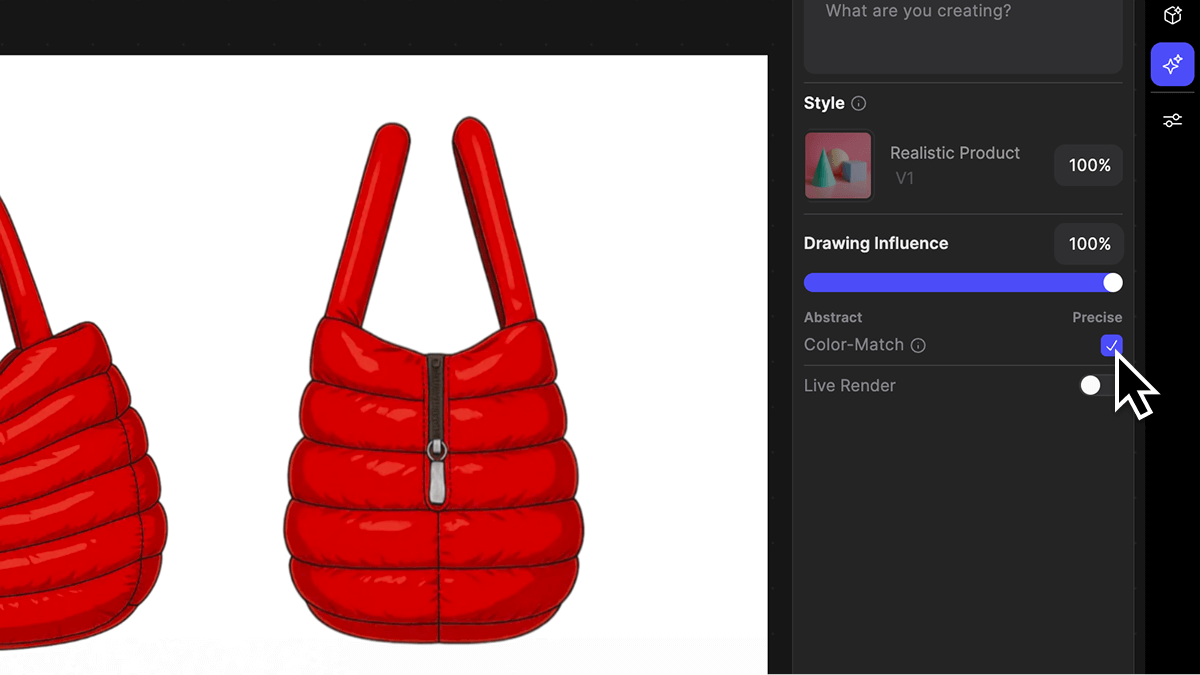
3
Turn on Color Match to lock in your sketch's colors before rendering
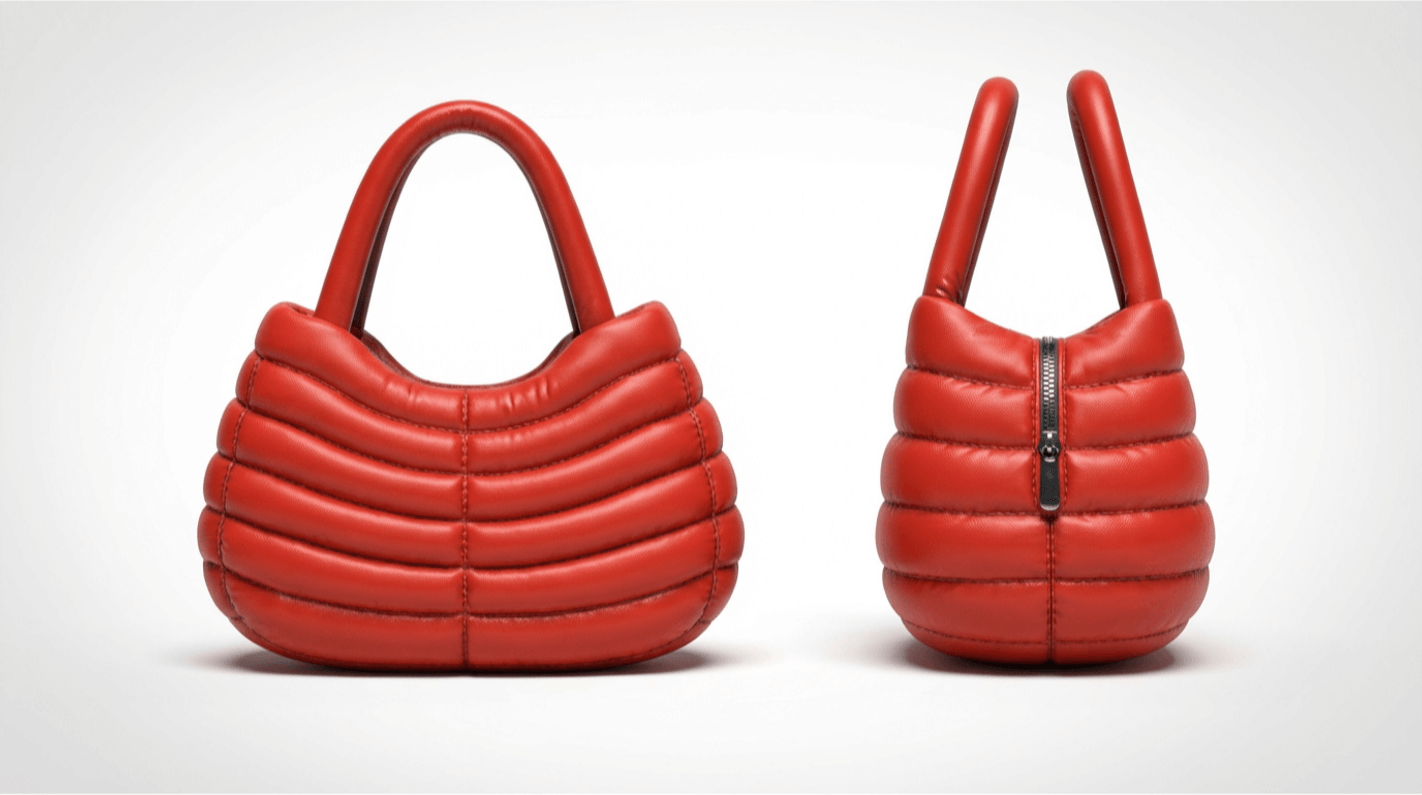
4
Generate your render, your selected hues will remain consistent in the final output.
Tips for using Color Match
- Lookbooks
- Presentations
- Tech packs
- Stakeholder reviews
- Keeps your colors coherent across renders and iterations
- Reduces post-process adjustments
- Speeds up review and approval cycles
- Improves confidence in visual accuracy
Next Steps
- Explore Palettes to build brand-specific color systems (see Make Your Own Palette)
- Try Color Variation to generate alternate colorways from a base concept