

The new Vizcom Studio experience
A redesigned Studio built for flexibility, speed, and seamless creative flow.When to use Vizcom Studio
The new Vizcom Studio experience introduces a more powerful and customizable workspace for focused design work. Studio is where you refine, sketch, layer, and run AI workflows in a structured environment. Compared to Workbench, which functions more like a whiteboard for exploration, Studio is optimized for detailed iteration within a layer based system. Access Studio from Workbench by:- Double clicking an image
- Selecting an image and clicking the Edit button above it
How to use Vizcom Studio
Entering Studio:Double click an image in Workbench, or click "Edit" from the context menu
Studio opens in the redesigned layout with panels and workflows ready to use
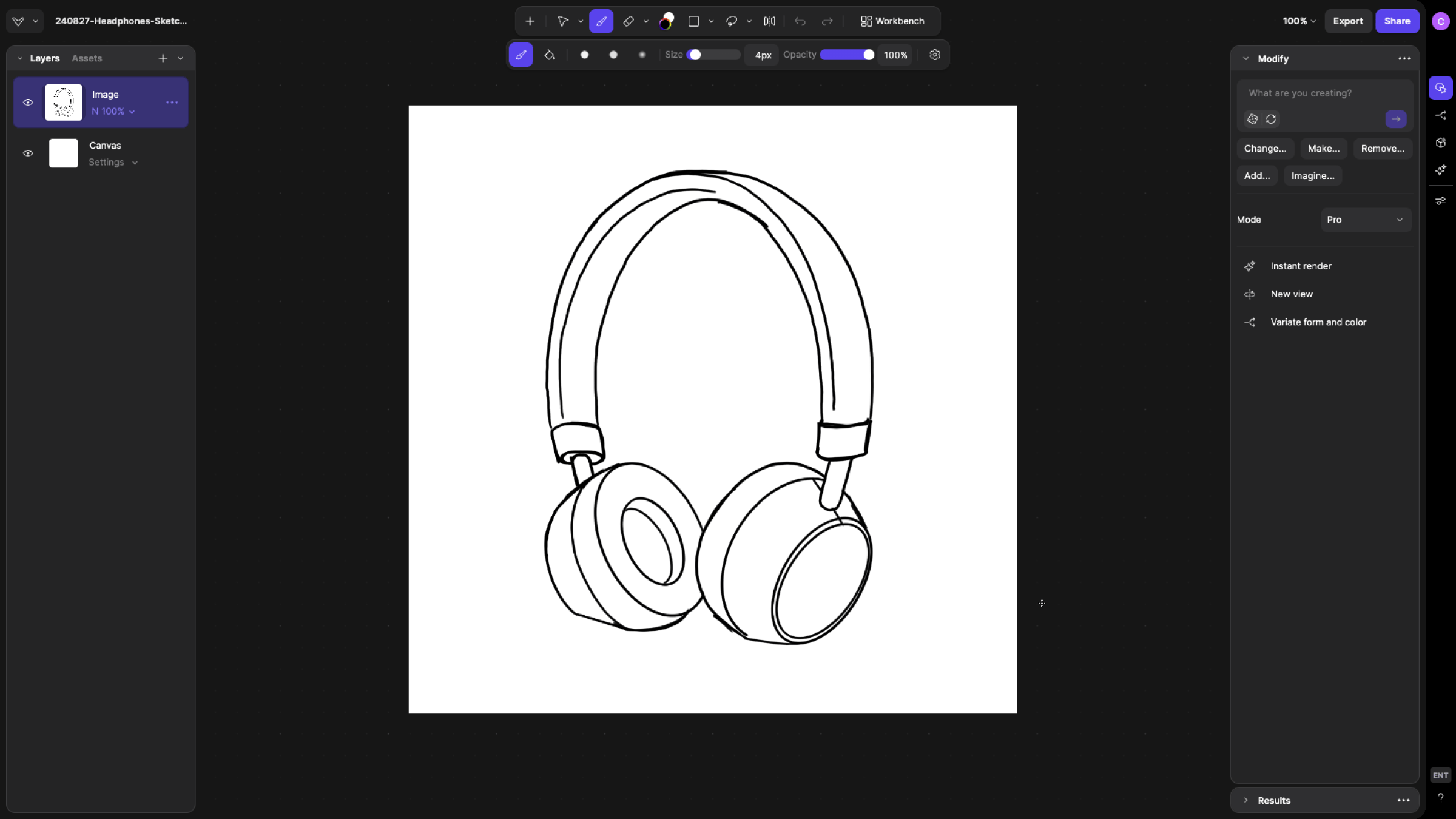
Choose a layout that fits your workflow
Adjust, collapse, or move panels as needed by grabbing the header of the panel.
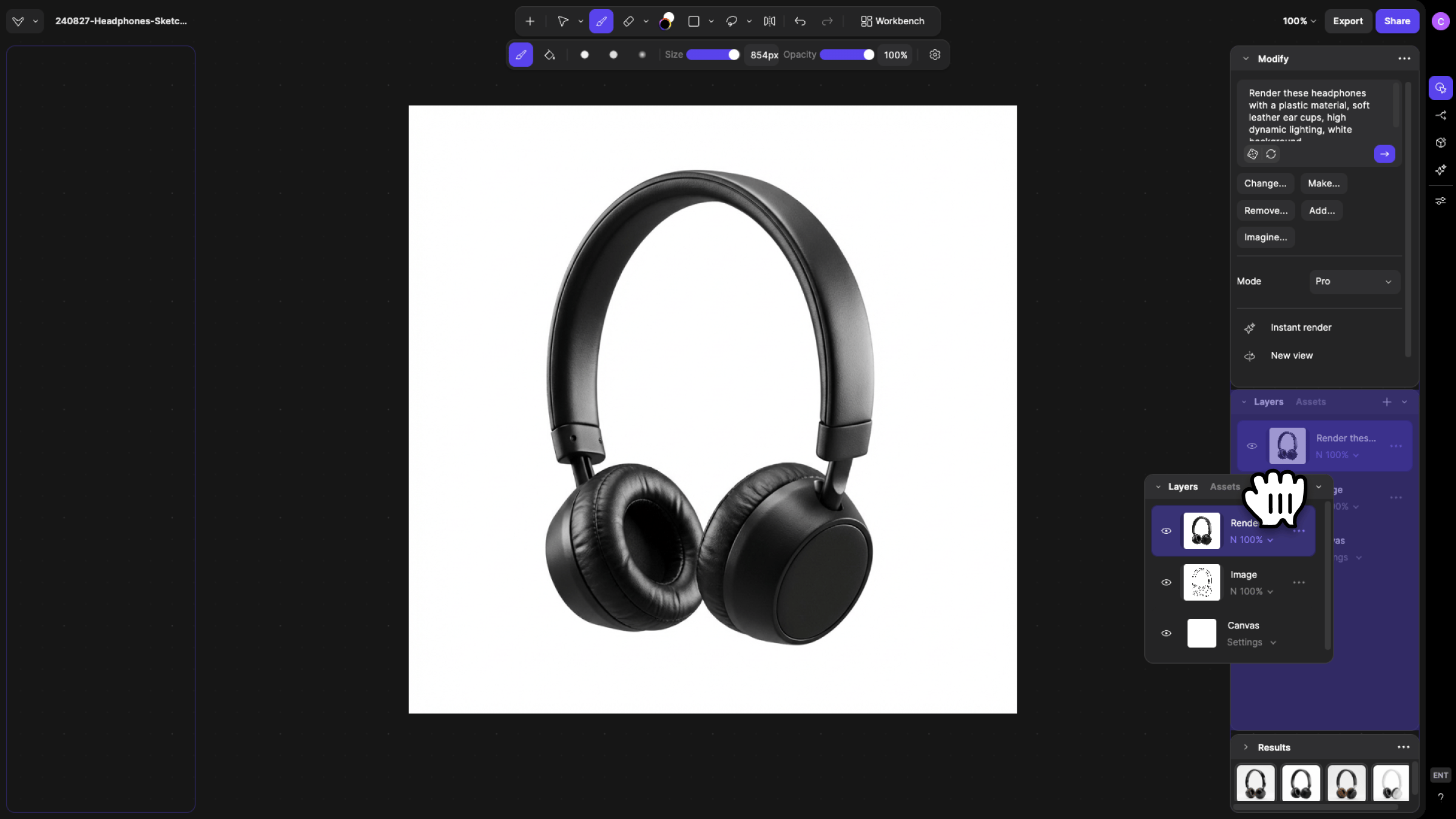
Run AI workflows directly from the centralized sidebar.
Once you generate using one of the workflows, view images in the Results panel.
Core Features
Flexible Layouts
Available layout modes:- Default
- Standard layout with all key panels visible
- Stacked
- Panels condensed into a single vertical stack
- Ideal for smaller screens or focused workflows
- Panels can be collapsed when not in use
- Custom
- Fully personalize your setup
- Resize, collapse, or reposition panels anywhere in Studio
Centralized AI Workflow Panel
All AI workflows are now located in one unified sidebar for faster access and easier discovery. How to use the AI Workflow panel:View the AI workflow sidebar on the right side of the screen, Modify opens by default
Switch workflows at any time, including:
- Modify — generate visuals from sketches, text, or references
- Variate — explore multiple design alternatives
- Make 3D — convert 2D sketches into 3D visualizations
- Create — legacy render & refine workflows
- Adjust — fine tune material, lighting, or rendering properties
Configure settings directly in the panel and run your generation
Results Panel
The Results Panel allows you to monitor AI generations without interrupting your workflow. How to use the Results Panel:Run a generation using any supported workflow
Continue sketching or editing on the canvas while it processes
View progress and completed outputs in the Results Panel
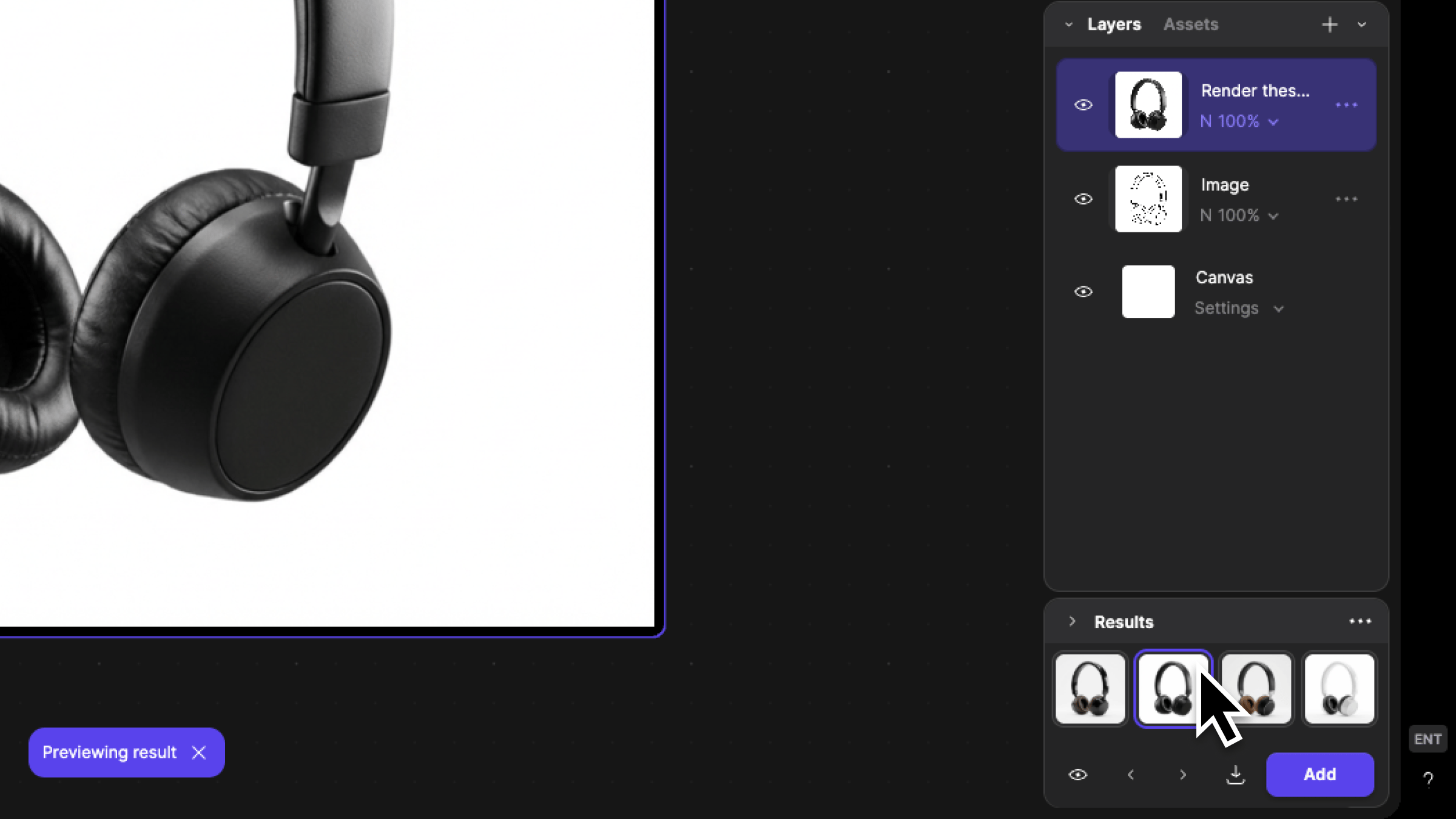
- Results Panel
- Modify, Create, and Render generations appear here in real time
- Layers Panel
- Make 3D outputs appear as new 3D layers within your project
Tips & FAQ
FAQ
- What is the difference between Workbench and Studio?
- Workbench is ideal for exploration and connecting workflows visually. Studio is designed for focused refinement within a layered, production ready environment.
Next Steps
- Use Modify inside Studio for targeted refinements.
- Explore Variate to expand design directions quickly.
- Try Make 3D to bring sketches into dimensional space within the same workspace.