

Workspace Home
Monitor team activity and manage your organization at a glance from a single, centralized dashboard.What is Workspace Home?
Workspace Home is the central hub for Org Admins and Workspace Admins to oversee activity across their entire organization. It is only visible to members with Admin-level roles — standard members will not have access to this view. Use Workspace Home when you want to track generation activity over time, get a high-level view of your teams, or quickly navigate to a specific team’s workspace.How to use Workspace Home
Accessing workspace home:Log in to Vizcom. If you are an Org Admin or Workspace Admin, you will land on the Home view by default.
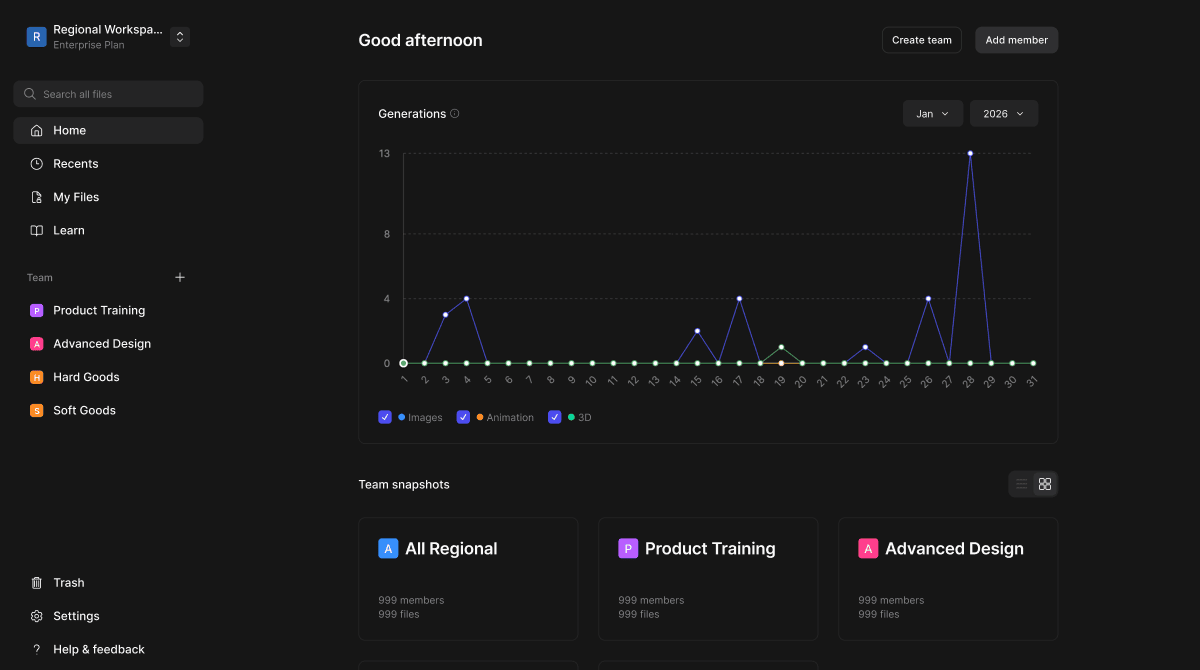
You can return to Home at any time by clicking Home in the left sidebar.
The Generations chart at the top of the page displays usage data across your organization.
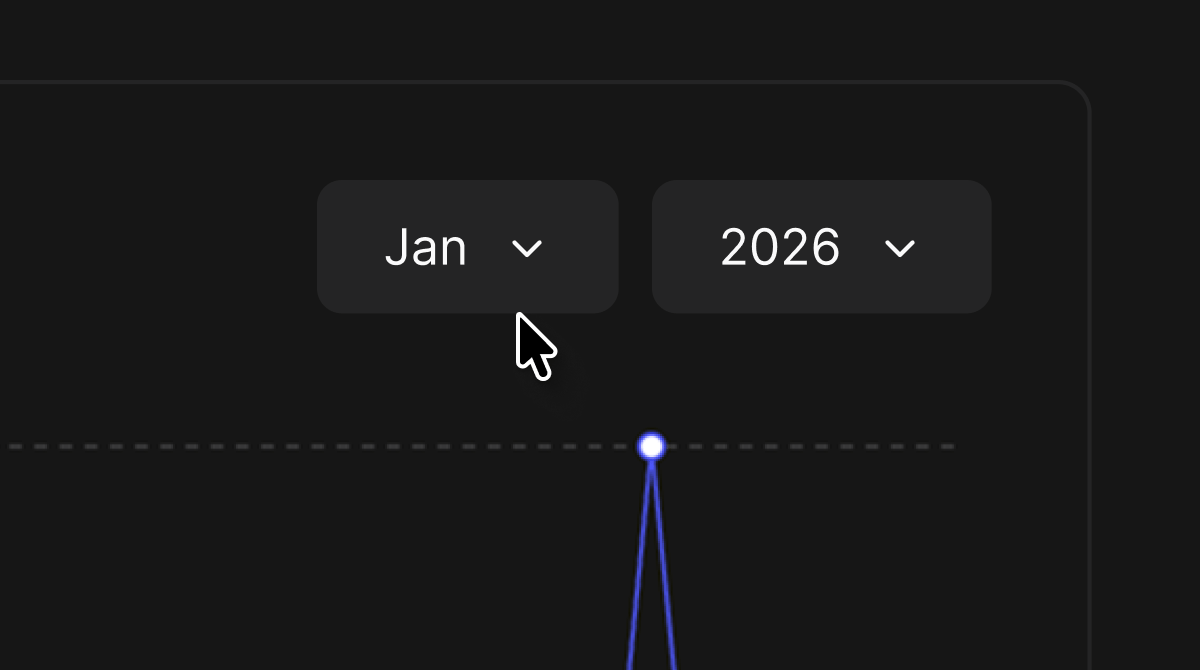
Use the month and year dropdowns in the top right of the chart to navigate to a specific time period.
Hover over any point on the chart to see a detailed breakdown for that date, including the number of Images, Videos, and 3D generations, as well as the number of Active users.
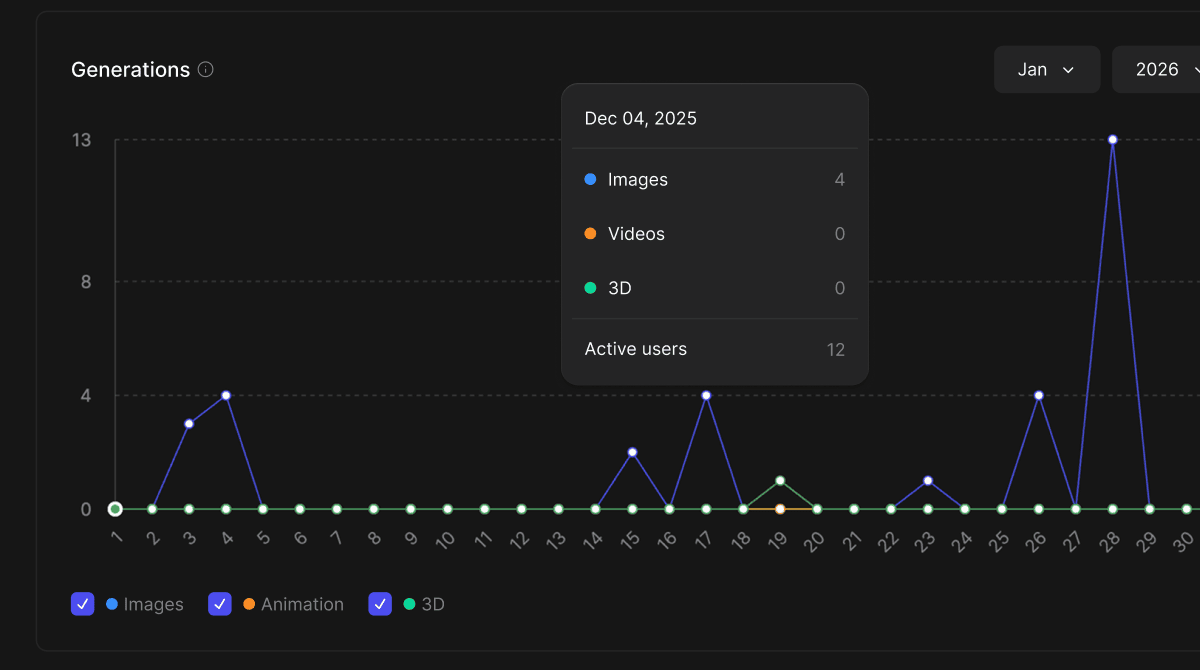
Use the legend toggles at the bottom of the chart to show or hide Images, Animation, and 3D data series.
Scroll below the Generations chart to see the Team Snapshots section.
Each card represents a team in your organization and displays the team name, number of members, and number of files.
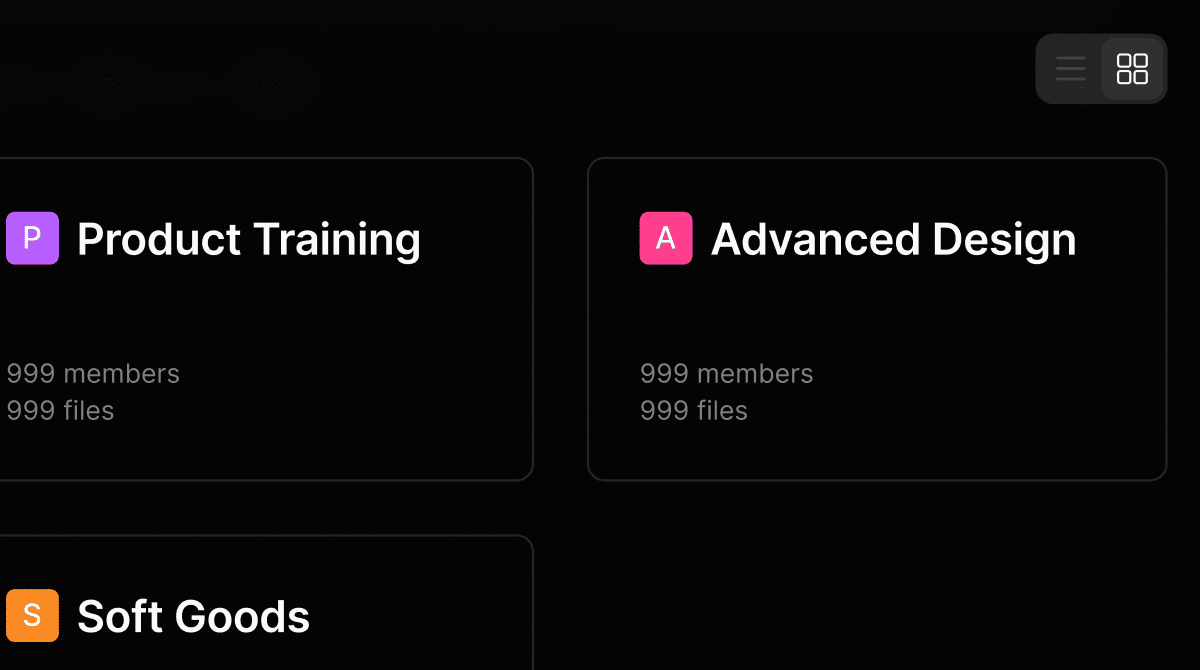
Use the list or grid view toggle in the top right of the section to switch between layout preferences.
Click a team card to navigate into that team's workspace.
Core Features
Generation Chart
- A time-series chart showing AI generation activity across your organization.
- Displays three data types — Images, Animation, and 3D — plotted over the selected month.
- Hovering over a data point surfaces a tooltip with a per-day breakdown and active user count.
- Use the month and year selectors to review historical data.
Team Snapshots
- A card-based overview of every team in your workspace.
- Each snapshot surfaces the team name, member count, and file count, giving admins a quick pulse on team size and activity.
- Supports both list and grid view
Tips
FAQ
- Who can see the Workspace Home view?
- Only members with Org Admin or Workspace Admin roles have access to Workspace Home. Members with other roles will not see this view.
- What do the generation types in the chart represent?
- Images, Animation (Videos), and 3D correspond to the three types of AI generations users can run inside Vizcom. The chart tracks how many of each type were created on any given day.
- What does “Active users” mean in the tooltip?
- Active users reflects the number of members in your organization who ran at least one generation on that date.
Next Steps
- Click into any team snapshot to explore that team’s files and members.
- Use the Add member button to invite new members to your organization.
- Use the Create team button to set up a new team directly from Home.