

Why Draw Inside Vizcom?
Drawing in Vizcom lets you:- Refine form and proportion before rendering
- Guide material and surface details with precision
- Make quick changes without restarting your generation
Stay in a fluid back-and-forth between sketch and render
Core Drawing Tools
Vizcom’s tools are designed to feel familiar while keeping you in control.Brush - Keyboard shortcut [B]
Start with the Brush tool to create line drawings and detailed sketch work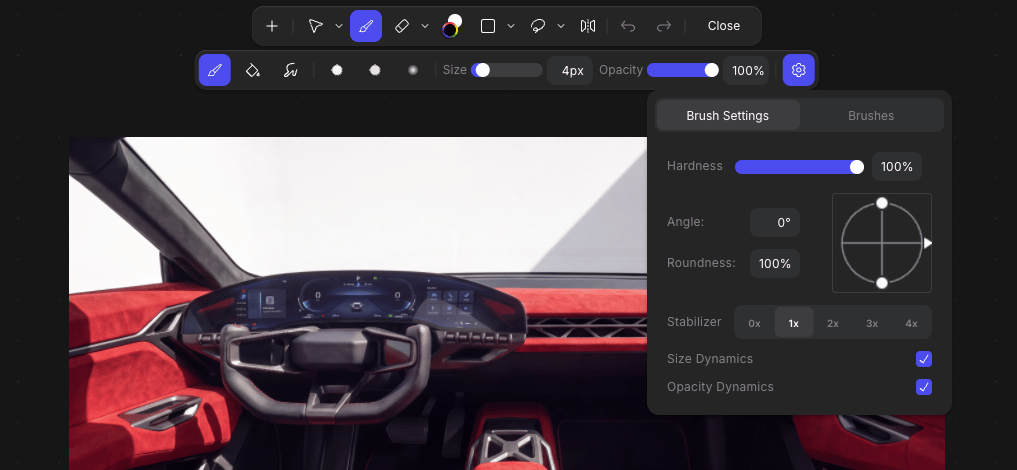
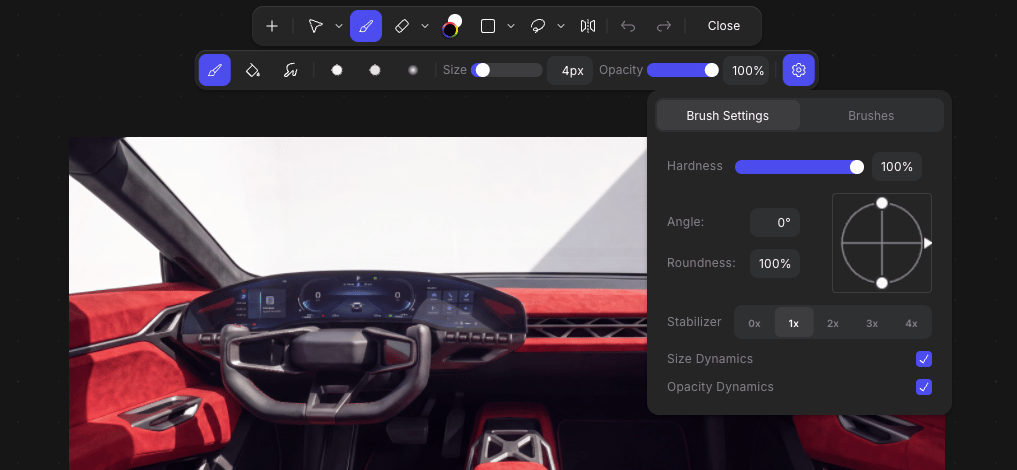
- Drawing pencil
- Hard Shader
- Soft Shader
- Brush size
- Opacity
- Color
Paint Bucket
Use the Paint Bucket to quickly fill enclosed line work with a selected color. Find the Paint Bucket tool under the brush.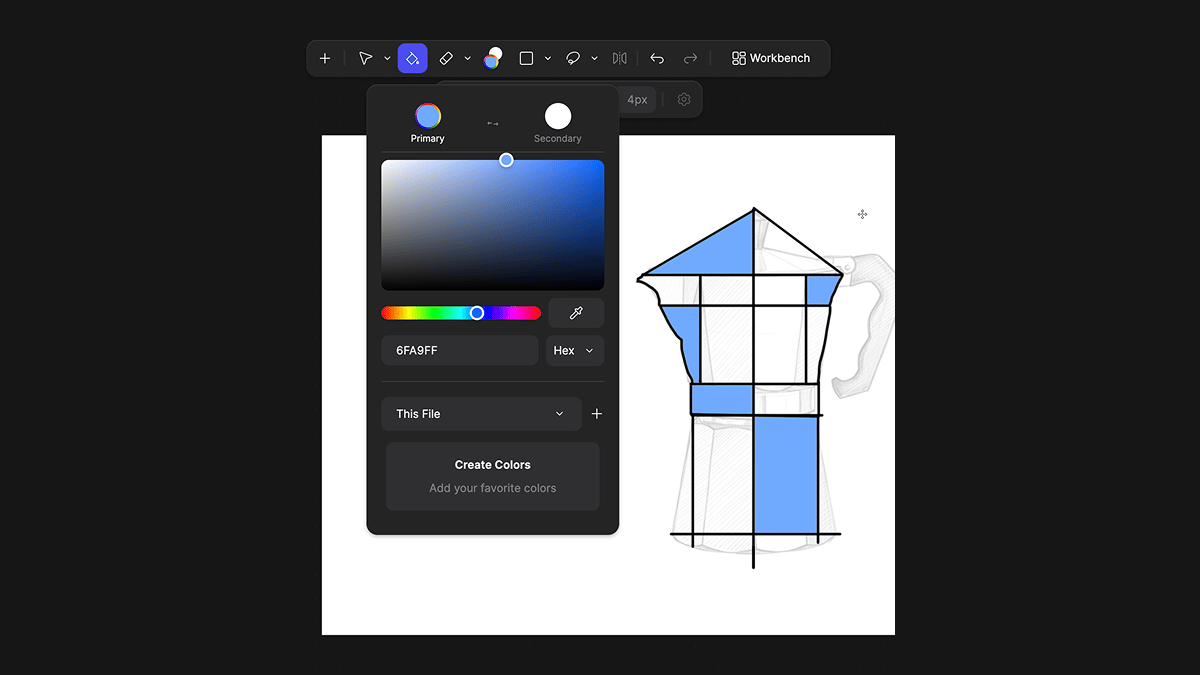
Eraser - Keyboard shortcut [E]
The Eraser works like the Brush, letting you remove unwanted strokes with precision.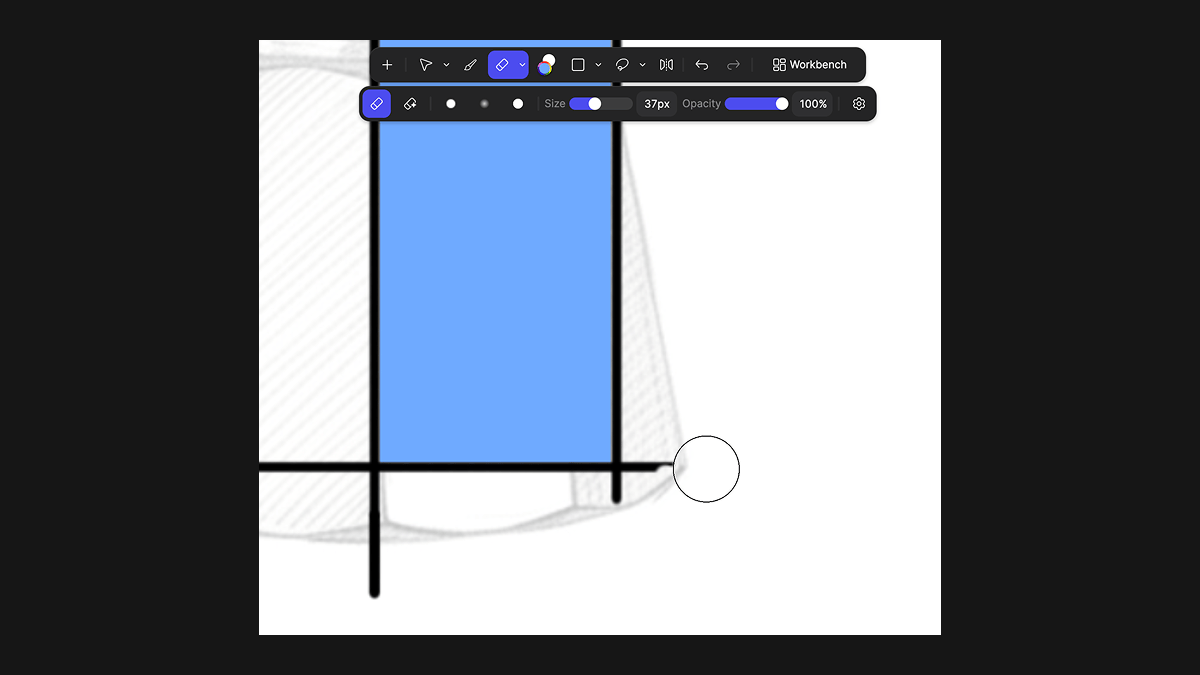
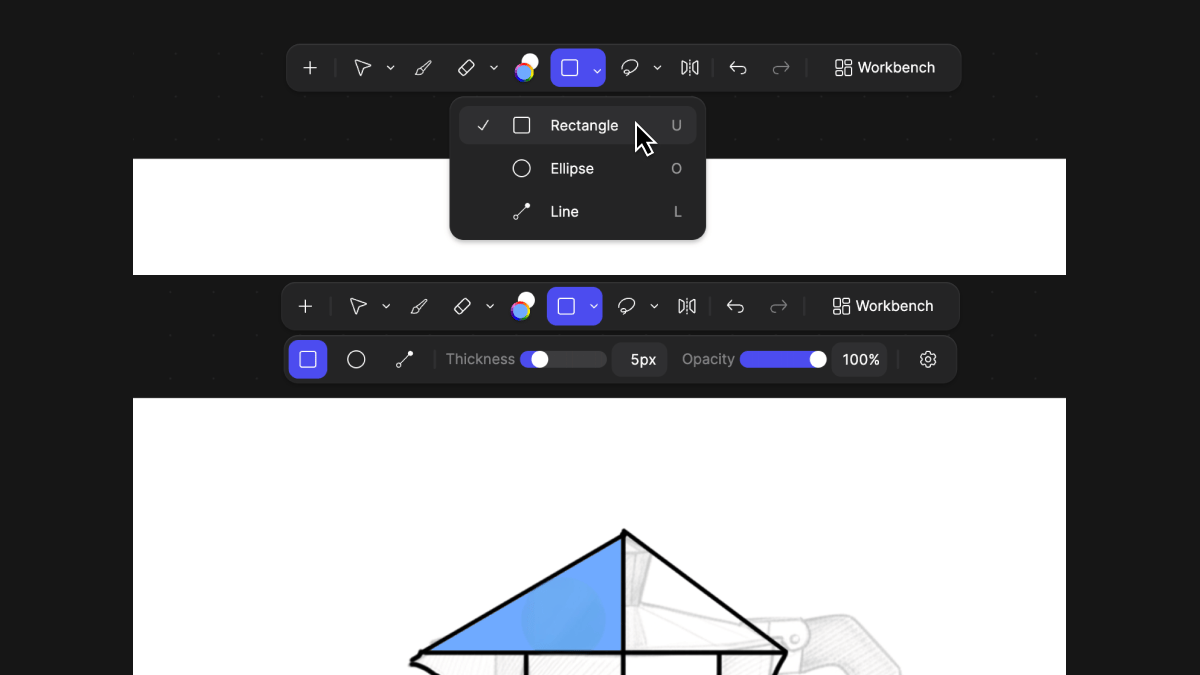
Shape Tools
Keyboard shortcuts:- Rectangle [U]
- Ellipse [O]
- Line [L]
- Constructive sketching
- Blocking out proportions
- Creating clean geometry
- Defining perspective guides
Transform and Adjust
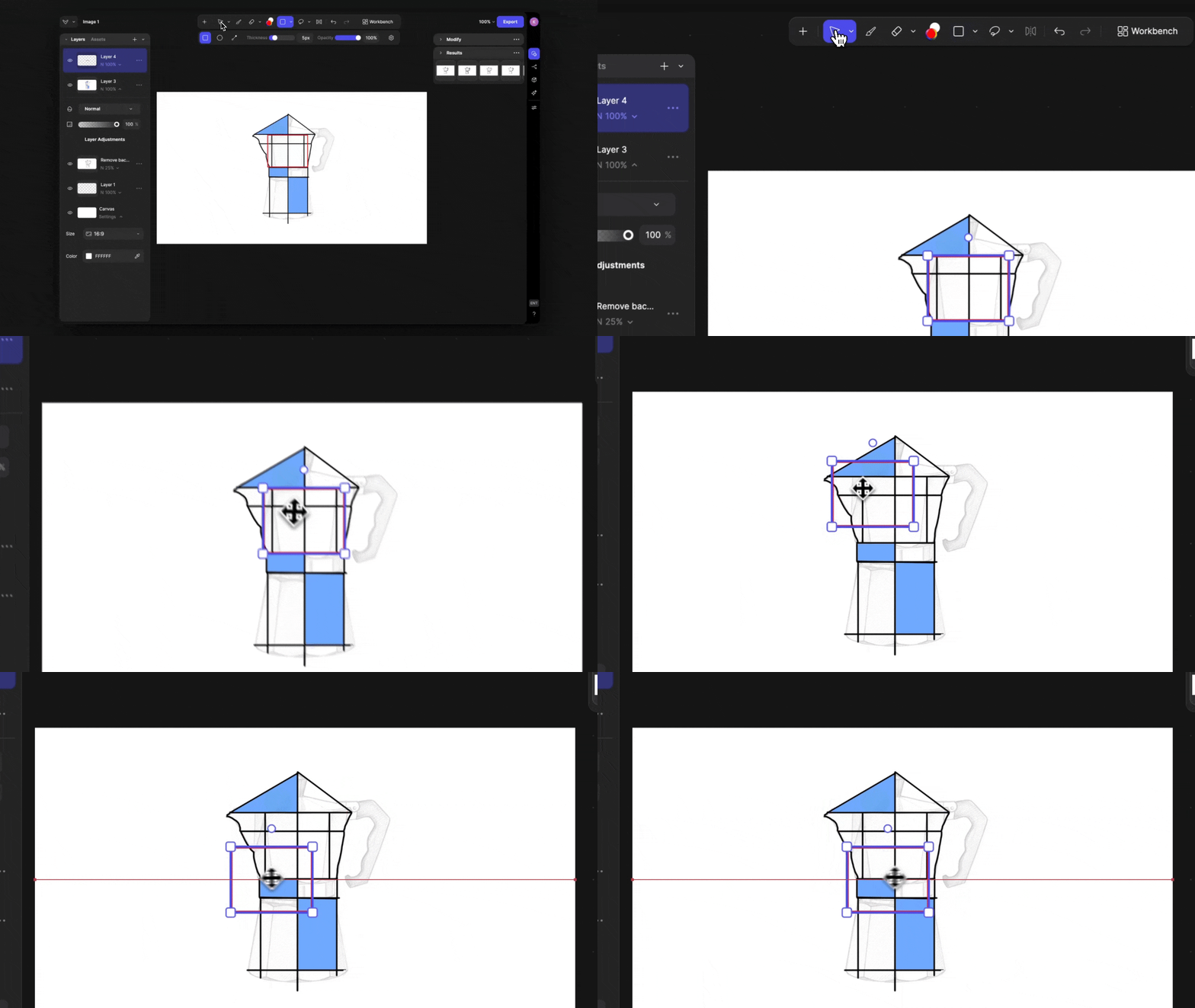
Move Tool - Keyboard shortcut [M]
Use the Move tool to:- Scale layers
- Rotate elements
-
Reposition sketches
When the transform tool is active, you can right-click to select layers and adjust specific parts of your design.
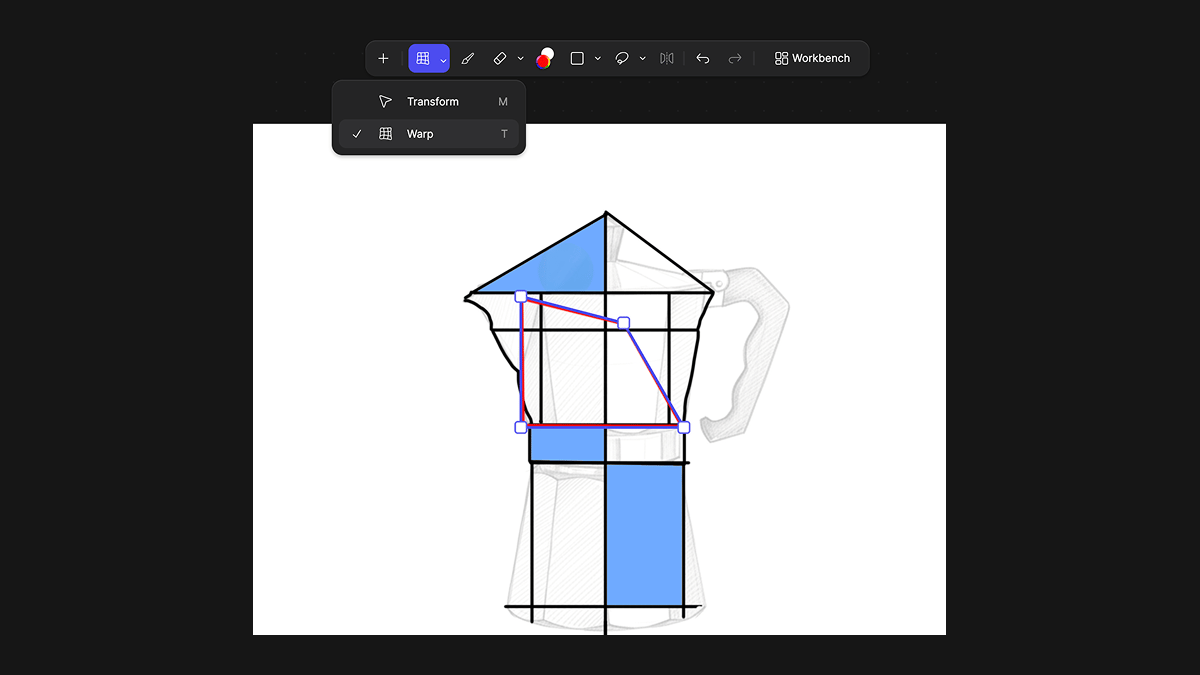
Warp Tool - Keyboard shortcut [T]
The Warp tool lets you adjust proportions by tilting or reshaping layers. Use it to:- Refine perspective
Adjust stance or posture - Experiment with form without redrawing
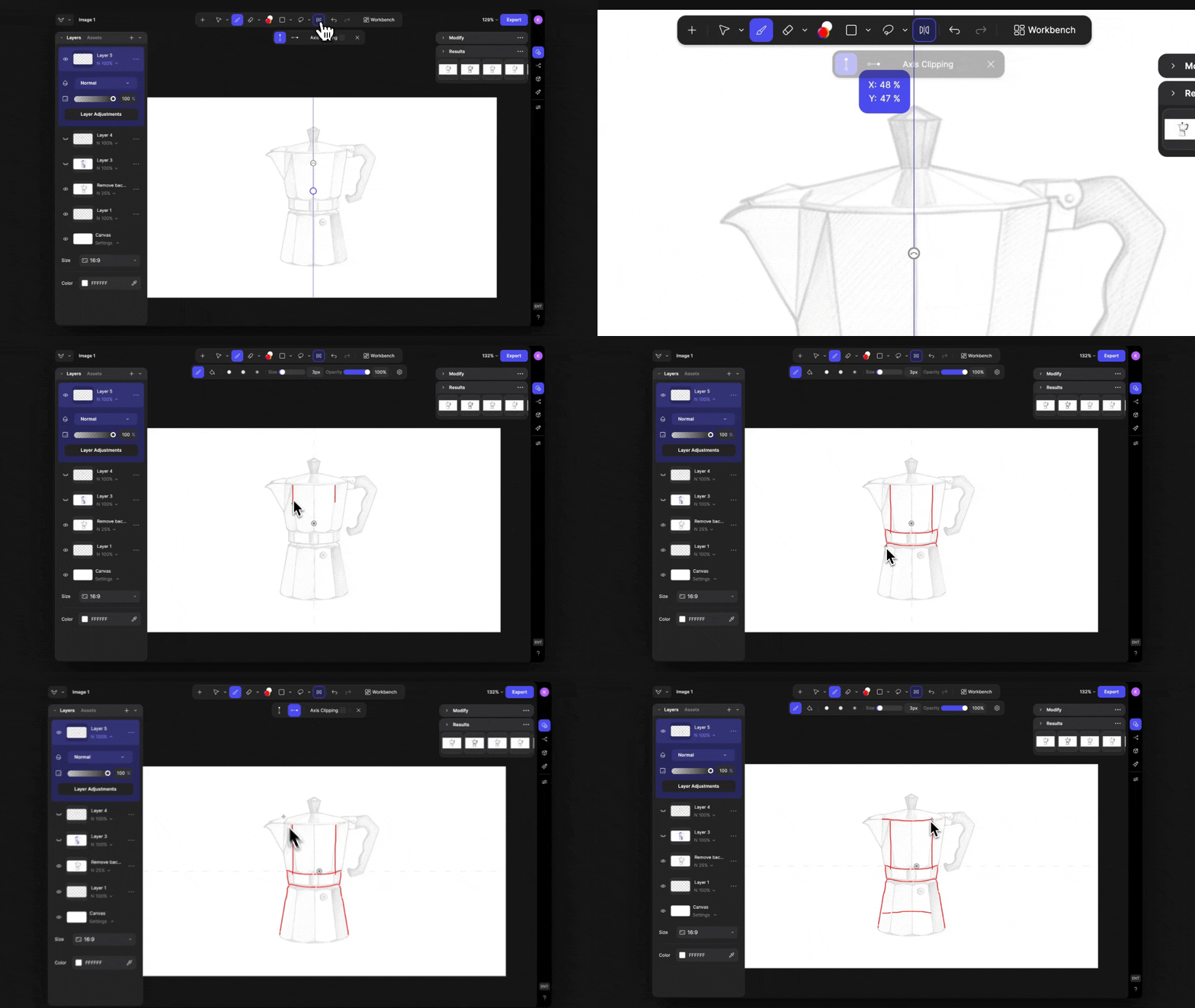
Symmetry Tool
The Symmetry tool allows you to draw mirrored strokes automatically. Perfect for:- Footwear
- Vehicles
- Helmets
- Any balanced product design
Selection Tools - Keyboard shortcut [G]
Selection tools give you more control over specific areas of your sketch. Choose from:- Lasso
- Brush Selection
- Bezier
- Automatic Selection
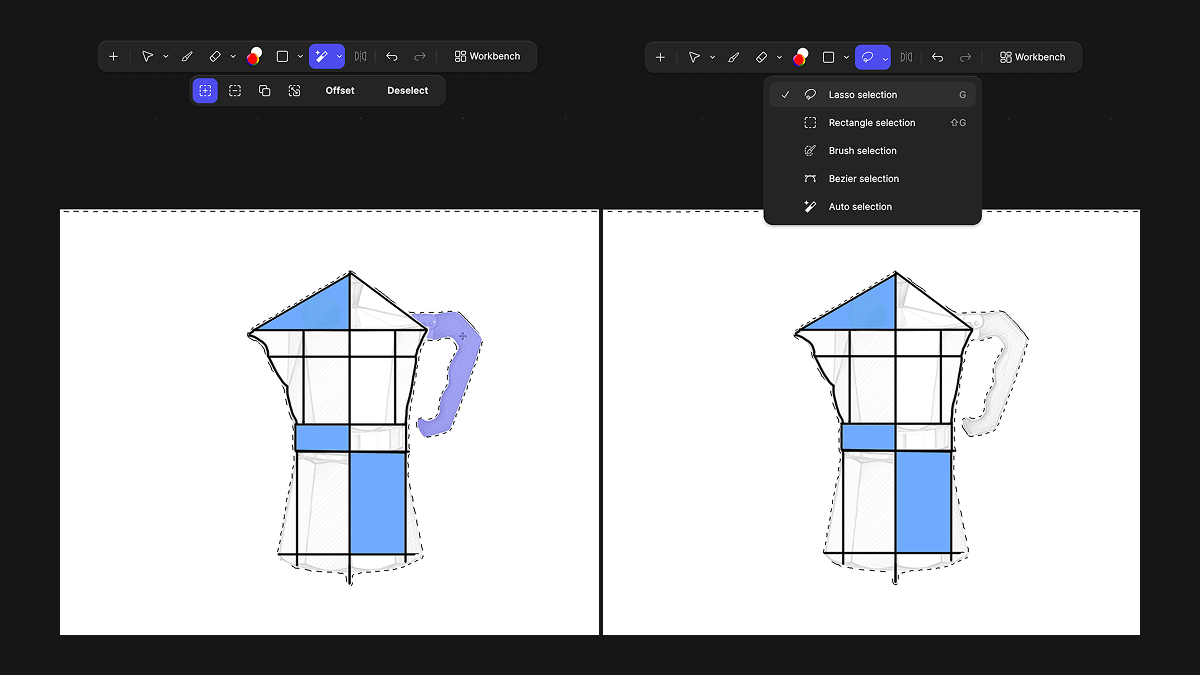
- Isolate areas for editing
- Adjust proportions
- Apply targeted changes
- Guide rendering influence
Tips for working with Vizcom drawing tools
Each Vizcom drawing tool has a dedicated keyboard shortcut to help you move quickly between actions without breaking your flow. Here are the primary tool shortcuts:
Press the corresponding key at any time to instantly switch tools.
Using shortcuts keeps your workflow fluid, especially when refining sketches and iterating rapidly between drawing, editing, and transforming.
We are continuously expanding Vizcom’s drawing capabilities to support a complete sketch-to-render workflow inside one environment.
Next Steps
- Use Selection Tools to make edits: Select, adjust, and transform specific parts of your design with precision. Fine-tune proportions, isolate areas for rendering, and iterate with intention.
- Explore Render Mode: Transform your sketch into a polished concept.