

When to use the Autodesk Plugin
Designers who want to connect their Vizcom workflow to Autodesk Fusion. Whether you’re pushing a 3D model into Fusion for engineering and production, or bringing a Fusion design back into Vizcom to keep iterating — this integration keeps your creative vision intact the whole way through.How to use the Autodesk Plugin
Step 1 — Connect Your Accounts
Before you can export in either direction, connect your Autodesk account to Vizcom.- Go to Settings → Plugins in your Vizcom workspace and find the Autodesk Fusion plugin card and click Connect
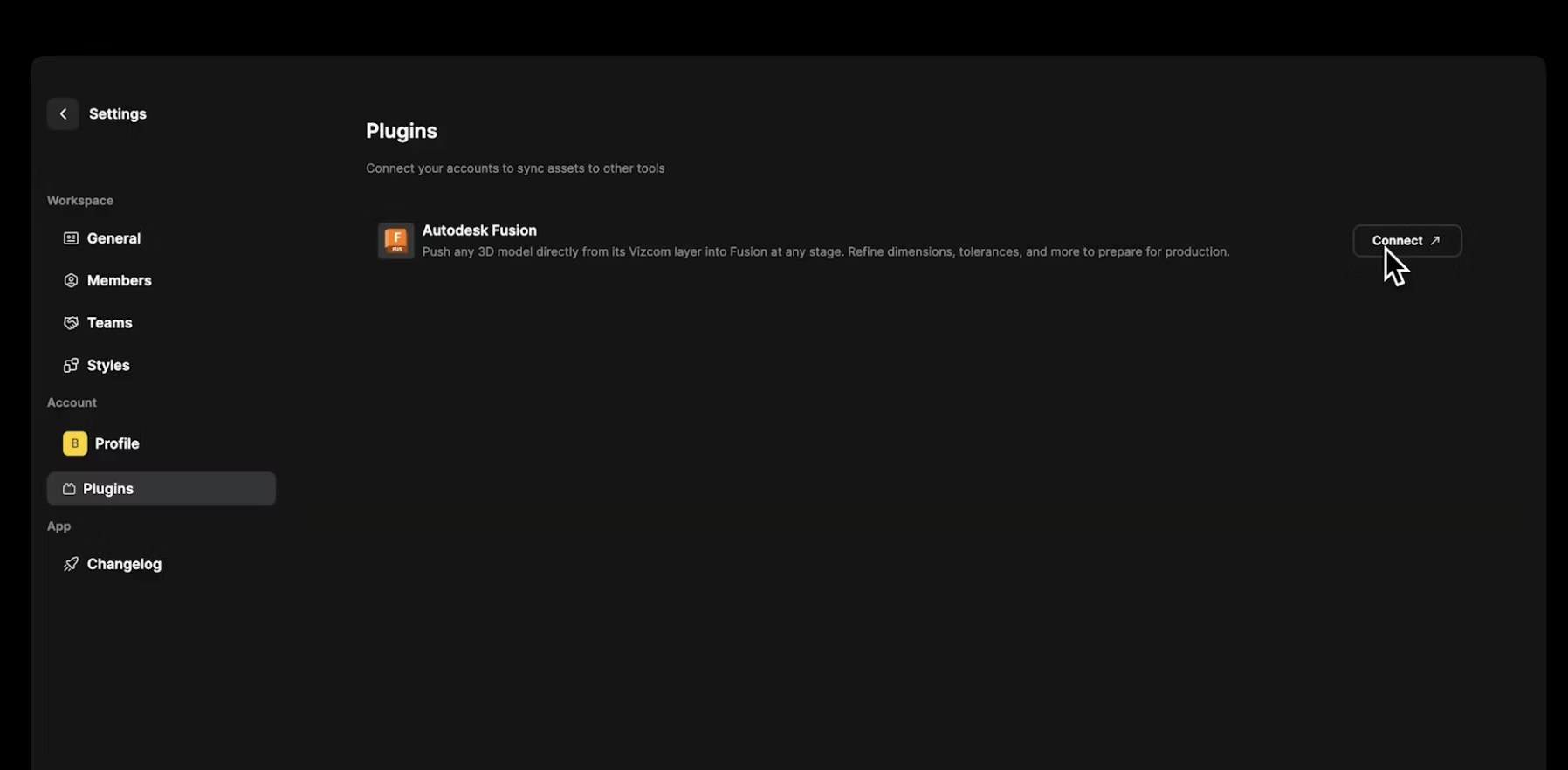
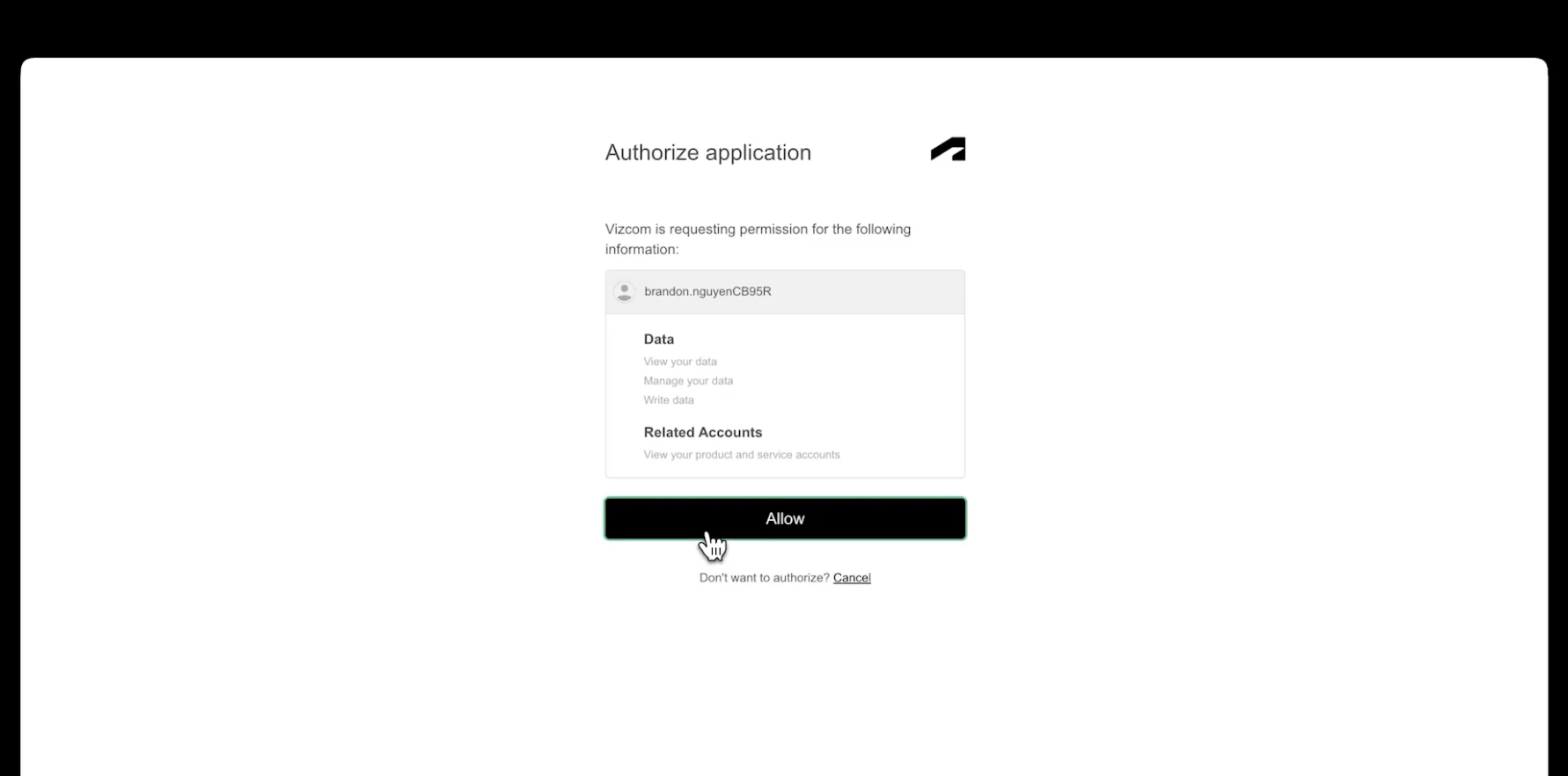
- A new browser tab will open — log in with your Autodesk credentials
- Click Allow to authorize Fusion to connect to Vizcom
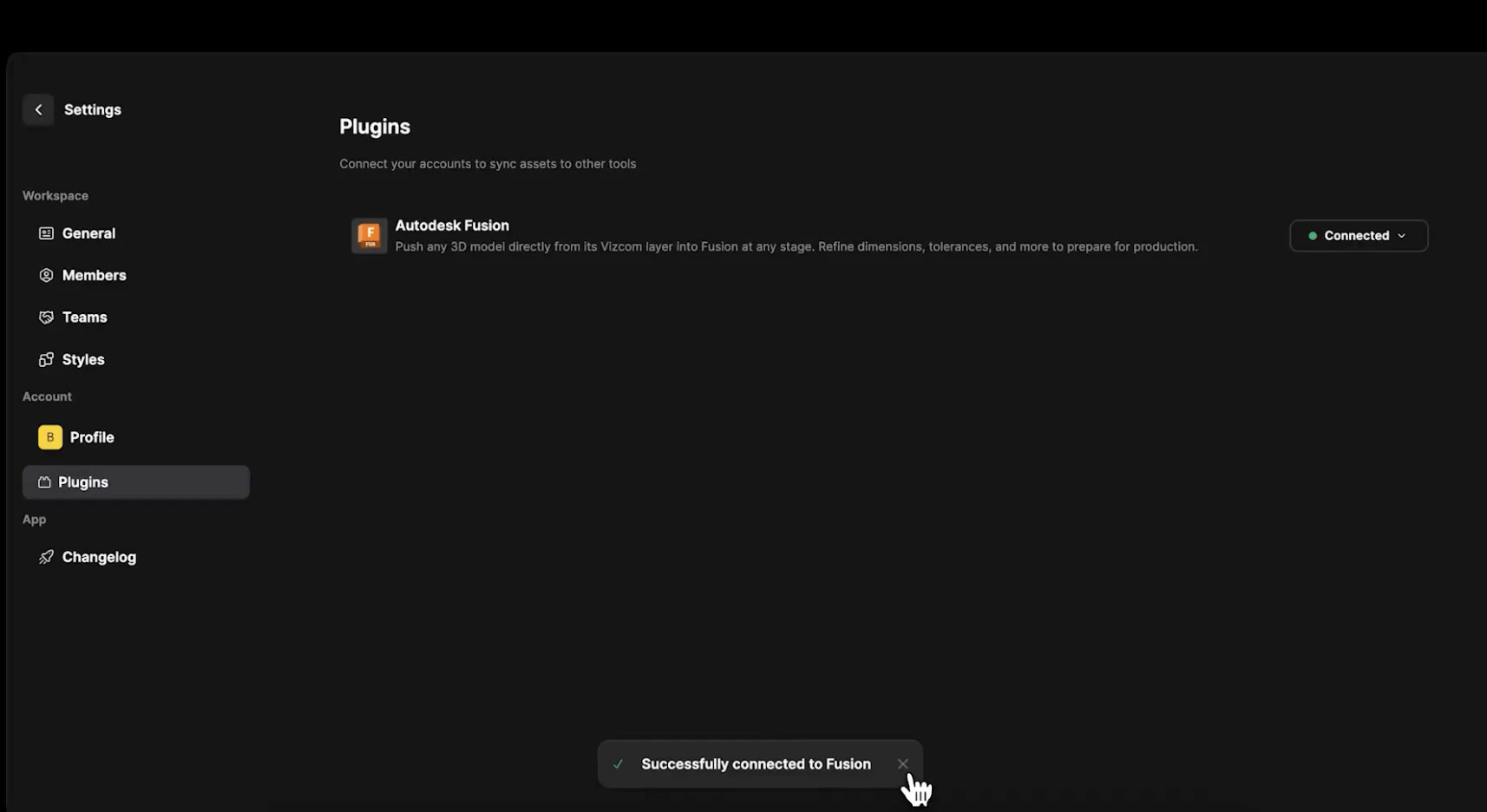
- You’ll be returned to Vizcom — you’re now connected
Step 2A — Export from Vizcom to Fusion
- Open your workbench and locate the 3D model you want to export
- Right-click the 3D layer in the layers panel and select Export to Autodesk Fusion
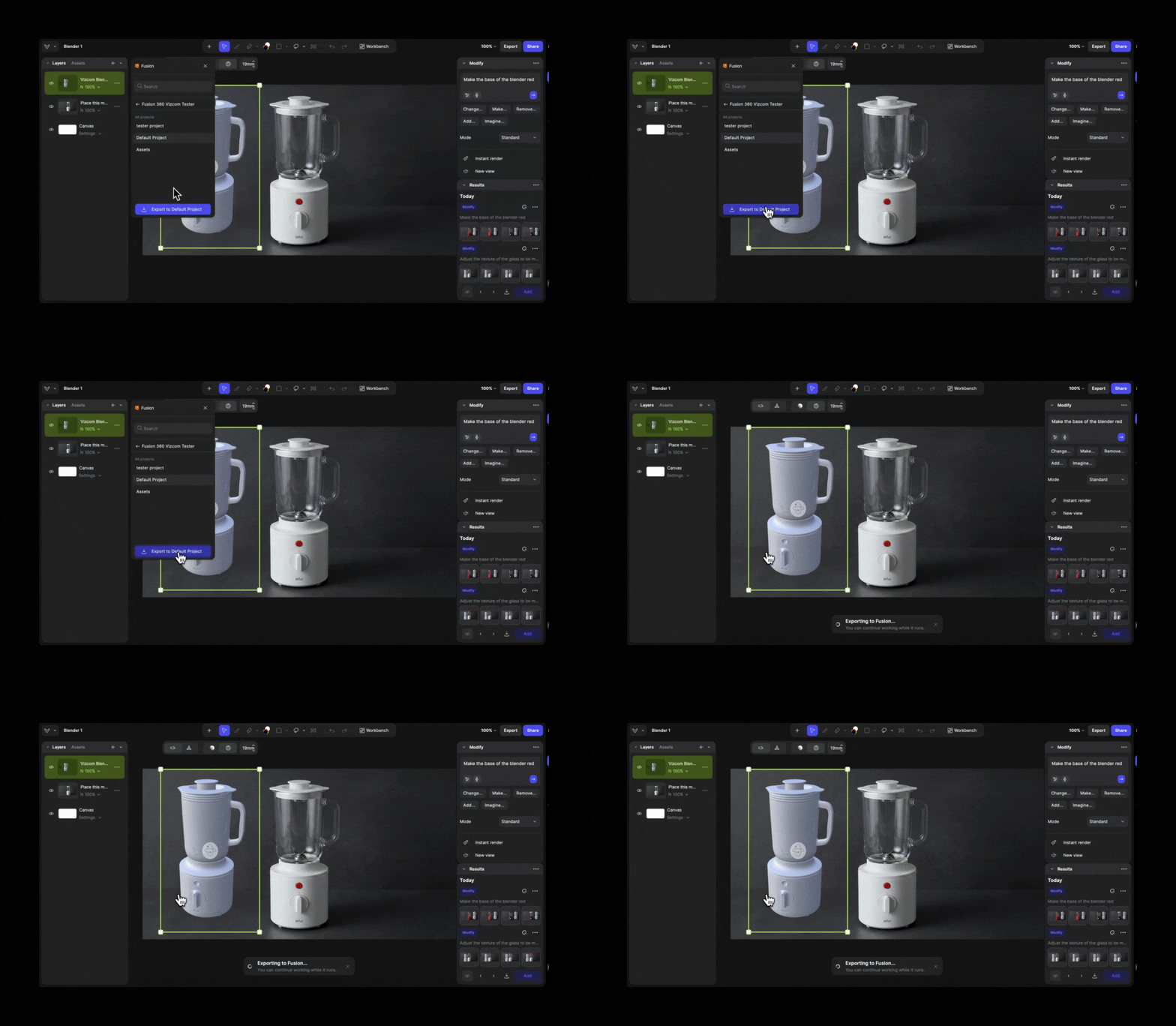
- Vizcom will fetch your Fusion hub — select a destination hub and project
- Click Export
- Your model is converted to an OBJ file and sent directly to your selected Fusion hub and project
- You can only export 3D layers — this option will not appear on image or background layers
- The Export to Autodesk Fusion option is only available from the layers panel in the 2D Studio
Step 2B — Export from Fusion to Vizcom
- Open Autodesk Fusion and click the Vizcom add-in from the Add-Ins toolbar
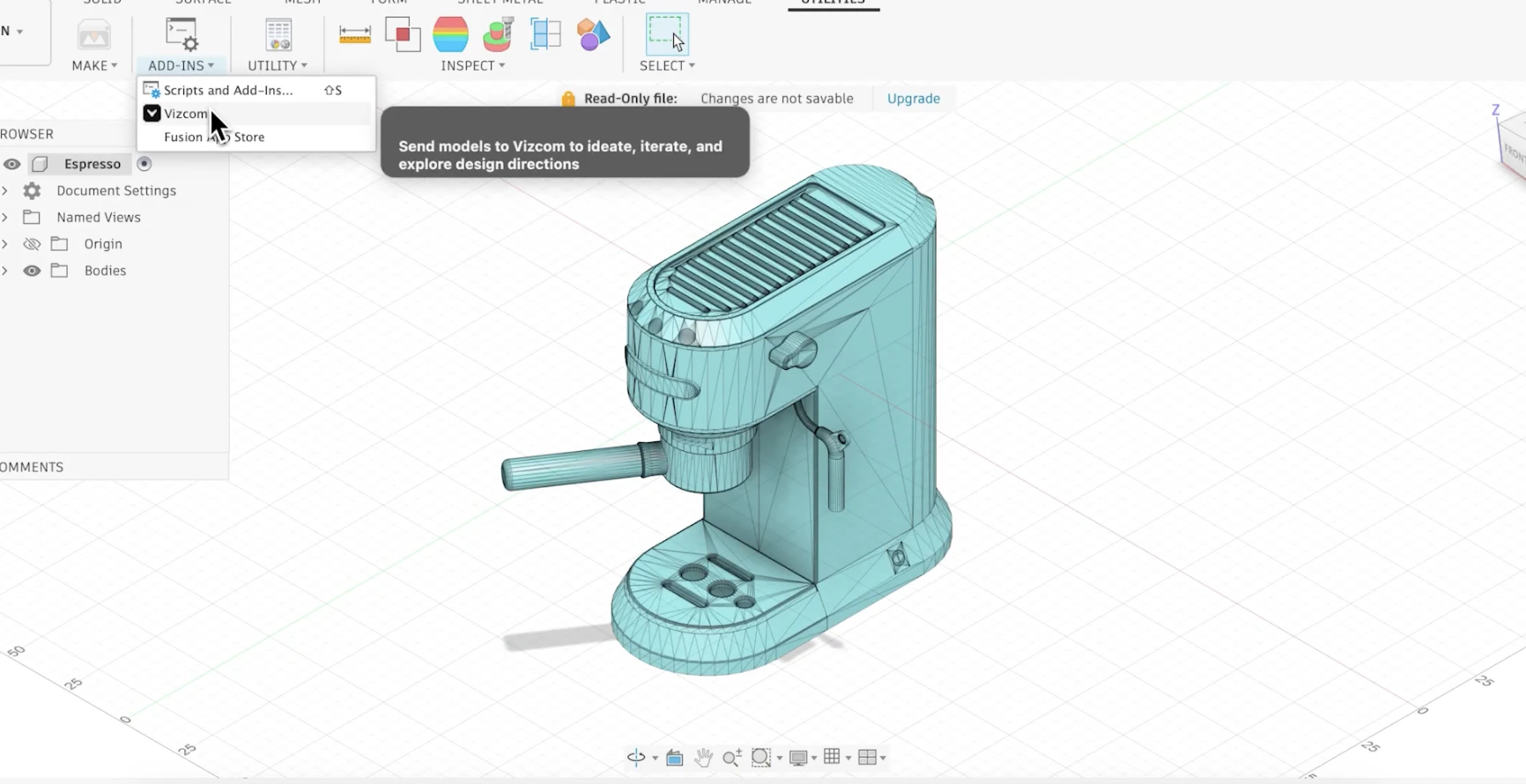
- Log in to your Vizcom account through the add-in
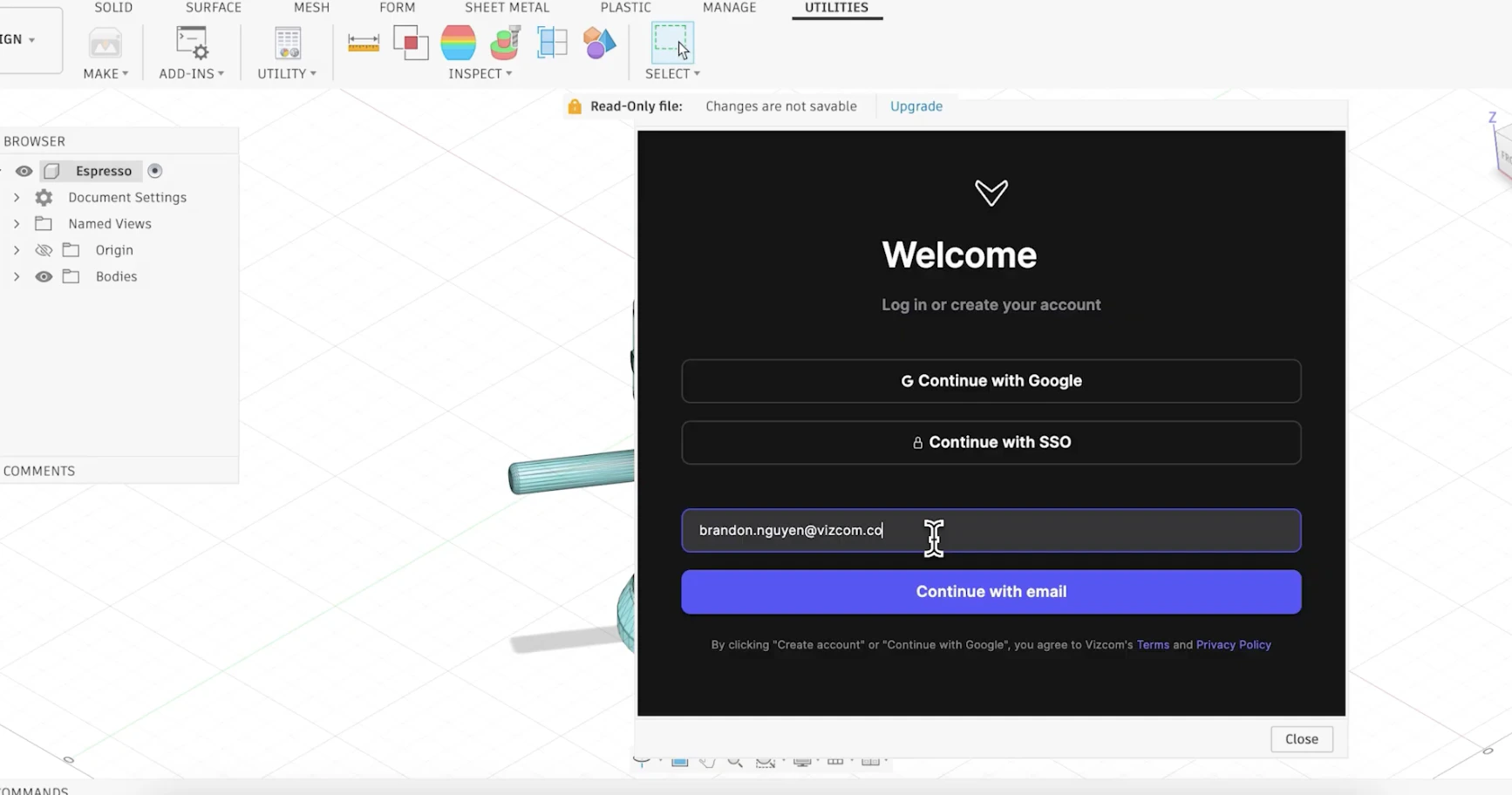
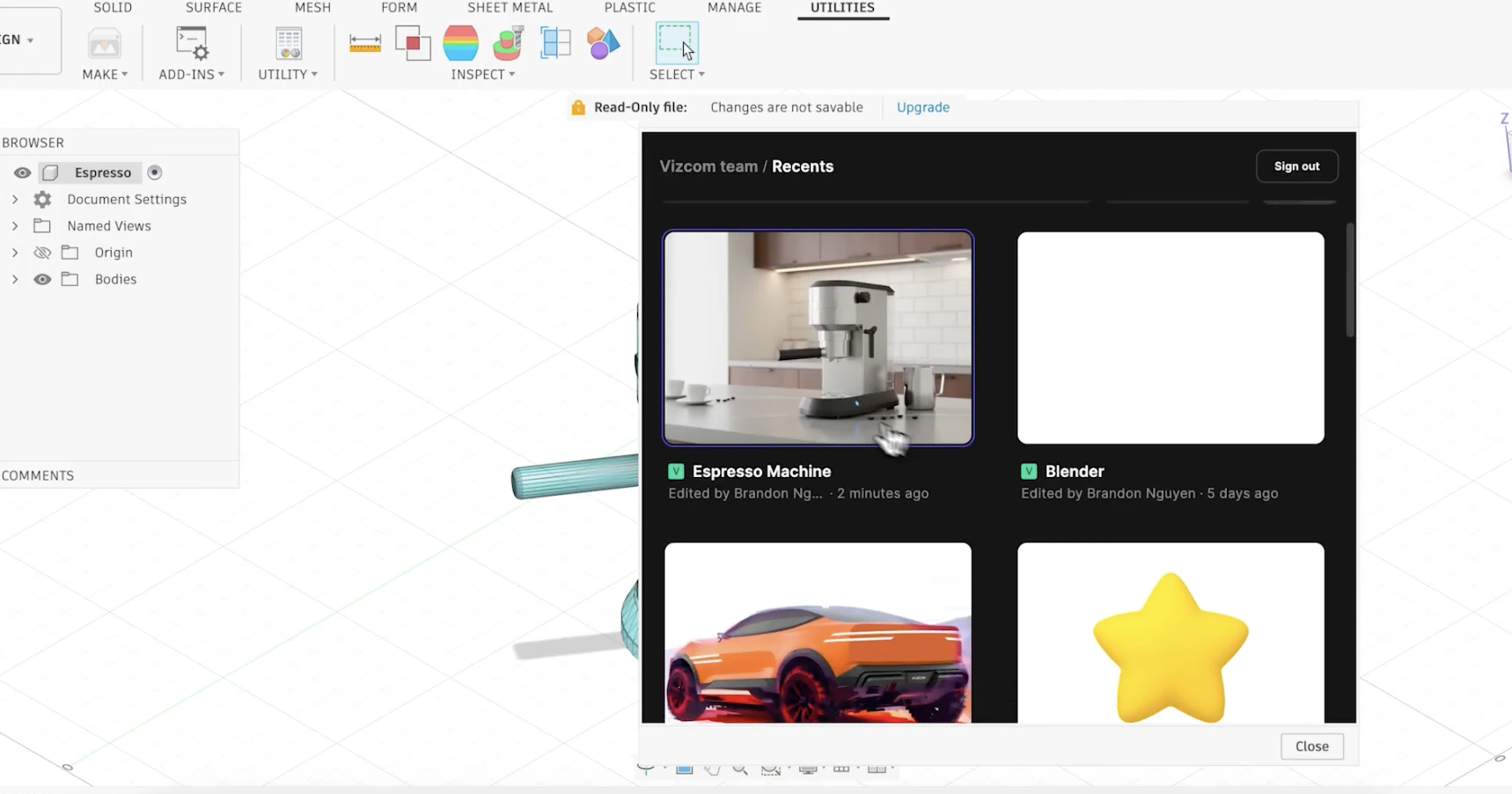
- Select your Vizcom workspace and the drawing you want to export to
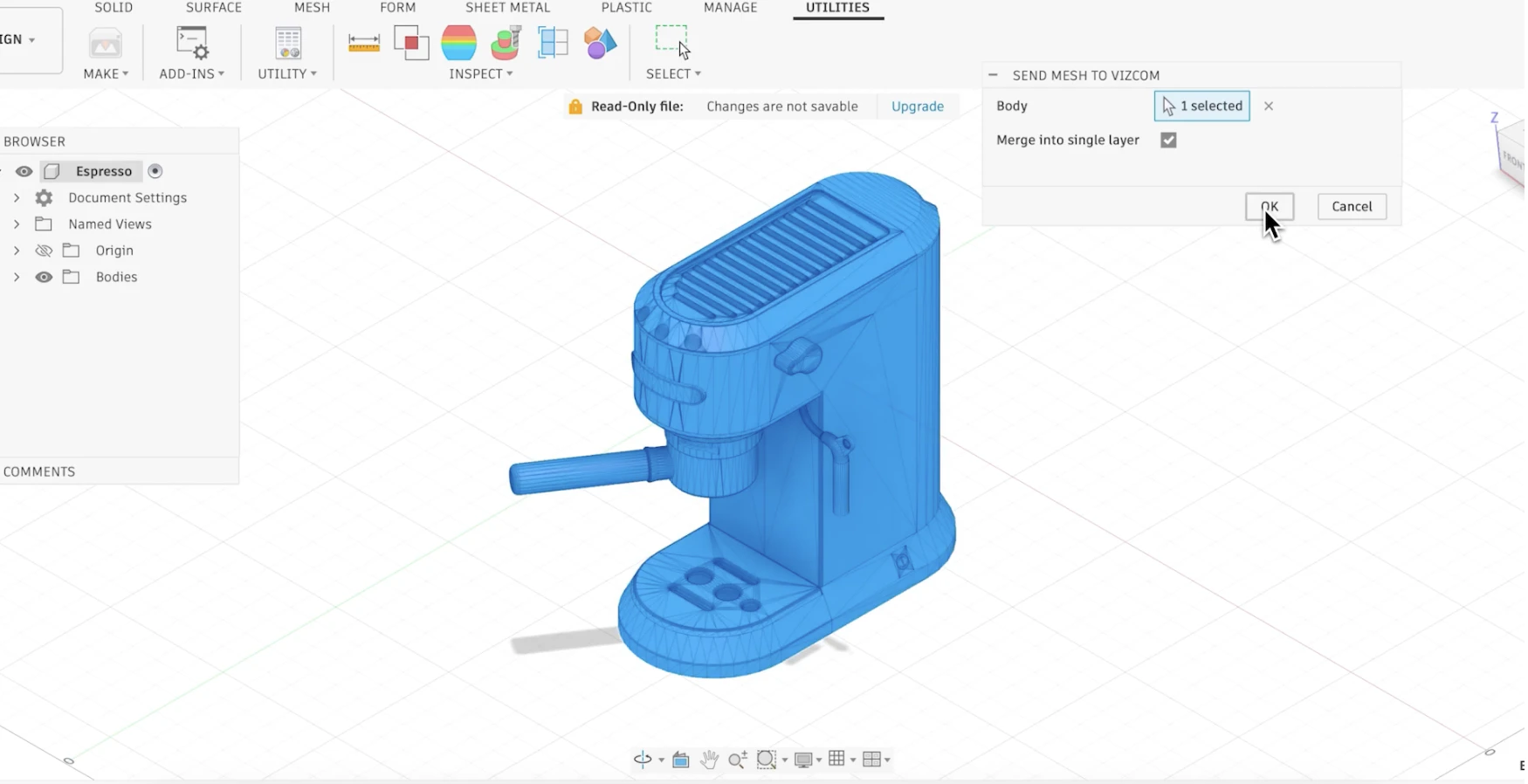
- Select the design you want to bring into Vizcom and click OK
- Wait for confirmation that your design has been sent to Vizcom
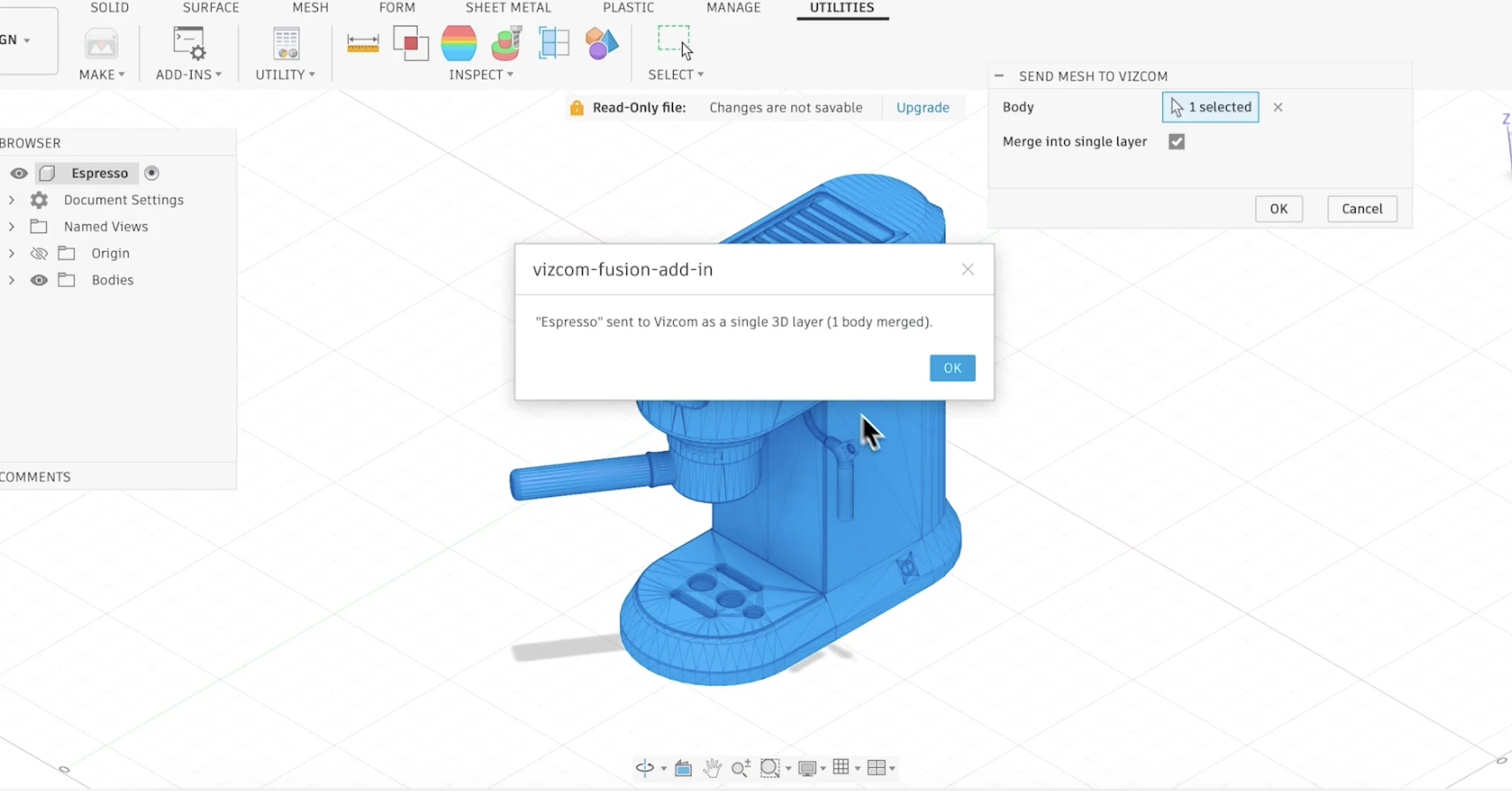
- Make sure the Vizcom drawing you’re exporting to is open in Vizcom — this is the easiest way to find it after export
- If the drawing isn’t open, navigate to your workbench to locate it manually
- Set your workbench to thumbnail view and make sure the file name is up to date for easy navigation
Next Steps
Watch the Tutorial
See the full Vizcom to Fusion workflow in action
Try the Plugin
Connect your Autodesk account and get started
Having trouble? Reach out at support@vizcom.com or find us on Discord.