

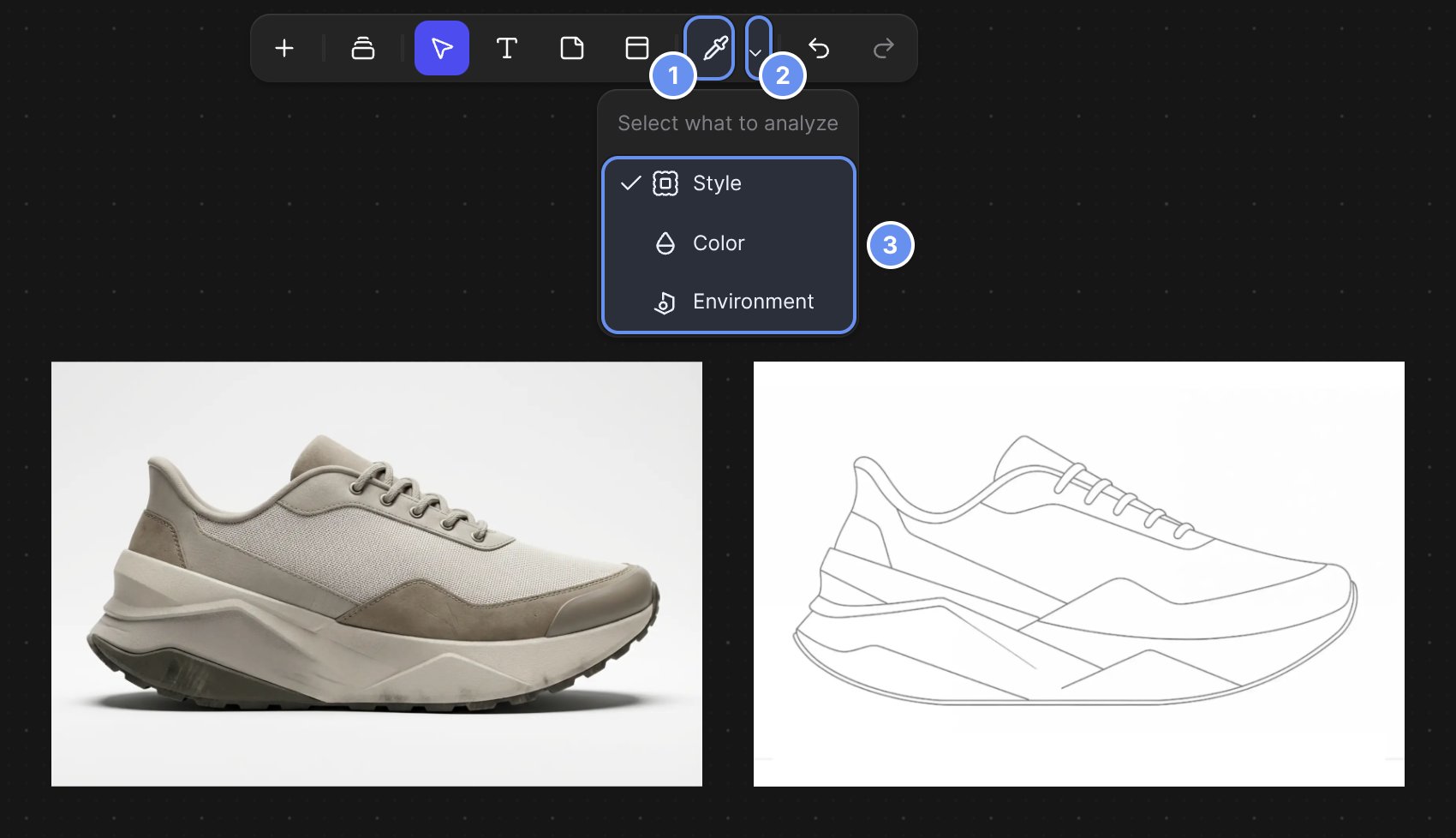
The Smart Dropper (1), its caret (2) and the modes (3).
Use the Smart Dropper
1
Pick the mode
Click the caret 2 and choose Style, Color or Environment 3.
2
Turn on the tool
Press Y or click the eyedropper 1 if it isn’t on yet.
3
Click the source image
Click the image whose look you want.
4
Click the target image
Click the image to change, and the new version appears to its right.
5
Apply to more, or stop
Hold Shift to keep the sample for more targets, and press Esc to stop.
Modes
For recipes, see Smart Dropper workflows.
Tips
- Sample a clean source. A render on a plain background gives a cleaner style than a busy photo.
- Use Color for colorways. Style also carries materials and lighting.
- Need control? Connect the source as a reference image and write a prompt.
Good to know
- Each application costs 30 credits on plans billed in credits, and every Shift-click counts.
- You can’t apply a sample to the image you took it from.
- Workbench only. It isn’t in Studio, and viewers don’t have it.
Related
Match a look with references
References and the Smart Dropper.
Smart Dropper workflows
Three real projects.
Reference images
Point Modify at a reference.
Color variation
A set of colorways.