A file holds one Workbench canvas and saves as you work. The home page is where you create, find and organize files.
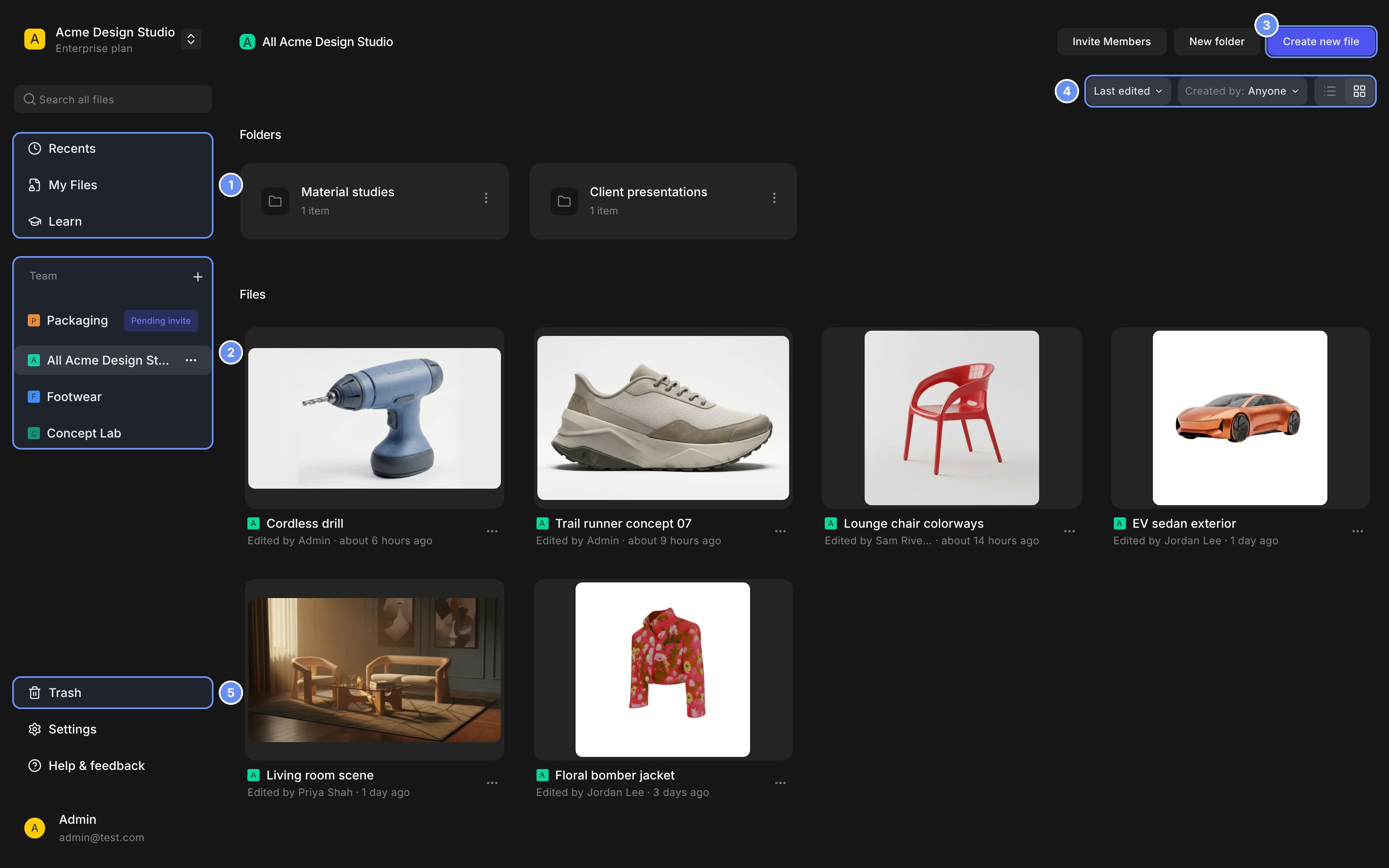
The files page of a workspace named Acme Design Studio, open on the All Acme Design Studio team: two folders, Material studies and Client presentations, and six files with thumbnails: Cordless drill, Trail runner concept 07, Lounge chair colorways, EV sedan exterior, Living room scene and Floral bomber jacket. Callouts mark 1 the Recents, My Files and Learn links, 2 the Team section, 3 Create new file, 4 the Last edited and Created by: Anyone menus with the list and grid buttons, and 5 Trash.

Recents, My Files, Learn (1), teams (2), Create new file (3), sort and view (4), Trash (5).

Create a file

1

Pick where it goes

Open My Files 1, a team 2 or a folder.
2

Create it

Click Create new file 3.
3

Name it

Type a name and click Start in Workbench or Start in Studio.
For a folder, click New folder, name it and drag files onto it.

Find a file

  • Type in Search all files to search file names and who made them.
  • Sort and filter with the menus 4, or switch between grid and list.
  • Move the pointer across a thumbnail to scrub its images, then right-click and choose Go to image.

Move files and folders
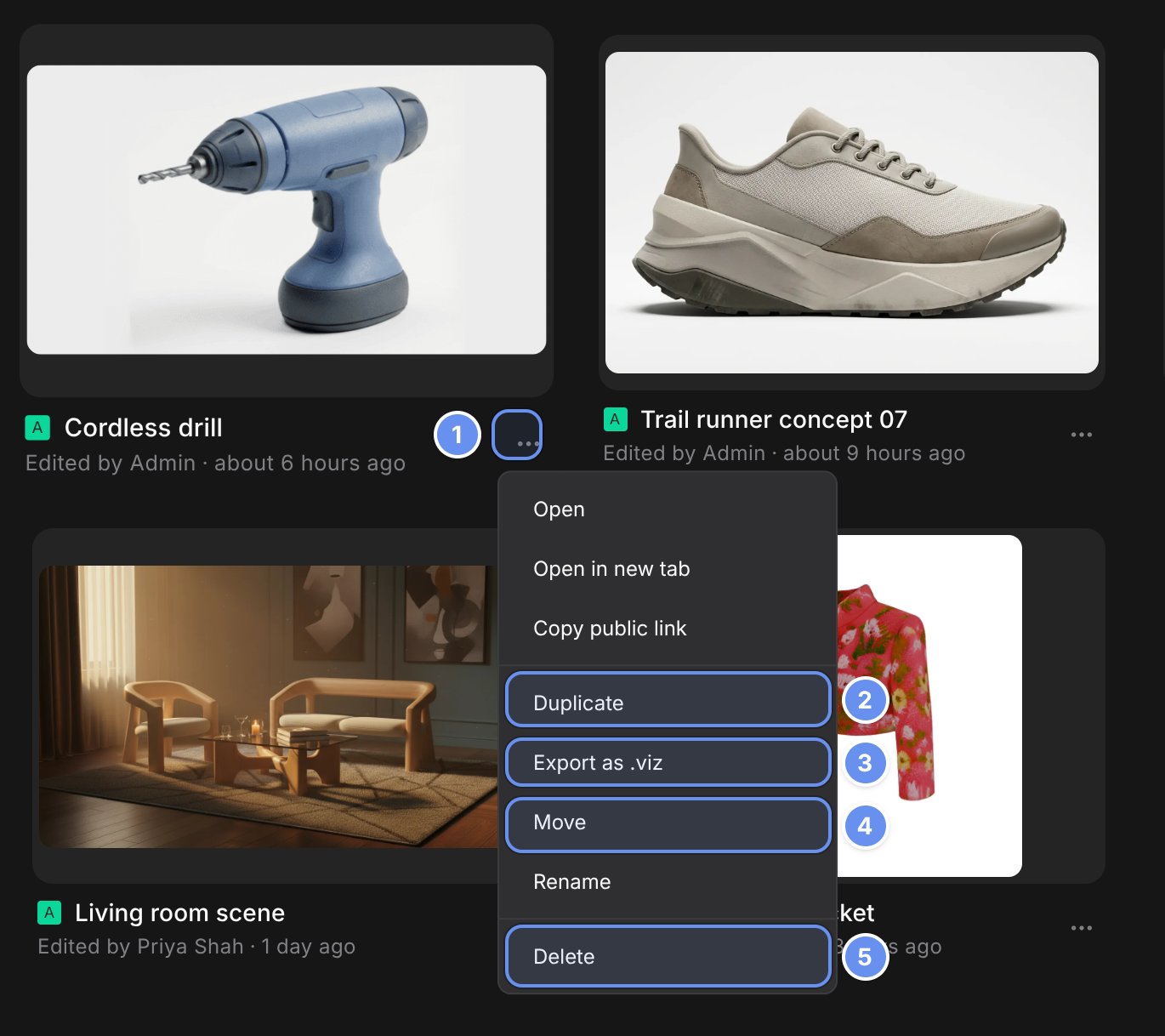
The Cordless drill file card in a team with its menu open: Open, Open in new tab, Copy public link, Duplicate, Export as .viz, Move, Rename and Delete. Callouts mark 1 the three-dot button on the card, 2 Duplicate, 3 Export as .viz, 4 Move and 5 Delete.

The ⋯ button (1), Duplicate (2), Export as .viz (3), Move (4), Delete (5).

Right-click a file or click its ⋯ to duplicate, move or delete it. ⌘/Ctrl-click several to move or delete them together.

Delete and restore

1

Open Trash

Click Trash 5.
2

Restore

Click the file’s ⋯ and choose Restore.
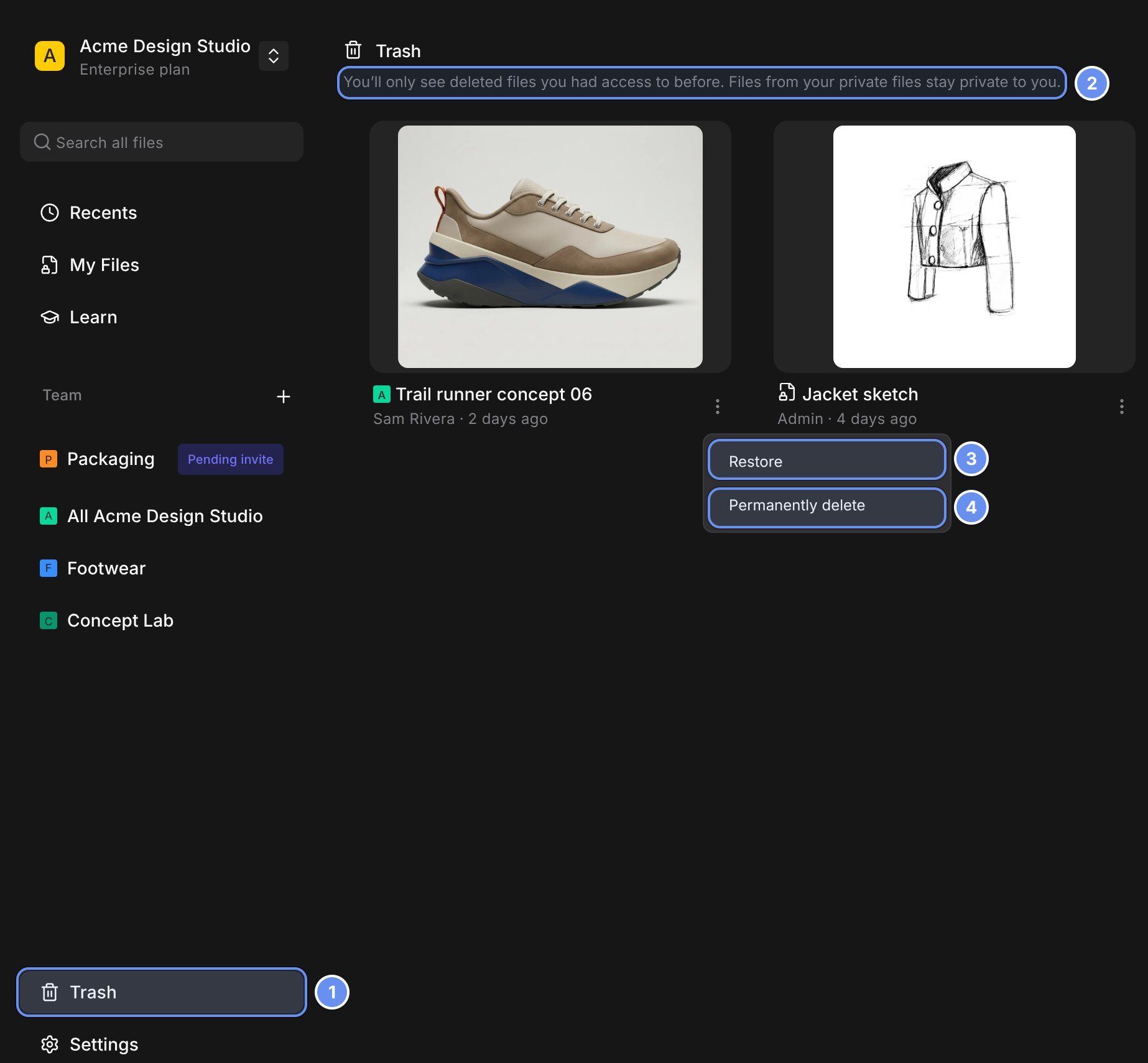
The Trash page with two deleted files, Trail runner concept 06 and Jacket sketch. The menu on Trail runner concept 06 is open with Restore and Permanently delete. Callouts mark 1 Trash in the sidebar, 2 the note about which deleted files you can see, 3 Restore and 4 Permanently delete.

Trash (1), which files you see (2), Restore (3), Permanently delete for admins (4).

Start from a template
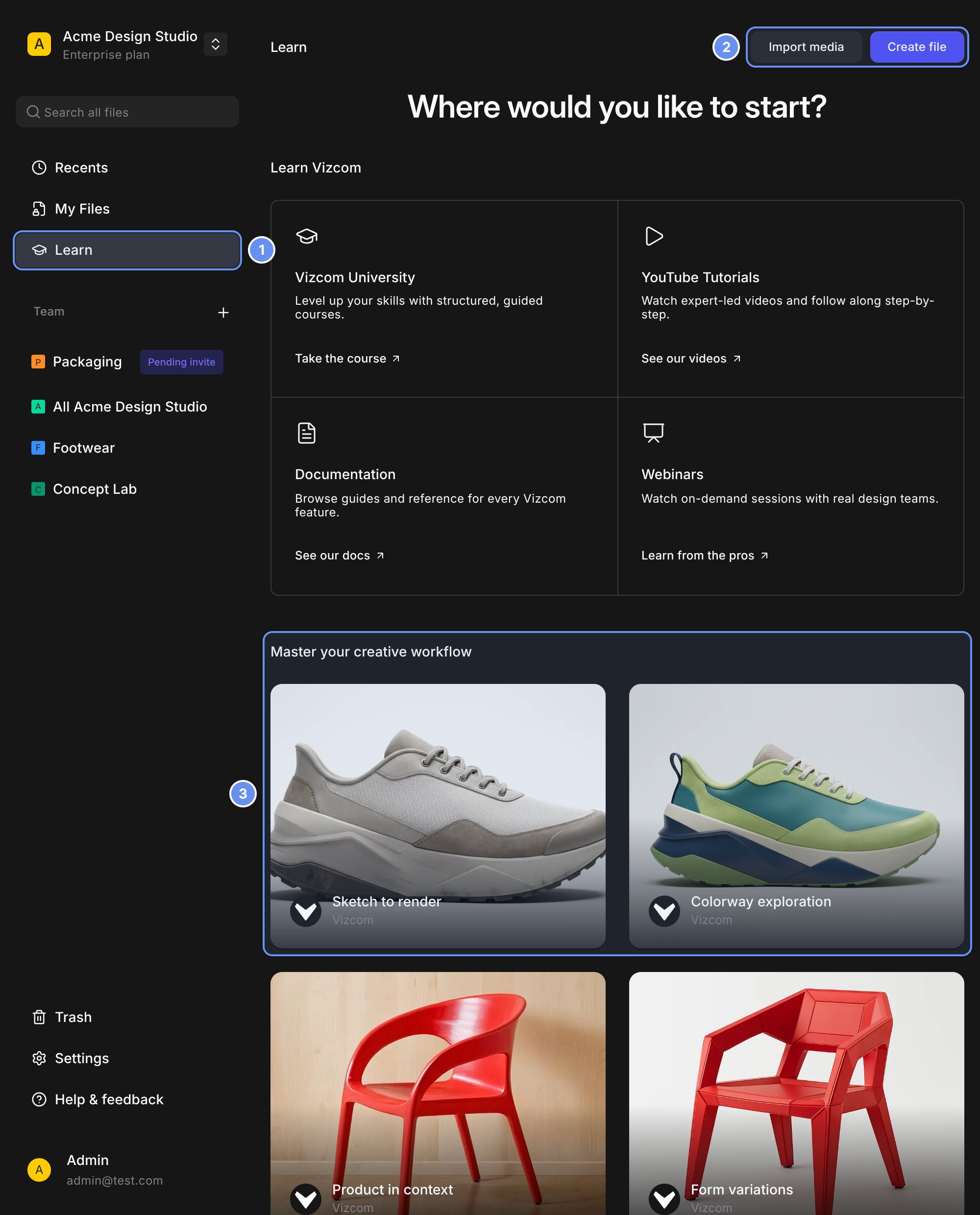
The Learn page with Import media and Create file at the top right, the heading Where would you like to start, four Learn Vizcom cards for Vizcom University, YouTube Tutorials, Documentation and Webinars, and template files under Master your creative workflow. Callouts mark 1 Learn in the sidebar, 2 the Import media and Create file buttons and 3 the first row of templates.

Learn (1): start a new file or import media (2), or open a template (3).

Templates open view-only. Click Duplicate file to edit for your own copy.

Good to know

  • My Files is private to you. Move a file to a team to share it.
  • Deleting a folder deletes everything in it, and Trash lists files, not folders.
  • Viewers and Billing Admins can’t create, rename, move or delete files.

Organize your work

Set up files, folders and teams.

Share and collaborate

Links, access and working together.

Teams

Shared files for a group.

Share

Share a file or a link.