A collection saves up to 9 images as one reference, so a product, character or brand stays consistent, even in views you never drew.
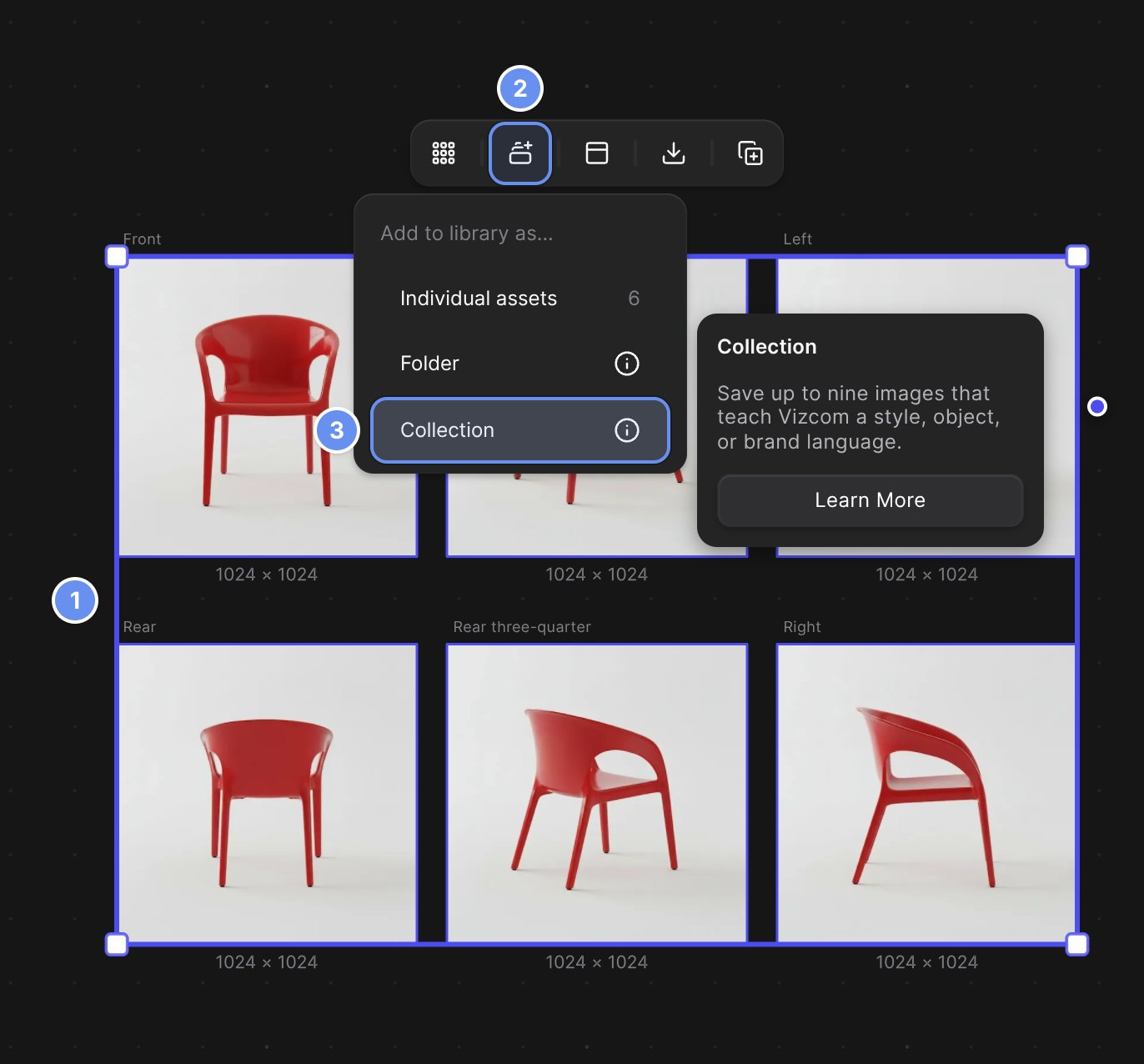
Six photos of the same red molded plastic chair (front, front three-quarter, left, rear, rear three-quarter and right) selected on the Workbench, marked 1. The Add to library button in the toolbar above them is marked 2. Its Add to library as... menu lists Individual assets (6), Folder and Collection, with Collection marked 3 and a hover card that reads Save up to nine images that teach Vizcom a style, object, or brand language, above a Learn More button.

Select the images (1), click Add to library (2) and choose Collection (3).

Make a collection

1

Select the images

Select 2 to 9 images on the canvas 1.
2

Add them as a collection

Click Add to library 2, choose Collection 3 and pick a library.
3

Name, type and save

Type a name, choose a Collection type and click Save.
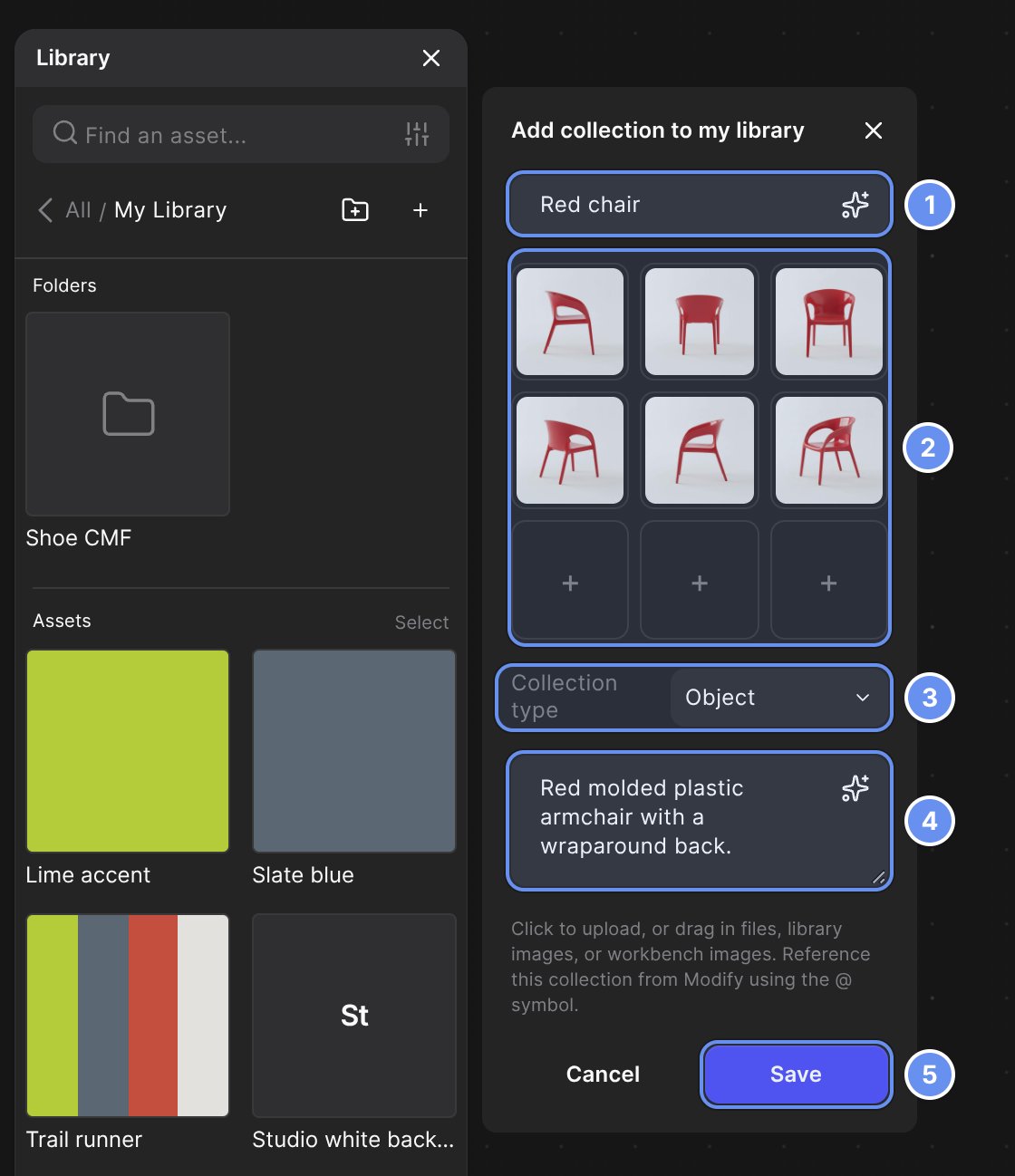
The Library panel open in My Library, and beside it the Add collection to my library panel. Callouts mark 1 the name field reading Red chair with its sparkle (Generate) button, 2 the three by three image grid with six views of a red chair and three empty + slots, 3 Collection type set to Object, 4 the description box reading Red molded plastic armchair with a wraparound back, with its sparkle button, and 5 the Save button next to Cancel.

Name (1), images (2), Collection type (3), description (4), Save (5).

Use a collection

Type @ in a Modify prompt and pick it from Collections:
  • “Render @Camera 3 onto the sketch composition in @1 hanging from a wrist strap.”
  • “Redesign the shoe in @1 using the details from @Trail Runner Brand. Keep the silhouette unchanged.”

Examples
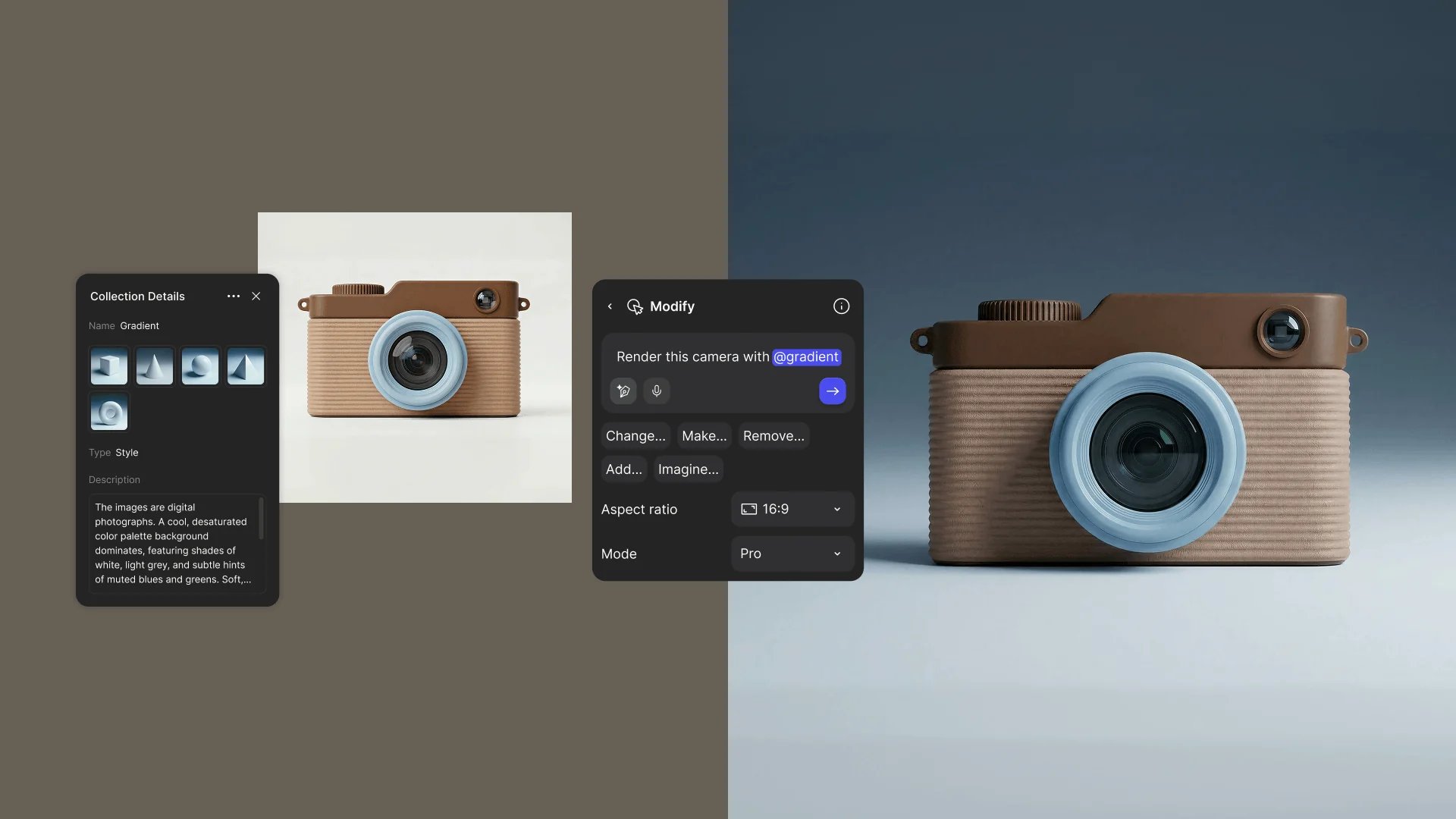
The Collection Details panel for a Style collection named Gradient with five images of pale geometric shapes on soft blue backdrops. Next to it, a tan and brown camera on a plain background, a Modify block with the prompt Render this camera with @gradient set to 16:9 and Pro, and the result: the same camera on a cool blue gradient backdrop.

A Style collection of five images. Prompt: "Render this camera with @gradient."
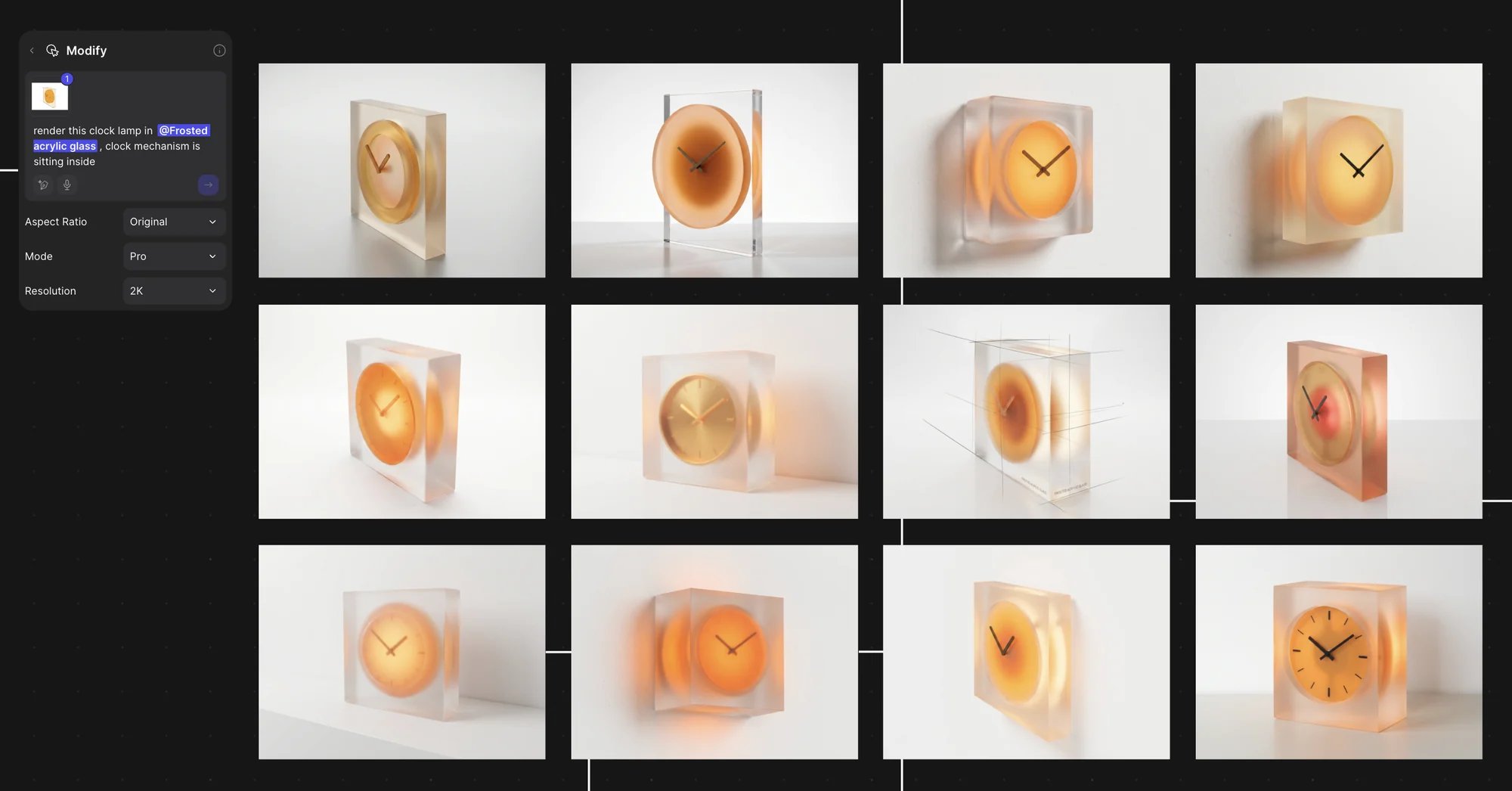
A Modify block with a connected clock image and the prompt render this clock lamp in @Frosted acrylic glass, clock mechanism is sitting inside, set to Aspect Ratio Original, Mode Pro and Resolution 2K. Next to it, twelve renders in a four by three grid: clocks with orange faces set in frosted acrylic blocks, seen from different angles, all in the same material.

Prompt: "render this clock lamp in @Frosted acrylic glass, clock mechanism is sitting inside."

Tips

  • Five images that agree beat nine that don’t.
  • For an Object collection, cover front, side, back, three-quarter and a detail.
  • Up to 3 collections per prompt. A collection in This File works only in that file.

Match a look with references

Steer a render with references.

Keep work on brand

Consistent, on-brand renders.

Library

Where collections live.

Mentions

Reference assets in a prompt.