

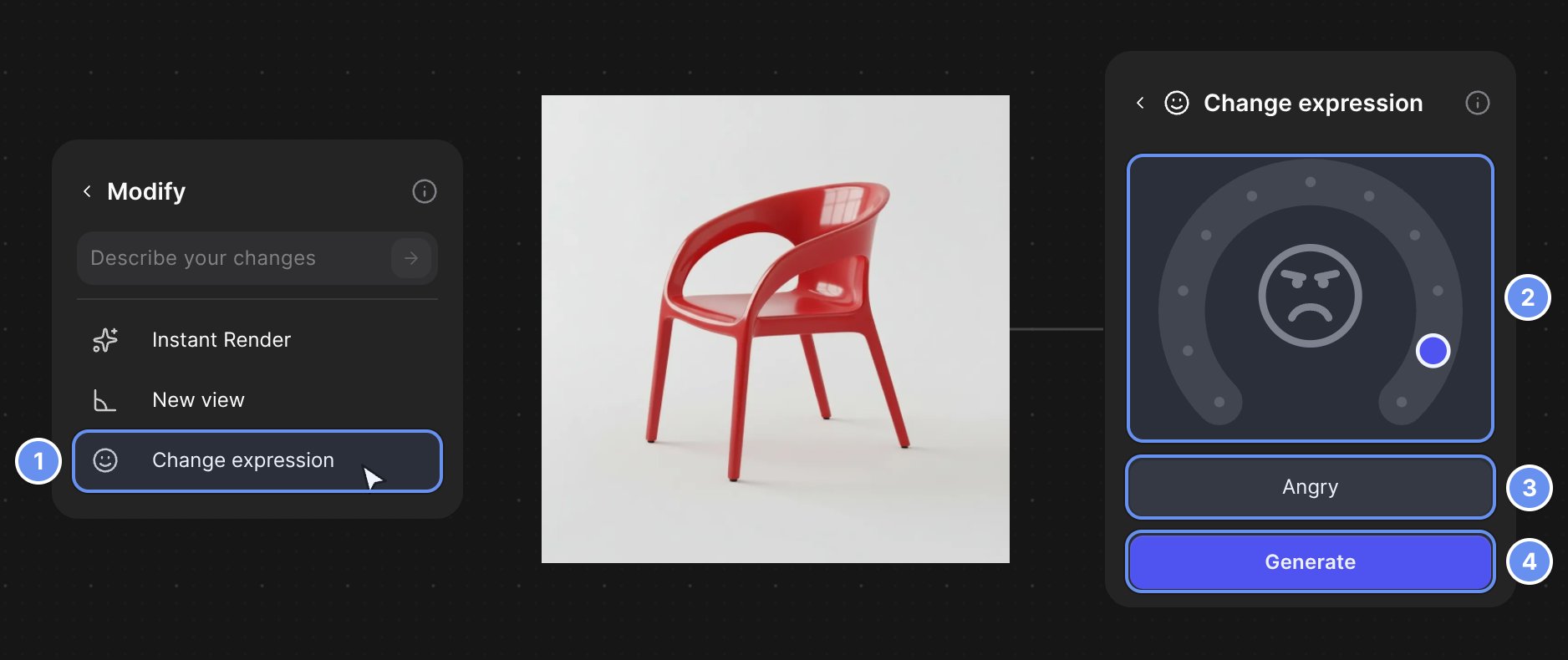
Change expression in the list (1), dial (2), expression (3), Generate (4).
Use Change expression
1
Choose Change expression
Add a Modify block, connect your image and click Change expression 1.
2
Turn the dial
Drag the dial 2 until the label 3 shows the expression you want. At the end, Custom lets you type your own, such as “smug, one eyebrow raised”.
3
Generate
Click Generate 4 for one image.
Examples
Tips
- Connect the same original for every expression. Chaining results drifts away from the character.
- Use a clear, front-facing face on a plain background.
- If too much changes, prompt a Describe your changes block: “Change only the facial expression to surprised. Keep the face, hair, outfit and pose the same.”
Related
Explore variations of a design
Expressions, views and forms side by side.
Form variation
Push a shape along two axes.
New view
See it from another angle.
Modify
The block that holds Change expression.