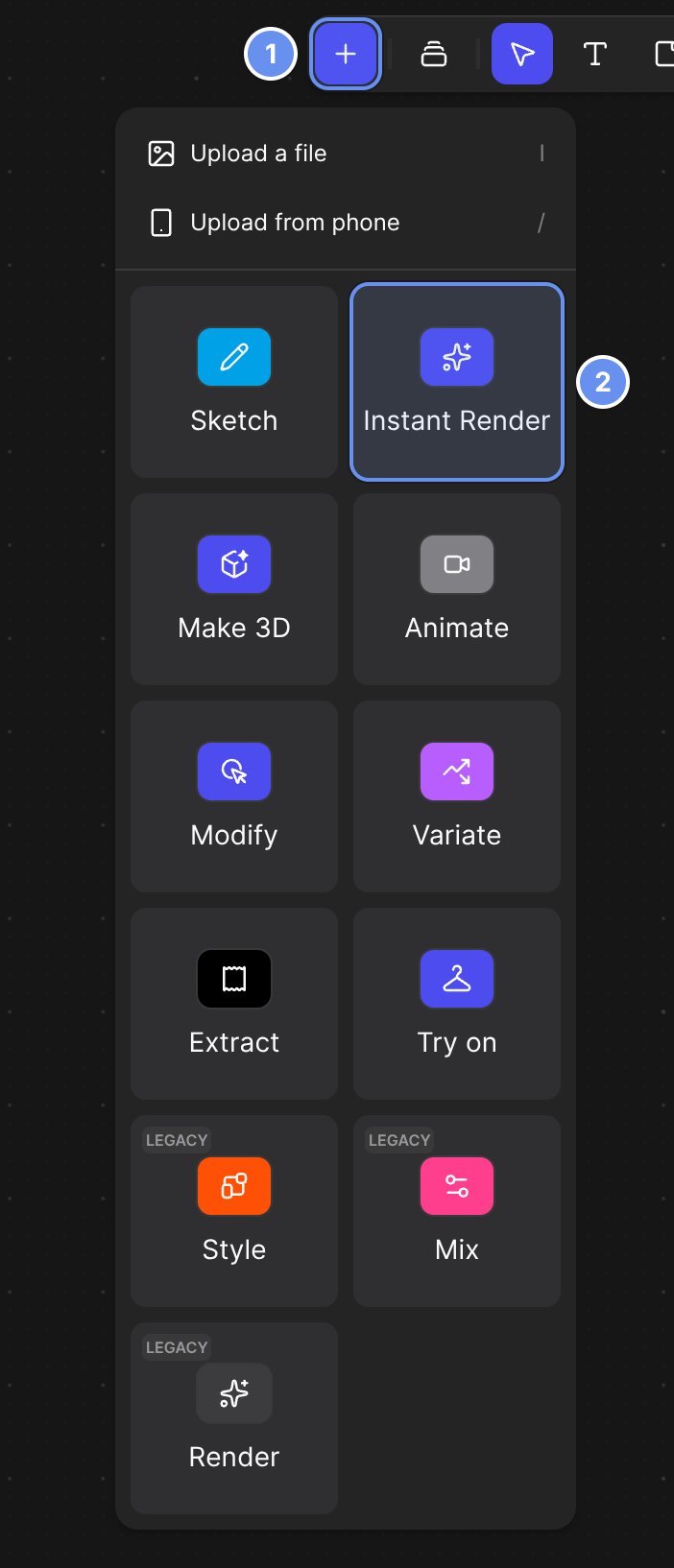
{"docsConfig":{"theme":"luma","$schema":"https://mintlify.com/docs.json","name":"Vizcom Docs","description":"Guides for designers and teams using Vizcom, the AI design tool for sketching, rendering, and refining product concepts in 2D and 3D, plus help with workspaces, billing, and Enterprise administration.","colors":{"primary":"#6790EF","light":"#D1DFFF","dark":"#1145A0"},"logo":{"light":"https://mintcdn.com/vizcom-c4034e9b/l3hebjVqvRBa2E6g/images/logo-dark.svg?fit=max\u0026auto=format\u0026n=l3hebjVqvRBa2E6g\u0026q=85\u0026s=22515442b3097b2a6ffbf4ede9f56565","dark":"https://mintcdn.com/vizcom-c4034e9b/l3hebjVqvRBa2E6g/images/logo-light.svg?fit=max\u0026auto=format\u0026n=l3hebjVqvRBa2E6g\u0026q=85\u0026s=7112255f58c36c98724271cccda31036","href":"https://vizcom.com/"},"favicon":"https://mintcdn.com/vizcom-c4034e9b/mZT69WTP9Dk-4r_B/images/favicon.svg?fit=max\u0026auto=format\u0026n=mZT69WTP9Dk-4r_B\u0026q=85\u0026s=e7ab289d62821f9faec0f9fb2361cbf1","appearance":{"default":"system"},"background":{"decoration":"grid","color":{"light":"#F8F4F1","dark":"#191919"}},"navbar":{"links":[{"href":"https://app.vizcom.com/auth?utm_source=docs\u0026utm_medium=web\u0026utm_campaign=docs\u0026utm_content=cta_login","label":"Log in"}],"primary":{"type":"button","label":"Sign up","href":"https://app.vizcom.com/auth?utm_source=docs\u0026utm_medium=web\u0026utm_campaign=docs\u0026utm_content=cta_signup"}},"footer":{"socials":{"x":"https://x.com/Vizcom_","linkedin":"https://www.linkedin.com/company/vizcomhq","instagram":"https://www.instagram.com/vizcom_","youtube":"https://www.youtube.com/channel/UCU-XOa74z1aGdZRyvRBQ6UQ","discord":"https://discord.gg/aJZZaJpPSZ"}},"search":{"prompt":"Search or ask, e.g. “how do I change only the sole?”"},"fonts":{"family":"Matter","weight":400,"source":"https://cdn.prod.website-files.com/68da69e18c8988d039a9f6fe/6903b8705cce60bc3d9e254b_Matter-Regular.woff2","format":"woff2"},"icons":{"library":"fontawesome"},"styling":{"eyebrows":"breadcrumbs","codeblocks":"system","latex":false},"contextual":{"options":["copy","view","chatgpt","claude","perplexity","mcp","cursor","vscode"],"display":"header"},"thumbnails":{"fonts":{"family":"Matter"}},"navigation":{"pages":[]}},"deployment":{"deploymentMetadataValue":{"subdomain":"vizcom-c4034e9b","hasAudioNarration":false,"actualSubdomain":"vizcom-c4034e9b","customDomains":["docs.vizcom.com"],"gitSource":{"type":"github","owner":"vizcomtech","repo":"docs","deployBranch":"main","contentDirectory":"","isPrivate":true,"mountPath":"","label":"","_id":"6af36121a0f7f7caf9703cf7"},"feedback":{"thumbs":true},"entitlements":{"AI_CHAT":{"status":"ENABLED"},"REMOVE_BRANDING":{"status":"DISABLED"},"CONTEXTUAL_FEEDBACK":{"status":"DISABLED"},"CODE_SNIPPET_FEEDBACK":{"status":"DISABLED"},"WEB_MCP":{"status":"ENABLED"},"NARRATION":{"status":"ENABLED"}},"buildId":"6af36727140d38558d245dcf","clientVersion":"0.0.4094","searchFilterCounts":[{"language":"default","tag":"Tools","count":33},{"language":"default","tag":"Guides","count":20},{"language":"default","tag":"Workflows","count":18},{"language":"default","tag":"Admin \u0026 security","count":13},{"language":"default","tag":"Explore","count":11},{"language":"default","tag":"Help","count":10},{"language":"default","tag":"Reference","count":9},{"language":"default","tag":"Render","count":8},{"language":"default","tag":"By industry","count":8},{"language":"default","tag":"By deliverable","count":8}]},"assistantConfig":{"enableAskAiButton":false,"enableStarterQuestions":true,"enableAskAiSearchBar":true,"deflection":{"enabled":true,"email":"[email protected]"}},"basePath":"","hasChatPermissions":true,"hasWebMcpPermissions":true,"toggles":[{"name":"kill-isr","enabled":true,"variant":{"name":"disabled","enabled":false,"feature_enabled":true},"impressionData":false},{"name":"custom-rbac-roles","enabled":true,"variant":{"name":"disabled","enabled":false,"feature_enabled":true},"impressionData":false},{"name":"agent-mintlify-slack","enabled":true,"variant":{"name":"disabled","enabled":false,"feature_enabled":true},"impressionData":false},{"name":"agent-integrations-settings","enabled":true,"variant":{"name":"disabled","enabled":false,"feature_enabled":true},"impressionData":false},{"name":"rbac-expansion","enabled":true,"variant":{"name":"disabled","enabled":false,"feature_enabled":true},"impressionData":false},{"name":"automations-pr-grouping","enabled":true,"variant":{"name":"disabled","enabled":false,"feature_enabled":true},"impressionData":false},{"name":"custom-prefix","enabled":true,"variant":{"name":"disabled","enabled":false,"feature_enabled":true},"impressionData":false},{"name":"analytics-v7","enabled":true,"variant":{"name":"disabled","enabled":false,"feature_enabled":true},"impressionData":false},{"name":"user-flows-analytics","enabled":true,"variant":{"name":"disabled","enabled":false,"feature_enabled":true},"impressionData":false},{"name":"no-publish-flow","enabled":true,"variant":{"name":"disabled","enabled":false,"feature_enabled":true},"impressionData":false},{"name":"workos-onboarding","enabled":true,"variant":{"name":"disabled","enabled":false,"feature_enabled":true},"impressionData":false},{"name":"llms-txt-v2","enabled":true,"variant":{"name":"disabled","enabled":false,"feature_enabled":true},"impressionData":false},{"name":"snapshot-serving-live","enabled":true,"variant":{"name":"disabled","enabled":false,"feature_enabled":true},"impressionData":false},{"name":"stripTemperatureMiddleware","enabled":true,"variant":{"name":"disabled","enabled":false,"feature_enabled":true},"impressionData":false},{"name":"support-platform-pylon-zendesk","enabled":true,"variant":{"name":"disabled","enabled":false,"feature_enabled":true},"impressionData":false},{"name":"snapshot-serving","enabled":true,"variant":{"name":"disabled","enabled":false,"feature_enabled":true},"impressionData":false},{"name":"instant-rollback","enabled":true,"variant":{"name":"disabled","enabled":false,"feature_enabled":true},"impressionData":false},{"name":"granular-notifications-server","enabled":true,"variant":{"name":"disabled","enabled":false,"feature_enabled":true},"impressionData":false},{"name":"granular-notifications","enabled":true,"variant":{"name":"disabled","enabled":false,"feature_enabled":true},"impressionData":false},{"name":"automations-fable","enabled":true,"variant":{"name":"disabled","enabled":false,"feature_enabled":true},"impressionData":false},{"name":"fixed-ai-action-pricing","enabled":true,"variant":{"name":"disabled","enabled":false,"feature_enabled":true},"impressionData":false},{"name":"automation-resolve-merge-conflict","enabled":true,"variant":{"name":"disabled","enabled":false,"feature_enabled":true},"impressionData":false},{"name":"scoped-publishing","enabled":true,"variant":{"name":"disabled","enabled":false,"feature_enabled":true},"impressionData":false},{"name":"mintql","enabled":true,"variant":{"name":"disabled","enabled":false,"feature_enabled":true},"impressionData":false},{"name":"page-level-analytics","enabled":true,"variant":{"name":"disabled","enabled":false,"feature_enabled":true},"impressionData":false},{"name":"editor-version-history-v2","enabled":true,"variant":{"name":"disabled","enabled":false,"feature_enabled":true},"impressionData":false},{"name":"billing-page-v2","enabled":true,"variant":{"name":"disabled","enabled":false,"feature_enabled":true},"impressionData":false},{"name":"full-page-search","enabled":true,"variant":{"name":"disabled","enabled":false,"feature_enabled":true},"impressionData":false},{"name":"workspace-projects","enabled":true,"variant":{"name":"disabled","enabled":false,"feature_enabled":true},"impressionData":false},{"name":"assistant-v5","enabled":true,"variant":{"name":"disabled","enabled":false,"feature_enabled":true},"impressionData":false},{"name":"fork-pr-previews","enabled":true,"variant":{"name":"disabled","enabled":false,"feature_enabled":true},"impressionData":false},{"name":"revalidation-jwt","enabled":true,"variant":{"name":"disabled","enabled":false,"feature_enabled":true},"impressionData":false},{"name":"workos-sso-scim","enabled":true,"variant":{"name":"disabled","enabled":false,"feature_enabled":true},"impressionData":false},{"name":"hobby-abuse-scan","enabled":true,"variant":{"name":"disabled","enabled":false,"feature_enabled":true},"impressionData":false},{"name":"dashboard-inbox","enabled":true,"variant":{"name":"disabled","enabled":false,"feature_enabled":true},"impressionData":false},{"name":"workos-signup","enabled":true,"variant":{"name":"disabled","enabled":false,"feature_enabled":true},"impressionData":false},{"name":"turbopuffer-dual-write","enabled":true,"variant":{"name":"disabled","enabled":false,"feature_enabled":true},"impressionData":false},{"name":"workos-enabled","enabled":true,"variant":{"name":"disabled","enabled":false,"feature_enabled":true},"impressionData":false},{"name":"approve-review-flow","enabled":true,"variant":{"name":"disabled","enabled":false,"feature_enabled":true},"impressionData":false},{"name":"editor-metadata","enabled":true,"variant":{"name":"disabled","enabled":false,"feature_enabled":true},"impressionData":false},{"name":"sso-setup-deadline-banner","enabled":true,"variant":{"name":"disabled","enabled":false,"feature_enabled":true},"impressionData":false},{"name":"turbopuffer-serve","enabled":true,"variant":{"name":"disabled","enabled":false,"feature_enabled":true},"impressionData":false},{"name":"live-agents","enabled":true,"variant":{"name":"disabled","enabled":false,"feature_enabled":true},"impressionData":false}],"starterQuestions":[{"_id":"6abace65b0dc5fbdf2920419","deploymentId":"697a7cfa899b175f71812b73","questionText":"How do Vizcom credits work?","status":"active","generatedBy":"manual","createdAt":"2026-09-28T20:30:29.573Z","updatedAt":"2026-09-28T20:30:29.573Z","__v":0},{"_id":"6abace5db0dc5fbdf2920388","deploymentId":"697a7cfa899b175f71812b73","questionText":"How do I make my own render style?","status":"active","generatedBy":"manual","createdAt":"2026-09-28T20:30:21.723Z","updatedAt":"2026-09-28T20:30:21.723Z","__v":0},{"_id":"6abace55b0dc5fbdf29202c3","deploymentId":"697a7cfa899b175f71812b73","questionText":"How do I explore colorways with Region Maps?","status":"active","generatedBy":"manual","createdAt":"2026-09-28T20:30:13.758Z","updatedAt":"2026-09-28T20:30:13.758Z","__v":0}],"googleFontsInlined":false},"customCss":[{"filePath":"style.css","content":".vz-facts{display:flex;flex-wrap:wrap;gap:1px;margin:1.25rem 0 1.5rem;border:1px solid rgba(15, 23, 42, 0.1);border-radius:12px;overflow:hidden;background:rgba(15, 23, 42, 0.1)}.vz-fact{flex:1 1 0;min-width:0;display:flex;flex-direction:column;gap:4px;padding:12px 14px;background:#fff;font-size:14px;line-height:1.45}.vz-fact-wide{flex-basis:100%}.vz-fact-label{font-size:11px;font-weight:600;letter-spacing:0.06em;text-transform:uppercase;color:rgba(15, 23, 42, 0.5)}.vz-fact-value{color:rgb(15, 23, 42)}.vz-fact-value a{color:inherit;text-decoration:underline;text-decoration-color:rgba(103, 144, 239, 0.5);text-underline-offset:2px}.vz-fact kbd,.vz-legend kbd{display:inline-block;min-width:1.5em;padding:0 5px;border:1px solid rgba(15, 23, 42, 0.15);border-bottom-width:2px;border-radius:5px;font-family:inherit;font-size:12px;line-height:1.6;text-align:center}.dark .vz-facts{border-color:rgba(255, 255, 255, 0.08);background:rgba(255, 255, 255, 0.08)}.dark .vz-fact{background:rgb(17, 17, 19)}.dark .vz-fact-label{color:rgba(255, 255, 255, 0.5)}.dark .vz-fact-value{color:rgba(255, 255, 255, 0.9)}.dark .vz-fact kbd,.dark .vz-legend kbd{border-color:rgba(255, 255, 255, 0.2)}.vz-stages{display:grid;grid-template-columns:repeat(auto-fit, minmax(160px, 1fr));gap:10px;margin:1rem 0 2rem}.vz-stage{display:flex;flex-direction:column;gap:6px;padding:14px;border:1px solid rgba(15, 23, 42, 0.1);border-radius:12px;text-decoration:none!important;transition:border-color 0.15s}.vz-stage:hover{border-color:rgb(103, 144, 239)}.vz-stage-step{font-size:11px;font-weight:600;letter-spacing:0.06em;text-transform:uppercase;color:rgb(103, 144, 239)}.vz-stage-name{font-weight:600;color:rgb(15, 23, 42)}.vz-stage-blurb{font-size:13px;line-height:1.45;color:rgba(15, 23, 42, 0.65)}.dark .vz-stage{border-color:rgba(255, 255, 255, 0.1)}.dark .vz-stage-name{color:rgba(255, 255, 255, 0.92)}.dark .vz-stage-blurb{color:rgba(255, 255, 255, 0.6)}.vz-num{display:inline-flex;align-items:center;justify-content:center;width:22px;height:22px;border-radius:999px;background:#6790ef;color:#fff;font-size:12px;font-weight:700}@media (max-width: 640px){.vz-fact{flex-basis:calc(50% - 1px)}.vz-fact-wide{flex-basis:100%}}img[src*=\"/images/docs/find-insert-\"],img[src*=\"/images/docs/find-studio-make3d\"],img[src*=\"/images/docs/find-modify-block\"],img[src*=\"/images/docs/find-export\"]{width:auto;max-width:100%;max-height:520px;margin-left:auto;margin-right:auto}.vz-ba{position:relative;width:100%;margin:1.25rem 0;overflow:hidden;border-radius:14px;border:1px solid rgba(15, 23, 42, 0.1);background:#f3f1ee;user-select:none}.dark .vz-ba{border-color:rgba(255, 255, 255, 0.1);background:#1d1d1f}.vz-ba-img{position:absolute;inset:0;width:100%;height:100%;object-fit:contain;margin:0!important;border-radius:0!important}.vz-ba-clip{position:absolute;inset:0}.vz-ba-line{position:absolute;top:0;bottom:0;width:2px;margin-left:-1px;background:#fff;box-shadow:0 0 0 1px rgba(0, 0, 0, 0.15);pointer-events:none}.vz-ba-handle{position:absolute;top:50%;left:50%;display:flex;align-items:center;justify-content:center;width:36px;height:36px;margin:-18px 0 0 -18px;border-radius:999px;background:#fff;color:#18181b;box-shadow:0 2px 10px rgba(0, 0, 0, 0.25)}.vz-ba-tag{position:absolute;top:12px;padding:3px 9px;border-radius:999px;background:rgba(17, 17, 19, 0.72);color:#fff;font-size:12px;font-weight:600;pointer-events:none}.vz-ba-tag-l{left:12px}.vz-ba-tag-r{right:12px}.vz-ba-range{position:absolute;inset:0;width:100%;height:100%;margin:0;opacity:0;cursor:ew-resize}.vz-hot{position:relative;margin:1.25rem 0;border-radius:14px;overflow:visible}.vz-hot-img{display:block;width:100%;height:auto;margin:0!important;border-radius:14px;border:1px solid rgba(15, 23, 42, 0.1)}.dark .vz-hot-img{border-color:rgba(255, 255, 255, 0.1)}.vz-hot-spot{position:absolute;transform:translate(-50%, -50%);text-decoration:none!important;border:0!important;outline:none;z-index:1}.vz-hot-num{display:flex;align-items:center;justify-content:center;width:26px;height:26px;border-radius:999px;background:#6790ef;color:#fff;font-size:13px;font-weight:700;box-shadow:0 0 0 2px #fff, 0 0 0 5px rgba(103, 144, 239, 0.35), 0 2px 6px rgba(0, 0, 0, 0.35);transition:transform 0.15s}.vz-hot-spot:hover .vz-hot-num,.vz-hot-spot:focus .vz-hot-num{transform:scale(1.12)}.vz-hot-tip{position:absolute;top:34px;left:-8px;display:none;flex-direction:column;gap:2px;width:max-content;max-width:240px;padding:8px 10px;border-radius:10px;background:#111113;color:#fff;font-size:13px;line-height:1.4;box-shadow:0 8px 24px rgba(0, 0, 0, 0.35)}.vz-hot-tip span{color:rgba(255, 255, 255, 0.72)}.vz-hot-tip-l{left:auto;right:-8px}.vz-hot-spot:hover,.vz-hot-spot:focus{z-index:3}.vz-hot-spot:hover .vz-hot-tip,.vz-hot-spot:focus .vz-hot-tip{display:flex}.vz-tasks{display:grid;gap:14px;margin:1rem 0 2rem}.vz-tasks-2{grid-template-columns:repeat(2, minmax(0, 1fr))}.vz-tasks-3{grid-template-columns:repeat(3, minmax(0, 1fr))}.vz-tasks-4{grid-template-columns:repeat(4, minmax(0, 1fr))}.vz-task{display:flex;flex-direction:column;overflow:hidden;border:1px solid rgba(15, 23, 42, 0.1);border-radius:14px;background:#fff;text-decoration:none!important;transition:border-color 0.15s, transform 0.15s}.vz-task:hover{border-color:rgb(103, 144, 239);transform:translateY(-1px)}.dark .vz-task{border-color:rgba(255, 255, 255, 0.1);background:rgb(22, 22, 24)}.vz-task-media{display:block;aspect-ratio:16 / 10;background:#ece9e5;overflow:hidden}.dark .vz-task-media{background:#1d1d1f}.vz-task-media img,.vz-task-media video{display:block;width:100%;height:100%;object-fit:cover;margin:0!important;border-radius:0!important}.vz-task-body{display:flex;flex-direction:column;gap:4px;padding:12px 14px 14px}.vz-task-title{font-weight:600;color:rgb(15, 23, 42)}.dark .vz-task-title{color:rgba(255, 255, 255, 0.92)}.vz-task-text{font-size:13px;line-height:1.45;color:rgba(15, 23, 42, 0.65)}.dark .vz-task-text{color:rgba(255, 255, 255, 0.6)}@media (max-width: 900px){.vz-tasks-3,.vz-tasks-4{grid-template-columns:repeat(2, minmax(0, 1fr))}}@media (max-width: 520px){.vz-tasks-2,.vz-tasks-3,.vz-tasks-4{grid-template-columns:minmax(0, 1fr)}}.vz-clip{margin:1.25rem 0}.vz-clip video{display:block;width:100%;height:auto;border-radius:14px;border:1px solid rgba(15, 23, 42, 0.1);background:#111}.dark .vz-clip video{border-color:rgba(255, 255, 255, 0.1)}.vz-clip figcaption{margin-top:8px;font-size:14px;color:rgba(15, 23, 42, 0.6);text-align:center}.dark .vz-clip figcaption{color:rgba(255, 255, 255, 0.55)}.vz-home{max-width:1180px;margin:0 auto;padding:48px 24px 96px}.vz-home section{margin-top:72px}.vz-home section:first-child{margin-top:0}.vz-hero{display:flex;flex-direction:column;gap:36px}.vz-hero-text{max-width:760px}.vz-eyebrow{margin:0 0 12px;font-size:13px;font-weight:600;letter-spacing:0.08em;text-transform:uppercase;color:rgb(103, 144, 239)}.vz-hero h1{margin:0;font-size:clamp(34px, 5vw, 56px);line-height:1.05;letter-spacing:-0.02em;font-weight:500;color:rgb(15, 23, 42)}.dark .vz-hero h1{color:#fff}.vz-hero-sub{margin:18px 0 0;font-size:19px;line-height:1.5;color:rgba(15, 23, 42, 0.7)}.dark .vz-hero-sub{color:rgba(255, 255, 255, 0.7)}.vz-hero-cta{display:flex;flex-wrap:wrap;gap:10px;margin-top:26px}.vz-btn{display:inline-flex;align-items:center;padding:10px 18px;border-radius:999px;border:1px solid rgba(15, 23, 42, 0.15);color:rgb(15, 23, 42)!important;font-weight:600;font-size:15px;text-decoration:none!important;background:rgba(255, 255, 255, 0.7)}.dark .vz-btn{border-color:rgba(255, 255, 255, 0.18);color:#fff!important;background:rgba(255, 255, 255, 0.04)}.vz-btn-primary{background:rgb(103, 144, 239)!important;border-color:rgb(103, 144, 239)!important;color:#fff!important}.vz-hero-search{margin:18px 0 0;font-size:14px;color:rgba(15, 23, 42, 0.55)}.dark .vz-hero-search{color:rgba(255, 255, 255, 0.5)}.vz-hero-search kbd,.vz-tool-key{display:inline-block;min-width:1.6em;padding:1px 6px;border:1px solid rgba(15, 23, 42, 0.18);border-bottom-width:2px;border-radius:6px;font-family:inherit;font-size:12px;text-align:center}.dark .vz-hero-search kbd,.dark .vz-tool-key{border-color:rgba(255, 255, 255, 0.22)}.vz-hero-art{display:block;width:100%;height:auto;border-radius:20px}.vz-h2{margin:0 0 8px;font-size:28px;font-weight:500;letter-spacing:-0.01em;color:rgb(15, 23, 42)}.dark .vz-h2{color:#fff}.vz-lead{margin:0 0 20px;font-size:16px;color:rgba(15, 23, 42, 0.65)}.dark .vz-lead{color:rgba(255, 255, 255, 0.6)}.vz-more{margin-top:4px;font-size:15px;color:rgba(15, 23, 42, 0.65)}.dark .vz-more{color:rgba(255, 255, 255, 0.6)}.vz-home a:not(.vz-btn):not(.vz-task):not(.vz-stage):not(.vz-tool):not(.vz-panel):not(.vz-hot-spot){color:rgb(103, 144, 239);text-decoration:none}.vz-toolrow{display:grid;grid-template-columns:repeat(3, minmax(0, 1fr));gap:12px}.vz-tool{position:relative;display:flex;flex-direction:column;gap:4px;padding:16px 18px;border:1px solid rgba(15, 23, 42, 0.1);border-radius:14px;background:#fff;text-decoration:none!important;color:rgba(15, 23, 42, 0.65);font-size:14px;line-height:1.45}.vz-tool b{color:rgb(15, 23, 42);font-size:16px}.vz-tool:hover{border-color:rgb(103, 144, 239)}.dark .vz-tool{border-color:rgba(255, 255, 255, 0.1);background:rgb(22, 22, 24);color:rgba(255, 255, 255, 0.6)}.dark .vz-tool b{color:rgba(255, 255, 255, 0.92)}.vz-tool-key{position:absolute;top:14px;right:14px}.vz-split{display:grid;grid-template-columns:repeat(3, minmax(0, 1fr));gap:14px}.vz-panel{display:flex;flex-direction:column;gap:8px;padding:22px;border-radius:16px;border:1px solid rgba(15, 23, 42, 0.1);background:rgba(255, 255, 255, 0.6);color:rgba(15, 23, 42, 0.68);font-size:15px;line-height:1.5;text-decoration:none!important}.vz-panel:hover{border-color:rgb(103, 144, 239)}.dark .vz-panel{border-color:rgba(255, 255, 255, 0.1);background:rgba(255, 255, 255, 0.03);color:rgba(255, 255, 255, 0.62)}.vz-panel-title{font-size:18px;font-weight:600;color:rgb(15, 23, 42)}.dark .vz-panel-title{color:#fff}.vz-panel-link{margin-top:auto;padding-top:6px;font-weight:600;color:rgb(103, 144, 239)}@media (max-width: 900px){.vz-toolrow,.vz-split{grid-template-columns:repeat(2, minmax(0, 1fr))}}@media (max-width: 560px){.vz-home{padding:28px 16px 64px}.vz-home section{margin-top:52px}.vz-toolrow,.vz-split{grid-template-columns:minmax(0, 1fr)}.vz-hero-sub{font-size:17px}}.vz-flow{display:grid;grid-template-columns:repeat(5, minmax(0, 1fr));gap:14px}.vz-flow-card{position:relative;display:flex;flex-direction:column;gap:10px;text-decoration:none!important}.vz-flow-card img{display:block;width:100%;height:auto;aspect-ratio:9 / 7;object-fit:cover;margin:0!important;border-radius:16px;border:1px solid rgba(15, 23, 42, 0.08);box-shadow:0 10px 30px -12px rgba(15, 23, 42, 0.25);transition:transform 0.2s}.vz-flow-card:hover img{transform:translateY(-2px)}.dark .vz-flow-card img{border-color:rgba(255, 255, 255, 0.08);box-shadow:0 10px 30px -12px rgba(0, 0, 0, 0.6)}.vz-flow-card span{font-size:14px;font-weight:600;text-align:center;color:rgb(15, 23, 42)}.dark .vz-flow-card span{color:rgba(255, 255, 255, 0.9)}.vz-flow-card:not(:last-child)::after{content:\"\";position:absolute;top:calc(50% - 22px);right:-13px;width:12px;height:12px;border-top:2px solid rgba(15, 23, 42, 0.35);border-right:2px solid rgba(15, 23, 42, 0.35);transform:rotate(45deg)}.dark .vz-flow-card:not(:last-child)::after{border-color:rgba(255, 255, 255, 0.35)}@media (max-width: 760px){.vz-flow{display:flex;overflow-x:auto;scroll-snap-type:x mandatory;padding-bottom:6px}.vz-flow-card{flex:0 0 62%;scroll-snap-align:start}.vz-flow-card::after{display:none}}.vz-hot-tip-up{top:auto;bottom:34px}img[src*=\"/images/find/\"]{width:auto;max-width:100%;max-height:640px;margin-left:auto;margin-right:auto}.vz-labeled{margin:1.25rem 0}.vz-labeled-grid{display:grid;gap:12px;padding:12px;border:1px solid rgba(15, 23, 42, 0.08);border-radius:16px;background:rgba(15, 23, 42, 0.03)}.vz-labeled-2{grid-template-columns:repeat(2, minmax(0, 1fr))}.vz-labeled-3{grid-template-columns:repeat(3, minmax(0, 1fr))}.vz-labeled-4{grid-template-columns:repeat(4, minmax(0, 1fr))}.vz-labeled-item{position:relative;display:flex;flex-direction:column;gap:8px}.vz-labeled-item img{display:block;width:100%;height:auto;margin:0;border-radius:10px}.vz-labeled-label{font-size:14px;font-weight:500;line-height:1.3;text-align:center;color:rgb(15, 23, 42)}.vz-labeled-arrows{column-gap:28px}.vz-labeled-arrows .vz-labeled-item:not(:last-child)::after{content:\"→\";position:absolute;top:calc(50% - 22px);right:-21px;font-size:15px;color:rgba(15, 23, 42, 0.4)}.vz-labeled figcaption{margin-top:8px;font-size:14px;color:rgba(15, 23, 42, 0.6);text-align:center}.dark .vz-labeled-grid{border-color:rgba(255, 255, 255, 0.08);background:rgba(255, 255, 255, 0.03)}.dark .vz-labeled-label{color:rgba(255, 255, 255, 0.9)}.dark .vz-labeled-arrows .vz-labeled-item:not(:last-child)::after{color:rgba(255, 255, 255, 0.4)}.dark .vz-labeled figcaption{color:rgba(255, 255, 255, 0.55)}@media (max-width: 640px){.vz-labeled-3,.vz-labeled-4{grid-template-columns:repeat(2, minmax(0, 1fr))}.vz-labeled-arrows{column-gap:12px}.vz-labeled-arrows .vz-labeled-item::after{display:none}}"}],"page":{"pagePath":"tools/instant-render","slug":"/tools/instant-render","pageMetadata":{"title":"Instant Render","sidebarTitle":"Instant Render","description":"Take a sketch to its next stage of finish, up to a realistic render, without writing a prompt.","icon":"bolt","href":"/tools/instant-render"},"description":{"compiledSource":"\"use strict\";\nconst {jsx: _jsx} = arguments[0];\nconst {useMDXComponents: _provideComponents} = arguments[0];\nfunction _createMdxContent(props) {\n const _components = {\n p: \"p\",\n ..._provideComponents(),\n ...props.components\n };\n return _jsx(_components.p, {\n children: \"Take a sketch to its next stage of finish, up to a realistic render, without writing a prompt.\"\n });\n}\nfunction MDXContent(props = {}) {\n const {wrapper: MDXLayout} = {\n ..._provideComponents(),\n ...props.components\n };\n return MDXLayout ? _jsx(MDXLayout, {\n ...props,\n children: _jsx(_createMdxContent, {\n ...props\n })\n }) : _createMdxContent(props);\n}\nreturn {\n default: MDXContent\n};\n","frontmatter":{},"scope":{}},"pageType":"default","mdx":{"mdxSource":{"compiledSource":"\"use strict\";const{Fragment:_Fragment,jsx:_jsx,jsxs:_jsxs}=arguments[0];const{useMDXComponents:_provideComponents}=arguments[0];const LabeledImages=({items=[],cols,arrows=false,caption})=>_jsxs(`figure`,{className:`vz-labeled not-prose`,children:[_jsx(`div`,{className:`vz-labeled-grid vz-labeled-${cols||items.length}${arrows?` vz-labeled-arrows`:``}`,children:items.map((it,i)=>_jsxs(`div`,{className:`vz-labeled-item`,children:[_jsx(`img`,{src:it.src,alt:it.alt||it.label,loading:`lazy`}),_jsx(`span`,{className:`vz-labeled-label`,children:it.label})]},i))}),caption\u0026\u0026_jsx(`figcaption`,{children:caption})]});const BeforeAfter=({before,after,beforeLabel=`Before`,afterLabel=`After`,alt,ratio=`16 / 9`,start=50})=>{const[pos,setPos]=React.useState(start);return _jsxs(`div`,{className:`vz-ba not-prose`,style:{aspectRatio:ratio},children:[_jsx(`img`,{src:after,alt:alt?`${alt} (after)`:afterLabel,className:`vz-ba-img`}),_jsx(`div`,{className:`vz-ba-clip`,style:{clipPath:`inset(0 ${100-pos}% 0 0)`},children:_jsx(`img`,{src:before,alt:alt?`${alt} (before)`:beforeLabel,className:`vz-ba-img`})}),_jsx(`div`,{className:`vz-ba-line`,style:{left:`${pos}%`},children:_jsx(`span`,{className:`vz-ba-handle`,\"aria-hidden\":`true`,children:_jsx(`svg`,{viewBox:`0 0 24 24`,width:`18`,height:`18`,children:_jsx(`path`,{d:`M9 6l-6 6 6 6M15 6l6 6-6 6`,fill:`none`,stroke:`currentColor`,strokeWidth:`2`,strokeLinecap:`round`,strokeLinejoin:`round`})})})}),_jsx(`span`,{className:`vz-ba-tag vz-ba-tag-l`,children:beforeLabel}),_jsx(`span`,{className:`vz-ba-tag vz-ba-tag-r`,children:afterLabel}),_jsx(`input`,{type:`range`,min:`0`,max:`100`,value:pos,onChange:e=>setPos(Number(e.target.value)),\"aria-label\":`Compare ${beforeLabel} and ${afterLabel}`,className:`vz-ba-range`})]})};const N=({children})=>_jsx(`span`,{className:`vz-num`,children});const FeatureFacts=({where,worksIn,shortcut,credits,plans,status})=>_jsxs(`div`,{className:`vz-facts not-prose`,children:[where\u0026\u0026_jsxs(`div`,{className:`vz-fact vz-fact-wide`,children:[_jsx(`span`,{className:`vz-fact-label`,children:`Where to find it`}),_jsx(`span`,{className:`vz-fact-value`,children:where})]}),worksIn\u0026\u0026_jsxs(`div`,{className:`vz-fact`,children:[_jsx(`span`,{className:`vz-fact-label`,children:`Works in`}),_jsx(`span`,{className:`vz-fact-value`,children:worksIn})]}),shortcut\u0026\u0026_jsxs(`div`,{className:`vz-fact`,children:[_jsx(`span`,{className:`vz-fact-label`,children:`Shortcut`}),_jsx(`span`,{className:`vz-fact-value`,children:shortcut})]}),credits\u0026\u0026_jsxs(`div`,{className:`vz-fact`,children:[_jsx(`span`,{className:`vz-fact-label`,children:`Credits`}),_jsx(`span`,{className:`vz-fact-value`,children:credits})]}),plans\u0026\u0026_jsxs(`div`,{className:`vz-fact`,children:[_jsx(`span`,{className:`vz-fact-label`,children:`Plans`}),_jsx(`span`,{className:`vz-fact-value`,children:plans})]}),status\u0026\u0026_jsxs(`div`,{className:`vz-fact`,children:[_jsx(`span`,{className:`vz-fact-label`,children:`Status`}),_jsx(`span`,{className:`vz-fact-value`,children:status})]})]});function _createMdxContent(props){const _components={a:`a`,b:`b`,li:`li`,p:`p`,strong:`strong`,tbody:`tbody`,td:`td`,th:`th`,thead:`thead`,tr:`tr`,ul:`ul`,..._provideComponents(),...props.components},{Card,CardGroup,Frame,Heading,OptimizedImage,Step,Steps,Table,_MdxComponentBoundary}=_components;if(!Card)_missingMdxReference(`Card`,true);if(!CardGroup)_missingMdxReference(`CardGroup`,true);if(!Frame)_missingMdxReference(`Frame`,true);if(!Heading)_missingMdxReference(`Heading`,true);if(!OptimizedImage)_missingMdxReference(`OptimizedImage`,true);if(!Step)_missingMdxReference(`Step`,true);if(!Steps)_missingMdxReference(`Steps`,true);if(!Table)_missingMdxReference(`Table`,true);if(!_MdxComponentBoundary)_missingMdxReference(`_MdxComponentBoundary`,true);return _jsxs(_Fragment,{children:[_jsx(_components.p,{children:`Instant Render moves a sketch one stage closer to a finished render, with no prompt, and keeps the structure of your drawing.`}),`\n`,_jsx(_MdxComponentBoundary,{name:`FeatureFacts`,children:_jsx(FeatureFacts,{where:_jsxs(_Fragment,{children:[_jsx(_components.b,{children:`Insert`}),` (+) > `,_jsx(_components.b,{children:`Instant Render`}),`. Studio: `,_jsx(_components.b,{children:`Modify`}),` tab`]}),worksIn:`Workbench and Studio`,credits:_jsx(_Fragment,{children:_jsx(_components.a,{href:`/vizcom-credits#modify`,children:`8, 24 or 32 per output`})}),plans:_jsx(_Fragment,{children:_jsx(_components.a,{href:`/reference/plans`,children:`Pro, Edu, Organization, Enterprise`})})})}),`\n`,_jsx(Frame,{caption:`Header and back arrow (1), Target fidelity (2), Reference (3), Outputs (4), Render (5).`,children:_jsx(OptimizedImage,{src:`https://mintcdn.com/vizcom-c4034e9b/FHfxWMtC8cMIGOnx/images/find/instant-render.png?fit=max\u0026auto=format\u0026n=FHfxWMtC8cMIGOnx\u0026q=85\u0026s=637998f0a2fb76c58ecde20dcc8bd457`,alt:`A running-shoe line sketch connected to an Instant Render block. Callouts mark 1 the block header with its back arrow, 2 the Target fidelity menu open over the block with Auto (next stage) checked, then Line Sketch, Color Blocking, Highlights \u0026 Shadows and Realistic, 3 the empty Reference drop area, partly under the open menu, 4 the Outputs menu set to 1 and 5 the Render button.`,width:`1388`,height:`786`,\"data-og-width\":`1388`,\"data-og-height\":`786`,\"data-path\":`images/find/instant-render.png`,\"data-optimize\":`true`,\"data-opv\":`3`,srcset:`https://mintcdn.com/vizcom-c4034e9b/FHfxWMtC8cMIGOnx/images/find/instant-render.png?w=280\u0026fit=max\u0026auto=format\u0026n=FHfxWMtC8cMIGOnx\u0026q=85\u0026s=5ef894ad9884c74f0acd6424dc5b6ff5 280w, https://mintcdn.com/vizcom-c4034e9b/FHfxWMtC8cMIGOnx/images/find/instant-render.png?w=560\u0026fit=max\u0026auto=format\u0026n=FHfxWMtC8cMIGOnx\u0026q=85\u0026s=262723dfccd61a953e993743fed491f9 560w, https://mintcdn.com/vizcom-c4034e9b/FHfxWMtC8cMIGOnx/images/find/instant-render.png?w=840\u0026fit=max\u0026auto=format\u0026n=FHfxWMtC8cMIGOnx\u0026q=85\u0026s=466cab0c541e49fd43b60cabdf2840d4 840w, https://mintcdn.com/vizcom-c4034e9b/FHfxWMtC8cMIGOnx/images/find/instant-render.png?w=1100\u0026fit=max\u0026auto=format\u0026n=FHfxWMtC8cMIGOnx\u0026q=85\u0026s=4782357f2e97404d324d49a1c42300e3 1100w, https://mintcdn.com/vizcom-c4034e9b/FHfxWMtC8cMIGOnx/images/find/instant-render.png?w=1650\u0026fit=max\u0026auto=format\u0026n=FHfxWMtC8cMIGOnx\u0026q=85\u0026s=b83586e49ee97bf75ee81d23beed982f 1650w, https://mintcdn.com/vizcom-c4034e9b/FHfxWMtC8cMIGOnx/images/find/instant-render.png?w=2500\u0026fit=max\u0026auto=format\u0026n=FHfxWMtC8cMIGOnx\u0026q=85\u0026s=997c8a57ec0b6e1209ee578f38ca462b 2500w`})}),`\n`,_jsx(Heading,{level:`2`,id:`use-instant-render`,children:`Use Instant Render`}),`\n`,_jsxs(Steps,{children:[_jsxs(Step,{title:`Add the block`,children:[_jsxs(_components.p,{children:[`Drag the `,_jsx(_components.strong,{children:`Instant Render`}),` tile from `,_jsx(_components.strong,{children:`Insert`}),` (+) onto the canvas and connect your sketch.`]}),_jsx(Frame,{caption:`Insert (+) (1) and the Instant Render tile (2).`,children:_jsx(OptimizedImage,{src:`https://mintcdn.com/vizcom-c4034e9b/FHfxWMtC8cMIGOnx/images/find/insert-instant-render.png?fit=max\u0026auto=format\u0026n=FHfxWMtC8cMIGOnx\u0026q=85\u0026s=ea74d70cc3f74324f00a1acab07070a3`,alt:`The Insert (+) menu open below the top toolbar, with Insert marked 1 and the Instant Render tile marked 2. The menu lists upload options, then tiles for Sketch, Instant Render, Make 3D, Animate, Modify, Variate, Extract, Try on and the legacy Style, Mix and Render blocks.`,width:`702`,height:`1634`,\"data-og-width\":`702`,\"data-og-height\":`1634`,\"data-path\":`images/find/insert-instant-render.png`,\"data-optimize\":`true`,\"data-opv\":`3`,srcset:`https://mintcdn.com/vizcom-c4034e9b/FHfxWMtC8cMIGOnx/images/find/insert-instant-render.png?w=280\u0026fit=max\u0026auto=format\u0026n=FHfxWMtC8cMIGOnx\u0026q=85\u0026s=9082c396f8495710403dfbd5b7d12217 280w, https://mintcdn.com/vizcom-c4034e9b/FHfxWMtC8cMIGOnx/images/find/insert-instant-render.png?w=560\u0026fit=max\u0026auto=format\u0026n=FHfxWMtC8cMIGOnx\u0026q=85\u0026s=5925c3d410b23dd79b4fe827356c7e8a 560w, https://mintcdn.com/vizcom-c4034e9b/FHfxWMtC8cMIGOnx/images/find/insert-instant-render.png?w=840\u0026fit=max\u0026auto=format\u0026n=FHfxWMtC8cMIGOnx\u0026q=85\u0026s=e34603c1c92f21936c18772d7127133d 840w, https://mintcdn.com/vizcom-c4034e9b/FHfxWMtC8cMIGOnx/images/find/insert-instant-render.png?w=1100\u0026fit=max\u0026auto=format\u0026n=FHfxWMtC8cMIGOnx\u0026q=85\u0026s=b800a758046a6ed00e1b721306d3459a 1100w, https://mintcdn.com/vizcom-c4034e9b/FHfxWMtC8cMIGOnx/images/find/insert-instant-render.png?w=1650\u0026fit=max\u0026auto=format\u0026n=FHfxWMtC8cMIGOnx\u0026q=85\u0026s=976fa9a8aef9c56367a95d65a00b4067 1650w, https://mintcdn.com/vizcom-c4034e9b/FHfxWMtC8cMIGOnx/images/find/insert-instant-render.png?w=2500\u0026fit=max\u0026auto=format\u0026n=FHfxWMtC8cMIGOnx\u0026q=85\u0026s=047691966ddba41b558b5ff3585460f0 2500w`})})]}),_jsx(Step,{title:`Choose a stage`,children:_jsxs(_components.p,{children:[`Pick a `,_jsx(_components.strong,{children:`Target fidelity`}),` `,_jsx(_MdxComponentBoundary,{name:`N`,children:_jsx(N,{children:`2`})}),`, or leave `,_jsx(_components.strong,{children:`Auto (next stage)`}),`.`]})}),_jsx(Step,{title:`Add a reference (optional)`,children:_jsxs(_components.p,{children:[`Add a `,_jsx(_components.strong,{children:`Style`}),` image or `,_jsx(_components.strong,{children:`Color Palette`}),` under `,_jsx(_components.strong,{children:`Reference`}),` `,_jsx(_MdxComponentBoundary,{name:`N`,children:_jsx(N,{children:`3`})}),`.`]})}),_jsx(Step,{title:`Render`,children:_jsxs(_components.p,{children:[`Pick `,_jsx(_components.strong,{children:`Outputs`}),` `,_jsx(_MdxComponentBoundary,{name:`N`,children:_jsx(N,{children:`4`})}),` and click `,_jsx(_components.strong,{children:`Render`}),` `,_jsx(_MdxComponentBoundary,{name:`N`,children:_jsx(N,{children:`5`})}),`.`]})})]}),`\n`,_jsxs(_components.p,{children:[`In Studio, click `,_jsx(_components.strong,{children:`Instant Render`}),` in the `,_jsx(_components.strong,{children:`Modify`}),` tab, then `,_jsx(_components.strong,{children:`Generate`}),`.`]}),`\n`,_jsx(Heading,{level:`2`,id:`stages`,children:`Stages`}),`\n`,_jsxs(Table,{children:[_jsx(_components.thead,{children:_jsxs(_components.tr,{children:[_jsx(_components.th,{children:`Stage`}),_jsx(_components.th,{children:`What you get`})]})}),_jsxs(_components.tbody,{children:[_jsxs(_components.tr,{children:[_jsx(_components.td,{children:_jsx(_components.strong,{children:`Line Sketch`})}),_jsx(_components.td,{children:`Clean, even line work`})]}),_jsxs(_components.tr,{children:[_jsx(_components.td,{children:_jsx(_components.strong,{children:`Color Blocking`})}),_jsx(_components.td,{children:`Flat color, no shading`})]}),_jsxs(_components.tr,{children:[_jsx(_components.td,{children:_jsx(_components.strong,{children:`Highlights \u0026 Shadows`})}),_jsx(_components.td,{children:`Shading that shows form`})]}),_jsxs(_components.tr,{children:[_jsx(_components.td,{children:_jsx(_components.strong,{children:`Realistic`})}),_jsx(_components.td,{children:`A photoreal render`})]})]})]}),`\n`,_jsxs(_components.p,{children:[`There’s no prompt, `,_jsx(_components.strong,{children:`Mode`}),` or `,_jsx(_components.strong,{children:`Resolution`}),`: the output size follows the source image.`]}),`\n`,_jsx(Heading,{level:`2`,id:`examples`,children:`Examples`}),`\n`,_jsx(_MdxComponentBoundary,{name:`LabeledImages`,children:_jsx(LabeledImages,{cols:4,arrows:true,caption:`One running shoe at each Target fidelity stage, from Line Sketch to Realistic.`,items:[{src:`/images/examples/instant-render-stages-line-sketch.webp`,label:`Line Sketch`,alt:`A running shoe as a thin grey line drawing.`},{src:`/images/examples/instant-render-stages-color-blocking.webp`,label:`Color Blocking`,alt:`The same running shoe in flat taupe and cream color blocks.`},{src:`/images/examples/instant-render-stages-highlights-shadows.webp`,label:`Highlights \u0026 Shadows`,alt:`The same running shoe with marker-style shading.`},{src:`/images/examples/instant-render-stages-realistic.webp`,label:`Realistic`,alt:`The same running shoe as a photoreal render.`}]})}),`\n`,_jsx(_MdxComponentBoundary,{name:`BeforeAfter`,children:_jsx(BeforeAfter,{before:`/images/examples/instant-render-shoe-before.webp`,after:`/images/examples/instant-render-shoe-after.webp`,beforeLabel:`Line sketch`,afterLabel:`Realistic`,ratio:`1624 / 1060`,alt:`A running-shoe line sketch and the realistic render of the same shoe, with the same outline and panel lines.`})}),`\n`,_jsx(Heading,{level:`2`,id:`tips`,children:`Tips`}),`\n`,_jsxs(_components.ul,{children:[`\n`,_jsxs(_components.li,{children:[_jsx(_components.strong,{children:`Step through stages for control.`}),` Fix the `,_jsx(_components.strong,{children:`Color Blocking`}),` result in Studio before you go `,_jsx(_components.strong,{children:`Realistic`}),`.`]}),`\n`,_jsxs(_components.li,{children:[_jsx(_components.strong,{children:`Clean the sketch first.`}),` Notes, arrows and construction lines can end up in the render.`]}),`\n`,_jsxs(_components.li,{children:[_jsxs(_components.strong,{children:[`Finish with `,_jsx(_components.a,{href:`/tools/modify`,children:`Modify`}),`.`]}),` Select the render and press `,_jsx(`kbd`,{children:`Q`}),` to change materials in words.`]}),`\n`]}),`\n`,_jsx(Heading,{level:`2`,id:`good-to-know`,children:`Good to know`}),`\n`,_jsxs(_components.ul,{children:[`\n`,_jsxs(_components.li,{children:[_jsx(_components.strong,{children:`Credits:`}),` 8 per output for a source up to 1,024 px on the long side, 24 up to 2,048 px, 32 above, on plans billed in credits.`]}),`\n`,_jsxs(_components.li,{children:[_jsx(_components.strong,{children:`The back arrow`}),` `,_jsx(_MdxComponentBoundary,{name:`N`,children:_jsx(N,{children:`1`})}),` turns the block back into a Modify list and drops its settings.`]}),`\n`,_jsxs(_components.li,{children:[_jsx(_components.strong,{children:`Target fidelity isn’t saved.`}),` It resets to `,_jsx(_components.strong,{children:`Auto (next stage)`}),` when you reload.`]}),`\n`]}),`\n`,_jsx(Heading,{level:`2`,id:`related`,children:`Related`}),`\n`,_jsxs(CardGroup,{cols:2,children:[_jsx(Card,{title:`Turn a sketch into a render`,icon:`pen-nib`,href:`/guides/sketch-to-render`,children:_jsx(_components.p,{children:`Every way to render a sketch.`})}),_jsx(Card,{title:`Get better results from your inputs`,icon:`lightbulb`,href:`/best-practices`,children:_jsx(_components.p,{children:`Sketches that render well.`})}),_jsx(Card,{title:`Modify`,icon:`wand-magic-sparkles`,href:`/tools/modify`,children:_jsx(_components.p,{children:`Refine in words.`})}),_jsx(Card,{title:`Drawing tools`,icon:`paintbrush`,href:`/drawing-in-vizcom`,children:_jsx(_components.p,{children:`Clean up and block in color.`})})]})]})}function MDXContent(props={}){const{wrapper:MDXLayout}={..._provideComponents(),...props.components};return MDXLayout?_jsx(MDXLayout,{...props,children:_jsx(_createMdxContent,{...props})}):_createMdxContent(props)}return{LabeledImages,BeforeAfter,N,FeatureFacts,default:MDXContent};function _missingMdxReference(id,component){throw new Error(`Expected `+(component?`component`:`object`)+\" `\"+id+\"` to be defined: you likely forgot to import, pass, or provide it.\")}","frontmatter":{},"scope":{"codeStyling":"system","config":{},"pageMetadata":{"title":"Instant Render","sidebarTitle":"Instant Render","description":"Take a sketch to its next stage of finish, up to a realistic render, without writing a prompt.","icon":"bolt","href":"/tools/instant-render"}}},"mdxSourceWithNoJs":null,"noJsSplices":[[149,1784,")=>null;const BeforeAfter=()=>null;const FeatureFacts=()=>null;const N=({childre"],[1832,3008,""],[14759,14779,"FeatureFacts,N,defau"]]},"mdxExtracts":{"tableOfContents":[{"title":"Use Instant Render","slug":"use-instant-render","depth":2,"children":[]},{"title":"Stages","slug":"stages","depth":2,"children":[]},{"title":"Examples","slug":"examples","depth":2,"children":[]},{"title":"Tips","slug":"tips","depth":2,"children":[]},{"title":"Good to know","slug":"good-to-know","depth":2,"children":[]},{"title":"Related","slug":"related","depth":2,"children":[]}],"codeExamples":{}},"jsLinks":[],"subdomain":"vizcom-c4034e9b","siteName":"Vizcom Docs","title":"Instant Render - Vizcom Docs","navMaps":{"firstHrefInVersion":{},"firstHrefInLanguage":{}},"lastModified":"2026-11-10T18:47:16.400Z","originalFileLocation":"tools/instant-render.mdx"},"headHtml":"\u003cscript data-mint-head>(function(){var d=document.documentElement,p=null;if(!p){try{p=localStorage.getItem(\"isDarkMode\")}catch(e){}if(p==='true')p='dark';else if(p==='false')p='light';if(p!=='light'\u0026\u0026p!=='dark'\u0026\u0026p!=='system')p=\"system\"}var r=p==='system'?(matchMedia(\"(prefers-color-scheme: dark)\").matches?'dark':'light'):p;d.classList.remove(r==='dark'?'light':'dark');d.classList.add(r);d.setAttribute(\"data-theme-preference\",p)})();\u003c/script>\u003cmeta data-mint-head name=\"description\" content=\"Take a sketch to its next stage of finish, up to a realistic render, without writing a prompt.\">\u003cmeta data-mint-head name=\"application-name\" content=\"Vizcom Docs\">\u003cmeta data-mint-head name=\"generator\" content=\"Mintlify\">\u003clink data-mint-head rel=\"icon\" type=\"image/png\" sizes=\"192x192\" href=\"/mintlify-assets/_mintlify/favicons/vizcom-c4034e9b/PS8z58R86mrG4x3V/_generated/favicon/android-chrome-192x192.png\" media=\"(prefers-color-scheme: light)\">\u003clink data-mint-head rel=\"apple-touch-icon\" type=\"image/png\" sizes=\"180x180\" href=\"/mintlify-assets/_mintlify/favicons/vizcom-c4034e9b/PS8z58R86mrG4x3V/_generated/favicon/apple-touch-icon.png\">\u003clink data-mint-head rel=\"icon\" type=\"image/png\" sizes=\"16x16\" href=\"/mintlify-assets/_mintlify/favicons/vizcom-c4034e9b/PS8z58R86mrG4x3V/_generated/favicon/favicon-16x16.png\" media=\"(prefers-color-scheme: light)\">\u003clink data-mint-head rel=\"icon\" type=\"image/png\" sizes=\"32x32\" href=\"/mintlify-assets/_mintlify/favicons/vizcom-c4034e9b/PS8z58R86mrG4x3V/_generated/favicon/favicon-32x32.png\" media=\"(prefers-color-scheme: light)\">\u003clink data-mint-head rel=\"shortcut icon\" type=\"image/x-icon\" href=\"/mintlify-assets/_mintlify/favicons/vizcom-c4034e9b/PS8z58R86mrG4x3V/_generated/favicon/favicon.ico\" media=\"(prefers-color-scheme: light)\">\u003clink data-mint-head rel=\"icon\" type=\"image/png\" sizes=\"192x192\" href=\"/mintlify-assets/_mintlify/favicons/vizcom-c4034e9b/PS8z58R86mrG4x3V/_generated/favicon-dark/android-chrome-192x192.png\" media=\"(prefers-color-scheme: dark)\">\u003clink data-mint-head rel=\"icon\" type=\"image/png\" sizes=\"16x16\" href=\"/mintlify-assets/_mintlify/favicons/vizcom-c4034e9b/PS8z58R86mrG4x3V/_generated/favicon-dark/favicon-16x16.png\" media=\"(prefers-color-scheme: dark)\">\u003clink data-mint-head rel=\"icon\" type=\"image/png\" sizes=\"32x32\" href=\"/mintlify-assets/_mintlify/favicons/vizcom-c4034e9b/PS8z58R86mrG4x3V/_generated/favicon-dark/favicon-32x32.png\" media=\"(prefers-color-scheme: dark)\">\u003clink data-mint-head rel=\"shortcut icon\" type=\"image/x-icon\" href=\"/mintlify-assets/_mintlify/favicons/vizcom-c4034e9b/PS8z58R86mrG4x3V/_generated/favicon-dark/favicon.ico\" media=\"(prefers-color-scheme: dark)\">\u003cmeta data-mint-head property=\"og:title\" content=\"Instant Render - Vizcom Docs\">\u003cmeta data-mint-head property=\"og:description\" content=\"Take a sketch to its next stage of finish, up to a realistic render, without writing a prompt.\">\u003cmeta data-mint-head property=\"og:site_name\" content=\"Vizcom Docs\">\u003cmeta data-mint-head property=\"og:url\" content=\"https://docs.vizcom.com/tools/instant-render\">\u003cmeta data-mint-head property=\"og:type\" content=\"website\">\u003cmeta data-mint-head property=\"og:image\" content=\"https://vizcom-c4034e9b.mintlify.site/_mintlify/api/og/v2?division=Render\u0026amp;title=Instant+Render\u0026amp;description=Take+a+sketch+to+its+next+stage+of+finish%2C+up+to+a+realistic+render%2C+without+writing+a+prompt.\u0026amp;theme=a30f5c4af89b53f5167ddfc1\u0026amp;signature=a119266b8ab4b8796ab35746b82bed16ae1b69d1df3902c17546d0e67efbab3a\">\u003cmeta data-mint-head property=\"og:image:width\" content=\"1200\">\u003cmeta data-mint-head property=\"og:image:height\" content=\"630\">\u003cmeta data-mint-head name=\"twitter:card\" content=\"summary_large_image\">\u003cmeta data-mint-head name=\"twitter:title\" content=\"Instant Render - Vizcom Docs\">\u003cmeta data-mint-head name=\"twitter:description\" content=\"Take a sketch to its next stage of finish, up to a realistic render, without writing a prompt.\">\u003cmeta data-mint-head name=\"twitter:image\" content=\"https://vizcom-c4034e9b.mintlify.site/_mintlify/api/og/v2?division=Render\u0026amp;title=Instant+Render\u0026amp;description=Take+a+sketch+to+its+next+stage+of+finish%2C+up+to+a+realistic+render%2C+without+writing+a+prompt.\u0026amp;theme=a30f5c4af89b53f5167ddfc1\u0026amp;signature=a119266b8ab4b8796ab35746b82bed16ae1b69d1df3902c17546d0e67efbab3a\">\u003cmeta data-mint-head name=\"twitter:image:width\" content=\"1200\">\u003cmeta data-mint-head name=\"twitter:image:height\" content=\"630\">\u003cmeta data-mint-head name=\"msapplication-config\" content=\"/mintlify-assets/_mintlify/favicons/vizcom-c4034e9b/PS8z58R86mrG4x3V/_generated/favicon/browserconfig.xml\">\u003cmeta data-mint-head name=\"apple-mobile-web-app-title\" content=\"Vizcom Docs\">\u003cmeta data-mint-head name=\"msapplication-TileColor\" content=\"#6790EF\">\u003clink data-mint-head rel=\"canonical\" href=\"https://docs.vizcom.com/tools/instant-render\">\u003clink data-mint-head rel=\"alternate\" type=\"application/xml\" href=\"/sitemap.xml\">\u003clink data-mint-head rel=\"alternate\" type=\"text/markdown\" href=\"/tools/instant-render.md\">\u003cscript data-mint-head type=\"application/ld+json\">{\"@context\":\"https://schema.org\",\"@graph\":[{\"@type\":\"Organization\",\"@id\":\"https://docs.vizcom.com/#organization\",\"name\":\"Vizcom Docs\",\"url\":\"https://docs.vizcom.com\",\"logo\":{\"@type\":\"ImageObject\",\"url\":\"https://mintcdn.com/vizcom-c4034e9b/l3hebjVqvRBa2E6g/images/logo-dark.svg?fit=max\u0026auto=format\u0026n=l3hebjVqvRBa2E6g\u0026q=85\u0026s=22515442b3097b2a6ffbf4ede9f56565\"}},{\"@type\":\"WebSite\",\"@id\":\"https://docs.vizcom.com#website\",\"name\":\"Vizcom Docs\",\"url\":\"https://docs.vizcom.com\",\"publisher\":{\"@id\":\"https://docs.vizcom.com/#organization\"}},{\"@type\":\"WebPage\",\"@id\":\"https://docs.vizcom.com/tools/instant-render#webpage\",\"url\":\"https://docs.vizcom.com/tools/instant-render\",\"name\":\"Instant Render\",\"description\":\"Take a sketch to its next stage of finish, up to a realistic render, without writing a prompt.\",\"dateModified\":\"2026-11-10T18:47:16.400Z\",\"isPartOf\":{\"@id\":\"https://docs.vizcom.com#website\"},\"breadcrumb\":{\"@id\":\"https://docs.vizcom.com/tools/instant-render#breadcrumb\"}},{\"@type\":\"BreadcrumbList\",\"@id\":\"https://docs.vizcom.com/tools/instant-render#breadcrumb\",\"itemListElement\":[{\"@type\":\"ListItem\",\"position\":1,\"name\":\"Render\",\"item\":\"https://docs.vizcom.com/tools/modify\"},{\"@type\":\"ListItem\",\"position\":2,\"name\":\"Instant Render\",\"item\":\"https://docs.vizcom.com/tools/instant-render\"}]},{\"@type\":[\"Article\",\"TechArticle\"],\"@id\":\"https://docs.vizcom.com/tools/instant-render#article\",\"headline\":\"Instant Render\",\"name\":\"Instant Render\",\"description\":\"Take a sketch to its next stage of finish, up to a realistic render, without writing a prompt.\",\"url\":\"https://docs.vizcom.com/tools/instant-render\",\"mainEntityOfPage\":{\"@id\":\"https://docs.vizcom.com/tools/instant-render#webpage\"},\"dateModified\":\"2026-11-10T18:47:16.400Z\",\"publisher\":{\"@id\":\"https://docs.vizcom.com/#organization\"},\"isPartOf\":{\"@id\":\"https://docs.vizcom.com#website\"}}]}\u003c/script>\u003cscript data-mint-head type=\"application/ld+json\">{\"@context\":\"https://schema.org\",\"@type\":\"WebSite\",\"name\":\"Vizcom Docs\",\"creator\":{\"@type\":\"Organization\",\"name\":\"Mintlify\",\"url\":\"https://mintlify.com\"}}\u003c/script>","siteName":"Vizcom Docs","nav":{"global":null,"tabs":[{"tab":"Guides","icon":"book-open","pages":[{"title":"Guides","href":""}]},{"tab":"Tools","icon":"toolbox","groups":[{"group":"All tools","pages":[{"title":"All tools","sidebarTitle":"All tools","icon":"toolbox","href":"/tools/overview"}]},{"group":"Sketch","pages":[{"title":"Studio Refresh","sidebarTitle":"Studio","icon":"display","href":"/tools/studio"},{"title":"Drawing in Vizcom","sidebarTitle":"Drawing tools","icon":"paintbrush","href":"/drawing-in-vizcom"},{"title":"Editing areas with selection tools","sidebarTitle":"Selections","icon":"vector-square","href":"/editing-areas"},{"title":"Layers","sidebarTitle":"Layers","icon":"layer-group","href":"/tools/layers"},{"title":"Results Panel","sidebarTitle":"Results","icon":"clock-rotate-left","href":"/results-panel"}]},{"group":"Render","pages":[{"title":"Modify","sidebarTitle":"Modify","description":"Describe a change in plain words and Vizcom edits the connected image: press Q on the Workbench, or use Studio's Modify tab.","icon":"wand-magic-sparkles","href":"/tools/modify"},{"title":"Instant Render","sidebarTitle":"Instant Render","icon":"bolt","href":"/tools/instant-render"},{"title":"Modes and resolution","sidebarTitle":"Modes and resolution","description":"Choose the model (Standard or Pro) and output size (1K, 2K, 4K or Match source) for Modify, with their credit costs.","icon":"sliders","href":"/tools/modes-and-resolution"},{"title":"Mention images and assets","sidebarTitle":"Mentions","icon":"at","href":"/tools/mentions"},{"title":"Modify - Prompt Enhancements \u0026 Speech to Text","sidebarTitle":"Improve prompt and voice","icon":"microphone","href":"/modify-prompt-enhancements"},{"title":"Reference Images","sidebarTitle":"Reference images","icon":"images","href":"/reference-images"},{"title":"Smart Dropper","sidebarTitle":"Smart Dropper","icon":"eye-dropper","href":"/tools/smart-dropper"},{"title":"Enhance \u0026 Upscale","sidebarTitle":"Upscale and clean up","icon":"wand-magic","href":"/enhance-and-upscale"}]},{"group":"Explore","pages":[{"title":"New view","sidebarTitle":"New view","icon":"cube","href":"/tools/new-view"},{"title":"Change expression","sidebarTitle":"Change expression","icon":"face-smile","href":"/tools/change-expression"},{"title":"Form Variation","sidebarTitle":"Form variation","icon":"shapes","href":"/tools/form-variation"},{"title":"Color Variation","sidebarTitle":"Color variation","icon":"palette","href":"/color-variation"},{"title":"Region Maps","sidebarTitle":"Region Maps","icon":"puzzle-piece","href":"/region-maps"},{"title":"Extract Colors","sidebarTitle":"Extract","icon":"object-ungroup","href":"/extract"},{"title":"Unify","sidebarTitle":"Unify","icon":"layer-group","href":"/unify"},{"title":"Try-On","sidebarTitle":"Try on","icon":"shirt","href":"/try-on"}]},{"group":"3D and motion","pages":[{"title":"3D Generation Types","sidebarTitle":"Make 3D","icon":"cube","href":"/types-of-3-d-generations"},{"title":"Importing 3D Models","sidebarTitle":"3D models","icon":"cubes","href":"/importing-3-d-models"},{"title":"Animating in Vizcom","sidebarTitle":"Animate","icon":"film","href":"/animating-in-vizcom"},{"title":"Connect Vizcom to Autodesk Fusion","sidebarTitle":"Autodesk Fusion","icon":"plug","href":"/vizcom-to-fusion-plugin"}]},{"group":"Organize and share","pages":[{"title":"Files and folders","sidebarTitle":"Files and folders","icon":"folder-open","href":"/tools/files-and-folders"},{"title":"Teams","sidebarTitle":"Teams","icon":"users","href":"/teams"},{"title":"Text, notes, sections and colors","sidebarTitle":"Canvas elements","icon":"shapes","href":"/tools/canvas-elements"},{"title":"Asset Library","sidebarTitle":"Library","icon":"books","href":"/tools/library"},{"title":"Collections","sidebarTitle":"Collections","icon":"layer-group","href":"/tools/collections"},{"title":"File Sharing","sidebarTitle":"Share","icon":"link","href":"/file-sharing"},{"title":"Export Panel","sidebarTitle":"Export","icon":"file-export","href":"/export-panel"}]}]},{"tab":"Workflows","icon":"route","pages":[{"title":"Workflows","href":"/workflows/overview"}]},{"tab":"Reference","icon":"book","pages":[{"title":"Reference","href":"/reference/modes-and-models"}]},{"tab":"Admin \u0026 security","icon":"shield-halved","pages":[{"title":"Admin \u0026 security","href":"/admin/overview"}]},{"tab":"Help","icon":"life-ring","pages":[{"title":"Help","href":"/help/troubleshooting"}]}]},"basePath":"","title":"Instant Render - Vizcom Docs","buildId":"dpl_42LwxxU1kGN114H4XzwGYXa9ZDah","deploymentId":"dpl_42LwxxU1kGN114H4XzwGYXa9ZDah","dynamics":["07c022d89b","a74be98ba7"],"chunks":["Frame-5Xwp92K7.js","DynamicMarkdown-BoyYAA8K.js","zoom-image-lightbox-DkE6VzSN.js","lightbox-handle-r17bVUz3.js"]}