

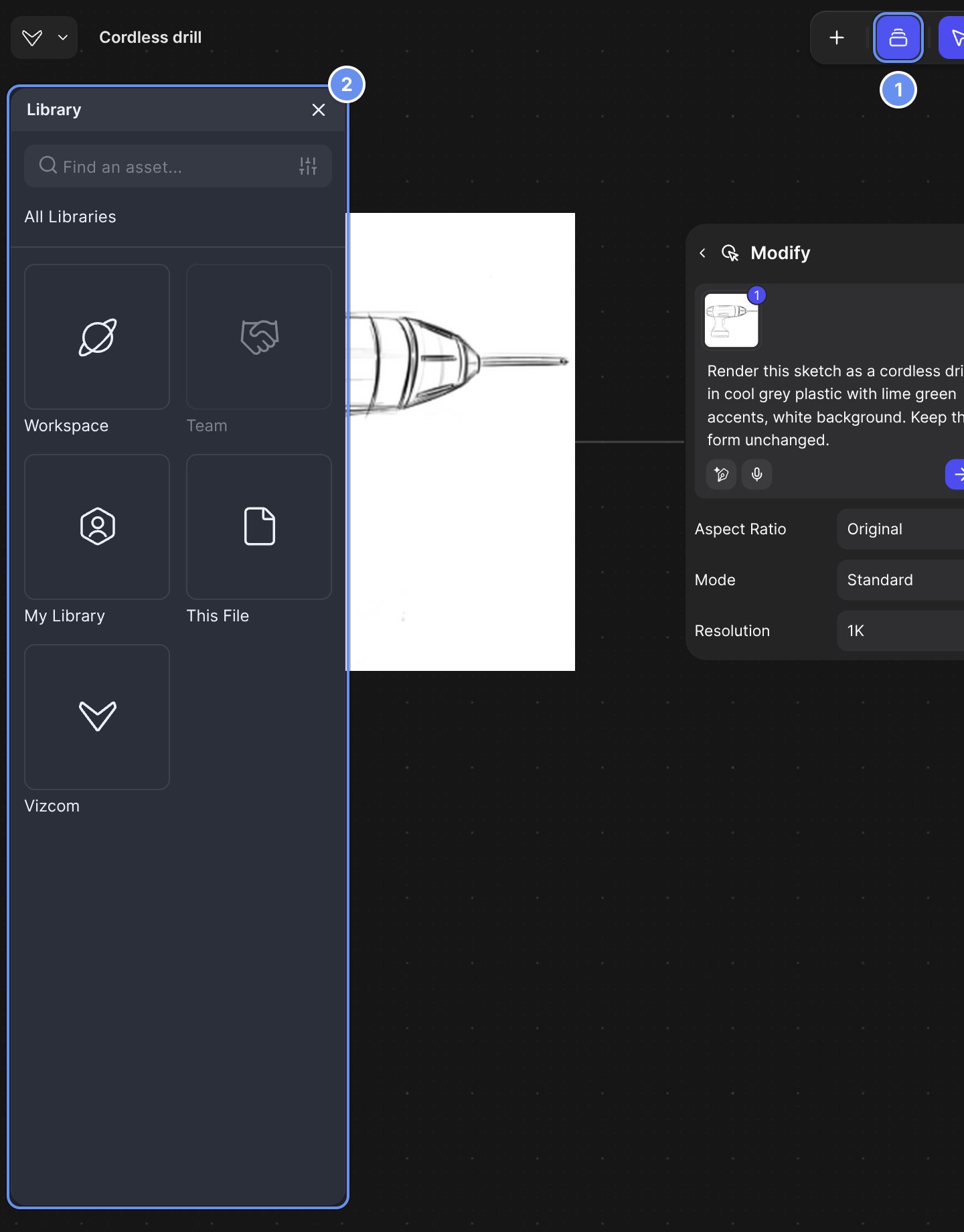
Library in the toolbar (1) opens every library you can use (2).
Use the Library
1
Open it
Click Library 1 and pick a library 2.
2
Add an asset
Click + (Add asset) 3 to upload a file or type a color, palette or prompt. Or select images on the canvas and click Add to library.
3
Use it
Type @ in a Modify prompt and pick the asset: “Change the midsole to @Gum Rubber. Keep the upper unchanged.” Or drag it onto the canvas or a block.
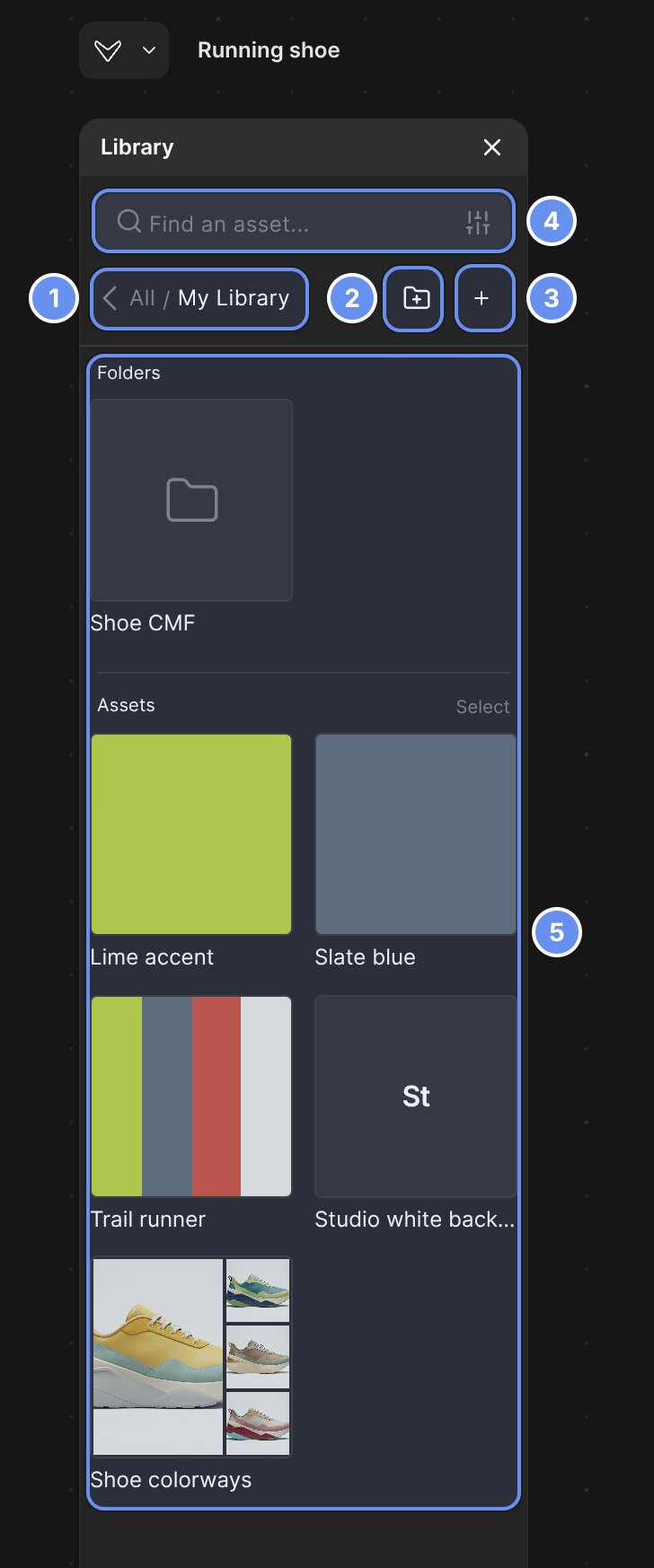
Path back (1), new folder or collection (2), Add asset (3), search and filter (4), assets (5).
Library scopes
Generate from a whole folder
Click the folder icon 2 to create a folder. Mention a folder in a Workbench Modify prompt and Vizcom runs the prompt once per item: a folder of 6 colors gives 6 results. Import an .ase or .aco file into a folder for a colorway sweep.Examples
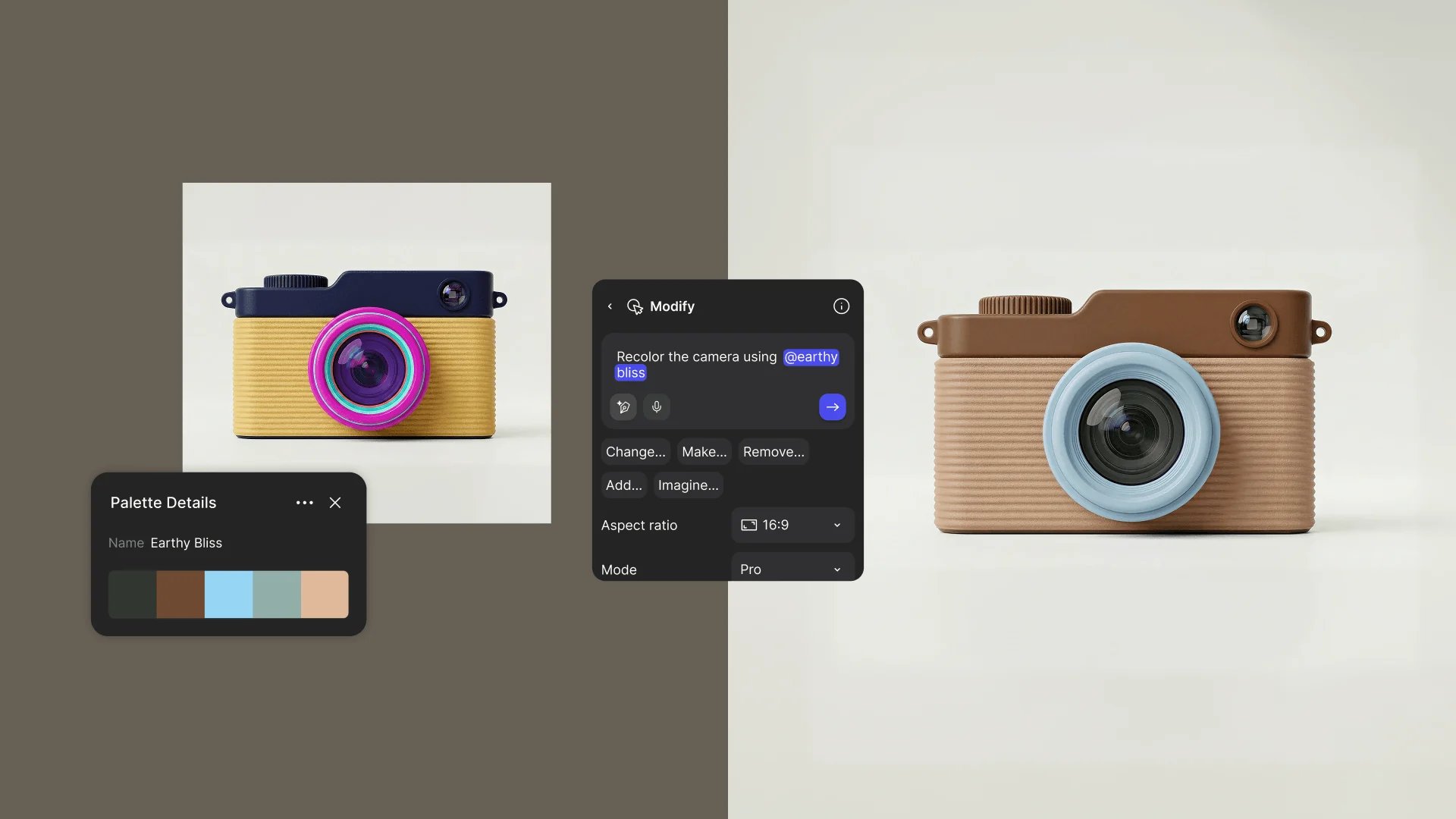
A saved palette in use. Prompt: "Recolor the camera using @earthy bliss."
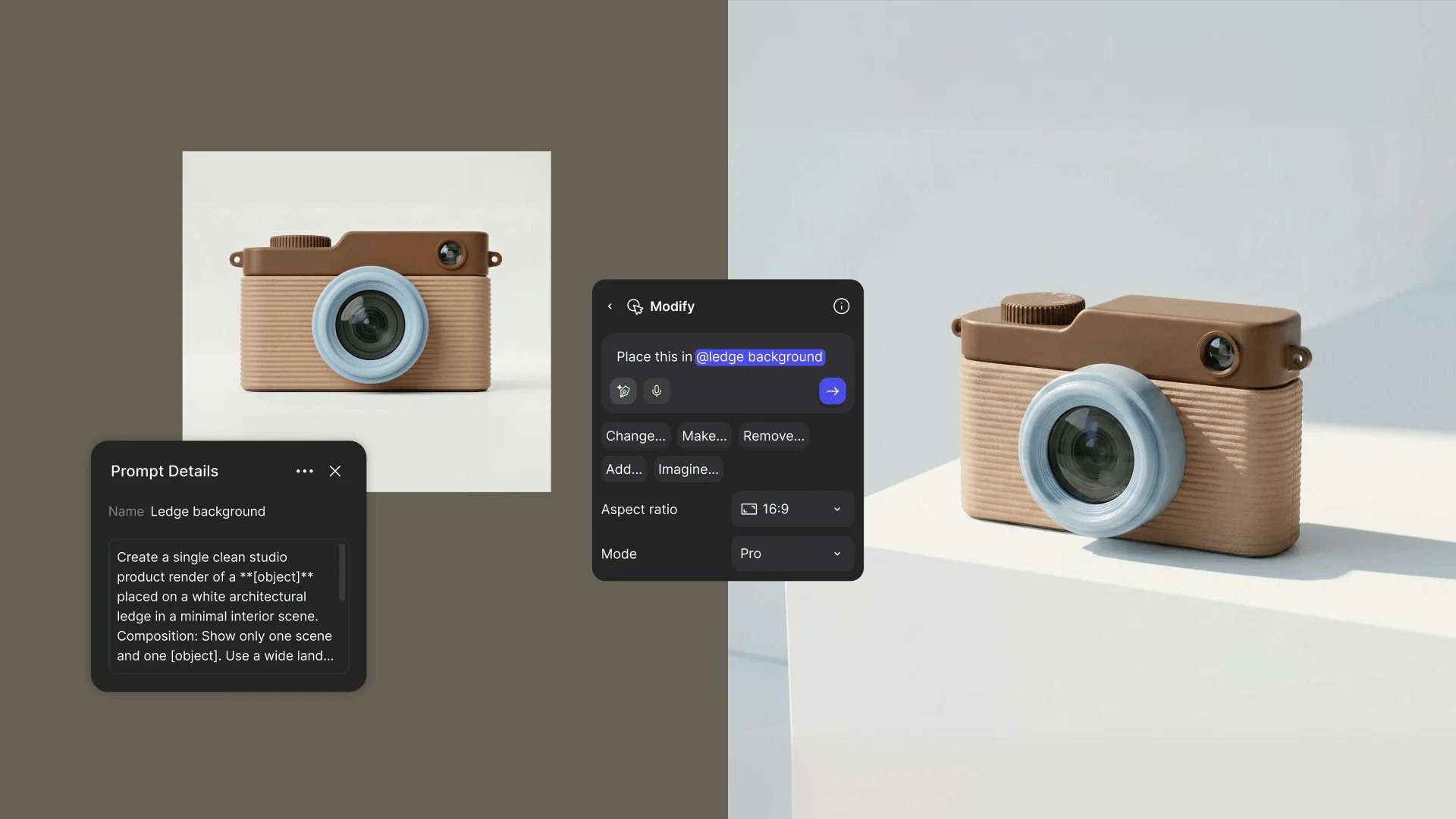
A saved prompt in use. Prompt: "Place this in @ledge background."
Good to know
- Name assets the way you’ll type them after @, such as “Brand lime”.
- A prompt takes up to 5 images, collections and folders, with at most 3 collections and 1 folder.
- No Library button? You can only view this file.
Related
Match a look with references
Steer a render with references.
Colors and materials
Palettes and colorways.
Collections
Up to 9 images as one reference.
Mentions
Reference assets in a prompt.