

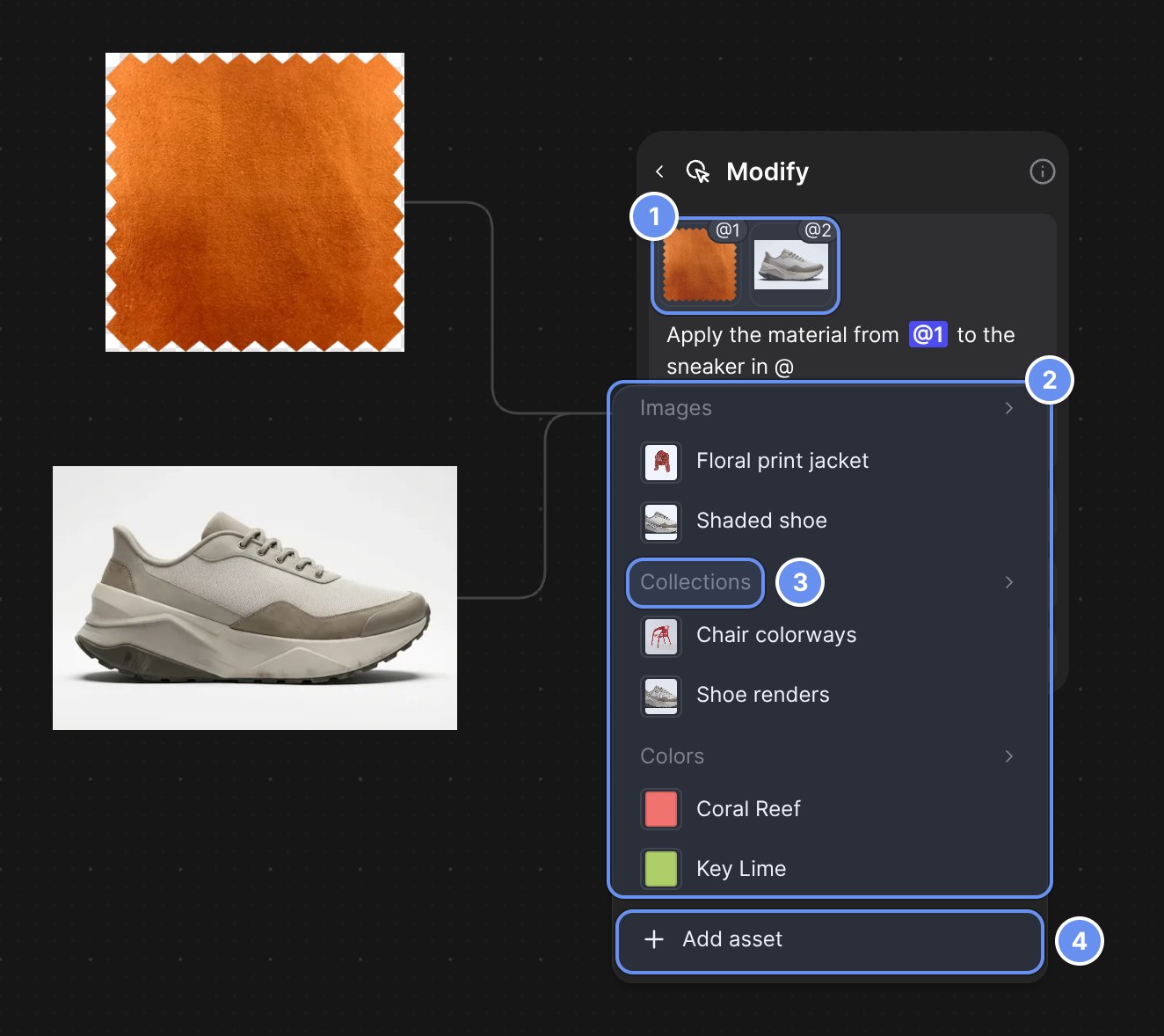
Numbered images (1), the @ menu (2), a type heading (3), Add asset (4).
Mention a connected image
1
Connect the images
Connect up to 4 images to a Modify block; each gets a number 1.
2
Refer to them by number
Type @ and the number: “Apply the material from @1 to the sneaker in @2.”
3
Put the main image last
Drag the thumbnails to reorder, because Original and Match source follow the last image.
Mention a Library asset
1
Type @
Type @ to open the menu 2.
2
Find the asset
Keep typing to search, or click a heading 3 to see every asset of that type.
3
Pick it
Click the asset or press Enter.
4
Need something new?
Click Add asset 4 to add it to the Library.
Run one prompt on a folder
1
Fill a folder
Put the variations, such as colors, in one Library folder.
2
Mention the folder
Mention it in a Workbench Modify prompt: “Change the colors of the shirt and the seams to @Summer Hues.”
3
Generate
Check the count on the arrow, such as 6×, and click it.
What you can mention
Examples
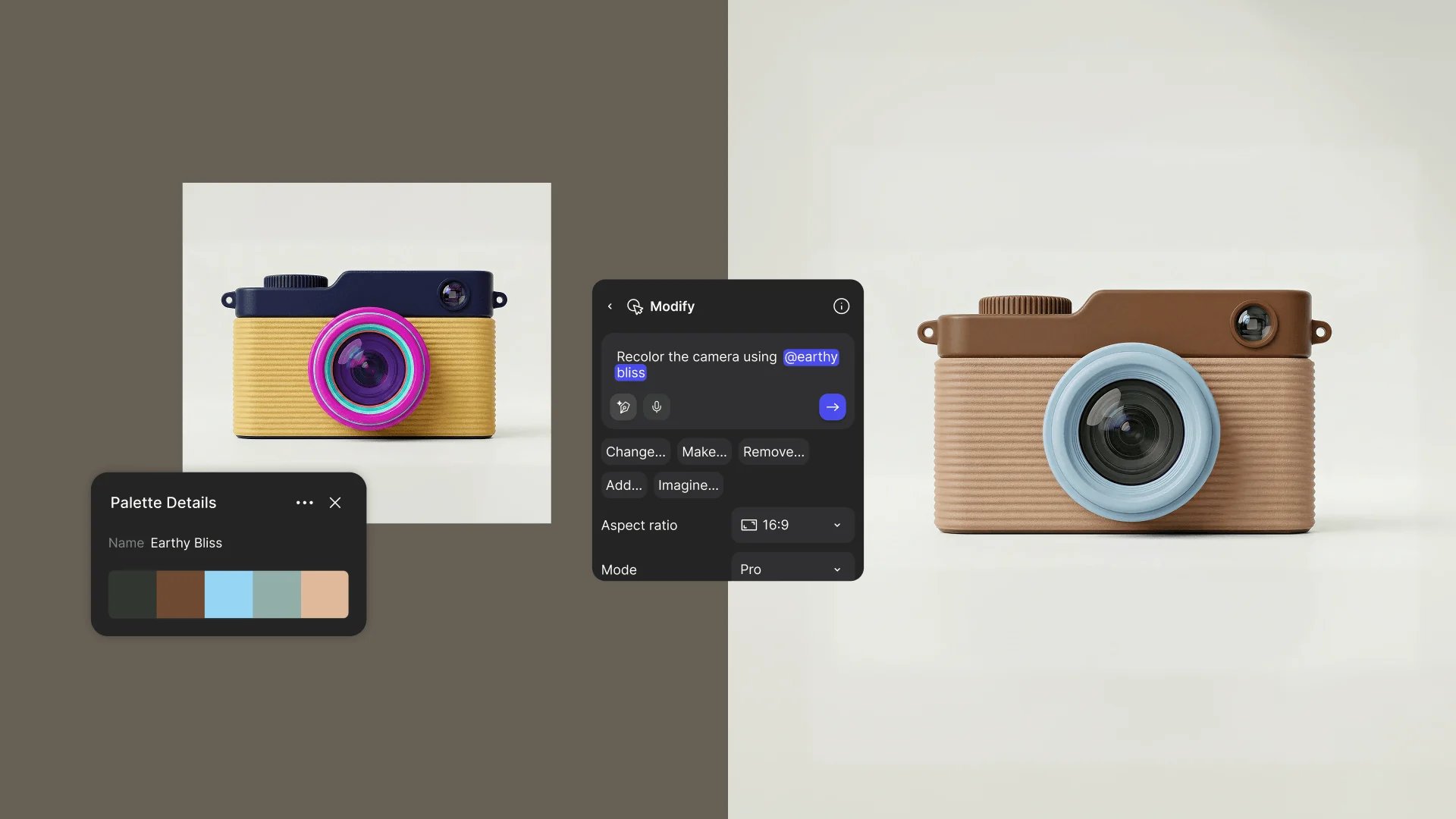
A palette mention: "Recolor the camera using @earthy bliss." Older block design.
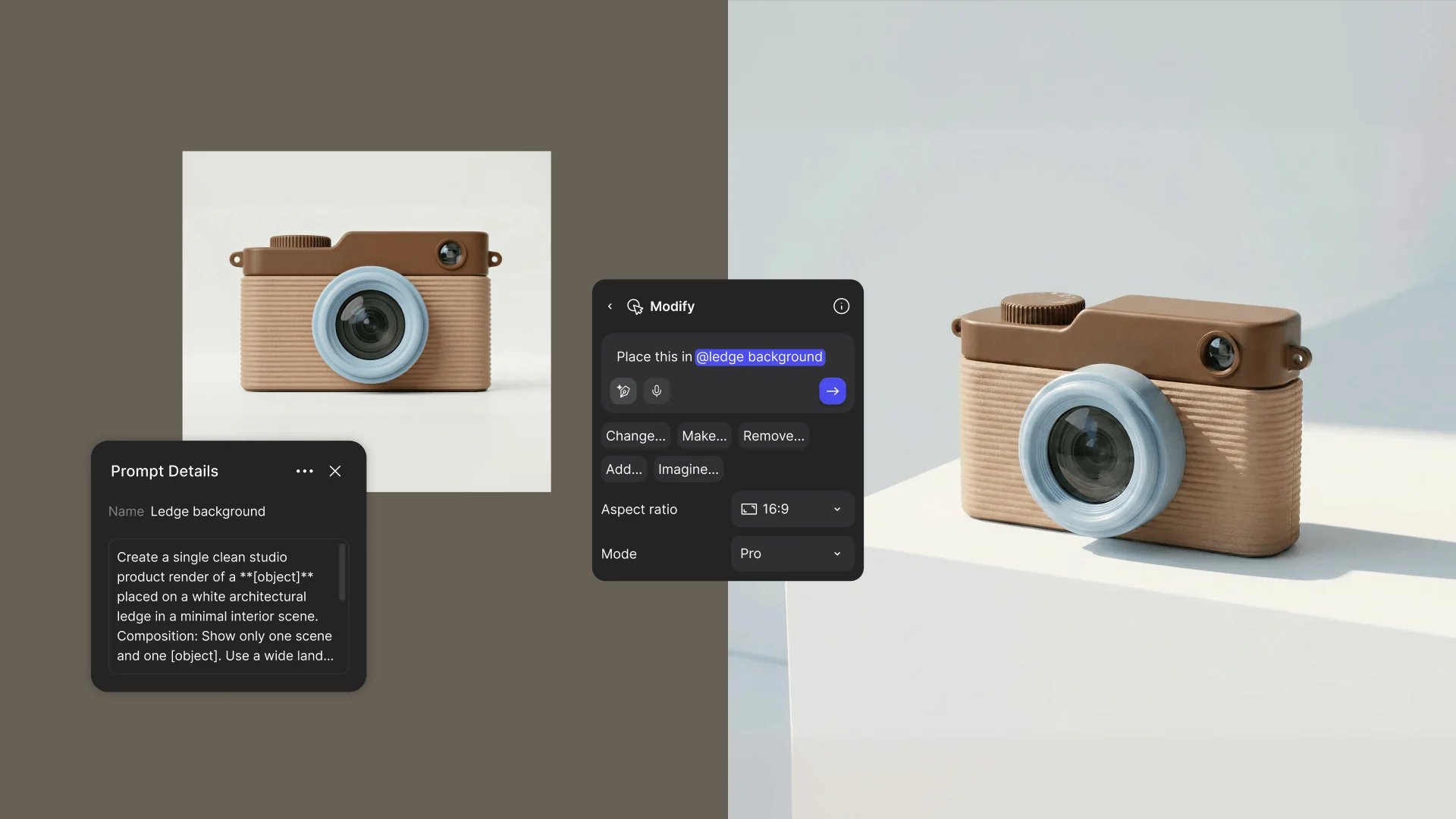
A saved prompt mention: "Place this in @ledge background."
Tips
- Name assets for search. “Walnut veneer, satin” is easy to find with @walnut; “IMG_2231” isn’t.
- Give each mention one job. “Use only the color of @2” and “Use the shape of @2” give different results.
- Test a folder batch on one item at 1K first.
Good to know
- Limits: 5 images, collections and folders per prompt, at most 3 collections and 1 folder.
- Folder batches are Workbench only and stop at 2K. Vizcom confirms batches over 10 images.
- Library scopes you can mention depend on your plan. See Library.
Related
Match a look with references
References and collections.
Write prompts that work
Structure and @ references.
Library
Save the assets you mention.
Collections
Nine images, one reference.