

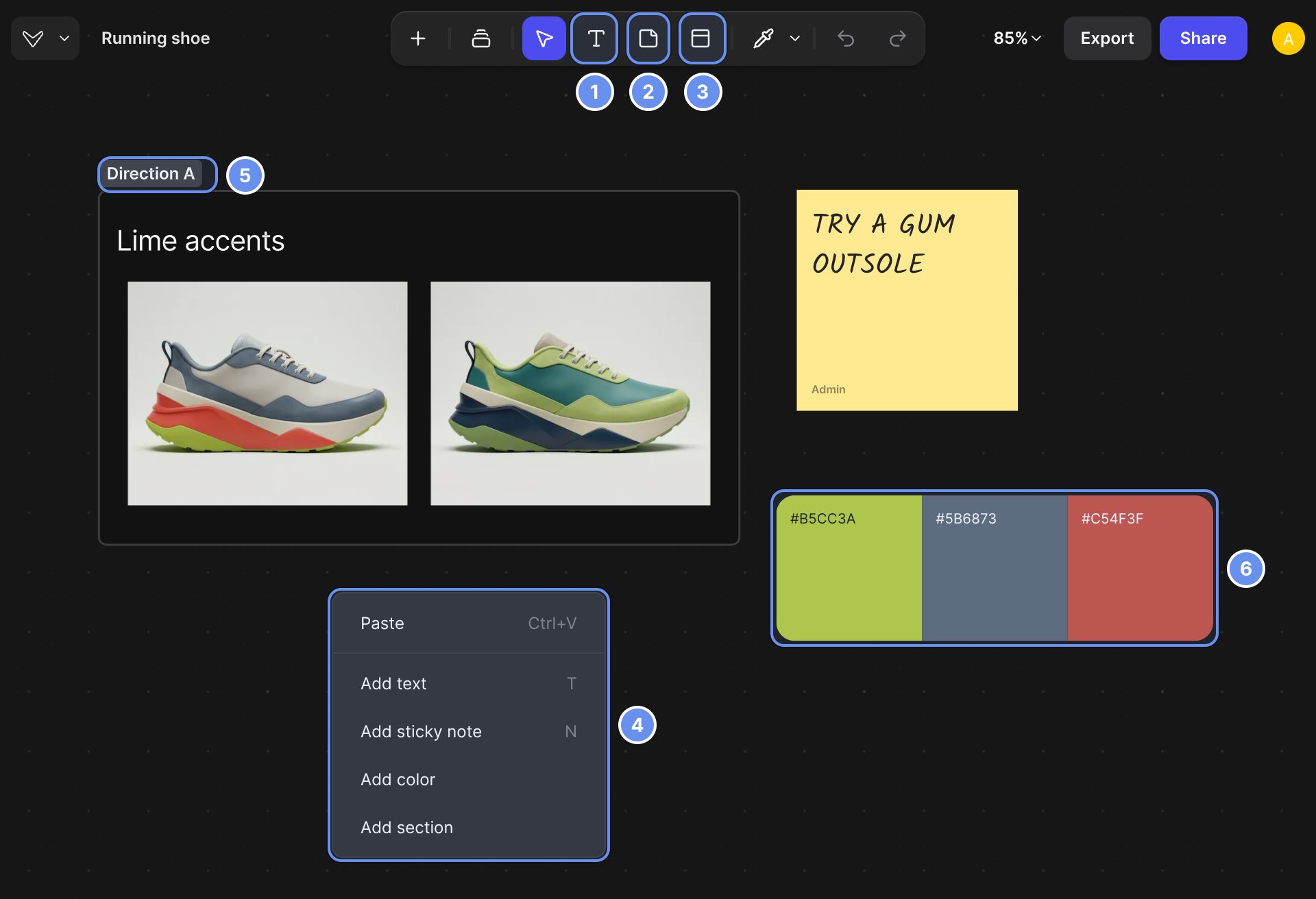
Text (1), Sticky Note (2), Section (3), right-click menu (4), a section (5), a color swatch (6).
Add elements
Select any element to style it from the toolbar above it.
Arrange and connect
- Select several elements and click Arrange to lay them out in a grid.
- ⌘/Ctrl + D duplicates. ] brings to front, [ sends to back.
- ⌘/Ctrl + L copies a link that opens the file zoomed to your selection.
- Drag from an image’s + handle to a block to connect them. Hover the line and click − to disconnect.
- Click Show image details (i) on a generated image to see and copy its prompt.
Examples
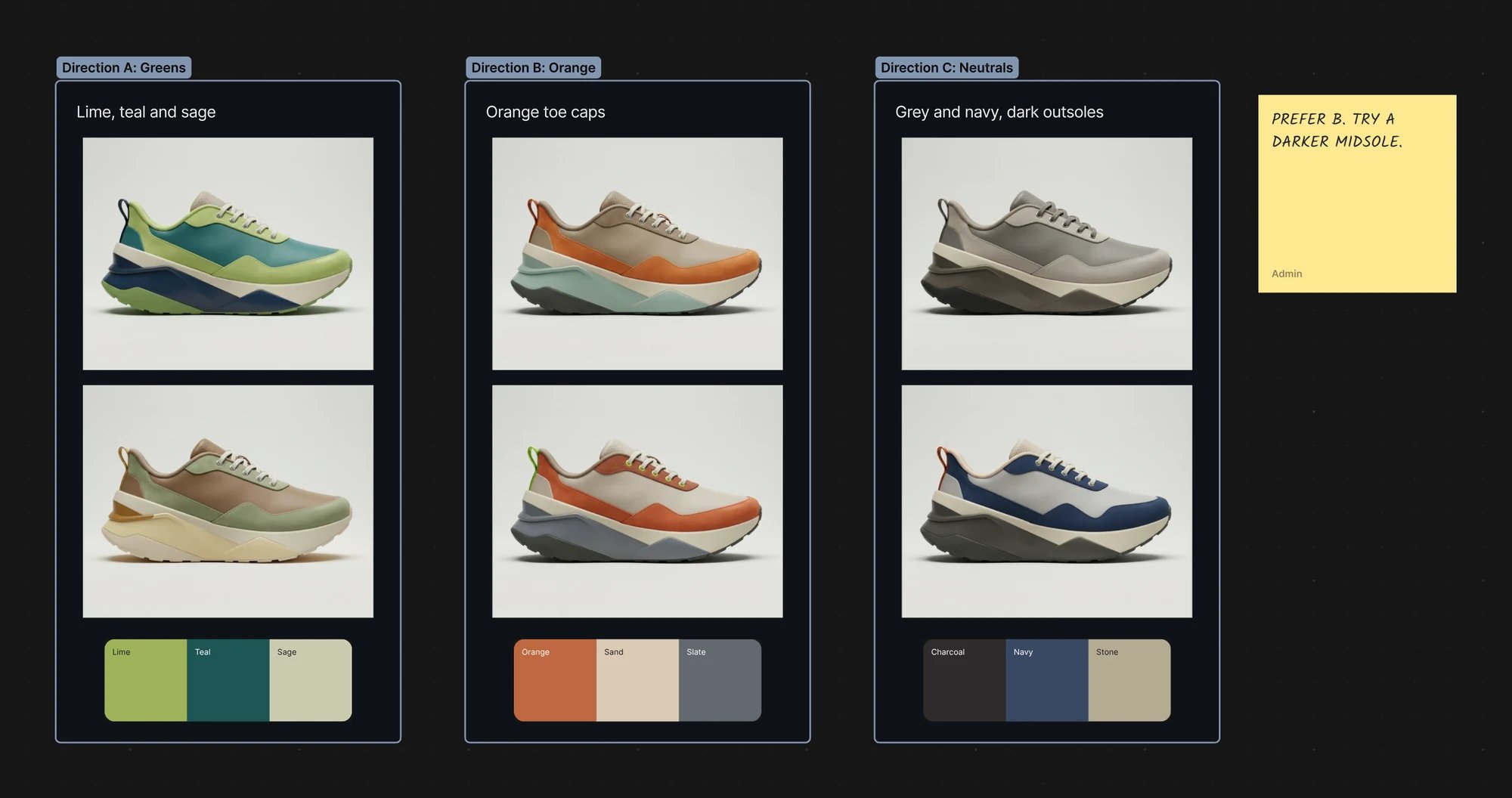
A colorway review: one section per direction, with labels, renders, a palette and feedback.
Good to know
- Right-click a section and choose Download assets to export only what’s inside.
- Remove section keeps the contents; Delete removes them too.
- The Workbench has no shapes, arrows, grouping, locking or comments. Use sections and sticky notes.
Related
Organize your work
Files, folders and sections.
Collaborate
Work on a file together.
Library
Save colors and images to reuse.
Keyboard shortcuts
Every Workbench and Studio key.