Enhance, Remove Bg., Unify, light and color sliders
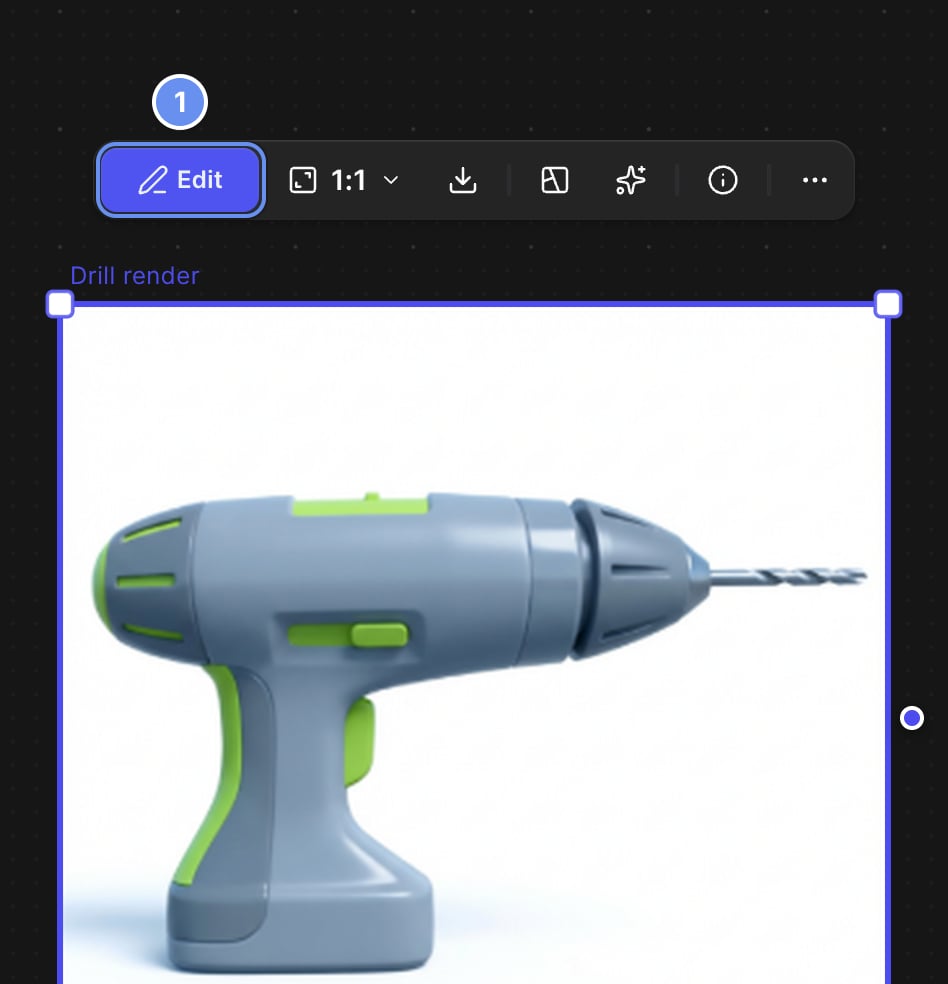
The Studio menu1 holds file, edit and layout options. Pan with Space + drag and flip the view with F. For every button and key, see the Studio reference and Keyboard shortcuts.
{"docsConfig":{"theme":"luma","$schema":"https://mintlify.com/docs.json","name":"Vizcom Docs","description":"Guides for designers and teams using Vizcom, the AI design tool for sketching, rendering, and refining product concepts in 2D and 3D, plus help with workspaces, billing, and Enterprise administration.","colors":{"primary":"#6790EF","light":"#D1DFFF","dark":"#1145A0"},"logo":{"light":"https://mintcdn.com/vizcom-c4034e9b/l3hebjVqvRBa2E6g/images/logo-dark.svg?fit=max\u0026auto=format\u0026n=l3hebjVqvRBa2E6g\u0026q=85\u0026s=22515442b3097b2a6ffbf4ede9f56565","dark":"https://mintcdn.com/vizcom-c4034e9b/l3hebjVqvRBa2E6g/images/logo-light.svg?fit=max\u0026auto=format\u0026n=l3hebjVqvRBa2E6g\u0026q=85\u0026s=7112255f58c36c98724271cccda31036","href":"https://vizcom.com/"},"favicon":"https://mintcdn.com/vizcom-c4034e9b/mZT69WTP9Dk-4r_B/images/favicon.svg?fit=max\u0026auto=format\u0026n=mZT69WTP9Dk-4r_B\u0026q=85\u0026s=e7ab289d62821f9faec0f9fb2361cbf1","appearance":{"default":"system"},"background":{"decoration":"grid","color":{"light":"#F8F4F1","dark":"#191919"}},"navbar":{"links":[{"href":"https://app.vizcom.com/auth?utm_source=docs\u0026utm_medium=web\u0026utm_campaign=docs\u0026utm_content=cta_login","label":"Log in"}],"primary":{"type":"button","label":"Sign up","href":"https://app.vizcom.com/auth?utm_source=docs\u0026utm_medium=web\u0026utm_campaign=docs\u0026utm_content=cta_signup"}},"footer":{"socials":{"x":"https://x.com/Vizcom_","linkedin":"https://www.linkedin.com/company/vizcomhq","instagram":"https://www.instagram.com/vizcom_","youtube":"https://www.youtube.com/channel/UCU-XOa74z1aGdZRyvRBQ6UQ","discord":"https://discord.gg/aJZZaJpPSZ"}},"search":{"prompt":"Search or ask, e.g. “how do I change only the sole?”"},"fonts":{"family":"Matter","weight":400,"source":"https://cdn.prod.website-files.com/68da69e18c8988d039a9f6fe/6903b8705cce60bc3d9e254b_Matter-Regular.woff2","format":"woff2"},"icons":{"library":"fontawesome"},"styling":{"eyebrows":"breadcrumbs","codeblocks":"system","latex":false},"contextual":{"options":["copy","view","chatgpt","claude","perplexity","mcp","cursor","vscode"],"display":"header"},"thumbnails":{"fonts":{"family":"Matter"}},"navigation":{"pages":[]}},"deployment":{"deploymentMetadataValue":{"subdomain":"vizcom-c4034e9b","hasAudioNarration":false,"actualSubdomain":"vizcom-c4034e9b","customDomains":["docs.vizcom.com"],"gitSource":{"type":"github","owner":"vizcomtech","repo":"docs","deployBranch":"main","contentDirectory":"","isPrivate":true,"mountPath":"","label":"","_id":"6af36121a0f7f7caf9703cf7"},"feedback":{"thumbs":true},"entitlements":{"AI_CHAT":{"status":"ENABLED"},"REMOVE_BRANDING":{"status":"DISABLED"},"CONTEXTUAL_FEEDBACK":{"status":"DISABLED"},"CODE_SNIPPET_FEEDBACK":{"status":"DISABLED"},"WEB_MCP":{"status":"ENABLED"},"NARRATION":{"status":"ENABLED"}},"buildId":"6af36727140d38558d245dcf","clientVersion":"0.0.4094","searchFilterCounts":[{"language":"default","tag":"Tools","count":33},{"language":"default","tag":"Guides","count":20},{"language":"default","tag":"Workflows","count":18},{"language":"default","tag":"Admin \u0026 security","count":13},{"language":"default","tag":"Explore","count":11},{"language":"default","tag":"Help","count":10},{"language":"default","tag":"Reference","count":9},{"language":"default","tag":"Render","count":8},{"language":"default","tag":"By industry","count":8},{"language":"default","tag":"By deliverable","count":8}]},"assistantConfig":{"enableAskAiButton":false,"enableStarterQuestions":true,"enableAskAiSearchBar":true,"deflection":{"enabled":true,"email":"[email protected]"}},"basePath":"","hasChatPermissions":true,"hasWebMcpPermissions":true,"toggles":[{"name":"kill-isr","enabled":true,"variant":{"name":"disabled","enabled":false,"feature_enabled":true},"impressionData":false},{"name":"custom-rbac-roles","enabled":true,"variant":{"name":"disabled","enabled":false,"feature_enabled":true},"impressionData":false},{"name":"agent-mintlify-slack","enabled":true,"variant":{"name":"disabled","enabled":false,"feature_enabled":true},"impressionData":false},{"name":"agent-integrations-settings","enabled":true,"variant":{"name":"disabled","enabled":false,"feature_enabled":true},"impressionData":false},{"name":"rbac-expansion","enabled":true,"variant":{"name":"disabled","enabled":false,"feature_enabled":true},"impressionData":false},{"name":"automations-pr-grouping","enabled":true,"variant":{"name":"disabled","enabled":false,"feature_enabled":true},"impressionData":false},{"name":"custom-prefix","enabled":true,"variant":{"name":"disabled","enabled":false,"feature_enabled":true},"impressionData":false},{"name":"analytics-v7","enabled":true,"variant":{"name":"disabled","enabled":false,"feature_enabled":true},"impressionData":false},{"name":"user-flows-analytics","enabled":true,"variant":{"name":"disabled","enabled":false,"feature_enabled":true},"impressionData":false},{"name":"no-publish-flow","enabled":true,"variant":{"name":"disabled","enabled":false,"feature_enabled":true},"impressionData":false},{"name":"workos-onboarding","enabled":true,"variant":{"name":"disabled","enabled":false,"feature_enabled":true},"impressionData":false},{"name":"llms-txt-v2","enabled":true,"variant":{"name":"disabled","enabled":false,"feature_enabled":true},"impressionData":false},{"name":"snapshot-serving-live","enabled":true,"variant":{"name":"disabled","enabled":false,"feature_enabled":true},"impressionData":false},{"name":"stripTemperatureMiddleware","enabled":true,"variant":{"name":"disabled","enabled":false,"feature_enabled":true},"impressionData":false},{"name":"support-platform-pylon-zendesk","enabled":true,"variant":{"name":"disabled","enabled":false,"feature_enabled":true},"impressionData":false},{"name":"snapshot-serving","enabled":true,"variant":{"name":"disabled","enabled":false,"feature_enabled":true},"impressionData":false},{"name":"instant-rollback","enabled":true,"variant":{"name":"disabled","enabled":false,"feature_enabled":true},"impressionData":false},{"name":"granular-notifications-server","enabled":true,"variant":{"name":"disabled","enabled":false,"feature_enabled":true},"impressionData":false},{"name":"granular-notifications","enabled":true,"variant":{"name":"disabled","enabled":false,"feature_enabled":true},"impressionData":false},{"name":"automations-fable","enabled":true,"variant":{"name":"disabled","enabled":false,"feature_enabled":true},"impressionData":false},{"name":"fixed-ai-action-pricing","enabled":true,"variant":{"name":"disabled","enabled":false,"feature_enabled":true},"impressionData":false},{"name":"automation-resolve-merge-conflict","enabled":true,"variant":{"name":"disabled","enabled":false,"feature_enabled":true},"impressionData":false},{"name":"scoped-publishing","enabled":true,"variant":{"name":"disabled","enabled":false,"feature_enabled":true},"impressionData":false},{"name":"mintql","enabled":true,"variant":{"name":"disabled","enabled":false,"feature_enabled":true},"impressionData":false},{"name":"page-level-analytics","enabled":true,"variant":{"name":"disabled","enabled":false,"feature_enabled":true},"impressionData":false},{"name":"editor-version-history-v2","enabled":true,"variant":{"name":"disabled","enabled":false,"feature_enabled":true},"impressionData":false},{"name":"billing-page-v2","enabled":true,"variant":{"name":"disabled","enabled":false,"feature_enabled":true},"impressionData":false},{"name":"full-page-search","enabled":true,"variant":{"name":"disabled","enabled":false,"feature_enabled":true},"impressionData":false},{"name":"workspace-projects","enabled":true,"variant":{"name":"disabled","enabled":false,"feature_enabled":true},"impressionData":false},{"name":"assistant-v5","enabled":true,"variant":{"name":"disabled","enabled":false,"feature_enabled":true},"impressionData":false},{"name":"fork-pr-previews","enabled":true,"variant":{"name":"disabled","enabled":false,"feature_enabled":true},"impressionData":false},{"name":"revalidation-jwt","enabled":true,"variant":{"name":"disabled","enabled":false,"feature_enabled":true},"impressionData":false},{"name":"workos-sso-scim","enabled":true,"variant":{"name":"disabled","enabled":false,"feature_enabled":true},"impressionData":false},{"name":"hobby-abuse-scan","enabled":true,"variant":{"name":"disabled","enabled":false,"feature_enabled":true},"impressionData":false},{"name":"dashboard-inbox","enabled":true,"variant":{"name":"disabled","enabled":false,"feature_enabled":true},"impressionData":false},{"name":"workos-signup","enabled":true,"variant":{"name":"disabled","enabled":false,"feature_enabled":true},"impressionData":false},{"name":"turbopuffer-dual-write","enabled":true,"variant":{"name":"disabled","enabled":false,"feature_enabled":true},"impressionData":false},{"name":"workos-enabled","enabled":true,"variant":{"name":"disabled","enabled":false,"feature_enabled":true},"impressionData":false},{"name":"approve-review-flow","enabled":true,"variant":{"name":"disabled","enabled":false,"feature_enabled":true},"impressionData":false},{"name":"editor-metadata","enabled":true,"variant":{"name":"disabled","enabled":false,"feature_enabled":true},"impressionData":false},{"name":"sso-setup-deadline-banner","enabled":true,"variant":{"name":"disabled","enabled":false,"feature_enabled":true},"impressionData":false},{"name":"turbopuffer-serve","enabled":true,"variant":{"name":"disabled","enabled":false,"feature_enabled":true},"impressionData":false},{"name":"live-agents","enabled":true,"variant":{"name":"disabled","enabled":false,"feature_enabled":true},"impressionData":false}],"starterQuestions":[{"_id":"6abace65b0dc5fbdf2920419","deploymentId":"697a7cfa899b175f71812b73","questionText":"How do Vizcom credits work?","status":"active","generatedBy":"manual","createdAt":"2026-09-28T20:30:29.573Z","updatedAt":"2026-09-28T20:30:29.573Z","__v":0},{"_id":"6abace5db0dc5fbdf2920388","deploymentId":"697a7cfa899b175f71812b73","questionText":"How do I make my own render style?","status":"active","generatedBy":"manual","createdAt":"2026-09-28T20:30:21.723Z","updatedAt":"2026-09-28T20:30:21.723Z","__v":0},{"_id":"6abace55b0dc5fbdf29202c3","deploymentId":"697a7cfa899b175f71812b73","questionText":"How do I explore colorways with Region Maps?","status":"active","generatedBy":"manual","createdAt":"2026-09-28T20:30:13.758Z","updatedAt":"2026-09-28T20:30:13.758Z","__v":0}],"googleFontsInlined":false},"customCss":[{"filePath":"style.css","content":".vz-facts{display:flex;flex-wrap:wrap;gap:1px;margin:1.25rem 0 1.5rem;border:1px solid rgba(15, 23, 42, 0.1);border-radius:12px;overflow:hidden;background:rgba(15, 23, 42, 0.1)}.vz-fact{flex:1 1 0;min-width:0;display:flex;flex-direction:column;gap:4px;padding:12px 14px;background:#fff;font-size:14px;line-height:1.45}.vz-fact-wide{flex-basis:100%}.vz-fact-label{font-size:11px;font-weight:600;letter-spacing:0.06em;text-transform:uppercase;color:rgba(15, 23, 42, 0.5)}.vz-fact-value{color:rgb(15, 23, 42)}.vz-fact-value a{color:inherit;text-decoration:underline;text-decoration-color:rgba(103, 144, 239, 0.5);text-underline-offset:2px}.vz-fact kbd,.vz-legend kbd{display:inline-block;min-width:1.5em;padding:0 5px;border:1px solid rgba(15, 23, 42, 0.15);border-bottom-width:2px;border-radius:5px;font-family:inherit;font-size:12px;line-height:1.6;text-align:center}.dark .vz-facts{border-color:rgba(255, 255, 255, 0.08);background:rgba(255, 255, 255, 0.08)}.dark .vz-fact{background:rgb(17, 17, 19)}.dark .vz-fact-label{color:rgba(255, 255, 255, 0.5)}.dark .vz-fact-value{color:rgba(255, 255, 255, 0.9)}.dark .vz-fact kbd,.dark .vz-legend kbd{border-color:rgba(255, 255, 255, 0.2)}.vz-stages{display:grid;grid-template-columns:repeat(auto-fit, minmax(160px, 1fr));gap:10px;margin:1rem 0 2rem}.vz-stage{display:flex;flex-direction:column;gap:6px;padding:14px;border:1px solid rgba(15, 23, 42, 0.1);border-radius:12px;text-decoration:none!important;transition:border-color 0.15s}.vz-stage:hover{border-color:rgb(103, 144, 239)}.vz-stage-step{font-size:11px;font-weight:600;letter-spacing:0.06em;text-transform:uppercase;color:rgb(103, 144, 239)}.vz-stage-name{font-weight:600;color:rgb(15, 23, 42)}.vz-stage-blurb{font-size:13px;line-height:1.45;color:rgba(15, 23, 42, 0.65)}.dark .vz-stage{border-color:rgba(255, 255, 255, 0.1)}.dark .vz-stage-name{color:rgba(255, 255, 255, 0.92)}.dark .vz-stage-blurb{color:rgba(255, 255, 255, 0.6)}.vz-num{display:inline-flex;align-items:center;justify-content:center;width:22px;height:22px;border-radius:999px;background:#6790ef;color:#fff;font-size:12px;font-weight:700}@media (max-width: 640px){.vz-fact{flex-basis:calc(50% - 1px)}.vz-fact-wide{flex-basis:100%}}img[src*=\"/images/docs/find-insert-\"],img[src*=\"/images/docs/find-studio-make3d\"],img[src*=\"/images/docs/find-modify-block\"],img[src*=\"/images/docs/find-export\"]{width:auto;max-width:100%;max-height:520px;margin-left:auto;margin-right:auto}.vz-ba{position:relative;width:100%;margin:1.25rem 0;overflow:hidden;border-radius:14px;border:1px solid rgba(15, 23, 42, 0.1);background:#f3f1ee;user-select:none}.dark .vz-ba{border-color:rgba(255, 255, 255, 0.1);background:#1d1d1f}.vz-ba-img{position:absolute;inset:0;width:100%;height:100%;object-fit:contain;margin:0!important;border-radius:0!important}.vz-ba-clip{position:absolute;inset:0}.vz-ba-line{position:absolute;top:0;bottom:0;width:2px;margin-left:-1px;background:#fff;box-shadow:0 0 0 1px rgba(0, 0, 0, 0.15);pointer-events:none}.vz-ba-handle{position:absolute;top:50%;left:50%;display:flex;align-items:center;justify-content:center;width:36px;height:36px;margin:-18px 0 0 -18px;border-radius:999px;background:#fff;color:#18181b;box-shadow:0 2px 10px rgba(0, 0, 0, 0.25)}.vz-ba-tag{position:absolute;top:12px;padding:3px 9px;border-radius:999px;background:rgba(17, 17, 19, 0.72);color:#fff;font-size:12px;font-weight:600;pointer-events:none}.vz-ba-tag-l{left:12px}.vz-ba-tag-r{right:12px}.vz-ba-range{position:absolute;inset:0;width:100%;height:100%;margin:0;opacity:0;cursor:ew-resize}.vz-hot{position:relative;margin:1.25rem 0;border-radius:14px;overflow:visible}.vz-hot-img{display:block;width:100%;height:auto;margin:0!important;border-radius:14px;border:1px solid rgba(15, 23, 42, 0.1)}.dark .vz-hot-img{border-color:rgba(255, 255, 255, 0.1)}.vz-hot-spot{position:absolute;transform:translate(-50%, -50%);text-decoration:none!important;border:0!important;outline:none;z-index:1}.vz-hot-num{display:flex;align-items:center;justify-content:center;width:26px;height:26px;border-radius:999px;background:#6790ef;color:#fff;font-size:13px;font-weight:700;box-shadow:0 0 0 2px #fff, 0 0 0 5px rgba(103, 144, 239, 0.35), 0 2px 6px rgba(0, 0, 0, 0.35);transition:transform 0.15s}.vz-hot-spot:hover .vz-hot-num,.vz-hot-spot:focus .vz-hot-num{transform:scale(1.12)}.vz-hot-tip{position:absolute;top:34px;left:-8px;display:none;flex-direction:column;gap:2px;width:max-content;max-width:240px;padding:8px 10px;border-radius:10px;background:#111113;color:#fff;font-size:13px;line-height:1.4;box-shadow:0 8px 24px rgba(0, 0, 0, 0.35)}.vz-hot-tip span{color:rgba(255, 255, 255, 0.72)}.vz-hot-tip-l{left:auto;right:-8px}.vz-hot-spot:hover,.vz-hot-spot:focus{z-index:3}.vz-hot-spot:hover .vz-hot-tip,.vz-hot-spot:focus .vz-hot-tip{display:flex}.vz-tasks{display:grid;gap:14px;margin:1rem 0 2rem}.vz-tasks-2{grid-template-columns:repeat(2, minmax(0, 1fr))}.vz-tasks-3{grid-template-columns:repeat(3, minmax(0, 1fr))}.vz-tasks-4{grid-template-columns:repeat(4, minmax(0, 1fr))}.vz-task{display:flex;flex-direction:column;overflow:hidden;border:1px solid rgba(15, 23, 42, 0.1);border-radius:14px;background:#fff;text-decoration:none!important;transition:border-color 0.15s, transform 0.15s}.vz-task:hover{border-color:rgb(103, 144, 239);transform:translateY(-1px)}.dark .vz-task{border-color:rgba(255, 255, 255, 0.1);background:rgb(22, 22, 24)}.vz-task-media{display:block;aspect-ratio:16 / 10;background:#ece9e5;overflow:hidden}.dark .vz-task-media{background:#1d1d1f}.vz-task-media img,.vz-task-media video{display:block;width:100%;height:100%;object-fit:cover;margin:0!important;border-radius:0!important}.vz-task-body{display:flex;flex-direction:column;gap:4px;padding:12px 14px 14px}.vz-task-title{font-weight:600;color:rgb(15, 23, 42)}.dark .vz-task-title{color:rgba(255, 255, 255, 0.92)}.vz-task-text{font-size:13px;line-height:1.45;color:rgba(15, 23, 42, 0.65)}.dark .vz-task-text{color:rgba(255, 255, 255, 0.6)}@media (max-width: 900px){.vz-tasks-3,.vz-tasks-4{grid-template-columns:repeat(2, minmax(0, 1fr))}}@media (max-width: 520px){.vz-tasks-2,.vz-tasks-3,.vz-tasks-4{grid-template-columns:minmax(0, 1fr)}}.vz-clip{margin:1.25rem 0}.vz-clip video{display:block;width:100%;height:auto;border-radius:14px;border:1px solid rgba(15, 23, 42, 0.1);background:#111}.dark .vz-clip video{border-color:rgba(255, 255, 255, 0.1)}.vz-clip figcaption{margin-top:8px;font-size:14px;color:rgba(15, 23, 42, 0.6);text-align:center}.dark .vz-clip figcaption{color:rgba(255, 255, 255, 0.55)}.vz-home{max-width:1180px;margin:0 auto;padding:48px 24px 96px}.vz-home section{margin-top:72px}.vz-home section:first-child{margin-top:0}.vz-hero{display:flex;flex-direction:column;gap:36px}.vz-hero-text{max-width:760px}.vz-eyebrow{margin:0 0 12px;font-size:13px;font-weight:600;letter-spacing:0.08em;text-transform:uppercase;color:rgb(103, 144, 239)}.vz-hero h1{margin:0;font-size:clamp(34px, 5vw, 56px);line-height:1.05;letter-spacing:-0.02em;font-weight:500;color:rgb(15, 23, 42)}.dark .vz-hero h1{color:#fff}.vz-hero-sub{margin:18px 0 0;font-size:19px;line-height:1.5;color:rgba(15, 23, 42, 0.7)}.dark .vz-hero-sub{color:rgba(255, 255, 255, 0.7)}.vz-hero-cta{display:flex;flex-wrap:wrap;gap:10px;margin-top:26px}.vz-btn{display:inline-flex;align-items:center;padding:10px 18px;border-radius:999px;border:1px solid rgba(15, 23, 42, 0.15);color:rgb(15, 23, 42)!important;font-weight:600;font-size:15px;text-decoration:none!important;background:rgba(255, 255, 255, 0.7)}.dark .vz-btn{border-color:rgba(255, 255, 255, 0.18);color:#fff!important;background:rgba(255, 255, 255, 0.04)}.vz-btn-primary{background:rgb(103, 144, 239)!important;border-color:rgb(103, 144, 239)!important;color:#fff!important}.vz-hero-search{margin:18px 0 0;font-size:14px;color:rgba(15, 23, 42, 0.55)}.dark .vz-hero-search{color:rgba(255, 255, 255, 0.5)}.vz-hero-search kbd,.vz-tool-key{display:inline-block;min-width:1.6em;padding:1px 6px;border:1px solid rgba(15, 23, 42, 0.18);border-bottom-width:2px;border-radius:6px;font-family:inherit;font-size:12px;text-align:center}.dark .vz-hero-search kbd,.dark .vz-tool-key{border-color:rgba(255, 255, 255, 0.22)}.vz-hero-art{display:block;width:100%;height:auto;border-radius:20px}.vz-h2{margin:0 0 8px;font-size:28px;font-weight:500;letter-spacing:-0.01em;color:rgb(15, 23, 42)}.dark .vz-h2{color:#fff}.vz-lead{margin:0 0 20px;font-size:16px;color:rgba(15, 23, 42, 0.65)}.dark .vz-lead{color:rgba(255, 255, 255, 0.6)}.vz-more{margin-top:4px;font-size:15px;color:rgba(15, 23, 42, 0.65)}.dark .vz-more{color:rgba(255, 255, 255, 0.6)}.vz-home a:not(.vz-btn):not(.vz-task):not(.vz-stage):not(.vz-tool):not(.vz-panel):not(.vz-hot-spot){color:rgb(103, 144, 239);text-decoration:none}.vz-toolrow{display:grid;grid-template-columns:repeat(3, minmax(0, 1fr));gap:12px}.vz-tool{position:relative;display:flex;flex-direction:column;gap:4px;padding:16px 18px;border:1px solid rgba(15, 23, 42, 0.1);border-radius:14px;background:#fff;text-decoration:none!important;color:rgba(15, 23, 42, 0.65);font-size:14px;line-height:1.45}.vz-tool b{color:rgb(15, 23, 42);font-size:16px}.vz-tool:hover{border-color:rgb(103, 144, 239)}.dark .vz-tool{border-color:rgba(255, 255, 255, 0.1);background:rgb(22, 22, 24);color:rgba(255, 255, 255, 0.6)}.dark .vz-tool b{color:rgba(255, 255, 255, 0.92)}.vz-tool-key{position:absolute;top:14px;right:14px}.vz-split{display:grid;grid-template-columns:repeat(3, minmax(0, 1fr));gap:14px}.vz-panel{display:flex;flex-direction:column;gap:8px;padding:22px;border-radius:16px;border:1px solid rgba(15, 23, 42, 0.1);background:rgba(255, 255, 255, 0.6);color:rgba(15, 23, 42, 0.68);font-size:15px;line-height:1.5;text-decoration:none!important}.vz-panel:hover{border-color:rgb(103, 144, 239)}.dark .vz-panel{border-color:rgba(255, 255, 255, 0.1);background:rgba(255, 255, 255, 0.03);color:rgba(255, 255, 255, 0.62)}.vz-panel-title{font-size:18px;font-weight:600;color:rgb(15, 23, 42)}.dark .vz-panel-title{color:#fff}.vz-panel-link{margin-top:auto;padding-top:6px;font-weight:600;color:rgb(103, 144, 239)}@media (max-width: 900px){.vz-toolrow,.vz-split{grid-template-columns:repeat(2, minmax(0, 1fr))}}@media (max-width: 560px){.vz-home{padding:28px 16px 64px}.vz-home section{margin-top:52px}.vz-toolrow,.vz-split{grid-template-columns:minmax(0, 1fr)}.vz-hero-sub{font-size:17px}}.vz-flow{display:grid;grid-template-columns:repeat(5, minmax(0, 1fr));gap:14px}.vz-flow-card{position:relative;display:flex;flex-direction:column;gap:10px;text-decoration:none!important}.vz-flow-card img{display:block;width:100%;height:auto;aspect-ratio:9 / 7;object-fit:cover;margin:0!important;border-radius:16px;border:1px solid rgba(15, 23, 42, 0.08);box-shadow:0 10px 30px -12px rgba(15, 23, 42, 0.25);transition:transform 0.2s}.vz-flow-card:hover img{transform:translateY(-2px)}.dark .vz-flow-card img{border-color:rgba(255, 255, 255, 0.08);box-shadow:0 10px 30px -12px rgba(0, 0, 0, 0.6)}.vz-flow-card span{font-size:14px;font-weight:600;text-align:center;color:rgb(15, 23, 42)}.dark .vz-flow-card span{color:rgba(255, 255, 255, 0.9)}.vz-flow-card:not(:last-child)::after{content:\"\";position:absolute;top:calc(50% - 22px);right:-13px;width:12px;height:12px;border-top:2px solid rgba(15, 23, 42, 0.35);border-right:2px solid rgba(15, 23, 42, 0.35);transform:rotate(45deg)}.dark .vz-flow-card:not(:last-child)::after{border-color:rgba(255, 255, 255, 0.35)}@media (max-width: 760px){.vz-flow{display:flex;overflow-x:auto;scroll-snap-type:x mandatory;padding-bottom:6px}.vz-flow-card{flex:0 0 62%;scroll-snap-align:start}.vz-flow-card::after{display:none}}.vz-hot-tip-up{top:auto;bottom:34px}img[src*=\"/images/find/\"]{width:auto;max-width:100%;max-height:640px;margin-left:auto;margin-right:auto}.vz-labeled{margin:1.25rem 0}.vz-labeled-grid{display:grid;gap:12px;padding:12px;border:1px solid rgba(15, 23, 42, 0.08);border-radius:16px;background:rgba(15, 23, 42, 0.03)}.vz-labeled-2{grid-template-columns:repeat(2, minmax(0, 1fr))}.vz-labeled-3{grid-template-columns:repeat(3, minmax(0, 1fr))}.vz-labeled-4{grid-template-columns:repeat(4, minmax(0, 1fr))}.vz-labeled-item{position:relative;display:flex;flex-direction:column;gap:8px}.vz-labeled-item img{display:block;width:100%;height:auto;margin:0;border-radius:10px}.vz-labeled-label{font-size:14px;font-weight:500;line-height:1.3;text-align:center;color:rgb(15, 23, 42)}.vz-labeled-arrows{column-gap:28px}.vz-labeled-arrows .vz-labeled-item:not(:last-child)::after{content:\"→\";position:absolute;top:calc(50% - 22px);right:-21px;font-size:15px;color:rgba(15, 23, 42, 0.4)}.vz-labeled figcaption{margin-top:8px;font-size:14px;color:rgba(15, 23, 42, 0.6);text-align:center}.dark .vz-labeled-grid{border-color:rgba(255, 255, 255, 0.08);background:rgba(255, 255, 255, 0.03)}.dark .vz-labeled-label{color:rgba(255, 255, 255, 0.9)}.dark .vz-labeled-arrows .vz-labeled-item:not(:last-child)::after{color:rgba(255, 255, 255, 0.4)}.dark .vz-labeled figcaption{color:rgba(255, 255, 255, 0.55)}@media (max-width: 640px){.vz-labeled-3,.vz-labeled-4{grid-template-columns:repeat(2, minmax(0, 1fr))}.vz-labeled-arrows{column-gap:12px}.vz-labeled-arrows .vz-labeled-item::after{display:none}}"}],"page":{"pagePath":"tools/studio","slug":"/tools/studio","pageMetadata":{"title":"Studio Refresh","sidebarTitle":"Studio","description":"Studio is Vizcom's layer editor for one image: double-click an image on the Workbench to open it.","icon":"display","href":"/tools/studio"},"description":{"compiledSource":"\"use strict\";\nconst {jsx: _jsx} = arguments[0];\nconst {useMDXComponents: _provideComponents} = arguments[0];\nfunction _createMdxContent(props) {\n const _components = {\n p: \"p\",\n ..._provideComponents(),\n ...props.components\n };\n return _jsx(_components.p, {\n children: \"Studio is Vizcom’s layer editor for one image: double-click an image on the Workbench to open it.\"\n });\n}\nfunction MDXContent(props = {}) {\n const {wrapper: MDXLayout} = {\n ..._provideComponents(),\n ...props.components\n };\n return MDXLayout ? _jsx(MDXLayout, {\n ...props,\n children: _jsx(_createMdxContent, {\n ...props\n })\n }) : _createMdxContent(props);\n}\nreturn {\n default: MDXContent\n};\n","frontmatter":{},"scope":{}},"pageType":"default","mdx":{"mdxSource":{"compiledSource":"\"use strict\";const{Fragment:_Fragment,jsx:_jsx,jsxs:_jsxs}=arguments[0];const{useMDXComponents:_provideComponents}=arguments[0];const N=({children})=>_jsx(`span`,{className:`vz-num`,children});const FeatureFacts=({where,worksIn,shortcut,credits,plans,status})=>_jsxs(`div`,{className:`vz-facts not-prose`,children:[where\u0026\u0026_jsxs(`div`,{className:`vz-fact vz-fact-wide`,children:[_jsx(`span`,{className:`vz-fact-label`,children:`Where to find it`}),_jsx(`span`,{className:`vz-fact-value`,children:where})]}),worksIn\u0026\u0026_jsxs(`div`,{className:`vz-fact`,children:[_jsx(`span`,{className:`vz-fact-label`,children:`Works in`}),_jsx(`span`,{className:`vz-fact-value`,children:worksIn})]}),shortcut\u0026\u0026_jsxs(`div`,{className:`vz-fact`,children:[_jsx(`span`,{className:`vz-fact-label`,children:`Shortcut`}),_jsx(`span`,{className:`vz-fact-value`,children:shortcut})]}),credits\u0026\u0026_jsxs(`div`,{className:`vz-fact`,children:[_jsx(`span`,{className:`vz-fact-label`,children:`Credits`}),_jsx(`span`,{className:`vz-fact-value`,children:credits})]}),plans\u0026\u0026_jsxs(`div`,{className:`vz-fact`,children:[_jsx(`span`,{className:`vz-fact-label`,children:`Plans`}),_jsx(`span`,{className:`vz-fact-value`,children:plans})]}),status\u0026\u0026_jsxs(`div`,{className:`vz-fact`,children:[_jsx(`span`,{className:`vz-fact-label`,children:`Status`}),_jsx(`span`,{className:`vz-fact-value`,children:status})]})]});function _createMdxContent(props){const _components={a:`a`,b:`b`,kbd:`kbd`,li:`li`,p:`p`,strong:`strong`,tbody:`tbody`,td:`td`,th:`th`,thead:`thead`,tr:`tr`,ul:`ul`,..._provideComponents(),...props.components},{Card,CardGroup,Frame,Heading,OptimizedImage,Step,Steps,Table,_MdxComponentBoundary}=_components;if(!Card)_missingMdxReference(`Card`,true);if(!CardGroup)_missingMdxReference(`CardGroup`,true);if(!Frame)_missingMdxReference(`Frame`,true);if(!Heading)_missingMdxReference(`Heading`,true);if(!OptimizedImage)_missingMdxReference(`OptimizedImage`,true);if(!Step)_missingMdxReference(`Step`,true);if(!Steps)_missingMdxReference(`Steps`,true);if(!Table)_missingMdxReference(`Table`,true);if(!_MdxComponentBoundary)_missingMdxReference(`_MdxComponentBoundary`,true);return _jsxs(_Fragment,{children:[_jsx(_components.p,{children:`Studio is where you edit one image with layers, drawing tools and the AI tabs.`}),`\n`,_jsx(_MdxComponentBoundary,{name:`FeatureFacts`,children:_jsx(FeatureFacts,{where:_jsxs(_Fragment,{children:[`Double-click an image, or select it and click `,_jsx(_components.b,{children:`Edit`})]}),worksIn:`Opens from the Workbench`,shortcut:_jsxs(_Fragment,{children:[_jsx(_components.kbd,{children:`Shift`}),` + `,_jsx(_components.kbd,{children:`W`}),` to close`]}),credits:_jsxs(_Fragment,{children:[`Free to open. AI tools use `,_jsx(_components.a,{href:`/vizcom-credits`,children:`credits`})]}),plans:`All plans. Viewers can't edit.`})}),`\n`,_jsx(Frame,{caption:`Studio menu (1), toolbar and settings row (2), Layers (3), AI tabs (4), Results (5), Close (6).`,children:_jsx(OptimizedImage,{src:`https://mintcdn.com/vizcom-c4034e9b/IrF-_wtAOnnkeWbq/images/find/studio.png?fit=max\u0026auto=format\u0026n=IrF-_wtAOnnkeWbq\u0026q=85\u0026s=a1b99377bb39fa310fffb18cf7a8a246`,alt:`Studio with a running shoe render open in the file Trail runner render. The Layers panel lists Render, Sketch at 35% Multiply, a Logo options group and the Canvas row, and the right sidebar shows the Modify tab above Results, which lists two Modify runs of four colorways each under Today. Callouts mark 1 the Studio menu and file name, 2 the toolbar and the brush settings row under it, 3 the Layers panel with its Layers and Library tabs, 4 the Modify panel with the tab icon strip on the right edge, 5 the expanded Results section and 6 Close at the end of the toolbar.`,width:`2560`,height:`1600`,\"data-og-width\":`2560`,\"data-og-height\":`1600`,\"data-path\":`images/find/studio.png`,\"data-optimize\":`true`,\"data-opv\":`3`,srcset:`https://mintcdn.com/vizcom-c4034e9b/IrF-_wtAOnnkeWbq/images/find/studio.png?w=280\u0026fit=max\u0026auto=format\u0026n=IrF-_wtAOnnkeWbq\u0026q=85\u0026s=7dc55072832feee2b8ca5ff8a93b785b 280w, https://mintcdn.com/vizcom-c4034e9b/IrF-_wtAOnnkeWbq/images/find/studio.png?w=560\u0026fit=max\u0026auto=format\u0026n=IrF-_wtAOnnkeWbq\u0026q=85\u0026s=6fb89f9e8959a2d337130df75c0febb9 560w, https://mintcdn.com/vizcom-c4034e9b/IrF-_wtAOnnkeWbq/images/find/studio.png?w=840\u0026fit=max\u0026auto=format\u0026n=IrF-_wtAOnnkeWbq\u0026q=85\u0026s=76e7db9e2e20a46d41151952e78a1b2e 840w, https://mintcdn.com/vizcom-c4034e9b/IrF-_wtAOnnkeWbq/images/find/studio.png?w=1100\u0026fit=max\u0026auto=format\u0026n=IrF-_wtAOnnkeWbq\u0026q=85\u0026s=d73da0b05b8020c9b743bd2b7d83cb98 1100w, https://mintcdn.com/vizcom-c4034e9b/IrF-_wtAOnnkeWbq/images/find/studio.png?w=1650\u0026fit=max\u0026auto=format\u0026n=IrF-_wtAOnnkeWbq\u0026q=85\u0026s=6eed56654e4ddcfdaa8678125c8cd8b8 1650w, https://mintcdn.com/vizcom-c4034e9b/IrF-_wtAOnnkeWbq/images/find/studio.png?w=2500\u0026fit=max\u0026auto=format\u0026n=IrF-_wtAOnnkeWbq\u0026q=85\u0026s=a1688298d1199d058f1d64c31bcd9071 2500w`})}),`\n`,_jsx(Heading,{level:`2`,id:`use-studio`,children:`Use Studio`}),`\n`,_jsxs(Steps,{children:[_jsxs(Step,{title:`Open an image`,children:[_jsxs(_components.p,{children:[`Double-click an image on the Workbench, or select it and click `,_jsx(_components.strong,{children:`Edit`}),`.`]}),_jsx(Frame,{caption:`Select an image and click Edit (1) to open it in Studio.`,children:_jsx(OptimizedImage,{src:`https://mintcdn.com/vizcom-c4034e9b/FHfxWMtC8cMIGOnx/images/find/image-toolbar-edit.png?fit=max\u0026auto=format\u0026n=FHfxWMtC8cMIGOnx\u0026q=85\u0026s=829e5c1411ae15132d206297e98dd8d9`,alt:`A selected drill render named Drill render with its toolbar above it. Callouts mark 1 Edit. The 1:1 aspect ratio menu, Download, Create Region Map, Quick actions, Show image details and More actions follow it.`,width:`948`,height:`984`,\"data-og-width\":`948`,\"data-og-height\":`984`,\"data-path\":`images/find/image-toolbar-edit.png`,\"data-optimize\":`true`,\"data-opv\":`3`,srcset:`https://mintcdn.com/vizcom-c4034e9b/FHfxWMtC8cMIGOnx/images/find/image-toolbar-edit.png?w=280\u0026fit=max\u0026auto=format\u0026n=FHfxWMtC8cMIGOnx\u0026q=85\u0026s=32326f685b8f480a155b39a830df8fef 280w, https://mintcdn.com/vizcom-c4034e9b/FHfxWMtC8cMIGOnx/images/find/image-toolbar-edit.png?w=560\u0026fit=max\u0026auto=format\u0026n=FHfxWMtC8cMIGOnx\u0026q=85\u0026s=98f25a47d43c61c0ba9f2dd73c7f3475 560w, https://mintcdn.com/vizcom-c4034e9b/FHfxWMtC8cMIGOnx/images/find/image-toolbar-edit.png?w=840\u0026fit=max\u0026auto=format\u0026n=FHfxWMtC8cMIGOnx\u0026q=85\u0026s=c7f314bdd67d9a654c4af3781d73143e 840w, https://mintcdn.com/vizcom-c4034e9b/FHfxWMtC8cMIGOnx/images/find/image-toolbar-edit.png?w=1100\u0026fit=max\u0026auto=format\u0026n=FHfxWMtC8cMIGOnx\u0026q=85\u0026s=f0343665c263af4c999af4133e572434 1100w, https://mintcdn.com/vizcom-c4034e9b/FHfxWMtC8cMIGOnx/images/find/image-toolbar-edit.png?w=1650\u0026fit=max\u0026auto=format\u0026n=FHfxWMtC8cMIGOnx\u0026q=85\u0026s=7efcddc82afc8bf5b6ec38b0d4785e5b 1650w, https://mintcdn.com/vizcom-c4034e9b/FHfxWMtC8cMIGOnx/images/find/image-toolbar-edit.png?w=2500\u0026fit=max\u0026auto=format\u0026n=FHfxWMtC8cMIGOnx\u0026q=85\u0026s=49accb14520739f5e0ed3c2ed413c2c7 2500w`})})]}),_jsx(Step,{title:`Draw or select`,children:_jsxs(_components.p,{children:[`Pick a drawing or selection tool in the toolbar `,_jsx(_MdxComponentBoundary,{name:`N`,children:_jsx(N,{children:`2`})}),`.`]})}),_jsx(Step,{title:`Work in layers`,children:_jsxs(_components.p,{children:[`Add, hide and blend layers `,_jsx(_MdxComponentBoundary,{name:`N`,children:_jsx(N,{children:`3`})}),`, and press `,_jsx(`kbd`,{children:`N`}),` for a new one.`]})}),_jsx(Step,{title:`Generate`,children:_jsxs(_components.p,{children:[`Pick an AI tab `,_jsx(_MdxComponentBoundary,{name:`N`,children:_jsx(N,{children:`4`})}),`, describe the change and click the arrow.`]})}),_jsx(Step,{title:`Pick a result`,children:_jsxs(_components.p,{children:[`Click a result in `,_jsx(_components.a,{href:`/results-panel`,children:`Results`}),` `,_jsx(_MdxComponentBoundary,{name:`N`,children:_jsx(N,{children:`5`})}),`, then click `,_jsx(_components.strong,{children:`Add`}),` to put it on a new layer.`]})}),_jsx(Step,{title:`Go back to the Workbench`,children:_jsxs(_components.p,{children:[`Click `,_jsx(_components.strong,{children:`Close`}),` `,_jsx(_MdxComponentBoundary,{name:`N`,children:_jsx(N,{children:`6`})}),` or press `,_jsx(`kbd`,{children:`Shift`}),` + `,_jsx(`kbd`,{children:`W`}),`; your work saves as you go.`]})})]}),`\n`,_jsx(Heading,{level:`2`,id:`the-ai-tabs`,children:`The AI tabs`}),`\n`,_jsxs(Table,{children:[_jsx(_components.thead,{children:_jsxs(_components.tr,{children:[_jsx(_components.th,{children:`Tab`}),_jsx(_components.th,{children:`What’s in it`})]})}),_jsxs(_components.tbody,{children:[_jsxs(_components.tr,{children:[_jsx(_components.td,{children:_jsx(_components.strong,{children:`Modify`})}),_jsxs(_components.td,{children:[`Prompt edits, `,_jsx(_components.strong,{children:`Instant Render`}),`, `,_jsx(_components.strong,{children:`New view`}),`, `,_jsx(_components.strong,{children:`Variate form and color`}),` (`,_jsx(_components.a,{href:`/tools/modify`,children:`Modify`}),`)`]})]}),_jsxs(_components.tr,{children:[_jsx(_components.td,{children:_jsx(_components.strong,{children:`Variation`})}),_jsxs(_components.td,{children:[_jsx(_components.a,{href:`/tools/form-variation`,children:`Form`}),` and `,_jsx(_components.a,{href:`/color-variation`,children:`Color`})]})]}),_jsxs(_components.tr,{children:[_jsx(_components.td,{children:_jsx(_components.strong,{children:`Make 3D`})}),_jsxs(_components.td,{children:[_jsx(_components.a,{href:`/types-of-3-d-generations`,children:`Make 3D`}),` settings`]})]}),_jsxs(_components.tr,{children:[_jsxs(_components.td,{children:[_jsx(_components.strong,{children:`Create`}),` (LEGACY)`]}),_jsxs(_components.td,{children:[_jsx(_components.a,{href:`/reference/legacy-tools`,children:`Legacy`}),` `,_jsx(_components.strong,{children:`Render`}),` and `,_jsx(_components.strong,{children:`Refine`})]})]}),_jsxs(_components.tr,{children:[_jsx(_components.td,{children:_jsx(_components.strong,{children:`Adjust`})}),_jsxs(_components.td,{children:[_jsx(_components.strong,{children:`Enhance`}),`, `,_jsx(_components.strong,{children:`Remove Bg.`}),`, `,_jsx(_components.strong,{children:`Unify`}),`, light and color sliders`]})]})]})]}),`\n`,_jsxs(_components.p,{children:[`The `,_jsx(_components.strong,{children:`Studio menu`}),` `,_jsx(_MdxComponentBoundary,{name:`N`,children:_jsx(N,{children:`1`})}),` holds file, edit and layout options. Pan with `,_jsx(`kbd`,{children:`Space`}),` + drag and flip the view with `,_jsx(`kbd`,{children:`F`}),`. For every button and key, see the `,_jsx(_components.a,{href:`/reference/studio`,children:`Studio reference`}),` and `,_jsx(_components.a,{href:`/keyboard-shortcuts#studio`,children:`Keyboard shortcuts`}),`.`]}),`\n`,_jsx(Heading,{level:`2`,id:`examples`,children:`Examples`}),`\n`,_jsx(Frame,{caption:`Sketch and render on separate layers. Prompt: \"Render this jacket with floral patterns.\"`,children:_jsx(OptimizedImage,{src:`https://mintcdn.com/vizcom-c4034e9b/I-2hvc0QrsSa4kp4/images/examples/studio-layers-jacket.webp?fit=max\u0026auto=format\u0026n=I-2hvc0QrsSa4kp4\u0026q=85\u0026s=60fb2987fea0a8dacbc8da96cf7f3c1f`,alt:`The Studio Layers panel with the Render row selected above the Sketch, Layer 1 and Canvas rows. Next to it, the cropped jacket line sketch and, after an arrow, its render with a red floral print.`,width:`1600`,height:`900`,\"data-og-width\":`1600`,\"data-og-height\":`900`,\"data-path\":`images/examples/studio-layers-jacket.webp`,\"data-optimize\":`true`,\"data-opv\":`3`,srcset:`https://mintcdn.com/vizcom-c4034e9b/I-2hvc0QrsSa4kp4/images/examples/studio-layers-jacket.webp?w=280\u0026fit=max\u0026auto=format\u0026n=I-2hvc0QrsSa4kp4\u0026q=85\u0026s=d5179d08bf85e2af9f8ee83eb73216aa 280w, https://mintcdn.com/vizcom-c4034e9b/I-2hvc0QrsSa4kp4/images/examples/studio-layers-jacket.webp?w=560\u0026fit=max\u0026auto=format\u0026n=I-2hvc0QrsSa4kp4\u0026q=85\u0026s=cb9ef0949207138ea4c4ed0c504a4f3a 560w, https://mintcdn.com/vizcom-c4034e9b/I-2hvc0QrsSa4kp4/images/examples/studio-layers-jacket.webp?w=840\u0026fit=max\u0026auto=format\u0026n=I-2hvc0QrsSa4kp4\u0026q=85\u0026s=7911184e72600c668f89a78292744153 840w, https://mintcdn.com/vizcom-c4034e9b/I-2hvc0QrsSa4kp4/images/examples/studio-layers-jacket.webp?w=1100\u0026fit=max\u0026auto=format\u0026n=I-2hvc0QrsSa4kp4\u0026q=85\u0026s=29fff81841b84cc8527a4e5202b2db32 1100w, https://mintcdn.com/vizcom-c4034e9b/I-2hvc0QrsSa4kp4/images/examples/studio-layers-jacket.webp?w=1650\u0026fit=max\u0026auto=format\u0026n=I-2hvc0QrsSa4kp4\u0026q=85\u0026s=cb045328730d1d9d5f433b685ca324f9 1650w, https://mintcdn.com/vizcom-c4034e9b/I-2hvc0QrsSa4kp4/images/examples/studio-layers-jacket.webp?w=2500\u0026fit=max\u0026auto=format\u0026n=I-2hvc0QrsSa4kp4\u0026q=85\u0026s=58c9b9018df25701562faee15f23e04d 2500w`})}),`\n`,_jsx(Heading,{level:`2`,id:`tips`,children:`Tips`}),`\n`,_jsxs(_components.ul,{children:[`\n`,_jsxs(_components.li,{children:[_jsx(_components.strong,{children:`Draw on a new layer.`}),` Press `,_jsx(`kbd`,{children:`N`}),` before you sketch over a render.`]}),`\n`,_jsxs(_components.li,{children:[_jsx(_components.strong,{children:`Select before you prompt,`}),` so Modify changes only that area. See `,_jsx(_components.a,{href:`/guides/edit-part-of-an-image`,children:`Edit part of an image`}),`.`]}),`\n`,_jsxs(_components.li,{children:[_jsx(_components.strong,{children:`On a laptop,`}),` choose `,_jsx(_components.strong,{children:`Studio menu`}),` > `,_jsx(_components.strong,{children:`Preferences`}),` > `,_jsx(_components.strong,{children:`Layout`}),` > `,_jsx(_components.strong,{children:`Stacked`}),` to keep the canvas wide.`]}),`\n`]}),`\n`,_jsx(Heading,{level:`2`,id:`good-to-know`,children:`Good to know`}),`\n`,_jsxs(_components.ul,{children:[`\n`,_jsxs(_components.li,{children:[_jsx(_components.strong,{children:`Results belong to each image.`}),` Another image shows a different list.`]}),`\n`,_jsxs(_components.li,{children:[_jsx(_components.strong,{children:`No Resolution menu:`}),` output follows the canvas size, and a selection edit is priced at 1K. See `,_jsx(_components.a,{href:`/tools/modes-and-resolution#resolution-in-studio`,children:`Modes and resolution`}),`.`]}),`\n`,_jsxs(_components.li,{children:[_jsx(_components.strong,{children:`Workbench only:`}),` `,_jsx(_components.strong,{children:`Change expression`}),` and `,_jsx(_components.strong,{children:`Extract`}),`.`]}),`\n`]}),`\n`,_jsx(Heading,{level:`2`,id:`related`,children:`Related`}),`\n`,_jsxs(CardGroup,{cols:2,children:[_jsx(Card,{title:`Turn a sketch into a render`,icon:`pen-nib`,href:`/guides/sketch-to-render`,children:_jsx(_components.p,{children:`Draw, then render.`})}),_jsx(Card,{title:`Edit part of an image`,icon:`draw-polygon`,href:`/guides/edit-part-of-an-image`,children:_jsx(_components.p,{children:`Change only one area.`})}),_jsx(Card,{title:`Drawing tools`,icon:`paintbrush`,href:`/drawing-in-vizcom`,children:_jsx(_components.p,{children:`Brushes, shapes and color.`})}),_jsx(Card,{title:`Layers`,icon:`layer-group`,href:`/tools/layers`,children:_jsx(_components.p,{children:`Stack, blend and group.`})})]})]})}function MDXContent(props={}){const{wrapper:MDXLayout}={..._provideComponents(),...props.components};return MDXLayout?_jsx(MDXLayout,{...props,children:_jsx(_createMdxContent,{...props})}):_createMdxContent(props)}return{N,FeatureFacts,default:MDXContent};function _missingMdxReference(id,component){throw new Error(`Expected `+(component?`component`:`object`)+\" `\"+id+\"` to be defined: you likely forgot to import, pass, or provide it.\")}","frontmatter":{},"scope":{"codeStyling":"system","config":{},"pageMetadata":{"title":"Studio Refresh","sidebarTitle":"Studio","description":"Studio is Vizcom's layer editor for one image: double-click an image on the Workbench to open it.","icon":"display","href":"/tools/studio"}}},"mdxSourceWithNoJs":null,"noJsSplices":[[134,146,"FeatureFacts=()=>null;const N=({children"],[193,1369,""],[15070,15090,"FeatureFacts,N,defau"]]},"mdxExtracts":{"tableOfContents":[{"title":"Use Studio","slug":"use-studio","depth":2,"children":[]},{"title":"The AI tabs","slug":"the-ai-tabs","depth":2,"children":[]},{"title":"Examples","slug":"examples","depth":2,"children":[]},{"title":"Tips","slug":"tips","depth":2,"children":[]},{"title":"Good to know","slug":"good-to-know","depth":2,"children":[]},{"title":"Related","slug":"related","depth":2,"children":[]}],"codeExamples":{}},"jsLinks":[],"subdomain":"vizcom-c4034e9b","siteName":"Vizcom Docs","title":"Studio Refresh - Vizcom Docs","navMaps":{"firstHrefInVersion":{},"firstHrefInLanguage":{}},"lastModified":"2026-11-10T18:23:41.270Z","originalFileLocation":"tools/studio.mdx"},"headHtml":"\u003cscript data-mint-head>(function(){var d=document.documentElement,p=null;if(!p){try{p=localStorage.getItem(\"isDarkMode\")}catch(e){}if(p==='true')p='dark';else if(p==='false')p='light';if(p!=='light'\u0026\u0026p!=='dark'\u0026\u0026p!=='system')p=\"system\"}var r=p==='system'?(matchMedia(\"(prefers-color-scheme: dark)\").matches?'dark':'light'):p;d.classList.remove(r==='dark'?'light':'dark');d.classList.add(r);d.setAttribute(\"data-theme-preference\",p)})();\u003c/script>\u003cmeta data-mint-head name=\"description\" content=\"Studio is Vizcom\u0026#x27;s layer editor for one image: double-click an image on the Workbench to open it.\">\u003cmeta data-mint-head name=\"application-name\" content=\"Vizcom Docs\">\u003cmeta data-mint-head name=\"generator\" content=\"Mintlify\">\u003clink data-mint-head rel=\"icon\" type=\"image/png\" sizes=\"192x192\" href=\"/mintlify-assets/_mintlify/favicons/vizcom-c4034e9b/PS8z58R86mrG4x3V/_generated/favicon/android-chrome-192x192.png\" media=\"(prefers-color-scheme: light)\">\u003clink data-mint-head rel=\"apple-touch-icon\" type=\"image/png\" sizes=\"180x180\" href=\"/mintlify-assets/_mintlify/favicons/vizcom-c4034e9b/PS8z58R86mrG4x3V/_generated/favicon/apple-touch-icon.png\">\u003clink data-mint-head rel=\"icon\" type=\"image/png\" sizes=\"16x16\" href=\"/mintlify-assets/_mintlify/favicons/vizcom-c4034e9b/PS8z58R86mrG4x3V/_generated/favicon/favicon-16x16.png\" media=\"(prefers-color-scheme: light)\">\u003clink data-mint-head rel=\"icon\" type=\"image/png\" sizes=\"32x32\" href=\"/mintlify-assets/_mintlify/favicons/vizcom-c4034e9b/PS8z58R86mrG4x3V/_generated/favicon/favicon-32x32.png\" media=\"(prefers-color-scheme: light)\">\u003clink data-mint-head rel=\"shortcut icon\" type=\"image/x-icon\" href=\"/mintlify-assets/_mintlify/favicons/vizcom-c4034e9b/PS8z58R86mrG4x3V/_generated/favicon/favicon.ico\" media=\"(prefers-color-scheme: light)\">\u003clink data-mint-head rel=\"icon\" type=\"image/png\" sizes=\"192x192\" href=\"/mintlify-assets/_mintlify/favicons/vizcom-c4034e9b/PS8z58R86mrG4x3V/_generated/favicon-dark/android-chrome-192x192.png\" media=\"(prefers-color-scheme: dark)\">\u003clink data-mint-head rel=\"icon\" type=\"image/png\" sizes=\"16x16\" href=\"/mintlify-assets/_mintlify/favicons/vizcom-c4034e9b/PS8z58R86mrG4x3V/_generated/favicon-dark/favicon-16x16.png\" media=\"(prefers-color-scheme: dark)\">\u003clink data-mint-head rel=\"icon\" type=\"image/png\" sizes=\"32x32\" href=\"/mintlify-assets/_mintlify/favicons/vizcom-c4034e9b/PS8z58R86mrG4x3V/_generated/favicon-dark/favicon-32x32.png\" media=\"(prefers-color-scheme: dark)\">\u003clink data-mint-head rel=\"shortcut icon\" type=\"image/x-icon\" href=\"/mintlify-assets/_mintlify/favicons/vizcom-c4034e9b/PS8z58R86mrG4x3V/_generated/favicon-dark/favicon.ico\" media=\"(prefers-color-scheme: dark)\">\u003cmeta data-mint-head property=\"og:title\" content=\"Studio Refresh - Vizcom Docs\">\u003cmeta data-mint-head property=\"og:description\" content=\"Studio is Vizcom\u0026#x27;s layer editor for one image: double-click an image on the Workbench to open it.\">\u003cmeta data-mint-head property=\"og:site_name\" content=\"Vizcom Docs\">\u003cmeta data-mint-head property=\"og:url\" content=\"https://docs.vizcom.com/tools/studio\">\u003cmeta data-mint-head property=\"og:type\" content=\"website\">\u003cmeta data-mint-head property=\"og:image\" content=\"https://vizcom-c4034e9b.mintlify.site/_mintlify/api/og/v2?division=Sketch\u0026amp;title=Studio+Refresh\u0026amp;description=Studio+is+Vizcom%27s+layer+editor+for+one+image%3A+double-click+an+image+on+the+Workbench+to+open+it.\u0026amp;theme=a30f5c4af89b53f5167ddfc1\u0026amp;signature=96a54161d7edfb44d8d2f0d7be6adcba782696bc696b32336053de1afb2c1513\">\u003cmeta data-mint-head property=\"og:image:width\" content=\"1200\">\u003cmeta data-mint-head property=\"og:image:height\" content=\"630\">\u003cmeta data-mint-head name=\"twitter:card\" content=\"summary_large_image\">\u003cmeta data-mint-head name=\"twitter:title\" content=\"Studio Refresh - Vizcom Docs\">\u003cmeta data-mint-head name=\"twitter:description\" content=\"Studio is Vizcom\u0026#x27;s layer editor for one image: double-click an image on the Workbench to open it.\">\u003cmeta data-mint-head name=\"twitter:image\" content=\"https://vizcom-c4034e9b.mintlify.site/_mintlify/api/og/v2?division=Sketch\u0026amp;title=Studio+Refresh\u0026amp;description=Studio+is+Vizcom%27s+layer+editor+for+one+image%3A+double-click+an+image+on+the+Workbench+to+open+it.\u0026amp;theme=a30f5c4af89b53f5167ddfc1\u0026amp;signature=96a54161d7edfb44d8d2f0d7be6adcba782696bc696b32336053de1afb2c1513\">\u003cmeta data-mint-head name=\"twitter:image:width\" content=\"1200\">\u003cmeta data-mint-head name=\"twitter:image:height\" content=\"630\">\u003cmeta data-mint-head name=\"msapplication-config\" content=\"/mintlify-assets/_mintlify/favicons/vizcom-c4034e9b/PS8z58R86mrG4x3V/_generated/favicon/browserconfig.xml\">\u003cmeta data-mint-head name=\"apple-mobile-web-app-title\" content=\"Vizcom Docs\">\u003cmeta data-mint-head name=\"msapplication-TileColor\" content=\"#6790EF\">\u003clink data-mint-head rel=\"canonical\" href=\"https://docs.vizcom.com/tools/studio\">\u003clink data-mint-head rel=\"alternate\" type=\"application/xml\" href=\"/sitemap.xml\">\u003clink data-mint-head rel=\"alternate\" type=\"text/markdown\" href=\"/tools/studio.md\">\u003cscript data-mint-head type=\"application/ld+json\">{\"@context\":\"https://schema.org\",\"@graph\":[{\"@type\":\"Organization\",\"@id\":\"https://docs.vizcom.com/#organization\",\"name\":\"Vizcom Docs\",\"url\":\"https://docs.vizcom.com\",\"logo\":{\"@type\":\"ImageObject\",\"url\":\"https://mintcdn.com/vizcom-c4034e9b/l3hebjVqvRBa2E6g/images/logo-dark.svg?fit=max\u0026auto=format\u0026n=l3hebjVqvRBa2E6g\u0026q=85\u0026s=22515442b3097b2a6ffbf4ede9f56565\"}},{\"@type\":\"WebSite\",\"@id\":\"https://docs.vizcom.com#website\",\"name\":\"Vizcom Docs\",\"url\":\"https://docs.vizcom.com\",\"publisher\":{\"@id\":\"https://docs.vizcom.com/#organization\"}},{\"@type\":\"WebPage\",\"@id\":\"https://docs.vizcom.com/tools/studio#webpage\",\"url\":\"https://docs.vizcom.com/tools/studio\",\"name\":\"Studio Refresh\",\"description\":\"Studio is Vizcom's layer editor for one image: double-click an image on the Workbench to open it.\",\"dateModified\":\"2026-11-10T18:23:41.270Z\",\"isPartOf\":{\"@id\":\"https://docs.vizcom.com#website\"},\"breadcrumb\":{\"@id\":\"https://docs.vizcom.com/tools/studio#breadcrumb\"}},{\"@type\":\"BreadcrumbList\",\"@id\":\"https://docs.vizcom.com/tools/studio#breadcrumb\",\"itemListElement\":[{\"@type\":\"ListItem\",\"position\":1,\"name\":\"Vizcom Docs\",\"item\":\"https://docs.vizcom.com\"},{\"@type\":\"ListItem\",\"position\":2,\"name\":\"Studio Refresh\",\"item\":\"https://docs.vizcom.com/tools/studio\"}]},{\"@type\":[\"Article\",\"TechArticle\"],\"@id\":\"https://docs.vizcom.com/tools/studio#article\",\"headline\":\"Studio Refresh\",\"name\":\"Studio Refresh\",\"description\":\"Studio is Vizcom's layer editor for one image: double-click an image on the Workbench to open it.\",\"url\":\"https://docs.vizcom.com/tools/studio\",\"mainEntityOfPage\":{\"@id\":\"https://docs.vizcom.com/tools/studio#webpage\"},\"dateModified\":\"2026-11-10T18:23:41.270Z\",\"publisher\":{\"@id\":\"https://docs.vizcom.com/#organization\"},\"isPartOf\":{\"@id\":\"https://docs.vizcom.com#website\"}}]}\u003c/script>\u003cscript data-mint-head type=\"application/ld+json\">{\"@context\":\"https://schema.org\",\"@type\":\"WebSite\",\"name\":\"Vizcom Docs\",\"creator\":{\"@type\":\"Organization\",\"name\":\"Mintlify\",\"url\":\"https://mintlify.com\"}}\u003c/script>","siteName":"Vizcom Docs","nav":{"global":null,"tabs":[{"tab":"Guides","icon":"book-open","pages":[{"title":"Guides","href":""}]},{"tab":"Tools","icon":"toolbox","groups":[{"group":"All tools","pages":[{"title":"All tools","sidebarTitle":"All tools","description":"Every Vizcom tool on one page, with where its button is and its shortcut.","icon":"toolbox","href":"/tools/overview"}]},{"group":"Sketch","pages":[{"title":"Studio Refresh","sidebarTitle":"Studio","icon":"display","href":"/tools/studio"},{"title":"Drawing in Vizcom","sidebarTitle":"Drawing tools","description":"Brushes, the Paint Bucket, erasers, shapes, color, Transform and Symmetry in the Studio toolbar, with their keys.","icon":"paintbrush","href":"/drawing-in-vizcom"},{"title":"Editing areas with selection tools","sidebarTitle":"Selections","icon":"vector-square","href":"/editing-areas"},{"title":"Layers","sidebarTitle":"Layers","icon":"layer-group","href":"/tools/layers"},{"title":"Results Panel","sidebarTitle":"Results","icon":"clock-rotate-left","href":"/results-panel"}]},{"group":"Render","pages":[{"title":"Modify","sidebarTitle":"Modify","icon":"wand-magic-sparkles","href":"/tools/modify"},{"title":"Instant Render","sidebarTitle":"Instant Render","icon":"bolt","href":"/tools/instant-render"},{"title":"Modes and resolution","sidebarTitle":"Modes and resolution","icon":"sliders","href":"/tools/modes-and-resolution"},{"title":"Mention images and assets","sidebarTitle":"Mentions","icon":"at","href":"/tools/mentions"},{"title":"Modify - Prompt Enhancements \u0026 Speech to Text","sidebarTitle":"Improve prompt and voice","icon":"microphone","href":"/modify-prompt-enhancements"},{"title":"Reference Images","sidebarTitle":"Reference images","icon":"images","href":"/reference-images"},{"title":"Smart Dropper","sidebarTitle":"Smart Dropper","icon":"eye-dropper","href":"/tools/smart-dropper"},{"title":"Enhance \u0026 Upscale","sidebarTitle":"Upscale and clean up","icon":"wand-magic","href":"/enhance-and-upscale"}]},{"group":"Explore","pages":[{"title":"New view","sidebarTitle":"New view","icon":"cube","href":"/tools/new-view"},{"title":"Change expression","sidebarTitle":"Change expression","icon":"face-smile","href":"/tools/change-expression"},{"title":"Form Variation","sidebarTitle":"Form variation","icon":"shapes","href":"/tools/form-variation"},{"title":"Color Variation","sidebarTitle":"Color variation","icon":"palette","href":"/color-variation"},{"title":"Region Maps","sidebarTitle":"Region Maps","icon":"puzzle-piece","href":"/region-maps"},{"title":"Extract Colors","sidebarTitle":"Extract","icon":"object-ungroup","href":"/extract"},{"title":"Unify","sidebarTitle":"Unify","icon":"layer-group","href":"/unify"},{"title":"Try-On","sidebarTitle":"Try on","icon":"shirt","href":"/try-on"}]},{"group":"3D and motion","pages":[{"title":"3D Generation Types","sidebarTitle":"Make 3D","icon":"cube","href":"/types-of-3-d-generations"},{"title":"Importing 3D Models","sidebarTitle":"3D models","icon":"cubes","href":"/importing-3-d-models"},{"title":"Animating in Vizcom","sidebarTitle":"Animate","icon":"film","href":"/animating-in-vizcom"},{"title":"Connect Vizcom to Autodesk Fusion","sidebarTitle":"Autodesk Fusion","icon":"plug","href":"/vizcom-to-fusion-plugin"}]},{"group":"Organize and share","pages":[{"title":"Files and folders","sidebarTitle":"Files and folders","icon":"folder-open","href":"/tools/files-and-folders"},{"title":"Teams","sidebarTitle":"Teams","icon":"users","href":"/teams"},{"title":"Text, notes, sections and colors","sidebarTitle":"Canvas elements","icon":"shapes","href":"/tools/canvas-elements"},{"title":"Asset Library","sidebarTitle":"Library","icon":"books","href":"/tools/library"},{"title":"Collections","sidebarTitle":"Collections","icon":"layer-group","href":"/tools/collections"},{"title":"File Sharing","sidebarTitle":"Share","icon":"link","href":"/file-sharing"},{"title":"Export Panel","sidebarTitle":"Export","icon":"file-export","href":"/export-panel"}]}]},{"tab":"Workflows","icon":"route","pages":[{"title":"Workflows","href":"/workflows/overview"}]},{"tab":"Reference","icon":"book","pages":[{"title":"Reference","href":"/reference/modes-and-models"}]},{"tab":"Admin \u0026 security","icon":"shield-halved","pages":[{"title":"Admin \u0026 security","href":"/admin/overview"}]},{"tab":"Help","icon":"life-ring","pages":[{"title":"Help","href":"/help/troubleshooting"}]}]},"basePath":"","title":"Studio Refresh - Vizcom Docs","buildId":"dpl_42LwxxU1kGN114H4XzwGYXa9ZDah","deploymentId":"dpl_42LwxxU1kGN114H4XzwGYXa9ZDah","dynamics":["07c022d89b","a74be98ba7"],"chunks":["Frame-5Xwp92K7.js","DynamicMarkdown-BoyYAA8K.js","zoom-image-lightbox-DkE6VzSN.js","lightbox-handle-r17bVUz3.js"]}