

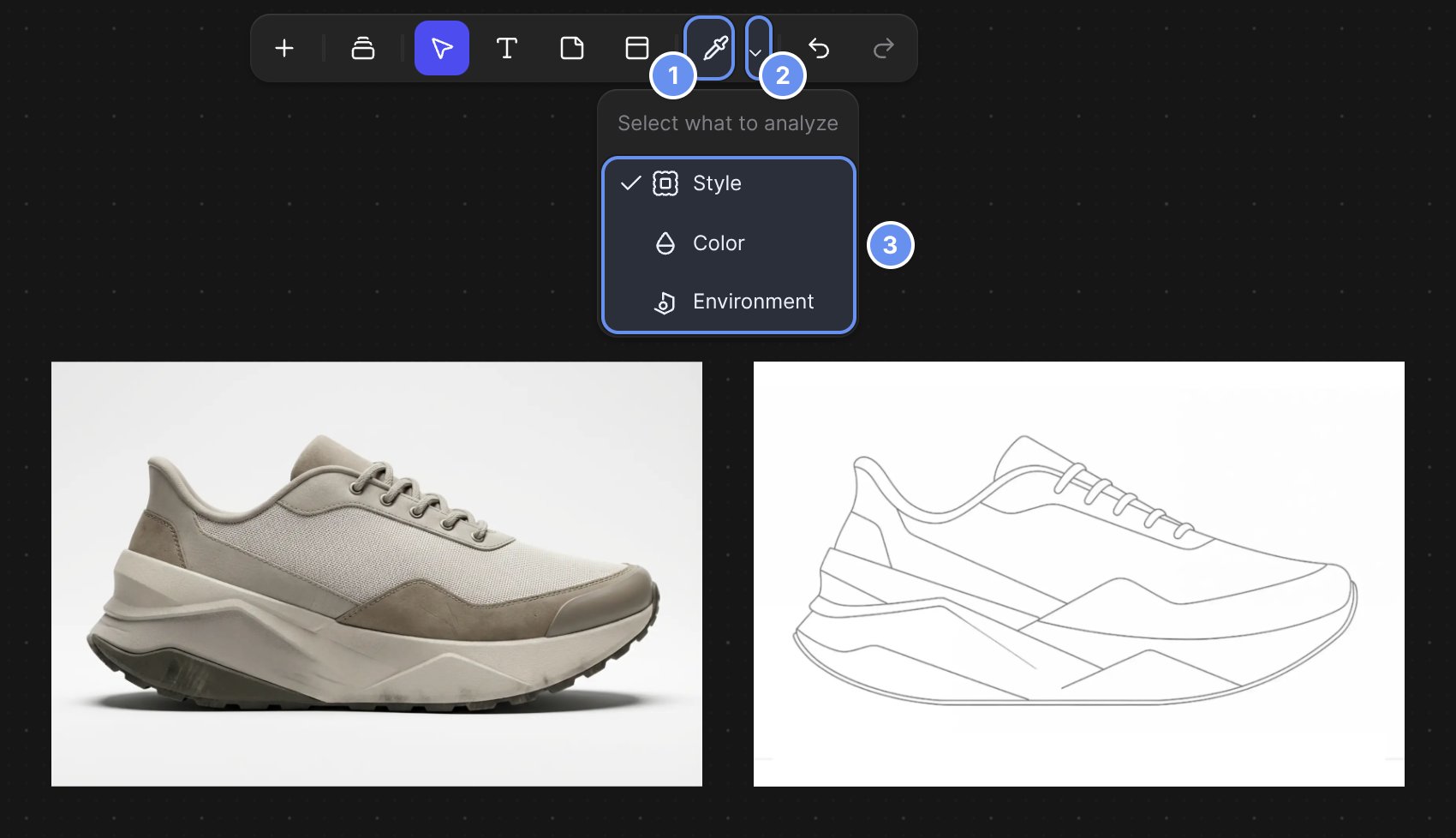
The Smart Dropper (1), its caret (2), and the Style, Color and Environment modes (3).
Steps
- Put the image to sample and the image to change on the same Workbench canvas.
- Press Y, open the dropper’s menu and choose a mode from the table below.
- Click the image to sample, then the image to change.
- Hold Shift to apply the same sample to more images, and press Esc to stop.
Good to know
- The two images must be different (“Can’t apply style to the same image”).
- The Smart Dropper isn’t in Studio. For exact placement, use Unify there instead.
- Each application is a generation (Credits).
Related
Match a look with references
References, collections and the dropper.
Smart Dropper
The tool, its modes and limits.
Place in context
Scenes, hands, Try on and Unify.
Keep renders on brand
Share one look across a team.