

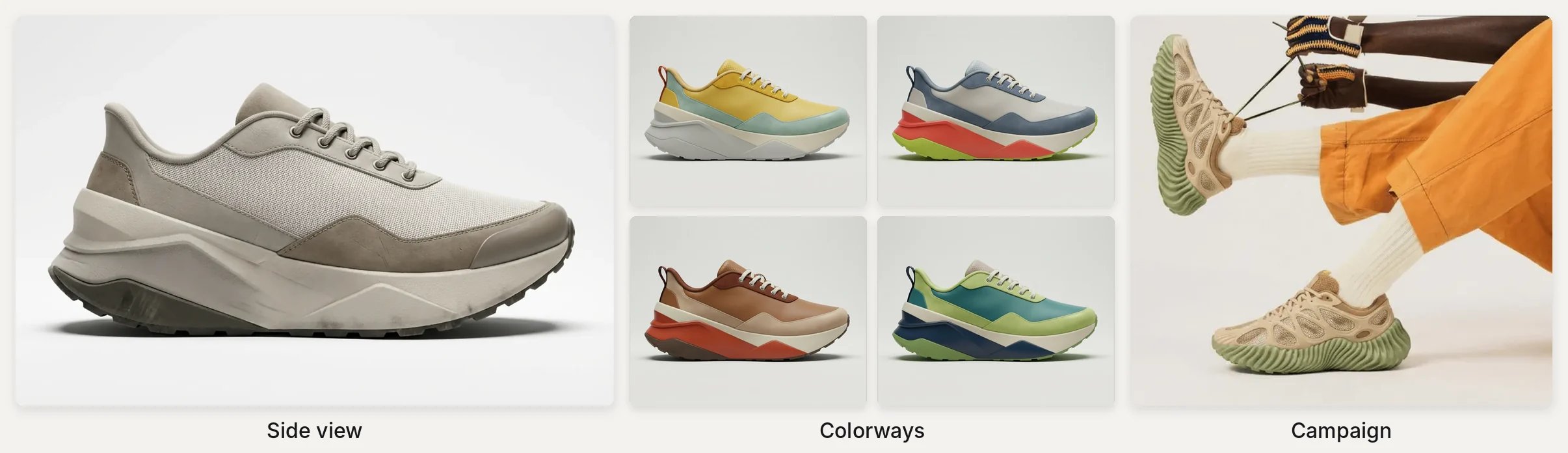
A side-view render, a colorway set of the same shoe, and a campaign image.
Open the template
It opens view-only. Click Duplicate file to edit for your own copy.
Steps
- Upload the sketch, press Q and render it in one material and one color with Modify.
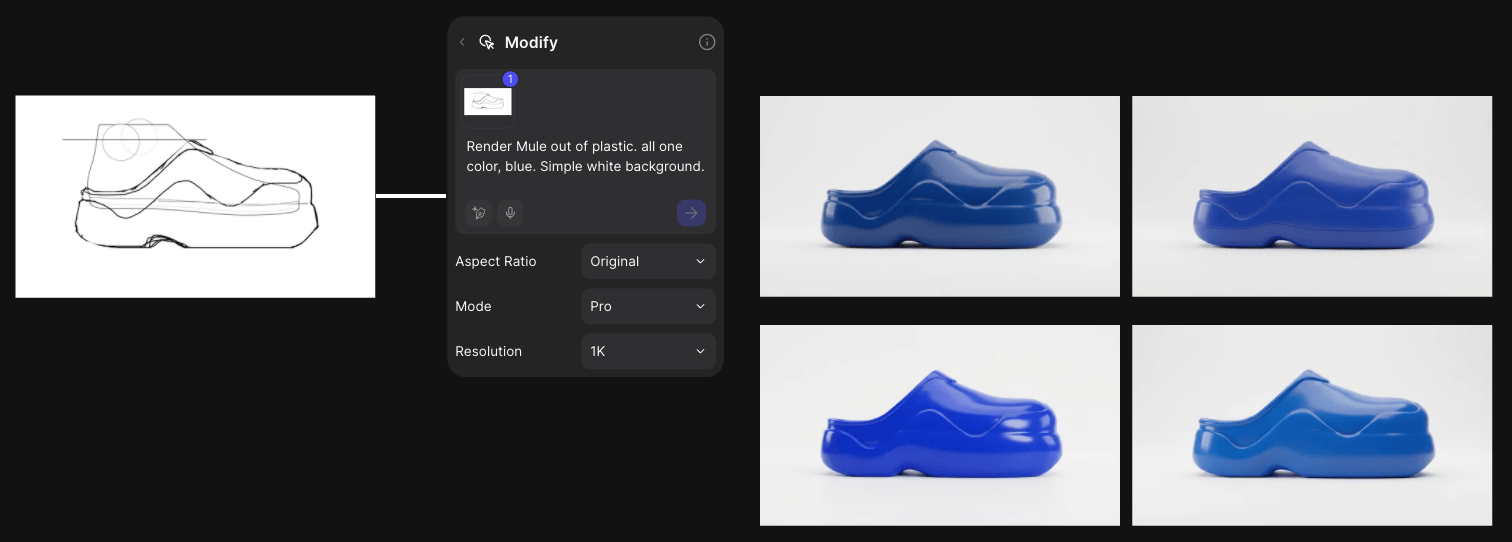
Stage one: render the sketch in a single material and color.
- Explore one component at a time, ending prompts with “Keep the same art style and leave the rest of the image unchanged.”
- Push the form with a Variate block and a Form preset such as Massing (Form Variation).
- Box a component in red in Studio and prompt “Extract the image in the red box only. Remove all red marquees from the image.”
- Paint material zones in flat color, then connect texture close-ups and name each color in the prompt (Reference images).
- Make three-quarter, rear and bottom views with New view, then add tread from your tread image.
- Fix one area, such as a logo, with a selection in Studio.
- Build the colorway set from one final side view (Colorway set).
- Export as SVG with Trace mode set to Centerline for tech-pack line art (Export).
- Connect the shoe and a campaign photo to Modify, or show a full outfit with Try on.
Good to know
- Put the shoe last in a Modify block to keep its shape and aspect ratio.
- Pro mode, high resolutions, colorway batches and SVG export use credits.
Related
Colorway set
The full colorway recipe.
Apparel
Remix a garment’s material.
Explore variations
Variate and new views.
All workflows
Every workflow.