

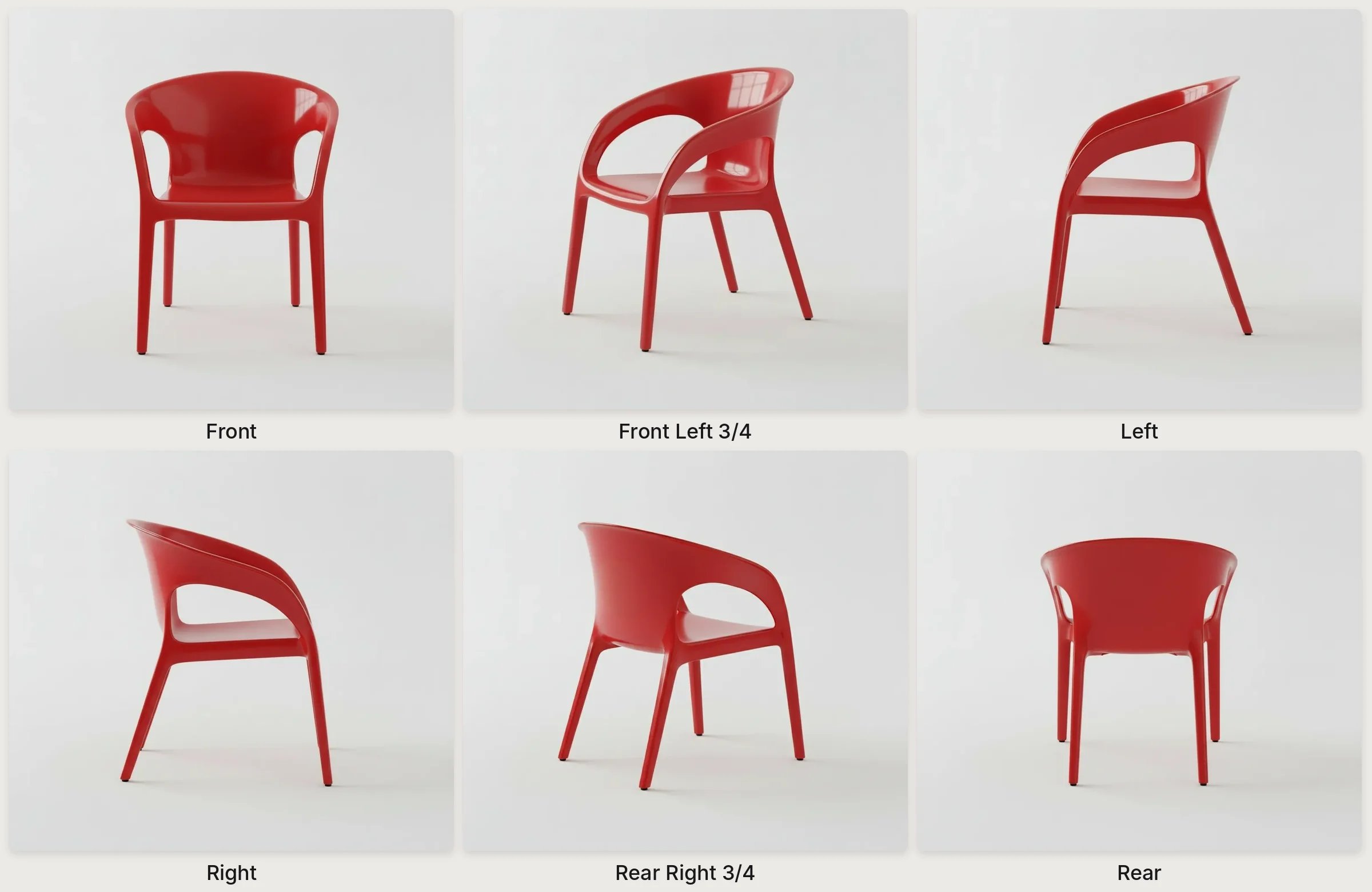
Six views of one chair made with New view.
Steps
- Drag from the render’s + handle, choose Modify, then New view (New view).
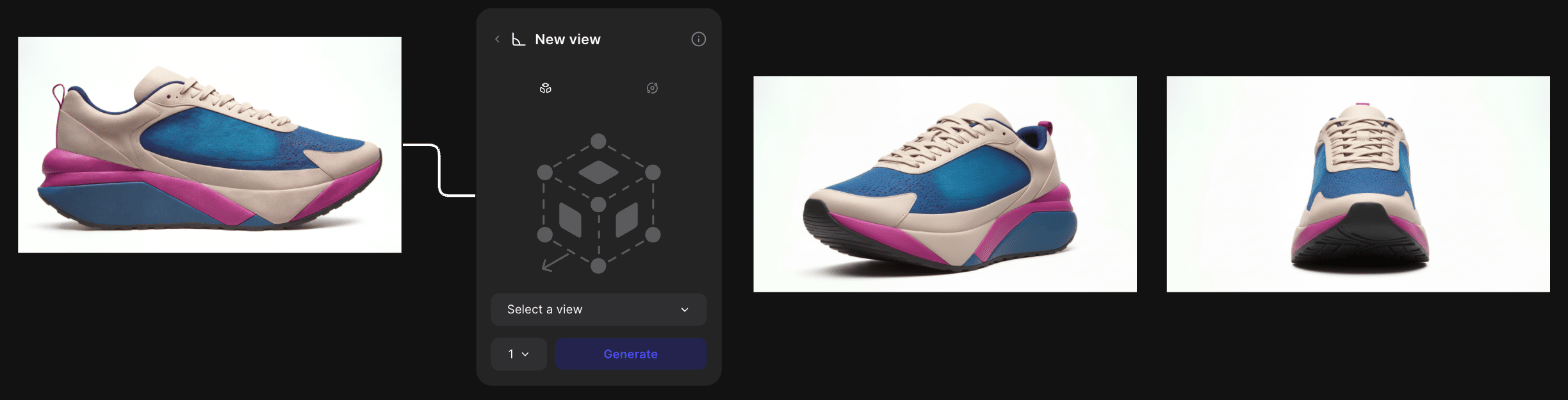
A New view block on Defined View, with two generated views of a sneaker.
- Switch the quantity to Batch, click up to 6 points on the cube and click Generate.
- Find Rear, Right and Bottom in the Select a view menu.
- Compare logos, seams and proportions, and generate any view that drifts again.
- Fix a stubborn view with Modify: connect a correct view, then the drifted view last.
- Select the views, click Arrange, press Shift + S for a section and T to label each view (Canvas elements).
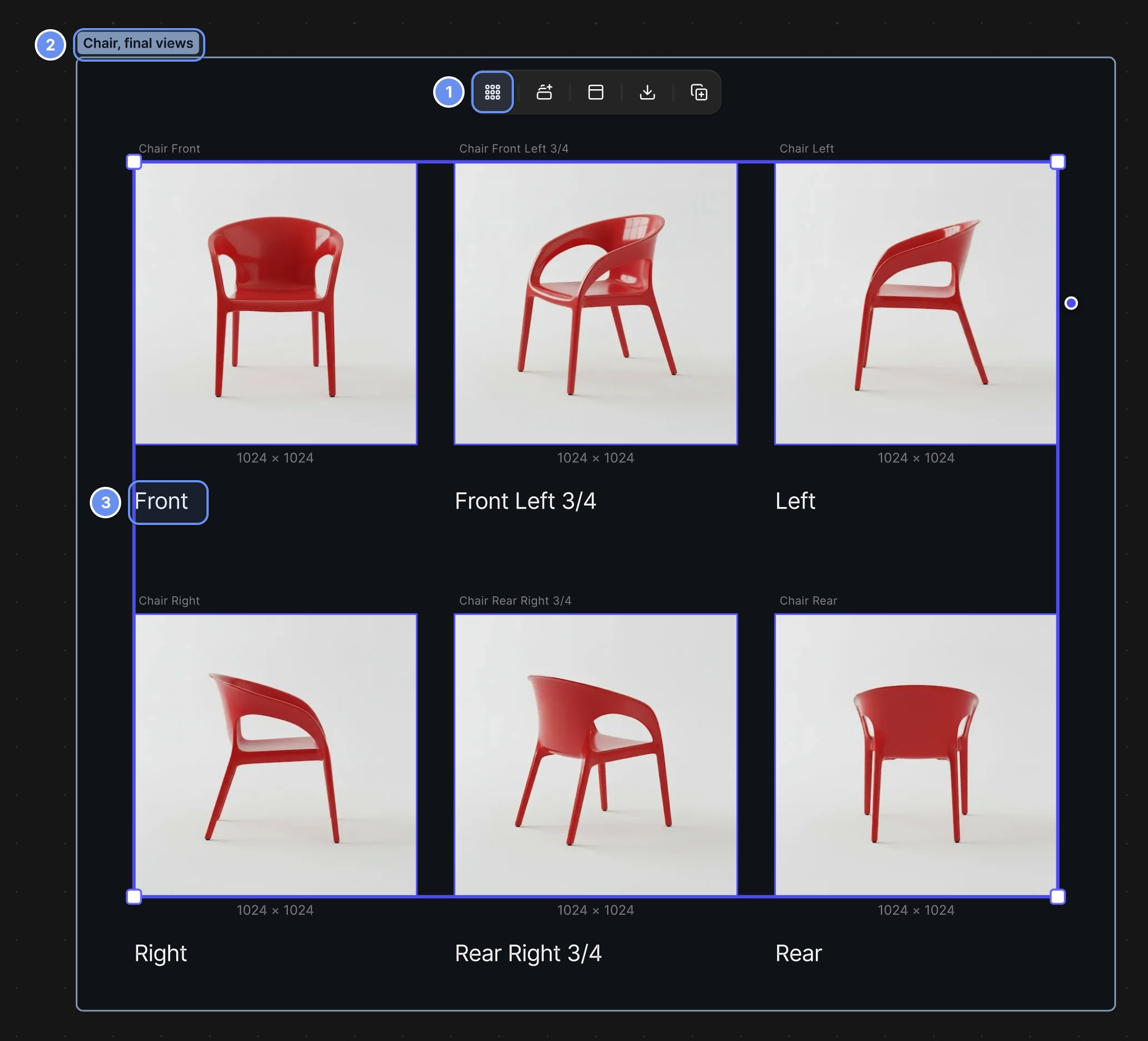
Arrange (1), the section title (2) and a text label (3).
- In the Workbench menu > View, turn off Show action blocks and Show connection lines.
- Select the section and press ⌘/Ctrl + L to copy a link, or click Share (Share).
- Right-click the section and choose Export… (Export).
Good to know
- Batch is on Pro and Enterprise. On other plans, generate one view per click.
- Each defined view is a small generation. Free View previews don’t use credits (Credits).
- The View settings reset when you reload the page.
Related
Explore variations
New view, Variate and comparing.
New view
Every view and option.
Work with your team
Share links and work live.
Render to Fusion
Turn the views into a 3D model.