

Make a turntable
- Make 4 to 8 views of the product on a plain background with New view.
- Drag from the front view’s + handle, choose Animate and click Turntable.
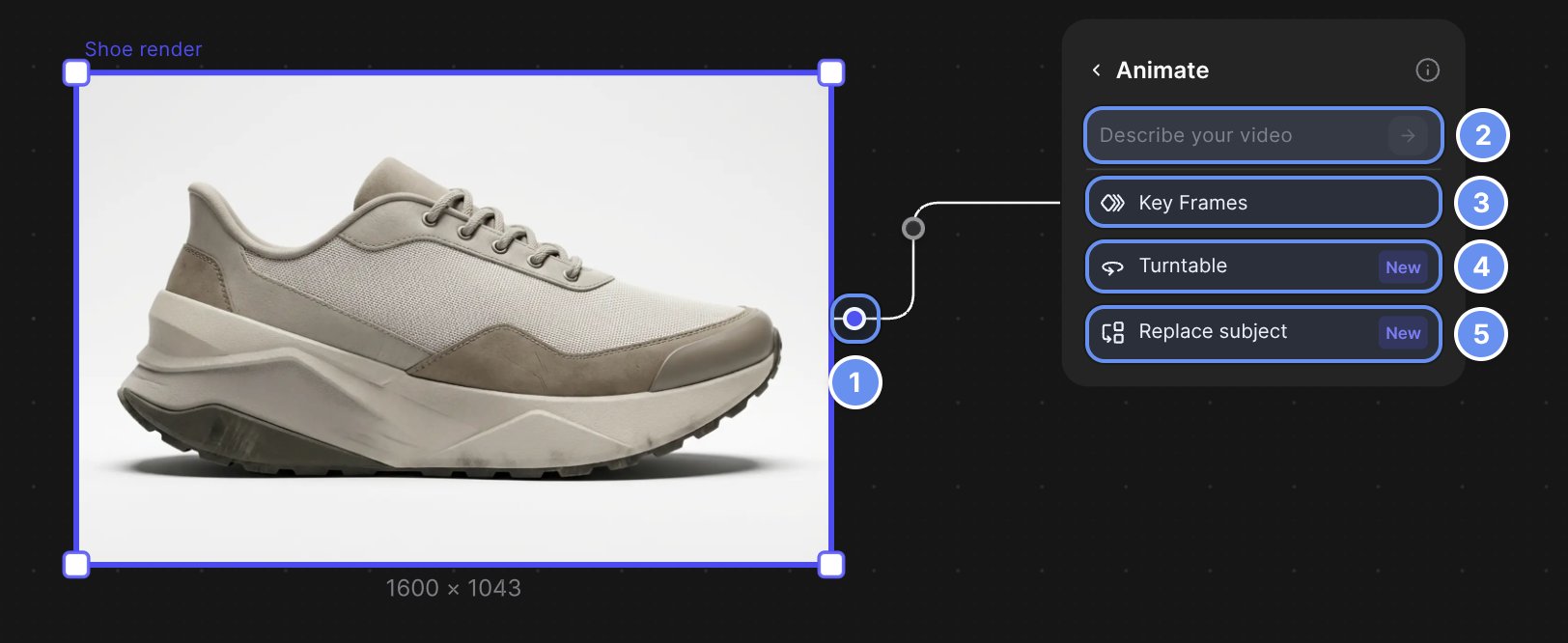
- handle (1), Describe your video (2), Key Frames (3), Turntable (4), Replace subject (5).
- Drag each view onto the block. The first one is the Start frame.
- Pick Pro or Fast, set the Duration and aspect ratio, and click Animate.
Make a reveal with key frames
- Add an Animate block and click Key Frames.
- Drag 2 to 4 stills onto the block in order, such as a sketch, a shaded drawing and a render, and place them on the timeline.
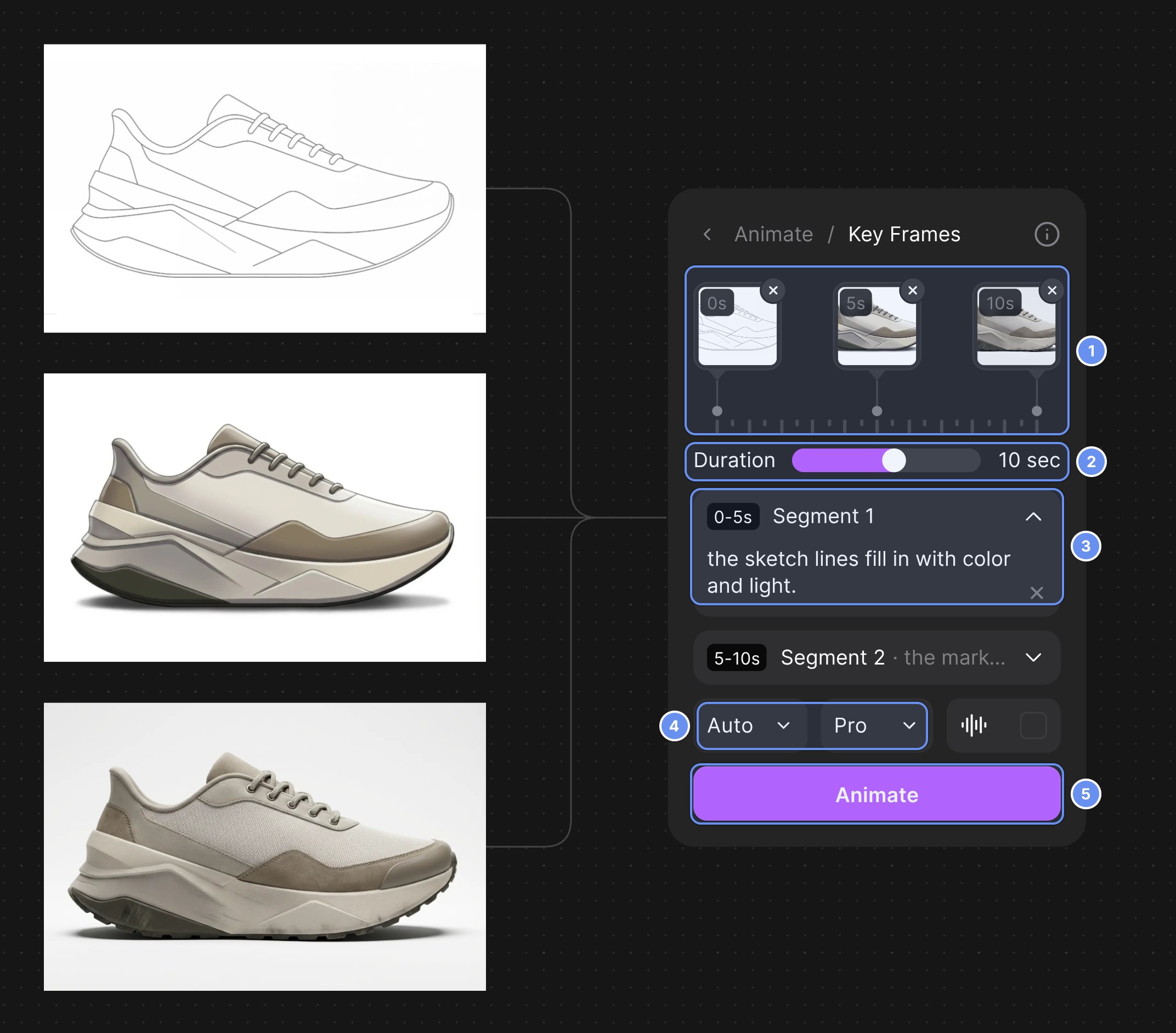
Timeline (1), length (2), segment prompt (3), aspect ratio and model (4), Animate (5).
- Describe the motion of each segment, not the look, for example “the sketch lines fill in with color and light.”
- Choose the model, length and aspect ratio, and click Animate.
Export
- Select the video, click Export and pick MP4 (Original, 2K or 4K) or GIF (Export).
Good to know
- Pro isn’t on Free. Videos run 4 to 15 seconds (Fast starts at 5), and a turntable takes up to 8 images.
- Video is billed per second, and Pro costs more per second than Fast (Credits).
- 2K and 4K MP4 export upscales with AI, takes several minutes and uses credits per second.
Related
Animate
The Animate guide.
Presentation views
Make the views a turntable needs.
Upscale and export
Video formats and the export queue.
Animate tool
Every Animate setting.