

What is Session Timeout?
Session timeout is an Enterprise-only security feature that automatically ends a member’s session after a set period of inactivity. It is configured by Org Admins and applies to all members of the organization. When enabled, Vizcom monitors user activity and starts an inactivity timer when no interaction is detected. If the timer runs out without the member responding, they are automatically logged out. Use session timeout to reduce the risk of unattended sessions leaving sensitive design work accessible.How to use Session Timeout:
Configuring session timeout (Org Admins on Enterprise plan only):1
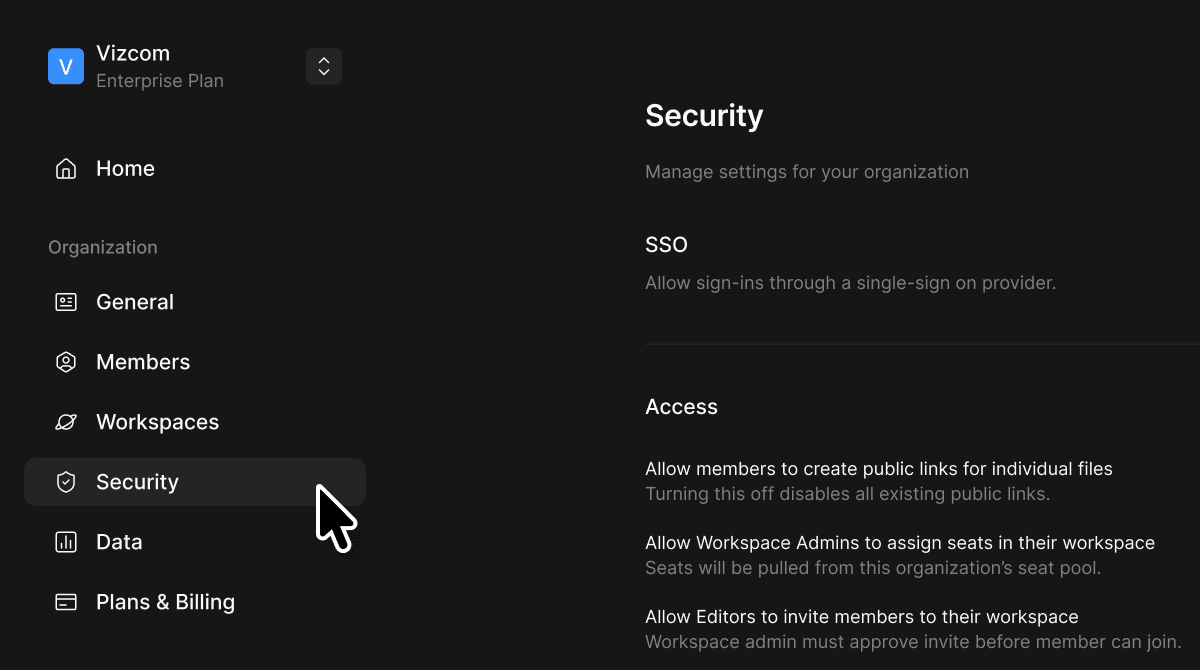
Navigate to Organization Settings.
2
Select the Security tab.
3
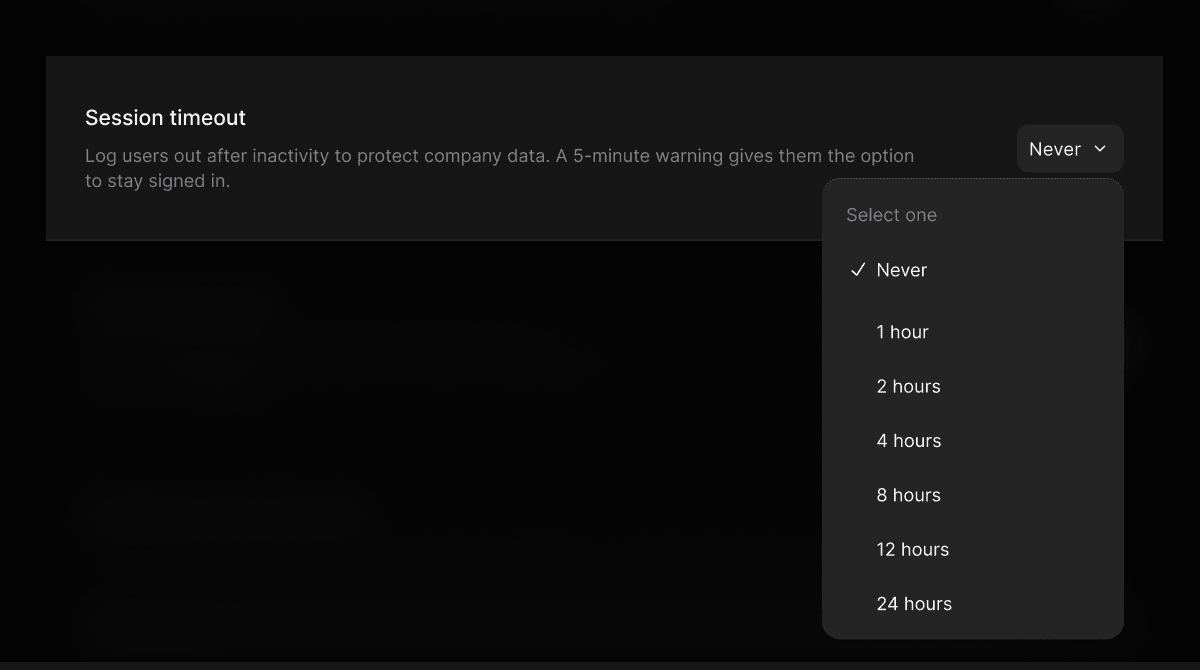
Find the Session Timeout section.
4
Use the dropdown to select a timeout duration: Never, 1 hour, 2 hours, 4 hours, 8 hours, 12 hours, or 24 hours.
5
Changes take effect immediately for all members of the organization.
1
After the configured period of inactivity, a warning modal appears 5 minutes before the session ends.
2
The modal displays a countdown timer and two options: Stay logged in or Log out now.
3
Clicking Stay logged in extends the session. Clicking Log out now ends it immediately.
4
The modal cannot be dismissed — one of the two options must be selected.
5
If no action is taken before the timer runs out, the member is automatically logged out across all open browser tabs.
Core Features:
Inactivity Tracking
- Vizcom monitors user activity including mouse clicks and movements, keyboard input, scrolling, touch gestures, canvas zoom and pan, and any other interaction with the interface. Simply viewing a page without interacting does not reset the timer.
Warning Modal
- A warning modal appears 5 minutes before the session expires, giving members the opportunity to stay logged in or end their session manually. The modal cannot be dismissed and syncs across all open browser tabs — clicking Stay logged in in one tab refreshes all tabs simultaneously.
Cross-Tab Sync
- Session timeout applies across all open browser tabs. If a session expires, the member is logged out from all tabs at the same time.
Multiple Organization Handling
- Handling If a member belongs to more than one organization with different timeout settings, the most restrictive — shortest — timeout applies. For example, if one organization has a 4-hour timeout and another has a 2-hour timeout, the member’s session will expire after 2 hours of inactivity.
Tips & FAQ
FAQ
- Who can configure session timeout?
- Only Org Admins on the Enterprise plan can configure this setting. If you don’t see the option, your organization may not be on the Enterprise plan.
- Does session timeout apply to all members?
- Yes. Timeout applies equally to all members of the organization. It cannot be disabled for specific users or teams.
- What happens to unsaved work if my session expires?
- Unsaved changes will be lost. Save your work regularly to avoid losing progress.
- What happens if I’m running a generation when my session expires?
- Generations in progress will complete, but you will need to log back in to view the results.
- Can I set different timeout durations for different teams?
- No. Session timeout is configured at the organization level. All members of the organization share the same setting.
- Does session timeout apply to the mobile app?
- No. Session timeout is configured at the organization level. All members of the organization share the same setting.
Next Steps:
- Navigate to Organization Settings > Security to enable or adjust your session timeout duration.
- Notify your team before making changes to the timeout setting so members can save their work accordingly.
- Encourage members to save frequently and log out manually when stepping away.