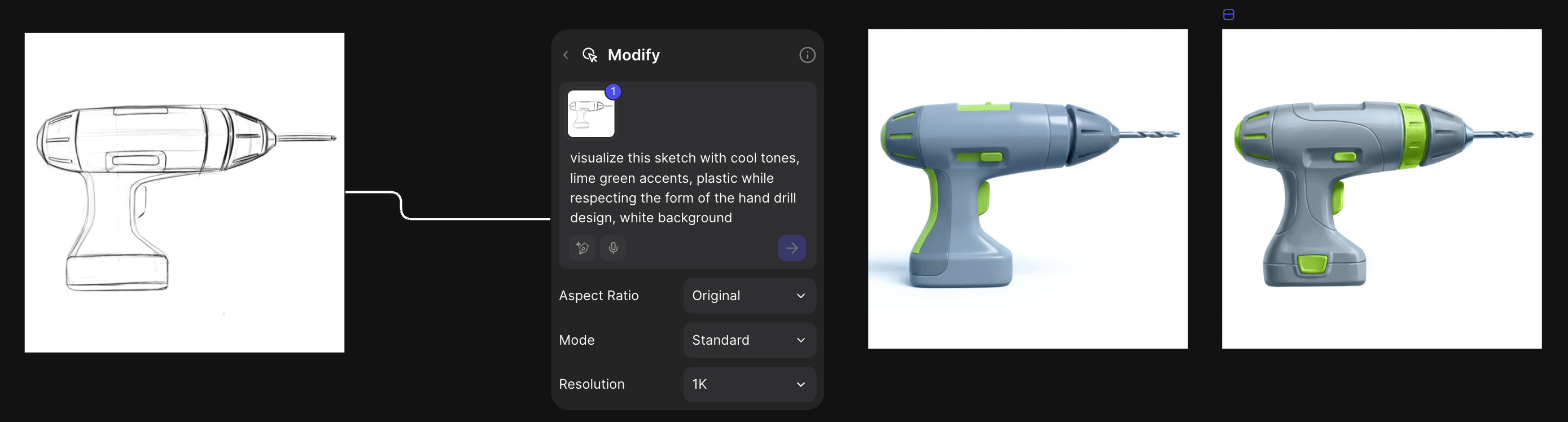
Go to app.vizcom.com and choose Continue with Google, Continue with SSO or Continue with email.First time? Enter your name, then join your company’s workspace or click Create a new workspace. Invites and SSO: Join your workspace.
2
Create a file
Click Create new file, type a name and click Start in Workbench. Files save automatically.
Closing the welcome window opens Studio instead. Press Shift + W to get to the Workbench.
3
Add your sketch
Drag the image onto the canvas, or click Insert (+) and choose Upload a file (I).For a paper sketch, choose Upload from phone and scan the QR code.
Insert (+) (1) opens the menu; the upload options are at the top (2).
4
Add a Modify block
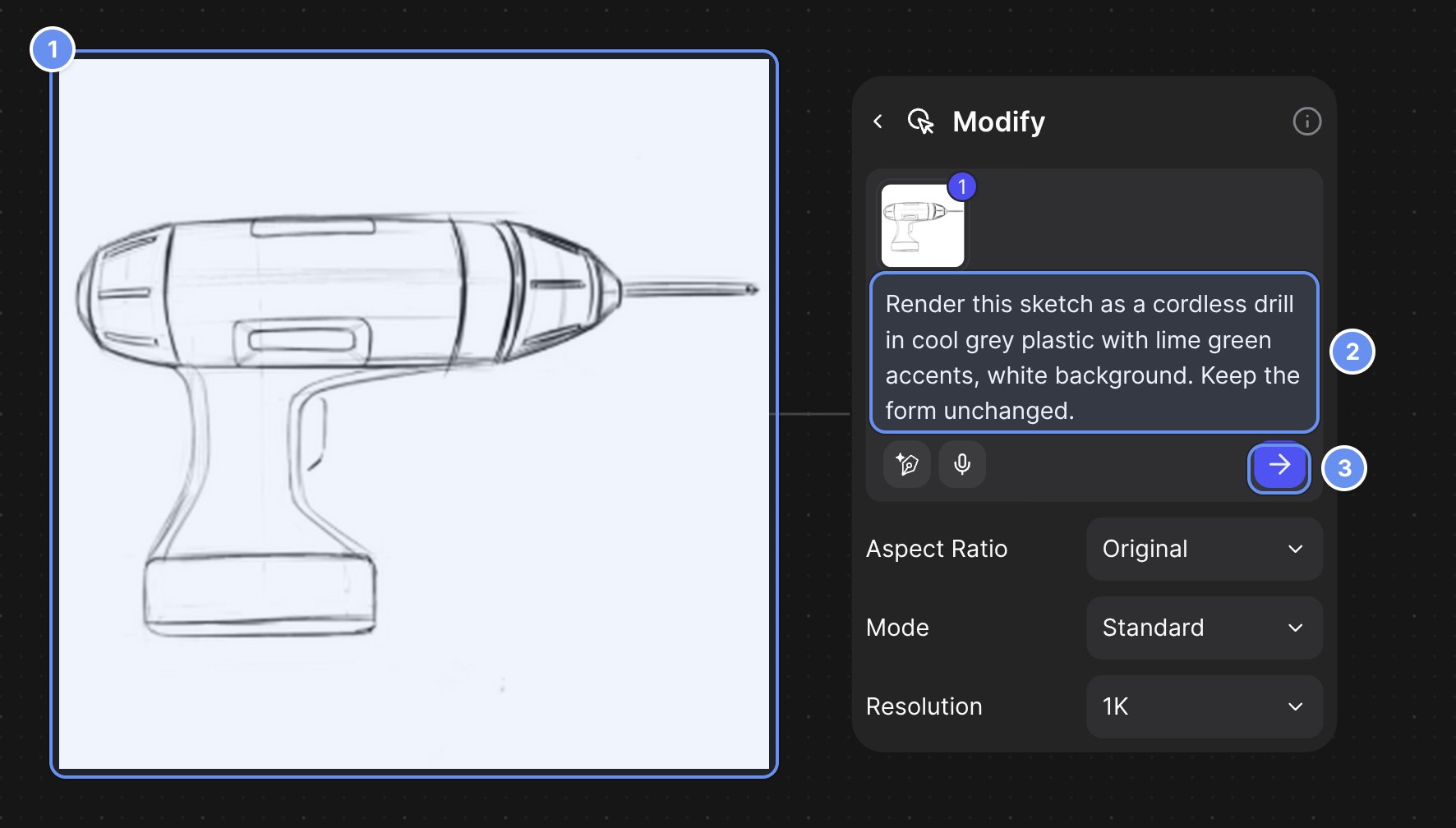
Select the image and press Q. A connected Modify block opens, ready for your prompt.
Select the sketch (1), press Q, type the prompt (2) and click the arrow (3).
5
Describe the render and generate
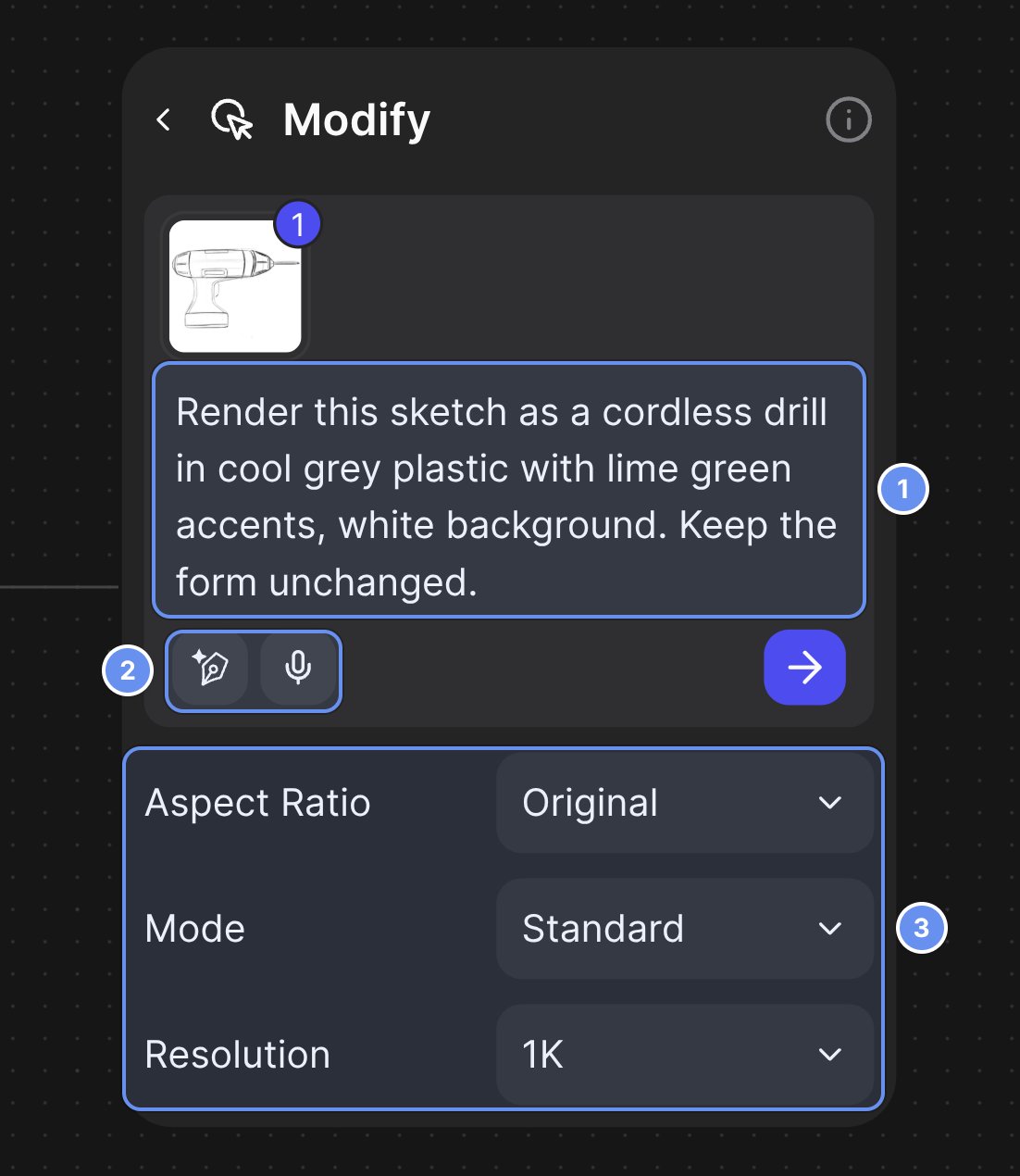
Say what it should look like and what must stay the same:
“Render this sketch as a cordless drill in cool grey plastic with lime green accents, white background, soft studio lighting. Keep the form unchanged.”
Leave the settings at their defaults and press Enter.
The prompt box (1), Improve prompt and voice input (2), and the output settings (3).
On paid plans, Instant Render renders a sketch without a prompt.
6
Review the result
The render appears to the right of the block. Run the block again for another take.
7
Change one thing at a time
Select a result and press Q, then ask for one change: “Make the handle walnut. Keep everything else the same.”Double-click a result to draw or mask in Studio.
8
Export
Select the image, click Export, choose PNG or JPEG and click Export 1 asset. With nothing selected, every image and video in the file is exported.
Export (1) and Share (2) are at the top right of every file.
{"docsConfig":{"theme":"luma","$schema":"https://mintlify.com/docs.json","name":"Vizcom Docs","description":"Guides for designers and teams using Vizcom, the AI design tool for sketching, rendering, and refining product concepts in 2D and 3D, plus help with workspaces, billing, and Enterprise administration.","colors":{"primary":"#6790EF","light":"#D1DFFF","dark":"#1145A0"},"logo":{"light":"https://mintcdn.com/vizcom-c4034e9b/l3hebjVqvRBa2E6g/images/logo-dark.svg?fit=max\u0026auto=format\u0026n=l3hebjVqvRBa2E6g\u0026q=85\u0026s=22515442b3097b2a6ffbf4ede9f56565","dark":"https://mintcdn.com/vizcom-c4034e9b/l3hebjVqvRBa2E6g/images/logo-light.svg?fit=max\u0026auto=format\u0026n=l3hebjVqvRBa2E6g\u0026q=85\u0026s=7112255f58c36c98724271cccda31036","href":"https://vizcom.com/"},"favicon":"https://mintcdn.com/vizcom-c4034e9b/mZT69WTP9Dk-4r_B/images/favicon.svg?fit=max\u0026auto=format\u0026n=mZT69WTP9Dk-4r_B\u0026q=85\u0026s=e7ab289d62821f9faec0f9fb2361cbf1","appearance":{"default":"system"},"background":{"decoration":"grid","color":{"light":"#F8F4F1","dark":"#191919"}},"navbar":{"links":[{"href":"https://app.vizcom.com/auth?utm_source=docs\u0026utm_medium=web\u0026utm_campaign=docs\u0026utm_content=cta_login","label":"Log in"}],"primary":{"type":"button","label":"Sign up","href":"https://app.vizcom.com/auth?utm_source=docs\u0026utm_medium=web\u0026utm_campaign=docs\u0026utm_content=cta_signup"}},"footer":{"socials":{"x":"https://x.com/Vizcom_","linkedin":"https://www.linkedin.com/company/vizcomhq","instagram":"https://www.instagram.com/vizcom_","youtube":"https://www.youtube.com/channel/UCU-XOa74z1aGdZRyvRBQ6UQ","discord":"https://discord.gg/aJZZaJpPSZ"}},"search":{"prompt":"Search or ask, e.g. “how do I change only the sole?”"},"fonts":{"family":"Matter","weight":400,"source":"https://cdn.prod.website-files.com/68da69e18c8988d039a9f6fe/6903b8705cce60bc3d9e254b_Matter-Regular.woff2","format":"woff2"},"icons":{"library":"fontawesome"},"styling":{"eyebrows":"breadcrumbs","codeblocks":"system","latex":false},"contextual":{"options":["copy","view","chatgpt","claude","perplexity","mcp","cursor","vscode"],"display":"header"},"thumbnails":{"fonts":{"family":"Matter"}},"navigation":{"pages":[]}},"deployment":{"deploymentMetadataValue":{"subdomain":"vizcom-c4034e9b","hasAudioNarration":false,"actualSubdomain":"vizcom-c4034e9b","customDomains":["docs.vizcom.com"],"gitSource":{"type":"github","owner":"vizcomtech","repo":"docs","deployBranch":"main","contentDirectory":"","isPrivate":true,"mountPath":"","label":"","_id":"6af36121a0f7f7caf9703cf7"},"feedback":{"thumbs":true},"entitlements":{"AI_CHAT":{"status":"ENABLED"},"REMOVE_BRANDING":{"status":"DISABLED"},"CONTEXTUAL_FEEDBACK":{"status":"DISABLED"},"CODE_SNIPPET_FEEDBACK":{"status":"DISABLED"},"WEB_MCP":{"status":"ENABLED"},"NARRATION":{"status":"ENABLED"}},"buildId":"6af36727140d38558d245dcf","clientVersion":"0.0.4094","searchFilterCounts":[{"language":"default","tag":"Tools","count":33},{"language":"default","tag":"Guides","count":20},{"language":"default","tag":"Workflows","count":18},{"language":"default","tag":"Admin \u0026 security","count":13},{"language":"default","tag":"Explore","count":11},{"language":"default","tag":"Help","count":10},{"language":"default","tag":"Reference","count":9},{"language":"default","tag":"Render","count":8},{"language":"default","tag":"By industry","count":8},{"language":"default","tag":"By deliverable","count":8}]},"assistantConfig":{"enableAskAiButton":false,"enableStarterQuestions":true,"enableAskAiSearchBar":true,"deflection":{"enabled":true,"email":"[email protected]"}},"basePath":"","hasChatPermissions":true,"hasWebMcpPermissions":true,"toggles":[{"name":"kill-isr","enabled":true,"variant":{"name":"disabled","enabled":false,"feature_enabled":true},"impressionData":false},{"name":"custom-rbac-roles","enabled":true,"variant":{"name":"disabled","enabled":false,"feature_enabled":true},"impressionData":false},{"name":"agent-mintlify-slack","enabled":true,"variant":{"name":"disabled","enabled":false,"feature_enabled":true},"impressionData":false},{"name":"agent-integrations-settings","enabled":true,"variant":{"name":"disabled","enabled":false,"feature_enabled":true},"impressionData":false},{"name":"rbac-expansion","enabled":true,"variant":{"name":"disabled","enabled":false,"feature_enabled":true},"impressionData":false},{"name":"automations-pr-grouping","enabled":true,"variant":{"name":"disabled","enabled":false,"feature_enabled":true},"impressionData":false},{"name":"custom-prefix","enabled":true,"variant":{"name":"disabled","enabled":false,"feature_enabled":true},"impressionData":false},{"name":"analytics-v7","enabled":true,"variant":{"name":"disabled","enabled":false,"feature_enabled":true},"impressionData":false},{"name":"user-flows-analytics","enabled":true,"variant":{"name":"disabled","enabled":false,"feature_enabled":true},"impressionData":false},{"name":"no-publish-flow","enabled":true,"variant":{"name":"disabled","enabled":false,"feature_enabled":true},"impressionData":false},{"name":"workos-onboarding","enabled":true,"variant":{"name":"disabled","enabled":false,"feature_enabled":true},"impressionData":false},{"name":"llms-txt-v2","enabled":true,"variant":{"name":"disabled","enabled":false,"feature_enabled":true},"impressionData":false},{"name":"snapshot-serving-live","enabled":true,"variant":{"name":"disabled","enabled":false,"feature_enabled":true},"impressionData":false},{"name":"stripTemperatureMiddleware","enabled":true,"variant":{"name":"disabled","enabled":false,"feature_enabled":true},"impressionData":false},{"name":"support-platform-pylon-zendesk","enabled":true,"variant":{"name":"disabled","enabled":false,"feature_enabled":true},"impressionData":false},{"name":"snapshot-serving","enabled":true,"variant":{"name":"disabled","enabled":false,"feature_enabled":true},"impressionData":false},{"name":"instant-rollback","enabled":true,"variant":{"name":"disabled","enabled":false,"feature_enabled":true},"impressionData":false},{"name":"granular-notifications-server","enabled":true,"variant":{"name":"disabled","enabled":false,"feature_enabled":true},"impressionData":false},{"name":"granular-notifications","enabled":true,"variant":{"name":"disabled","enabled":false,"feature_enabled":true},"impressionData":false},{"name":"automations-fable","enabled":true,"variant":{"name":"disabled","enabled":false,"feature_enabled":true},"impressionData":false},{"name":"fixed-ai-action-pricing","enabled":true,"variant":{"name":"disabled","enabled":false,"feature_enabled":true},"impressionData":false},{"name":"automation-resolve-merge-conflict","enabled":true,"variant":{"name":"disabled","enabled":false,"feature_enabled":true},"impressionData":false},{"name":"scoped-publishing","enabled":true,"variant":{"name":"disabled","enabled":false,"feature_enabled":true},"impressionData":false},{"name":"mintql","enabled":true,"variant":{"name":"disabled","enabled":false,"feature_enabled":true},"impressionData":false},{"name":"page-level-analytics","enabled":true,"variant":{"name":"disabled","enabled":false,"feature_enabled":true},"impressionData":false},{"name":"editor-version-history-v2","enabled":true,"variant":{"name":"disabled","enabled":false,"feature_enabled":true},"impressionData":false},{"name":"billing-page-v2","enabled":true,"variant":{"name":"disabled","enabled":false,"feature_enabled":true},"impressionData":false},{"name":"full-page-search","enabled":true,"variant":{"name":"disabled","enabled":false,"feature_enabled":true},"impressionData":false},{"name":"workspace-projects","enabled":true,"variant":{"name":"disabled","enabled":false,"feature_enabled":true},"impressionData":false},{"name":"assistant-v5","enabled":true,"variant":{"name":"disabled","enabled":false,"feature_enabled":true},"impressionData":false},{"name":"fork-pr-previews","enabled":true,"variant":{"name":"disabled","enabled":false,"feature_enabled":true},"impressionData":false},{"name":"revalidation-jwt","enabled":true,"variant":{"name":"disabled","enabled":false,"feature_enabled":true},"impressionData":false},{"name":"workos-sso-scim","enabled":true,"variant":{"name":"disabled","enabled":false,"feature_enabled":true},"impressionData":false},{"name":"hobby-abuse-scan","enabled":true,"variant":{"name":"disabled","enabled":false,"feature_enabled":true},"impressionData":false},{"name":"dashboard-inbox","enabled":true,"variant":{"name":"disabled","enabled":false,"feature_enabled":true},"impressionData":false},{"name":"workos-signup","enabled":true,"variant":{"name":"disabled","enabled":false,"feature_enabled":true},"impressionData":false},{"name":"turbopuffer-dual-write","enabled":true,"variant":{"name":"disabled","enabled":false,"feature_enabled":true},"impressionData":false},{"name":"workos-enabled","enabled":true,"variant":{"name":"disabled","enabled":false,"feature_enabled":true},"impressionData":false},{"name":"approve-review-flow","enabled":true,"variant":{"name":"disabled","enabled":false,"feature_enabled":true},"impressionData":false},{"name":"editor-metadata","enabled":true,"variant":{"name":"disabled","enabled":false,"feature_enabled":true},"impressionData":false},{"name":"sso-setup-deadline-banner","enabled":true,"variant":{"name":"disabled","enabled":false,"feature_enabled":true},"impressionData":false},{"name":"turbopuffer-serve","enabled":true,"variant":{"name":"disabled","enabled":false,"feature_enabled":true},"impressionData":false},{"name":"live-agents","enabled":true,"variant":{"name":"disabled","enabled":false,"feature_enabled":true},"impressionData":false}],"starterQuestions":[{"_id":"6abace65b0dc5fbdf2920419","deploymentId":"697a7cfa899b175f71812b73","questionText":"How do Vizcom credits work?","status":"active","generatedBy":"manual","createdAt":"2026-09-28T20:30:29.573Z","updatedAt":"2026-09-28T20:30:29.573Z","__v":0},{"_id":"6abace5db0dc5fbdf2920388","deploymentId":"697a7cfa899b175f71812b73","questionText":"How do I make my own render style?","status":"active","generatedBy":"manual","createdAt":"2026-09-28T20:30:21.723Z","updatedAt":"2026-09-28T20:30:21.723Z","__v":0},{"_id":"6abace55b0dc5fbdf29202c3","deploymentId":"697a7cfa899b175f71812b73","questionText":"How do I explore colorways with Region Maps?","status":"active","generatedBy":"manual","createdAt":"2026-09-28T20:30:13.758Z","updatedAt":"2026-09-28T20:30:13.758Z","__v":0}],"googleFontsInlined":false},"customCss":[{"filePath":"style.css","content":".vz-facts{display:flex;flex-wrap:wrap;gap:1px;margin:1.25rem 0 1.5rem;border:1px solid rgba(15, 23, 42, 0.1);border-radius:12px;overflow:hidden;background:rgba(15, 23, 42, 0.1)}.vz-fact{flex:1 1 0;min-width:0;display:flex;flex-direction:column;gap:4px;padding:12px 14px;background:#fff;font-size:14px;line-height:1.45}.vz-fact-wide{flex-basis:100%}.vz-fact-label{font-size:11px;font-weight:600;letter-spacing:0.06em;text-transform:uppercase;color:rgba(15, 23, 42, 0.5)}.vz-fact-value{color:rgb(15, 23, 42)}.vz-fact-value a{color:inherit;text-decoration:underline;text-decoration-color:rgba(103, 144, 239, 0.5);text-underline-offset:2px}.vz-fact kbd,.vz-legend kbd{display:inline-block;min-width:1.5em;padding:0 5px;border:1px solid rgba(15, 23, 42, 0.15);border-bottom-width:2px;border-radius:5px;font-family:inherit;font-size:12px;line-height:1.6;text-align:center}.dark .vz-facts{border-color:rgba(255, 255, 255, 0.08);background:rgba(255, 255, 255, 0.08)}.dark .vz-fact{background:rgb(17, 17, 19)}.dark .vz-fact-label{color:rgba(255, 255, 255, 0.5)}.dark .vz-fact-value{color:rgba(255, 255, 255, 0.9)}.dark .vz-fact kbd,.dark .vz-legend kbd{border-color:rgba(255, 255, 255, 0.2)}.vz-stages{display:grid;grid-template-columns:repeat(auto-fit, minmax(160px, 1fr));gap:10px;margin:1rem 0 2rem}.vz-stage{display:flex;flex-direction:column;gap:6px;padding:14px;border:1px solid rgba(15, 23, 42, 0.1);border-radius:12px;text-decoration:none!important;transition:border-color 0.15s}.vz-stage:hover{border-color:rgb(103, 144, 239)}.vz-stage-step{font-size:11px;font-weight:600;letter-spacing:0.06em;text-transform:uppercase;color:rgb(103, 144, 239)}.vz-stage-name{font-weight:600;color:rgb(15, 23, 42)}.vz-stage-blurb{font-size:13px;line-height:1.45;color:rgba(15, 23, 42, 0.65)}.dark .vz-stage{border-color:rgba(255, 255, 255, 0.1)}.dark .vz-stage-name{color:rgba(255, 255, 255, 0.92)}.dark .vz-stage-blurb{color:rgba(255, 255, 255, 0.6)}.vz-num{display:inline-flex;align-items:center;justify-content:center;width:22px;height:22px;border-radius:999px;background:#6790ef;color:#fff;font-size:12px;font-weight:700}@media (max-width: 640px){.vz-fact{flex-basis:calc(50% - 1px)}.vz-fact-wide{flex-basis:100%}}img[src*=\"/images/docs/find-insert-\"],img[src*=\"/images/docs/find-studio-make3d\"],img[src*=\"/images/docs/find-modify-block\"],img[src*=\"/images/docs/find-export\"]{width:auto;max-width:100%;max-height:520px;margin-left:auto;margin-right:auto}.vz-ba{position:relative;width:100%;margin:1.25rem 0;overflow:hidden;border-radius:14px;border:1px solid rgba(15, 23, 42, 0.1);background:#f3f1ee;user-select:none}.dark .vz-ba{border-color:rgba(255, 255, 255, 0.1);background:#1d1d1f}.vz-ba-img{position:absolute;inset:0;width:100%;height:100%;object-fit:contain;margin:0!important;border-radius:0!important}.vz-ba-clip{position:absolute;inset:0}.vz-ba-line{position:absolute;top:0;bottom:0;width:2px;margin-left:-1px;background:#fff;box-shadow:0 0 0 1px rgba(0, 0, 0, 0.15);pointer-events:none}.vz-ba-handle{position:absolute;top:50%;left:50%;display:flex;align-items:center;justify-content:center;width:36px;height:36px;margin:-18px 0 0 -18px;border-radius:999px;background:#fff;color:#18181b;box-shadow:0 2px 10px rgba(0, 0, 0, 0.25)}.vz-ba-tag{position:absolute;top:12px;padding:3px 9px;border-radius:999px;background:rgba(17, 17, 19, 0.72);color:#fff;font-size:12px;font-weight:600;pointer-events:none}.vz-ba-tag-l{left:12px}.vz-ba-tag-r{right:12px}.vz-ba-range{position:absolute;inset:0;width:100%;height:100%;margin:0;opacity:0;cursor:ew-resize}.vz-hot{position:relative;margin:1.25rem 0;border-radius:14px;overflow:visible}.vz-hot-img{display:block;width:100%;height:auto;margin:0!important;border-radius:14px;border:1px solid rgba(15, 23, 42, 0.1)}.dark .vz-hot-img{border-color:rgba(255, 255, 255, 0.1)}.vz-hot-spot{position:absolute;transform:translate(-50%, -50%);text-decoration:none!important;border:0!important;outline:none;z-index:1}.vz-hot-num{display:flex;align-items:center;justify-content:center;width:26px;height:26px;border-radius:999px;background:#6790ef;color:#fff;font-size:13px;font-weight:700;box-shadow:0 0 0 2px #fff, 0 0 0 5px rgba(103, 144, 239, 0.35), 0 2px 6px rgba(0, 0, 0, 0.35);transition:transform 0.15s}.vz-hot-spot:hover .vz-hot-num,.vz-hot-spot:focus .vz-hot-num{transform:scale(1.12)}.vz-hot-tip{position:absolute;top:34px;left:-8px;display:none;flex-direction:column;gap:2px;width:max-content;max-width:240px;padding:8px 10px;border-radius:10px;background:#111113;color:#fff;font-size:13px;line-height:1.4;box-shadow:0 8px 24px rgba(0, 0, 0, 0.35)}.vz-hot-tip span{color:rgba(255, 255, 255, 0.72)}.vz-hot-tip-l{left:auto;right:-8px}.vz-hot-spot:hover,.vz-hot-spot:focus{z-index:3}.vz-hot-spot:hover .vz-hot-tip,.vz-hot-spot:focus .vz-hot-tip{display:flex}.vz-tasks{display:grid;gap:14px;margin:1rem 0 2rem}.vz-tasks-2{grid-template-columns:repeat(2, minmax(0, 1fr))}.vz-tasks-3{grid-template-columns:repeat(3, minmax(0, 1fr))}.vz-tasks-4{grid-template-columns:repeat(4, minmax(0, 1fr))}.vz-task{display:flex;flex-direction:column;overflow:hidden;border:1px solid rgba(15, 23, 42, 0.1);border-radius:14px;background:#fff;text-decoration:none!important;transition:border-color 0.15s, transform 0.15s}.vz-task:hover{border-color:rgb(103, 144, 239);transform:translateY(-1px)}.dark .vz-task{border-color:rgba(255, 255, 255, 0.1);background:rgb(22, 22, 24)}.vz-task-media{display:block;aspect-ratio:16 / 10;background:#ece9e5;overflow:hidden}.dark .vz-task-media{background:#1d1d1f}.vz-task-media img,.vz-task-media video{display:block;width:100%;height:100%;object-fit:cover;margin:0!important;border-radius:0!important}.vz-task-body{display:flex;flex-direction:column;gap:4px;padding:12px 14px 14px}.vz-task-title{font-weight:600;color:rgb(15, 23, 42)}.dark .vz-task-title{color:rgba(255, 255, 255, 0.92)}.vz-task-text{font-size:13px;line-height:1.45;color:rgba(15, 23, 42, 0.65)}.dark .vz-task-text{color:rgba(255, 255, 255, 0.6)}@media (max-width: 900px){.vz-tasks-3,.vz-tasks-4{grid-template-columns:repeat(2, minmax(0, 1fr))}}@media (max-width: 520px){.vz-tasks-2,.vz-tasks-3,.vz-tasks-4{grid-template-columns:minmax(0, 1fr)}}.vz-clip{margin:1.25rem 0}.vz-clip video{display:block;width:100%;height:auto;border-radius:14px;border:1px solid rgba(15, 23, 42, 0.1);background:#111}.dark .vz-clip video{border-color:rgba(255, 255, 255, 0.1)}.vz-clip figcaption{margin-top:8px;font-size:14px;color:rgba(15, 23, 42, 0.6);text-align:center}.dark .vz-clip figcaption{color:rgba(255, 255, 255, 0.55)}.vz-home{max-width:1180px;margin:0 auto;padding:48px 24px 96px}.vz-home section{margin-top:72px}.vz-home section:first-child{margin-top:0}.vz-hero{display:flex;flex-direction:column;gap:36px}.vz-hero-text{max-width:760px}.vz-eyebrow{margin:0 0 12px;font-size:13px;font-weight:600;letter-spacing:0.08em;text-transform:uppercase;color:rgb(103, 144, 239)}.vz-hero h1{margin:0;font-size:clamp(34px, 5vw, 56px);line-height:1.05;letter-spacing:-0.02em;font-weight:500;color:rgb(15, 23, 42)}.dark .vz-hero h1{color:#fff}.vz-hero-sub{margin:18px 0 0;font-size:19px;line-height:1.5;color:rgba(15, 23, 42, 0.7)}.dark .vz-hero-sub{color:rgba(255, 255, 255, 0.7)}.vz-hero-cta{display:flex;flex-wrap:wrap;gap:10px;margin-top:26px}.vz-btn{display:inline-flex;align-items:center;padding:10px 18px;border-radius:999px;border:1px solid rgba(15, 23, 42, 0.15);color:rgb(15, 23, 42)!important;font-weight:600;font-size:15px;text-decoration:none!important;background:rgba(255, 255, 255, 0.7)}.dark .vz-btn{border-color:rgba(255, 255, 255, 0.18);color:#fff!important;background:rgba(255, 255, 255, 0.04)}.vz-btn-primary{background:rgb(103, 144, 239)!important;border-color:rgb(103, 144, 239)!important;color:#fff!important}.vz-hero-search{margin:18px 0 0;font-size:14px;color:rgba(15, 23, 42, 0.55)}.dark .vz-hero-search{color:rgba(255, 255, 255, 0.5)}.vz-hero-search kbd,.vz-tool-key{display:inline-block;min-width:1.6em;padding:1px 6px;border:1px solid rgba(15, 23, 42, 0.18);border-bottom-width:2px;border-radius:6px;font-family:inherit;font-size:12px;text-align:center}.dark .vz-hero-search kbd,.dark .vz-tool-key{border-color:rgba(255, 255, 255, 0.22)}.vz-hero-art{display:block;width:100%;height:auto;border-radius:20px}.vz-h2{margin:0 0 8px;font-size:28px;font-weight:500;letter-spacing:-0.01em;color:rgb(15, 23, 42)}.dark .vz-h2{color:#fff}.vz-lead{margin:0 0 20px;font-size:16px;color:rgba(15, 23, 42, 0.65)}.dark .vz-lead{color:rgba(255, 255, 255, 0.6)}.vz-more{margin-top:4px;font-size:15px;color:rgba(15, 23, 42, 0.65)}.dark .vz-more{color:rgba(255, 255, 255, 0.6)}.vz-home a:not(.vz-btn):not(.vz-task):not(.vz-stage):not(.vz-tool):not(.vz-panel):not(.vz-hot-spot){color:rgb(103, 144, 239);text-decoration:none}.vz-toolrow{display:grid;grid-template-columns:repeat(3, minmax(0, 1fr));gap:12px}.vz-tool{position:relative;display:flex;flex-direction:column;gap:4px;padding:16px 18px;border:1px solid rgba(15, 23, 42, 0.1);border-radius:14px;background:#fff;text-decoration:none!important;color:rgba(15, 23, 42, 0.65);font-size:14px;line-height:1.45}.vz-tool b{color:rgb(15, 23, 42);font-size:16px}.vz-tool:hover{border-color:rgb(103, 144, 239)}.dark .vz-tool{border-color:rgba(255, 255, 255, 0.1);background:rgb(22, 22, 24);color:rgba(255, 255, 255, 0.6)}.dark .vz-tool b{color:rgba(255, 255, 255, 0.92)}.vz-tool-key{position:absolute;top:14px;right:14px}.vz-split{display:grid;grid-template-columns:repeat(3, minmax(0, 1fr));gap:14px}.vz-panel{display:flex;flex-direction:column;gap:8px;padding:22px;border-radius:16px;border:1px solid rgba(15, 23, 42, 0.1);background:rgba(255, 255, 255, 0.6);color:rgba(15, 23, 42, 0.68);font-size:15px;line-height:1.5;text-decoration:none!important}.vz-panel:hover{border-color:rgb(103, 144, 239)}.dark .vz-panel{border-color:rgba(255, 255, 255, 0.1);background:rgba(255, 255, 255, 0.03);color:rgba(255, 255, 255, 0.62)}.vz-panel-title{font-size:18px;font-weight:600;color:rgb(15, 23, 42)}.dark .vz-panel-title{color:#fff}.vz-panel-link{margin-top:auto;padding-top:6px;font-weight:600;color:rgb(103, 144, 239)}@media (max-width: 900px){.vz-toolrow,.vz-split{grid-template-columns:repeat(2, minmax(0, 1fr))}}@media (max-width: 560px){.vz-home{padding:28px 16px 64px}.vz-home section{margin-top:52px}.vz-toolrow,.vz-split{grid-template-columns:minmax(0, 1fr)}.vz-hero-sub{font-size:17px}}.vz-flow{display:grid;grid-template-columns:repeat(5, minmax(0, 1fr));gap:14px}.vz-flow-card{position:relative;display:flex;flex-direction:column;gap:10px;text-decoration:none!important}.vz-flow-card img{display:block;width:100%;height:auto;aspect-ratio:9 / 7;object-fit:cover;margin:0!important;border-radius:16px;border:1px solid rgba(15, 23, 42, 0.08);box-shadow:0 10px 30px -12px rgba(15, 23, 42, 0.25);transition:transform 0.2s}.vz-flow-card:hover img{transform:translateY(-2px)}.dark .vz-flow-card img{border-color:rgba(255, 255, 255, 0.08);box-shadow:0 10px 30px -12px rgba(0, 0, 0, 0.6)}.vz-flow-card span{font-size:14px;font-weight:600;text-align:center;color:rgb(15, 23, 42)}.dark .vz-flow-card span{color:rgba(255, 255, 255, 0.9)}.vz-flow-card:not(:last-child)::after{content:\"\";position:absolute;top:calc(50% - 22px);right:-13px;width:12px;height:12px;border-top:2px solid rgba(15, 23, 42, 0.35);border-right:2px solid rgba(15, 23, 42, 0.35);transform:rotate(45deg)}.dark .vz-flow-card:not(:last-child)::after{border-color:rgba(255, 255, 255, 0.35)}@media (max-width: 760px){.vz-flow{display:flex;overflow-x:auto;scroll-snap-type:x mandatory;padding-bottom:6px}.vz-flow-card{flex:0 0 62%;scroll-snap-align:start}.vz-flow-card::after{display:none}}.vz-hot-tip-up{top:auto;bottom:34px}img[src*=\"/images/find/\"]{width:auto;max-width:100%;max-height:640px;margin-left:auto;margin-right:auto}.vz-labeled{margin:1.25rem 0}.vz-labeled-grid{display:grid;gap:12px;padding:12px;border:1px solid rgba(15, 23, 42, 0.08);border-radius:16px;background:rgba(15, 23, 42, 0.03)}.vz-labeled-2{grid-template-columns:repeat(2, minmax(0, 1fr))}.vz-labeled-3{grid-template-columns:repeat(3, minmax(0, 1fr))}.vz-labeled-4{grid-template-columns:repeat(4, minmax(0, 1fr))}.vz-labeled-item{position:relative;display:flex;flex-direction:column;gap:8px}.vz-labeled-item img{display:block;width:100%;height:auto;margin:0;border-radius:10px}.vz-labeled-label{font-size:14px;font-weight:500;line-height:1.3;text-align:center;color:rgb(15, 23, 42)}.vz-labeled-arrows{column-gap:28px}.vz-labeled-arrows .vz-labeled-item:not(:last-child)::after{content:\"→\";position:absolute;top:calc(50% - 22px);right:-21px;font-size:15px;color:rgba(15, 23, 42, 0.4)}.vz-labeled figcaption{margin-top:8px;font-size:14px;color:rgba(15, 23, 42, 0.6);text-align:center}.dark .vz-labeled-grid{border-color:rgba(255, 255, 255, 0.08);background:rgba(255, 255, 255, 0.03)}.dark .vz-labeled-label{color:rgba(255, 255, 255, 0.9)}.dark .vz-labeled-arrows .vz-labeled-item:not(:last-child)::after{color:rgba(255, 255, 255, 0.4)}.dark .vz-labeled figcaption{color:rgba(255, 255, 255, 0.55)}@media (max-width: 640px){.vz-labeled-3,.vz-labeled-4{grid-template-columns:repeat(2, minmax(0, 1fr))}.vz-labeled-arrows{column-gap:12px}.vz-labeled-arrows .vz-labeled-item::after{display:none}}"}],"page":{"pagePath":"get-started/quickstart","slug":"/get-started/quickstart","pageMetadata":{"title":"Quickstart: your first render","sidebarTitle":"Quickstart","description":"Sign in, create a file, upload a sketch, render it with Modify and export the result, in about five minutes.","icon":"rocket","href":"/get-started/quickstart"},"description":{"compiledSource":"\"use strict\";\nconst {jsx: _jsx} = arguments[0];\nconst {useMDXComponents: _provideComponents} = arguments[0];\nfunction _createMdxContent(props) {\n const _components = {\n p: \"p\",\n ..._provideComponents(),\n ...props.components\n };\n return _jsx(_components.p, {\n children: \"Sign in, create a file, upload a sketch, render it with Modify and export the result, in about five minutes.\"\n });\n}\nfunction MDXContent(props = {}) {\n const {wrapper: MDXLayout} = {\n ..._provideComponents(),\n ...props.components\n };\n return MDXLayout ? _jsx(MDXLayout, {\n ...props,\n children: _jsx(_createMdxContent, {\n ...props\n })\n }) : _createMdxContent(props);\n}\nreturn {\n default: MDXContent\n};\n","frontmatter":{},"scope":{}},"pageType":"default","mdx":{"mdxSource":{"compiledSource":"\"use strict\";const{Fragment:_Fragment,jsx:_jsx,jsxs:_jsxs}=arguments[0];const{useMDXComponents:_provideComponents}=arguments[0];const FeatureFacts=({where,worksIn,shortcut,credits,plans,status})=>_jsxs(`div`,{className:`vz-facts not-prose`,children:[where\u0026\u0026_jsxs(`div`,{className:`vz-fact vz-fact-wide`,children:[_jsx(`span`,{className:`vz-fact-label`,children:`Where to find it`}),_jsx(`span`,{className:`vz-fact-value`,children:where})]}),worksIn\u0026\u0026_jsxs(`div`,{className:`vz-fact`,children:[_jsx(`span`,{className:`vz-fact-label`,children:`Works in`}),_jsx(`span`,{className:`vz-fact-value`,children:worksIn})]}),shortcut\u0026\u0026_jsxs(`div`,{className:`vz-fact`,children:[_jsx(`span`,{className:`vz-fact-label`,children:`Shortcut`}),_jsx(`span`,{className:`vz-fact-value`,children:shortcut})]}),credits\u0026\u0026_jsxs(`div`,{className:`vz-fact`,children:[_jsx(`span`,{className:`vz-fact-label`,children:`Credits`}),_jsx(`span`,{className:`vz-fact-value`,children:credits})]}),plans\u0026\u0026_jsxs(`div`,{className:`vz-fact`,children:[_jsx(`span`,{className:`vz-fact-label`,children:`Plans`}),_jsx(`span`,{className:`vz-fact-value`,children:plans})]}),status\u0026\u0026_jsxs(`div`,{className:`vz-fact`,children:[_jsx(`span`,{className:`vz-fact-label`,children:`Status`}),_jsx(`span`,{className:`vz-fact-value`,children:status})]})]});function _createMdxContent(props){const _components={a:`a`,b:`b`,blockquote:`blockquote`,kbd:`kbd`,li:`li`,p:`p`,strong:`strong`,ul:`ul`,..._provideComponents(),...props.components},{Card,CardGroup,Frame,Heading,Note,OptimizedImage,Step,Steps,Tip,_MdxComponentBoundary}=_components;if(!Card)_missingMdxReference(`Card`,true);if(!CardGroup)_missingMdxReference(`CardGroup`,true);if(!Frame)_missingMdxReference(`Frame`,true);if(!Heading)_missingMdxReference(`Heading`,true);if(!Note)_missingMdxReference(`Note`,true);if(!OptimizedImage)_missingMdxReference(`OptimizedImage`,true);if(!Step)_missingMdxReference(`Step`,true);if(!Steps)_missingMdxReference(`Steps`,true);if(!Tip)_missingMdxReference(`Tip`,true);if(!_MdxComponentBoundary)_missingMdxReference(`_MdxComponentBoundary`,true);return _jsxs(_Fragment,{children:[_jsxs(_components.p,{children:[`Upload a sketch, render it with a `,_jsx(_components.a,{href:`/tools/modify`,children:`Modify`}),` block and export the result.`]}),`\n`,_jsx(_MdxComponentBoundary,{name:`FeatureFacts`,children:_jsx(FeatureFacts,{where:_jsxs(_Fragment,{children:[_jsx(_components.b,{children:`Create new file`}),`, then select your sketch and press `,_jsx(_components.kbd,{children:`Q`})]}),worksIn:`Workbench`,shortcut:_jsxs(_Fragment,{children:[_jsx(_components.kbd,{children:`I`}),` upload, `,_jsx(_components.kbd,{children:`Q`}),` Modify, `,_jsx(_components.kbd,{children:`Enter`}),` generate`]}),credits:_jsxs(_Fragment,{children:[_jsx(_components.a,{href:`/vizcom-credits#modify`,children:`4 per image`}),` by default, on credit plans`]}),plans:`All plans`})}),`\n`,_jsx(Frame,{caption:`What you'll make: a sketch, a Modify block and two renders.`,children:_jsx(OptimizedImage,{src:`https://mintcdn.com/vizcom-c4034e9b/I-2hvc0QrsSa4kp4/images/docs/sketch-to-render-drill.png?fit=max\u0026auto=format\u0026n=I-2hvc0QrsSa4kp4\u0026q=85\u0026s=a8dbc34eec6a96cdc0c629e9397ab2f8`,alt:`A pencil line sketch of a cordless drill connected to a Modify block with the prompt: visualize this sketch with cool tones, lime green accents, plastic while respecting the form of the hand drill design, white background. Aspect Ratio Original, Mode Standard, Resolution 1K. Two grey and lime-green drill renders sit to the right.`,width:`1568`,height:`422`,\"data-og-width\":`1568`,\"data-og-height\":`422`,\"data-path\":`images/docs/sketch-to-render-drill.png`,\"data-optimize\":`true`,\"data-opv\":`3`,srcset:`https://mintcdn.com/vizcom-c4034e9b/I-2hvc0QrsSa4kp4/images/docs/sketch-to-render-drill.png?w=280\u0026fit=max\u0026auto=format\u0026n=I-2hvc0QrsSa4kp4\u0026q=85\u0026s=e894ba64356d077165d3dc12e188ed07 280w, https://mintcdn.com/vizcom-c4034e9b/I-2hvc0QrsSa4kp4/images/docs/sketch-to-render-drill.png?w=560\u0026fit=max\u0026auto=format\u0026n=I-2hvc0QrsSa4kp4\u0026q=85\u0026s=b5ba7e264b9fc60b5c5b8e92e57d16ae 560w, https://mintcdn.com/vizcom-c4034e9b/I-2hvc0QrsSa4kp4/images/docs/sketch-to-render-drill.png?w=840\u0026fit=max\u0026auto=format\u0026n=I-2hvc0QrsSa4kp4\u0026q=85\u0026s=47da78203c553fe1122493c36c4de58d 840w, https://mintcdn.com/vizcom-c4034e9b/I-2hvc0QrsSa4kp4/images/docs/sketch-to-render-drill.png?w=1100\u0026fit=max\u0026auto=format\u0026n=I-2hvc0QrsSa4kp4\u0026q=85\u0026s=f21414d8a0996cfc0d63c9cbd3f6c723 1100w, https://mintcdn.com/vizcom-c4034e9b/I-2hvc0QrsSa4kp4/images/docs/sketch-to-render-drill.png?w=1650\u0026fit=max\u0026auto=format\u0026n=I-2hvc0QrsSa4kp4\u0026q=85\u0026s=be495d32cd846d6dc0b36414ed0e4d5c 1650w, https://mintcdn.com/vizcom-c4034e9b/I-2hvc0QrsSa4kp4/images/docs/sketch-to-render-drill.png?w=2500\u0026fit=max\u0026auto=format\u0026n=I-2hvc0QrsSa4kp4\u0026q=85\u0026s=1e1e7b0c2337dfb011eebe3e6ea47c1b 2500w`})}),`\n`,_jsx(Heading,{level:`2`,id:`before-you-start`,children:`Before you start`}),`\n`,_jsxs(_components.ul,{children:[`\n`,_jsx(_components.li,{children:`A sketch or product photo as a PNG or JPG. Clean lines on a plain background work best.`}),`\n`,_jsx(_components.li,{children:`A computer or tablet browser. Vizcom doesn’t run on phone-sized screens.`}),`\n`]}),`\n`,_jsx(Heading,{level:`2`,id:`make-your-first-render`,children:`Make your first render`}),`\n`,_jsxs(Steps,{children:[_jsxs(Step,{title:`Sign in`,children:[_jsxs(_components.p,{children:[`Go to `,_jsx(_components.a,{href:`https://app.vizcom.com`,children:`app.vizcom.com`}),` and choose `,_jsx(_components.strong,{children:`Continue with Google`}),`, `,_jsx(_components.strong,{children:`Continue with SSO`}),` or `,_jsx(_components.strong,{children:`Continue with email`}),`.`]}),_jsxs(_components.p,{children:[`First time? Enter your name, then join your company’s workspace or click `,_jsx(_components.strong,{children:`Create a new workspace`}),`. Invites and SSO: `,_jsx(_components.a,{href:`/get-started/join-your-workspace`,children:`Join your workspace`}),`.`]})]}),_jsxs(Step,{title:`Create a file`,children:[_jsxs(_components.p,{children:[`Click `,_jsx(_components.strong,{children:`Create new file`}),`, type a name and click `,_jsx(_components.strong,{children:`Start in Workbench`}),`. Files save automatically.`]}),_jsx(Note,{children:_jsxs(_components.p,{children:[`Closing the welcome window opens Studio instead. Press `,_jsx(`kbd`,{children:`Shift`}),` + `,_jsx(`kbd`,{children:`W`}),` to get to the Workbench.`]})})]}),_jsxs(Step,{title:`Add your sketch`,children:[_jsxs(_components.p,{children:[`Drag the image onto the canvas, or click `,_jsx(_components.strong,{children:`Insert`}),` (+) and choose `,_jsx(_components.strong,{children:`Upload a file`}),` (`,_jsx(`kbd`,{children:`I`}),`).`]}),_jsxs(_components.p,{children:[`For a paper sketch, choose `,_jsx(_components.strong,{children:`Upload from phone`}),` and scan the QR code.`]}),_jsx(Frame,{caption:`Insert (+) (1) opens the menu; the upload options are at the top (2).`,children:_jsx(OptimizedImage,{src:`https://mintcdn.com/vizcom-c4034e9b/FHfxWMtC8cMIGOnx/images/find/insert-upload.png?fit=max\u0026auto=format\u0026n=FHfxWMtC8cMIGOnx\u0026q=85\u0026s=51662556f2caa01147194fe46cf861b3`,alt:`The Insert (+) menu open below the top toolbar, with Insert marked 1 and the upload rows at the top marked 2. Below them are tiles for Sketch, Instant Render, Make 3D, Animate, Modify, Variate, Extract, Try on and the legacy Style, Mix and Render blocks.`,width:`702`,height:`1634`,\"data-og-width\":`702`,\"data-og-height\":`1634`,\"data-path\":`images/find/insert-upload.png`,\"data-optimize\":`true`,\"data-opv\":`3`,srcset:`https://mintcdn.com/vizcom-c4034e9b/FHfxWMtC8cMIGOnx/images/find/insert-upload.png?w=280\u0026fit=max\u0026auto=format\u0026n=FHfxWMtC8cMIGOnx\u0026q=85\u0026s=c6e6c51020d7edfa56bf82e65c05a028 280w, https://mintcdn.com/vizcom-c4034e9b/FHfxWMtC8cMIGOnx/images/find/insert-upload.png?w=560\u0026fit=max\u0026auto=format\u0026n=FHfxWMtC8cMIGOnx\u0026q=85\u0026s=280f415c2b7feb6668998bc4a0ffbc4a 560w, https://mintcdn.com/vizcom-c4034e9b/FHfxWMtC8cMIGOnx/images/find/insert-upload.png?w=840\u0026fit=max\u0026auto=format\u0026n=FHfxWMtC8cMIGOnx\u0026q=85\u0026s=08051a292bd0b4501c8a644d8a783e0c 840w, https://mintcdn.com/vizcom-c4034e9b/FHfxWMtC8cMIGOnx/images/find/insert-upload.png?w=1100\u0026fit=max\u0026auto=format\u0026n=FHfxWMtC8cMIGOnx\u0026q=85\u0026s=c27cf769b3baa7d1f794e369a141c2e9 1100w, https://mintcdn.com/vizcom-c4034e9b/FHfxWMtC8cMIGOnx/images/find/insert-upload.png?w=1650\u0026fit=max\u0026auto=format\u0026n=FHfxWMtC8cMIGOnx\u0026q=85\u0026s=d2d050d3e42e82337f4c3d24a7bc94da 1650w, https://mintcdn.com/vizcom-c4034e9b/FHfxWMtC8cMIGOnx/images/find/insert-upload.png?w=2500\u0026fit=max\u0026auto=format\u0026n=FHfxWMtC8cMIGOnx\u0026q=85\u0026s=76e0ff04e526887f4bff2651d3be15ff 2500w`})})]}),_jsxs(Step,{title:`Add a Modify block`,children:[_jsxs(_components.p,{children:[`Select the image and press `,_jsx(`kbd`,{children:`Q`}),`. A connected `,_jsx(_components.strong,{children:`Modify`}),` block opens, ready for your prompt.`]}),_jsx(Frame,{caption:`Select the sketch (1), press Q, type the prompt (2) and click the arrow (3).`,children:_jsx(OptimizedImage,{src:`https://mintcdn.com/vizcom-c4034e9b/FHfxWMtC8cMIGOnx/images/find/add-modify-q.png?fit=max\u0026auto=format\u0026n=FHfxWMtC8cMIGOnx\u0026q=85\u0026s=07690ab291eb7cb2696caf90905b697f`,alt:`A drill line sketch, marked 1, connected to a Modify block. The prompt, marked 2, reads: Render this sketch as a cordless drill in cool grey plastic with lime green accents, white background. Keep the form unchanged. The generate arrow is marked 3. Below it are Aspect Ratio Original, Mode Standard and Resolution 1K.`,width:`1772`,height:`1008`,\"data-og-width\":`1772`,\"data-og-height\":`1008`,\"data-path\":`images/find/add-modify-q.png`,\"data-optimize\":`true`,\"data-opv\":`3`,srcset:`https://mintcdn.com/vizcom-c4034e9b/FHfxWMtC8cMIGOnx/images/find/add-modify-q.png?w=280\u0026fit=max\u0026auto=format\u0026n=FHfxWMtC8cMIGOnx\u0026q=85\u0026s=103ec39711a9a72537a2c3ed3d705fc0 280w, https://mintcdn.com/vizcom-c4034e9b/FHfxWMtC8cMIGOnx/images/find/add-modify-q.png?w=560\u0026fit=max\u0026auto=format\u0026n=FHfxWMtC8cMIGOnx\u0026q=85\u0026s=b7ba81cdd3776a40295171f486db194c 560w, https://mintcdn.com/vizcom-c4034e9b/FHfxWMtC8cMIGOnx/images/find/add-modify-q.png?w=840\u0026fit=max\u0026auto=format\u0026n=FHfxWMtC8cMIGOnx\u0026q=85\u0026s=35e7b35793e0ceff55b35870a09c2215 840w, https://mintcdn.com/vizcom-c4034e9b/FHfxWMtC8cMIGOnx/images/find/add-modify-q.png?w=1100\u0026fit=max\u0026auto=format\u0026n=FHfxWMtC8cMIGOnx\u0026q=85\u0026s=73e7dbfc3400604918f5902b7183d773 1100w, https://mintcdn.com/vizcom-c4034e9b/FHfxWMtC8cMIGOnx/images/find/add-modify-q.png?w=1650\u0026fit=max\u0026auto=format\u0026n=FHfxWMtC8cMIGOnx\u0026q=85\u0026s=4146870b51a3fe6ce3b522e1081a0e63 1650w, https://mintcdn.com/vizcom-c4034e9b/FHfxWMtC8cMIGOnx/images/find/add-modify-q.png?w=2500\u0026fit=max\u0026auto=format\u0026n=FHfxWMtC8cMIGOnx\u0026q=85\u0026s=31698b412b35a7539c98e171fba49d11 2500w`})})]}),_jsxs(Step,{title:`Describe the render and generate`,children:[_jsx(_components.p,{children:`Say what it should look like and what must stay the same:`}),_jsxs(_components.blockquote,{children:[`\n`,_jsx(_components.p,{children:`“Render this sketch as a cordless drill in cool grey plastic with lime green accents, white background, soft studio lighting. Keep the form unchanged.”`}),`\n`]}),_jsxs(_components.p,{children:[`Leave the settings at their defaults and press `,_jsx(`kbd`,{children:`Enter`}),`.`]}),_jsx(Frame,{caption:`The prompt box (1), Improve prompt and voice input (2), and the output settings (3).`,children:_jsx(OptimizedImage,{src:`https://mintcdn.com/vizcom-c4034e9b/FHfxWMtC8cMIGOnx/images/find/modify-block-drill.png?fit=max\u0026auto=format\u0026n=FHfxWMtC8cMIGOnx\u0026q=85\u0026s=0919b530ed7b3720a74e679d8c48f060`,alt:`A Modify block with a drill sketch connected as image 1. The prompt, marked 1, reads: Render this sketch as a cordless drill in cool grey plastic with lime green accents, white background. Keep the form unchanged. The Improve prompt and microphone buttons are marked 2, and the Aspect Ratio (Original), Mode (Standard) and Resolution (1K) rows are marked 3.`,width:`1102`,height:`1270`,\"data-og-width\":`1102`,\"data-og-height\":`1270`,\"data-path\":`images/find/modify-block-drill.png`,\"data-optimize\":`true`,\"data-opv\":`3`,srcset:`https://mintcdn.com/vizcom-c4034e9b/FHfxWMtC8cMIGOnx/images/find/modify-block-drill.png?w=280\u0026fit=max\u0026auto=format\u0026n=FHfxWMtC8cMIGOnx\u0026q=85\u0026s=4f210787076ebb67e91e96670e46d561 280w, https://mintcdn.com/vizcom-c4034e9b/FHfxWMtC8cMIGOnx/images/find/modify-block-drill.png?w=560\u0026fit=max\u0026auto=format\u0026n=FHfxWMtC8cMIGOnx\u0026q=85\u0026s=feeb31f576284e49cb8b5ae9561ba530 560w, https://mintcdn.com/vizcom-c4034e9b/FHfxWMtC8cMIGOnx/images/find/modify-block-drill.png?w=840\u0026fit=max\u0026auto=format\u0026n=FHfxWMtC8cMIGOnx\u0026q=85\u0026s=53e03ea6adc3381ca453b4bb3118013b 840w, https://mintcdn.com/vizcom-c4034e9b/FHfxWMtC8cMIGOnx/images/find/modify-block-drill.png?w=1100\u0026fit=max\u0026auto=format\u0026n=FHfxWMtC8cMIGOnx\u0026q=85\u0026s=9e6a778f95c2040bc39d829b603934e7 1100w, https://mintcdn.com/vizcom-c4034e9b/FHfxWMtC8cMIGOnx/images/find/modify-block-drill.png?w=1650\u0026fit=max\u0026auto=format\u0026n=FHfxWMtC8cMIGOnx\u0026q=85\u0026s=3fa31c9b69494af7d8fa8fcb7461c528 1650w, https://mintcdn.com/vizcom-c4034e9b/FHfxWMtC8cMIGOnx/images/find/modify-block-drill.png?w=2500\u0026fit=max\u0026auto=format\u0026n=FHfxWMtC8cMIGOnx\u0026q=85\u0026s=1c321171f79e2c66d1748b2d8064e12e 2500w`})}),_jsx(Tip,{children:_jsxs(_components.p,{children:[`On paid plans, `,_jsx(_components.a,{href:`/tools/instant-render`,children:`Instant Render`}),` renders a sketch without a prompt.`]})})]}),_jsx(Step,{title:`Review the result`,children:_jsx(_components.p,{children:`The render appears to the right of the block. Run the block again for another take.`})}),_jsxs(Step,{title:`Change one thing at a time`,children:[_jsxs(_components.p,{children:[`Select a result and press `,_jsx(`kbd`,{children:`Q`}),`, then ask for one change: “Make the handle walnut. Keep everything else the same.”`]}),_jsxs(_components.p,{children:[`Double-click a result to draw or mask in `,_jsx(_components.a,{href:`/creative-interface`,children:`Studio`}),`.`]})]}),_jsxs(Step,{title:`Export`,children:[_jsxs(_components.p,{children:[`Select the image, click `,_jsx(_components.strong,{children:`Export`}),`, choose `,_jsx(_components.strong,{children:`PNG`}),` or `,_jsx(_components.strong,{children:`JPEG`}),` and click `,_jsx(_components.strong,{children:`Export 1 asset`}),`. With nothing selected, every image and video in the file is exported.`]}),_jsx(Frame,{caption:`Export (1) and Share (2) are at the top right of every file.`,children:_jsx(OptimizedImage,{src:`https://mintcdn.com/vizcom-c4034e9b/FHfxWMtC8cMIGOnx/images/find/share-export.png?fit=max\u0026auto=format\u0026n=FHfxWMtC8cMIGOnx\u0026q=85\u0026s=d17255a3e928ee991f7aef472d09f279`,alt:`The top right of the Workbench with the 95% zoom menu, Export marked 1 and Share marked 2.`,width:`600`,height:`184`,\"data-og-width\":`600`,\"data-og-height\":`184`,\"data-path\":`images/find/share-export.png`,\"data-optimize\":`true`,\"data-opv\":`3`,srcset:`https://mintcdn.com/vizcom-c4034e9b/FHfxWMtC8cMIGOnx/images/find/share-export.png?w=280\u0026fit=max\u0026auto=format\u0026n=FHfxWMtC8cMIGOnx\u0026q=85\u0026s=a9f04205fb0316fc9e3b6d41b8757143 280w, https://mintcdn.com/vizcom-c4034e9b/FHfxWMtC8cMIGOnx/images/find/share-export.png?w=560\u0026fit=max\u0026auto=format\u0026n=FHfxWMtC8cMIGOnx\u0026q=85\u0026s=564cccaf1e553c95d8631203f70134b6 560w, https://mintcdn.com/vizcom-c4034e9b/FHfxWMtC8cMIGOnx/images/find/share-export.png?w=840\u0026fit=max\u0026auto=format\u0026n=FHfxWMtC8cMIGOnx\u0026q=85\u0026s=ea203e7da5c1445ecd37687eada9b2a6 840w, https://mintcdn.com/vizcom-c4034e9b/FHfxWMtC8cMIGOnx/images/find/share-export.png?w=1100\u0026fit=max\u0026auto=format\u0026n=FHfxWMtC8cMIGOnx\u0026q=85\u0026s=850a52f0ae3a5d3280f0385af5b606e5 1100w, https://mintcdn.com/vizcom-c4034e9b/FHfxWMtC8cMIGOnx/images/find/share-export.png?w=1650\u0026fit=max\u0026auto=format\u0026n=FHfxWMtC8cMIGOnx\u0026q=85\u0026s=435522c8635af91d8b34b17d831929d8 1650w, https://mintcdn.com/vizcom-c4034e9b/FHfxWMtC8cMIGOnx/images/find/share-export.png?w=2500\u0026fit=max\u0026auto=format\u0026n=FHfxWMtC8cMIGOnx\u0026q=85\u0026s=a0dd03f93a68c0653d03b0f544809a16 2500w`})})]})]}),`\n`,_jsx(Heading,{level:`2`,id:`get-better-results`,children:`Get better results`}),`\n`,_jsxs(_components.ul,{children:[`\n`,_jsxs(_components.li,{children:[_jsx(_components.strong,{children:`Say what must stay the same:`}),` “Keep the silhouette and proportions.”`]}),`\n`,_jsxs(_components.li,{children:[_jsx(_components.strong,{children:`Ask for one or two changes per run.`}),` More changes let Modify alter things you didn’t ask about.`]}),`\n`,_jsxs(_components.li,{children:[_jsx(_components.strong,{children:`Clean up stray lines and notes`}),` first. See `,_jsx(_components.a,{href:`/best-practices`,children:`Better inputs`}),`.`]}),`\n`]}),`\n`,_jsxs(_components.p,{children:[`More in `,_jsx(_components.a,{href:`/prompting-in-modify`,children:`Write prompts that work`}),`. Stuck? See `,_jsx(_components.a,{href:`/help/troubleshooting`,children:`Troubleshooting`}),`.`]}),`\n`,_jsx(Heading,{level:`2`,id:`next-steps`,children:`Next steps`}),`\n`,_jsxs(CardGroup,{cols:2,children:[_jsx(Card,{title:`Workbench and Studio`,icon:`table-columns`,href:`/creative-interface`,children:_jsx(_components.p,{children:`The two editors and when to use each.`})}),_jsx(Card,{title:`Get around the canvas`,icon:`arrows-up-down-left-right`,href:`/get-started/canvas-basics`,children:_jsx(_components.p,{children:`Pan, zoom, add and connect blocks.`})}),_jsx(Card,{title:`Turn a sketch into a render`,icon:`pen-nib`,href:`/guides/sketch-to-render`,children:_jsx(_components.p,{children:`Render a sketch and keep your lines.`})}),_jsx(Card,{title:`Write prompts that work`,icon:`comment-dots`,href:`/prompting-in-modify`,children:_jsx(_components.p,{children:`Prompt patterns and examples.`})})]})]})}function MDXContent(props={}){const{wrapper:MDXLayout}={..._provideComponents(),...props.components};return MDXLayout?_jsx(MDXLayout,{...props,children:_jsx(_createMdxContent,{...props})}):_createMdxContent(props)}return{FeatureFacts,default:MDXContent};function _missingMdxReference(id,component){throw new Error(`Expected `+(component?`component`:`object`)+\" `\"+id+\"` to be defined: you likely forgot to import, pass, or provide it.\")}","frontmatter":{},"scope":{"codeStyling":"system","config":{},"pageMetadata":{"title":"Quickstart: your first render","sidebarTitle":"Quickstart","description":"Sign in, create a file, upload a sketch, render it with Modify and export the result, in about five minutes.","icon":"rocket","href":"/get-started/quickstart"}}},"mdxSourceWithNoJs":null,"noJsSplices":[[148,1316,")=>null;function _cr"]]},"mdxExtracts":{"tableOfContents":[{"title":"Before you start","slug":"before-you-start","depth":2,"children":[]},{"title":"Make your first render","slug":"make-your-first-render","depth":2,"children":[]},{"title":"Get better results","slug":"get-better-results","depth":2,"children":[]},{"title":"Next steps","slug":"next-steps","depth":2,"children":[]}],"codeExamples":{}},"jsLinks":[],"subdomain":"vizcom-c4034e9b","siteName":"Vizcom Docs","title":"Quickstart: your first render - Vizcom Docs","navMaps":{"firstHrefInVersion":{},"firstHrefInLanguage":{}},"lastModified":"2026-11-10T18:23:42.738Z","originalFileLocation":"get-started/quickstart.mdx"},"headHtml":"\u003cscript data-mint-head>(function(){var d=document.documentElement,p=null;if(!p){try{p=localStorage.getItem(\"isDarkMode\")}catch(e){}if(p==='true')p='dark';else if(p==='false')p='light';if(p!=='light'\u0026\u0026p!=='dark'\u0026\u0026p!=='system')p=\"system\"}var r=p==='system'?(matchMedia(\"(prefers-color-scheme: dark)\").matches?'dark':'light'):p;d.classList.remove(r==='dark'?'light':'dark');d.classList.add(r);d.setAttribute(\"data-theme-preference\",p)})();\u003c/script>\u003cmeta data-mint-head name=\"description\" content=\"Sign in, create a file, upload a sketch, render it with Modify and export the result, in about five minutes.\">\u003cmeta data-mint-head name=\"application-name\" content=\"Vizcom Docs\">\u003cmeta data-mint-head name=\"generator\" content=\"Mintlify\">\u003clink data-mint-head rel=\"icon\" type=\"image/png\" sizes=\"192x192\" href=\"/mintlify-assets/_mintlify/favicons/vizcom-c4034e9b/PS8z58R86mrG4x3V/_generated/favicon/android-chrome-192x192.png\" media=\"(prefers-color-scheme: light)\">\u003clink data-mint-head rel=\"apple-touch-icon\" type=\"image/png\" sizes=\"180x180\" href=\"/mintlify-assets/_mintlify/favicons/vizcom-c4034e9b/PS8z58R86mrG4x3V/_generated/favicon/apple-touch-icon.png\">\u003clink data-mint-head rel=\"icon\" type=\"image/png\" sizes=\"16x16\" href=\"/mintlify-assets/_mintlify/favicons/vizcom-c4034e9b/PS8z58R86mrG4x3V/_generated/favicon/favicon-16x16.png\" media=\"(prefers-color-scheme: light)\">\u003clink data-mint-head rel=\"icon\" type=\"image/png\" sizes=\"32x32\" href=\"/mintlify-assets/_mintlify/favicons/vizcom-c4034e9b/PS8z58R86mrG4x3V/_generated/favicon/favicon-32x32.png\" media=\"(prefers-color-scheme: light)\">\u003clink data-mint-head rel=\"shortcut icon\" type=\"image/x-icon\" href=\"/mintlify-assets/_mintlify/favicons/vizcom-c4034e9b/PS8z58R86mrG4x3V/_generated/favicon/favicon.ico\" media=\"(prefers-color-scheme: light)\">\u003clink data-mint-head rel=\"icon\" type=\"image/png\" sizes=\"192x192\" href=\"/mintlify-assets/_mintlify/favicons/vizcom-c4034e9b/PS8z58R86mrG4x3V/_generated/favicon-dark/android-chrome-192x192.png\" media=\"(prefers-color-scheme: dark)\">\u003clink data-mint-head rel=\"icon\" type=\"image/png\" sizes=\"16x16\" href=\"/mintlify-assets/_mintlify/favicons/vizcom-c4034e9b/PS8z58R86mrG4x3V/_generated/favicon-dark/favicon-16x16.png\" media=\"(prefers-color-scheme: dark)\">\u003clink data-mint-head rel=\"icon\" type=\"image/png\" sizes=\"32x32\" href=\"/mintlify-assets/_mintlify/favicons/vizcom-c4034e9b/PS8z58R86mrG4x3V/_generated/favicon-dark/favicon-32x32.png\" media=\"(prefers-color-scheme: dark)\">\u003clink data-mint-head rel=\"shortcut icon\" type=\"image/x-icon\" href=\"/mintlify-assets/_mintlify/favicons/vizcom-c4034e9b/PS8z58R86mrG4x3V/_generated/favicon-dark/favicon.ico\" media=\"(prefers-color-scheme: dark)\">\u003cmeta data-mint-head property=\"og:title\" content=\"Quickstart: your first render - Vizcom Docs\">\u003cmeta data-mint-head property=\"og:description\" content=\"Sign in, create a file, upload a sketch, render it with Modify and export the result, in about five minutes.\">\u003cmeta data-mint-head property=\"og:site_name\" content=\"Vizcom Docs\">\u003cmeta data-mint-head property=\"og:url\" content=\"https://docs.vizcom.com/get-started/quickstart\">\u003cmeta data-mint-head property=\"og:type\" content=\"website\">\u003cmeta data-mint-head property=\"og:image\" content=\"https://vizcom-c4034e9b.mintlify.site/_mintlify/api/og/v2?division=Start+here\u0026amp;title=Quickstart%3A+your+first+render\u0026amp;description=Sign+in%2C+create+a+file%2C+upload+a+sketch%2C+render+it+with+Modify+and+export+the+result%2C+in+about+five+minutes.\u0026amp;theme=a30f5c4af89b53f5167ddfc1\u0026amp;signature=fddfe026dd44b518e59c7012fe89b70e49553caaac908c332ffe7a3f2551cd5b\">\u003cmeta data-mint-head property=\"og:image:width\" content=\"1200\">\u003cmeta data-mint-head property=\"og:image:height\" content=\"630\">\u003cmeta data-mint-head name=\"twitter:card\" content=\"summary_large_image\">\u003cmeta data-mint-head name=\"twitter:title\" content=\"Quickstart: your first render - Vizcom Docs\">\u003cmeta data-mint-head name=\"twitter:description\" content=\"Sign in, create a file, upload a sketch, render it with Modify and export the result, in about five minutes.\">\u003cmeta data-mint-head name=\"twitter:image\" content=\"https://vizcom-c4034e9b.mintlify.site/_mintlify/api/og/v2?division=Start+here\u0026amp;title=Quickstart%3A+your+first+render\u0026amp;description=Sign+in%2C+create+a+file%2C+upload+a+sketch%2C+render+it+with+Modify+and+export+the+result%2C+in+about+five+minutes.\u0026amp;theme=a30f5c4af89b53f5167ddfc1\u0026amp;signature=fddfe026dd44b518e59c7012fe89b70e49553caaac908c332ffe7a3f2551cd5b\">\u003cmeta data-mint-head name=\"twitter:image:width\" content=\"1200\">\u003cmeta data-mint-head name=\"twitter:image:height\" content=\"630\">\u003cmeta data-mint-head name=\"msapplication-config\" content=\"/mintlify-assets/_mintlify/favicons/vizcom-c4034e9b/PS8z58R86mrG4x3V/_generated/favicon/browserconfig.xml\">\u003cmeta data-mint-head name=\"apple-mobile-web-app-title\" content=\"Vizcom Docs\">\u003cmeta data-mint-head name=\"msapplication-TileColor\" content=\"#6790EF\">\u003clink data-mint-head rel=\"canonical\" href=\"https://docs.vizcom.com/get-started/quickstart\">\u003clink data-mint-head rel=\"alternate\" type=\"application/xml\" href=\"/sitemap.xml\">\u003clink data-mint-head rel=\"alternate\" type=\"text/markdown\" href=\"/get-started/quickstart.md\">\u003cscript data-mint-head type=\"application/ld+json\">{\"@context\":\"https://schema.org\",\"@graph\":[{\"@type\":\"Organization\",\"@id\":\"https://docs.vizcom.com/#organization\",\"name\":\"Vizcom Docs\",\"url\":\"https://docs.vizcom.com\",\"logo\":{\"@type\":\"ImageObject\",\"url\":\"https://mintcdn.com/vizcom-c4034e9b/l3hebjVqvRBa2E6g/images/logo-dark.svg?fit=max\u0026auto=format\u0026n=l3hebjVqvRBa2E6g\u0026q=85\u0026s=22515442b3097b2a6ffbf4ede9f56565\"}},{\"@type\":\"WebSite\",\"@id\":\"https://docs.vizcom.com#website\",\"name\":\"Vizcom Docs\",\"url\":\"https://docs.vizcom.com\",\"publisher\":{\"@id\":\"https://docs.vizcom.com/#organization\"}},{\"@type\":\"WebPage\",\"@id\":\"https://docs.vizcom.com/get-started/quickstart#webpage\",\"url\":\"https://docs.vizcom.com/get-started/quickstart\",\"name\":\"Quickstart: your first render\",\"description\":\"Sign in, create a file, upload a sketch, render it with Modify and export the result, in about five minutes.\",\"dateModified\":\"2026-11-10T18:23:42.738Z\",\"isPartOf\":{\"@id\":\"https://docs.vizcom.com#website\"},\"breadcrumb\":{\"@id\":\"https://docs.vizcom.com/get-started/quickstart#breadcrumb\"}},{\"@type\":\"BreadcrumbList\",\"@id\":\"https://docs.vizcom.com/get-started/quickstart#breadcrumb\",\"itemListElement\":[{\"@type\":\"ListItem\",\"position\":1,\"name\":\"Start here\",\"item\":\"https://docs.vizcom.com/index\"},{\"@type\":\"ListItem\",\"position\":2,\"name\":\"Quickstart: your first render\",\"item\":\"https://docs.vizcom.com/get-started/quickstart\"}]},{\"@type\":[\"Article\",\"TechArticle\"],\"@id\":\"https://docs.vizcom.com/get-started/quickstart#article\",\"headline\":\"Quickstart: your first render\",\"name\":\"Quickstart: your first render\",\"description\":\"Sign in, create a file, upload a sketch, render it with Modify and export the result, in about five minutes.\",\"url\":\"https://docs.vizcom.com/get-started/quickstart\",\"mainEntityOfPage\":{\"@id\":\"https://docs.vizcom.com/get-started/quickstart#webpage\"},\"dateModified\":\"2026-11-10T18:23:42.738Z\",\"publisher\":{\"@id\":\"https://docs.vizcom.com/#organization\"},\"isPartOf\":{\"@id\":\"https://docs.vizcom.com#website\"}}]}\u003c/script>\u003cscript data-mint-head type=\"application/ld+json\">{\"@context\":\"https://schema.org\",\"@type\":\"WebSite\",\"name\":\"Vizcom Docs\",\"creator\":{\"@type\":\"Organization\",\"name\":\"Mintlify\",\"url\":\"https://mintlify.com\"}}\u003c/script>","siteName":"Vizcom Docs","nav":{"global":null,"tabs":[{"tab":"Guides","icon":"book-open","groups":[{"group":"Start here","pages":[{"title":"Welcome to Vizcom Documentation","sidebarTitle":"Welcome","description":"Learn Vizcom one task at a time, with pictures that show where every button is.","icon":"house","mode":"custom","href":""},{"title":"Quickstart: your first render","sidebarTitle":"Quickstart","icon":"rocket","href":"/get-started/quickstart"},{"title":"Creative Interface","sidebarTitle":"Workbench and Studio","description":"Every file has two editors: the Workbench canvas for laying out and chaining ideas, and Studio for detailed work on one image.","icon":"table-columns","href":"/creative-interface"},{"title":"Get around the canvas","sidebarTitle":"Canvas basics","icon":"arrows-up-down-left-right","href":"/get-started/canvas-basics"},{"title":"Best Practices","sidebarTitle":"Better inputs","icon":"lightbulb","href":"/best-practices"},{"title":"Core concepts","icon":"book-open","href":"/get-started/core-concepts"},{"title":"Join your workspace","icon":"right-to-bracket","href":"/get-started/join-your-workspace"}]},{"group":"Sketch and render","pages":[{"title":"Turn a sketch into a render","sidebarTitle":"Sketch to render","icon":"pen-nib","href":"/guides/sketch-to-render"},{"title":"Prompting in Modify","sidebarTitle":"Prompting","icon":"comment-dots","href":"/prompting-in-modify"}]},{"group":"Explore","pages":[{"title":"Explore variations of a design","sidebarTitle":"Explore variations","icon":"shuffle","href":"/guides/explore-variations"},{"title":"Match a look with references","sidebarTitle":"Match a look","icon":"images","href":"/guides/references"},{"title":"Change colors and materials","sidebarTitle":"Colors and materials","icon":"palette","href":"/guides/colors-and-materials"}]},{"group":"Refine","pages":[{"title":"Edit part of an image","sidebarTitle":"Edit part of an image","icon":"draw-polygon","href":"/guides/edit-part-of-an-image"},{"title":"Show a design in context","sidebarTitle":"Place in context","icon":"mountain-sun","href":"/guides/place-in-context"}]},{"group":"3D and motion","pages":[{"title":"2D to 3D","sidebarTitle":"2D to 3D","icon":"cube","href":"/2D-to-3D"},{"title":"Extract Parts","sidebarTitle":"Extract parts","icon":"puzzle-piece","href":"/extract-parts"},{"title":"Animate a design","sidebarTitle":"Animate","icon":"film","href":"/guides/animate"}]},{"group":"Deliver","pages":[{"title":"Upscale and export your work","sidebarTitle":"Upscale and export","icon":"file-export","href":"/guides/upscale-and-export"},{"title":"Share and collaborate on files","sidebarTitle":"Collaborate","icon":"share-nodes","href":"/guides/collaborate"},{"title":"Organize your work","sidebarTitle":"Organize your work","icon":"folder-tree","href":"/guides/organize-your-work"}]}]},{"tab":"Tools","icon":"toolbox","pages":[{"title":"Tools","href":"/tools/overview"}]},{"tab":"Workflows","icon":"route","pages":[{"title":"Workflows","href":"/workflows/overview"}]},{"tab":"Reference","icon":"book","pages":[{"title":"Reference","href":"/reference/modes-and-models"}]},{"tab":"Admin \u0026 security","icon":"shield-halved","pages":[{"title":"Admin \u0026 security","href":"/admin/overview"}]},{"tab":"Help","icon":"life-ring","pages":[{"title":"Help","href":"/help/troubleshooting"}]}]},"basePath":"","title":"Quickstart: your first render - Vizcom Docs","buildId":"dpl_42LwxxU1kGN114H4XzwGYXa9ZDah","deploymentId":"dpl_42LwxxU1kGN114H4XzwGYXa9ZDah","dynamics":["07c022d89b","a74be98ba7"],"chunks":["Frame-5Xwp92K7.js","DynamicMarkdown-BoyYAA8K.js","zoom-image-lightbox-DkE6VzSN.js","lightbox-handle-r17bVUz3.js"]}