

Workspaces, teams and roles
A workspace holds your company’s members, teams, files and plan. A team is a group with its own shared files. Every workspace has one team that all members belong to. Your role, such as Editor or Viewer, sets what you can do. See Roles and permissions.Files and folders
A file is one project: a Workbench canvas and everything on it. Find files in Recents, My Files, your teams and Trash, and sort them into folders. See Organize your work.The Workbench and Studio
The Workbench is an infinite canvas of elements: images, blocks, videos, 3D cards, notes and sections. Studio is a layer editor for one image. See Workbench and Studio.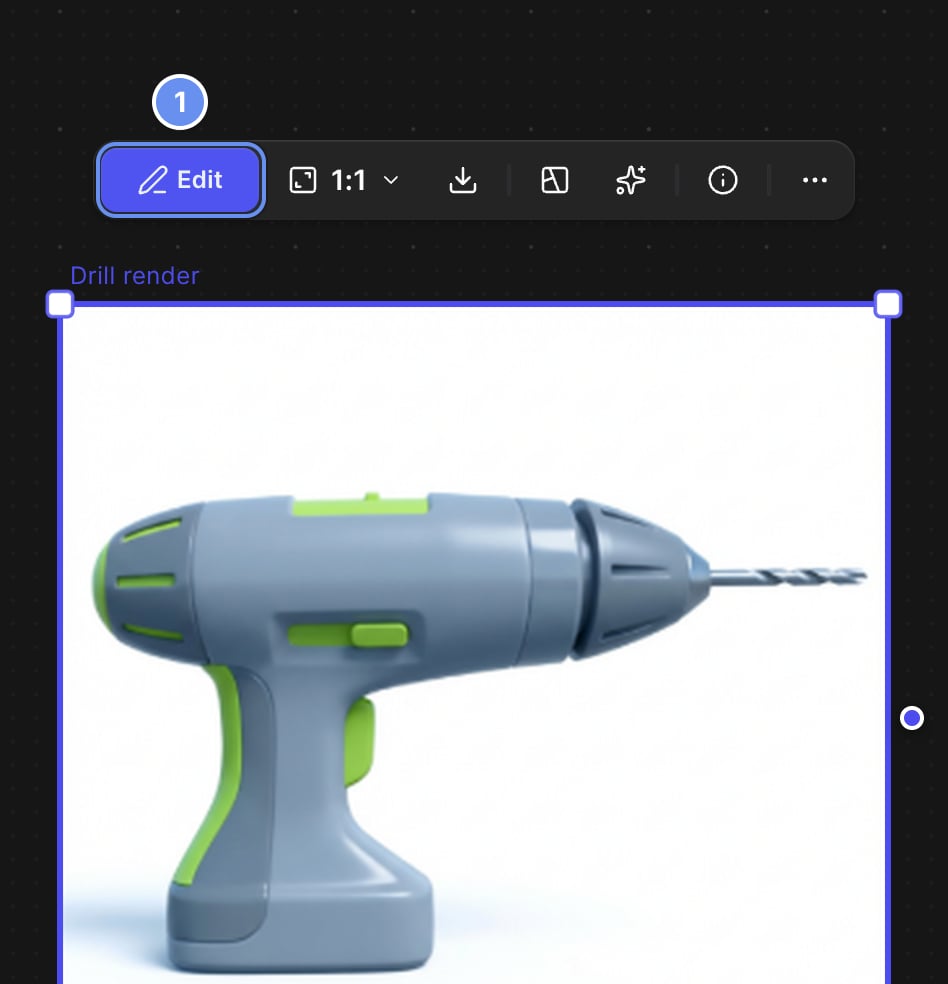
Select an image and click Edit (1) to open it in Studio.
Blocks and connections
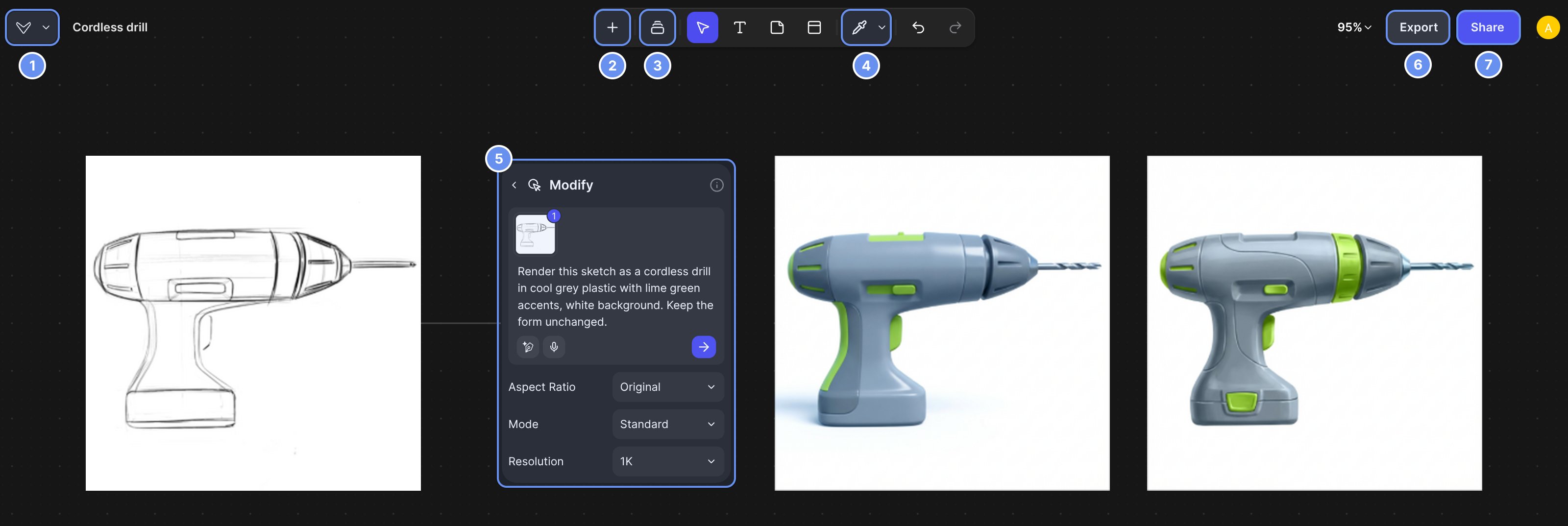
A sketch connected to a Modify block (5), with two results. Blocks start in Insert (+) (2).
Generations and outputs
A generation is one run, and each image it makes is an output. On the Workbench, outputs land beside the block. In Studio, they land in Results; click Add to put one on a layer. The same prompt gives a different result each time, so build on the result you like.Modify
Modify changes an image from a prompt. Each run has a Mode, such as Standard or Pro, and on the Workbench a Resolution. See Modes and resolution.References
A reference is an image to match: a material, color, look or product. A Library collection groups up to nine images into one reference. See Match a look with references. Render, Mix and Style are marked LEGACY; Modify and references replace them.The Library
The Library stores images, colors, palettes, prompts, collections, 3D models and videos. Type @ in a prompt to use an item. Which scopes you get depends on your plan. See Library.Credits
Credits pay for generation on Free, Pro and Edu plans, from a monthly allowance. Failed generations return their credits. Organization and Enterprise workspaces use usage limits or contract terms instead. See Credits.Related
Quickstart
Your first render in five minutes.
Workbench and Studio
When to use each editor.
Glossary
Short definitions, A to Z.
All tools
Every tool and where to find it.