

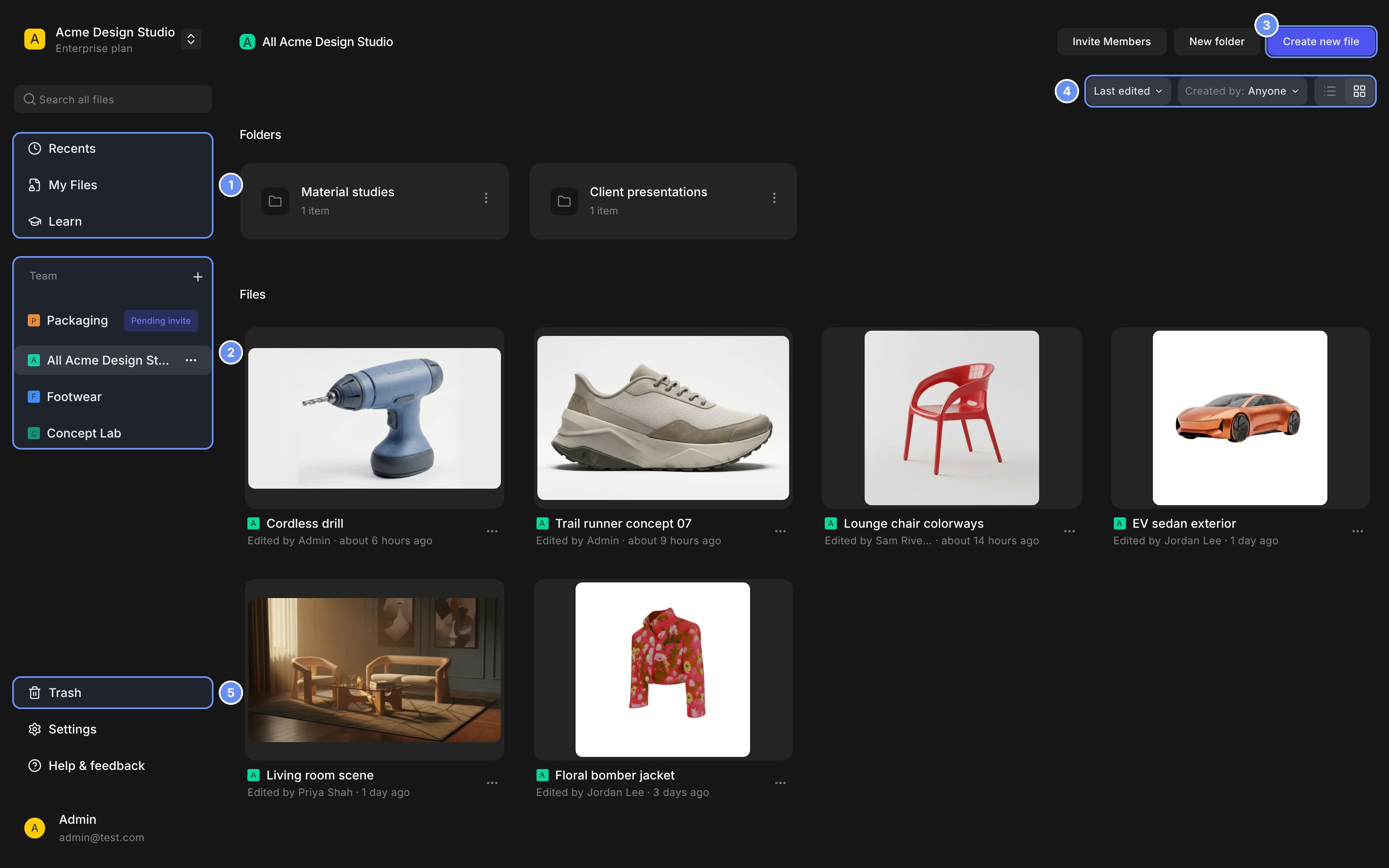
Sidebar pages (1), your teams (2), Create new file (3), sort and filter (4), Trash (5).
Pick a place for your work
Set up a project
1
Open the team
Click the project’s team in the sidebar 2.
2
Make a folder
Click New folder, name it and click Create.
3
Create files in it
Click Create new file 3 inside the folder.
4
Bring in your drafts
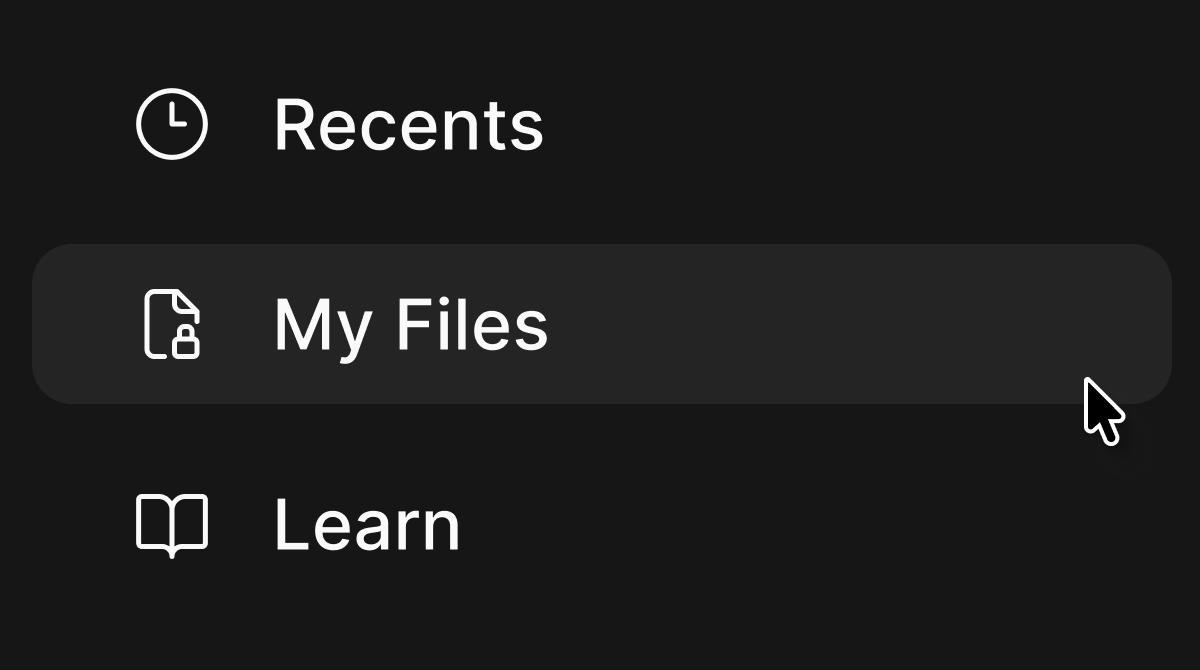
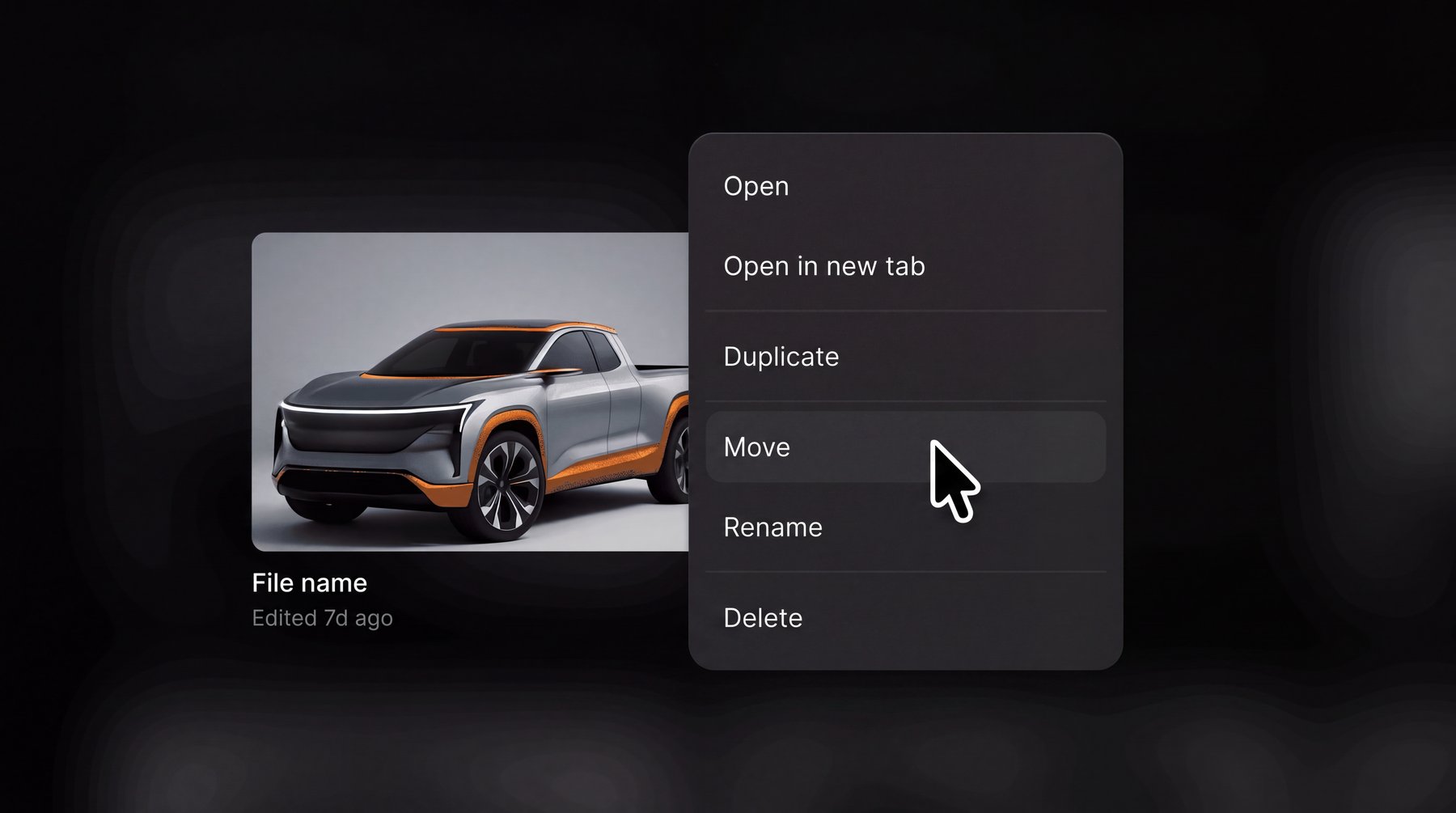
In My Files, right-click a draft and choose Move, or drag it onto a folder.
5
Give each file a cover
In the file, right-click its best image and choose Set as thumbnail.
Organize the canvas with sections
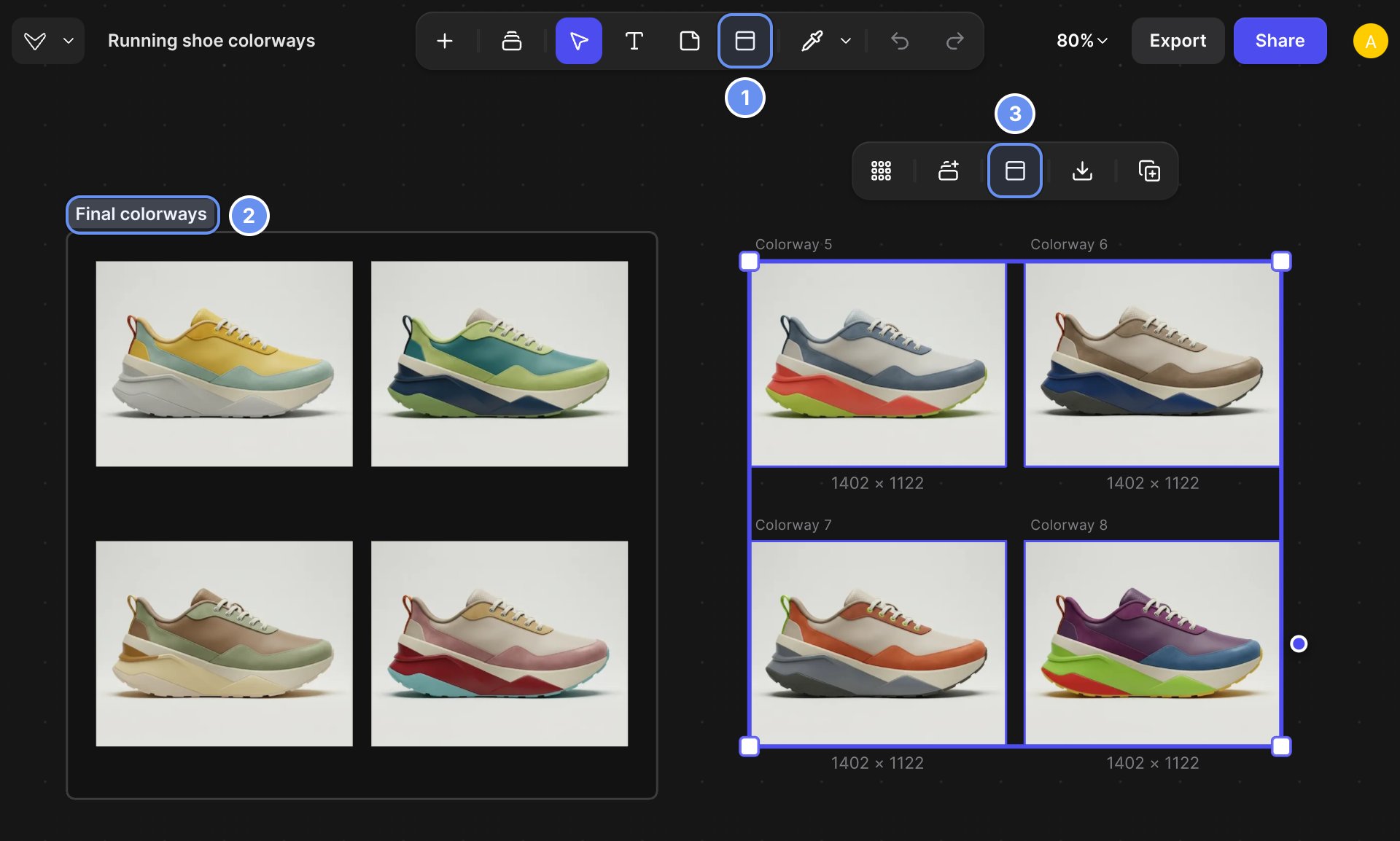
The Section tool (1), a section title (2), and Section in the selection toolbar (3).
- Wrap a selection: select two or more items and press Shift + S, or click Section 3.
- Rename: double-click the title 2.
- Export everything in it: right-click the section > Export….
- Remove section keeps what’s inside; Delete removes both.
Find a file again
Use Search all files, or sort Recents by date. Move the pointer across a thumbnail to preview the file’s images.Delete and restore
- Right-click a file or folder and choose Delete.
- Open Trash 5, click the file’s ⋯ menu and choose Restore.
Good to know
- My Files is private: even Workspace Admins can’t open files there.
- Name files for search: “Trail runner, colorways v2”, not “Untitled 14”.
- Duplicate before a big change to keep the old version.
Related
Share and collaborate
Share files and work together.
Files and folders
Every file option.
Teams
Find and join teams.
Library
Reusable colors, prompts and images.