

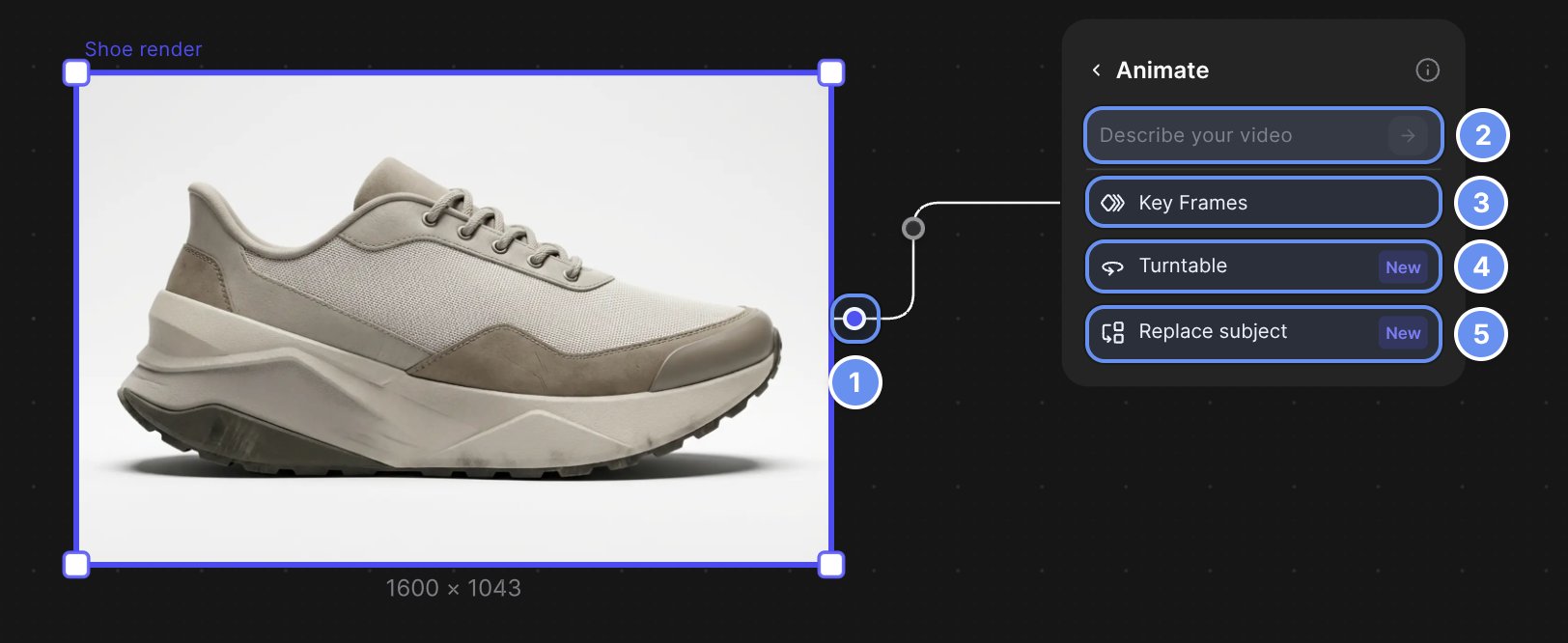
From the + handle (1): Describe your video (2), Key Frames (3), Turntable (4) or Replace subject (5).
Pick a workflow
Create an animation
1
Add an Animate block
Drag from an image’s + 1 and choose Animate.
2
Pick a workflow
Click one in the list.
3
Add images and describe the motion
Drag images onto the block. Type @ to refer to one.
4
Choose the model and length
Pick Fast (about 30 seconds) or Pro (about 2 minutes), and 4 to 15 seconds.
5
Generate
Click Animate. The video appears beside the block.
Key Frames
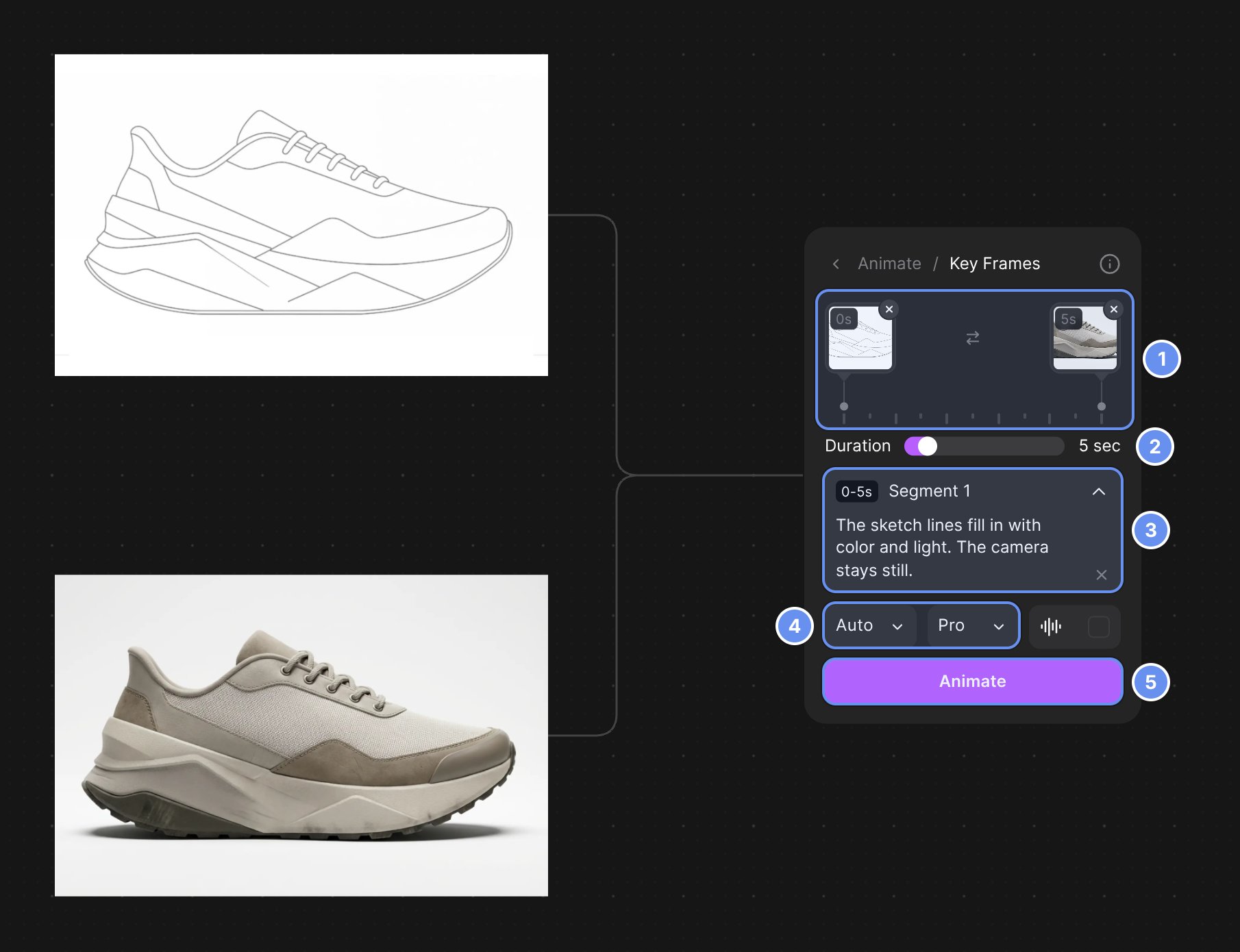
Timeline (1), length (2), transition prompt (3), ratio and model (4), Animate (5).
- Add a start frame to the timeline 1, plus an optional end or middle frame.
- Set Duration 2.
- Describe each transition 3, such as “Smoothly unfasten and open the top lid.”
- Click Animate 5.
Turntable
Add up to 8 views of the product and click Animate. Make missing angles with New view, and use Set as start frame to pick the first.Replace subject
Add a Source video (MP4, WebM or MOV, up to 50 MB) and up to 8 images of your design. The result is as long as the source clip.Custom
Click Describe your video and write the motion.Download and export the video
Select the video and click Download. Export… saves MP4 or GIF, and can upscale an MP4 to 2K or 4K. See Upscale and export. To start the next shot where this one ends, play or scrub the video to its last frame and pause. Then click Save frame to canvas in Show video details, or in the full-screen view. The frame lands on the Workbench as a new image.Good to know
- Your balance must cover the whole clip before it starts.
- Draft with Fast, finish with Pro. Fast is cheaper and quicker.
- One action per clip. Add “keep the shape, colors and logo unchanged” to protect the design.
Related
Animate
Every workflow and setting.
Make a product video
A turntable and a reveal.
Upscale and export
Export and upscale videos.
New view
Make the angles a turntable needs.