

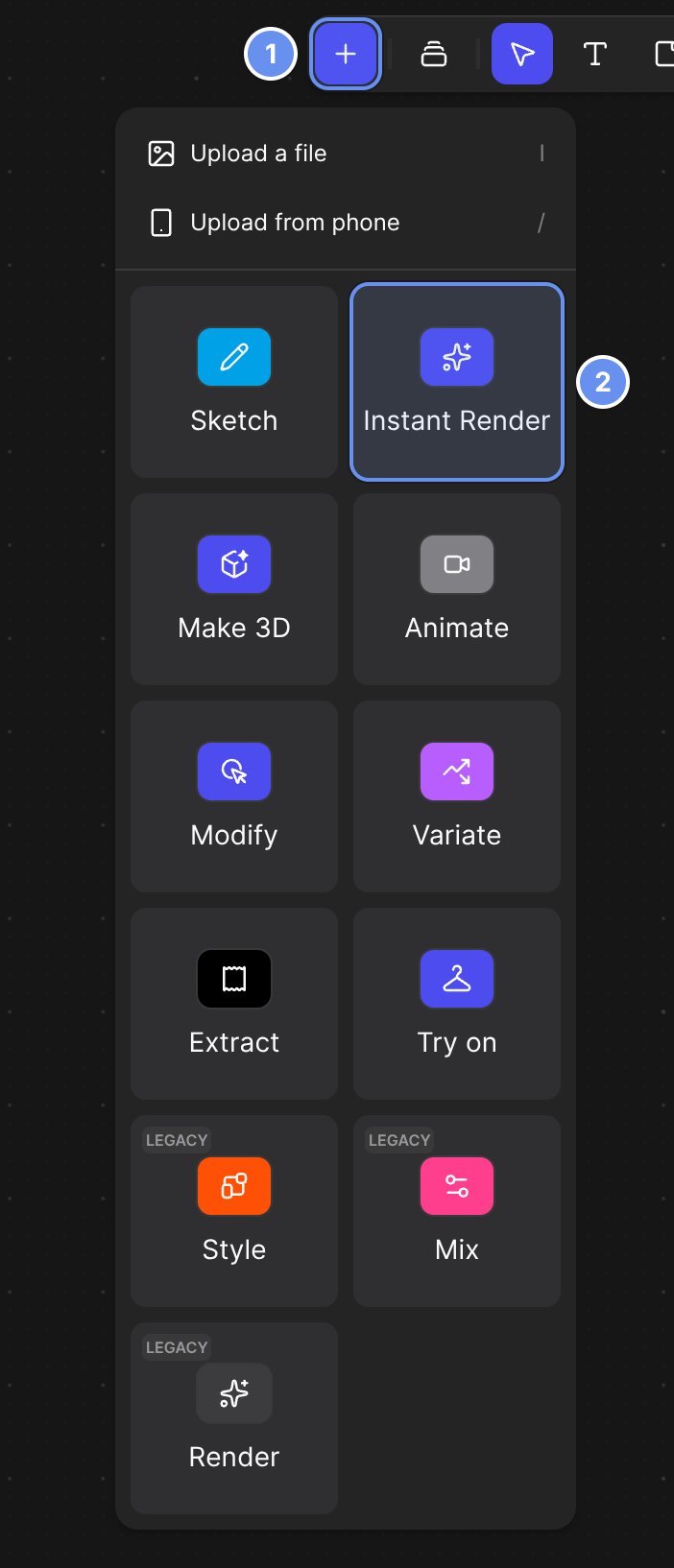
Insert (+) (1): upload at the top of the menu, or add Instant Render (2).
Get your sketch into Vizcom
- A file: drag it onto the canvas, or click Insert (+) > Upload a file (I).
- On paper: click Insert (+) > Upload from phone (/) and scan the QR code.
- Not drawn yet: click Insert (+) > Sketch, then double-click it to draw in Studio.
Draw in Studio
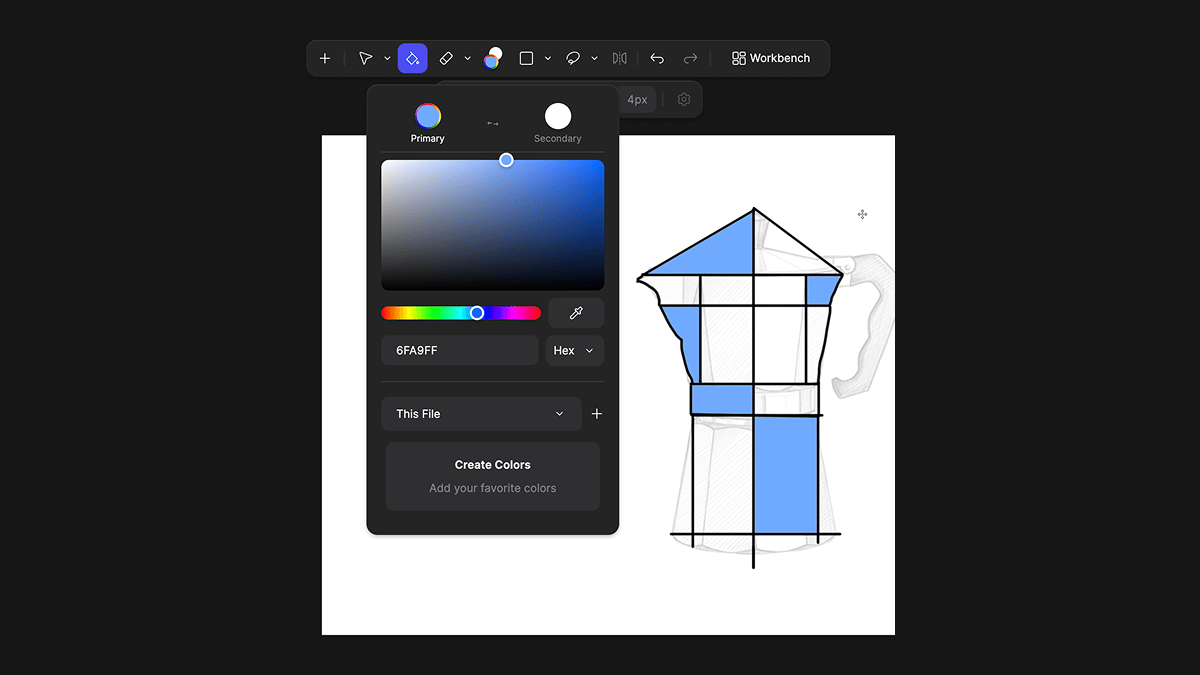
Blocking in surfaces with the Paint Bucket.
Render with Modify
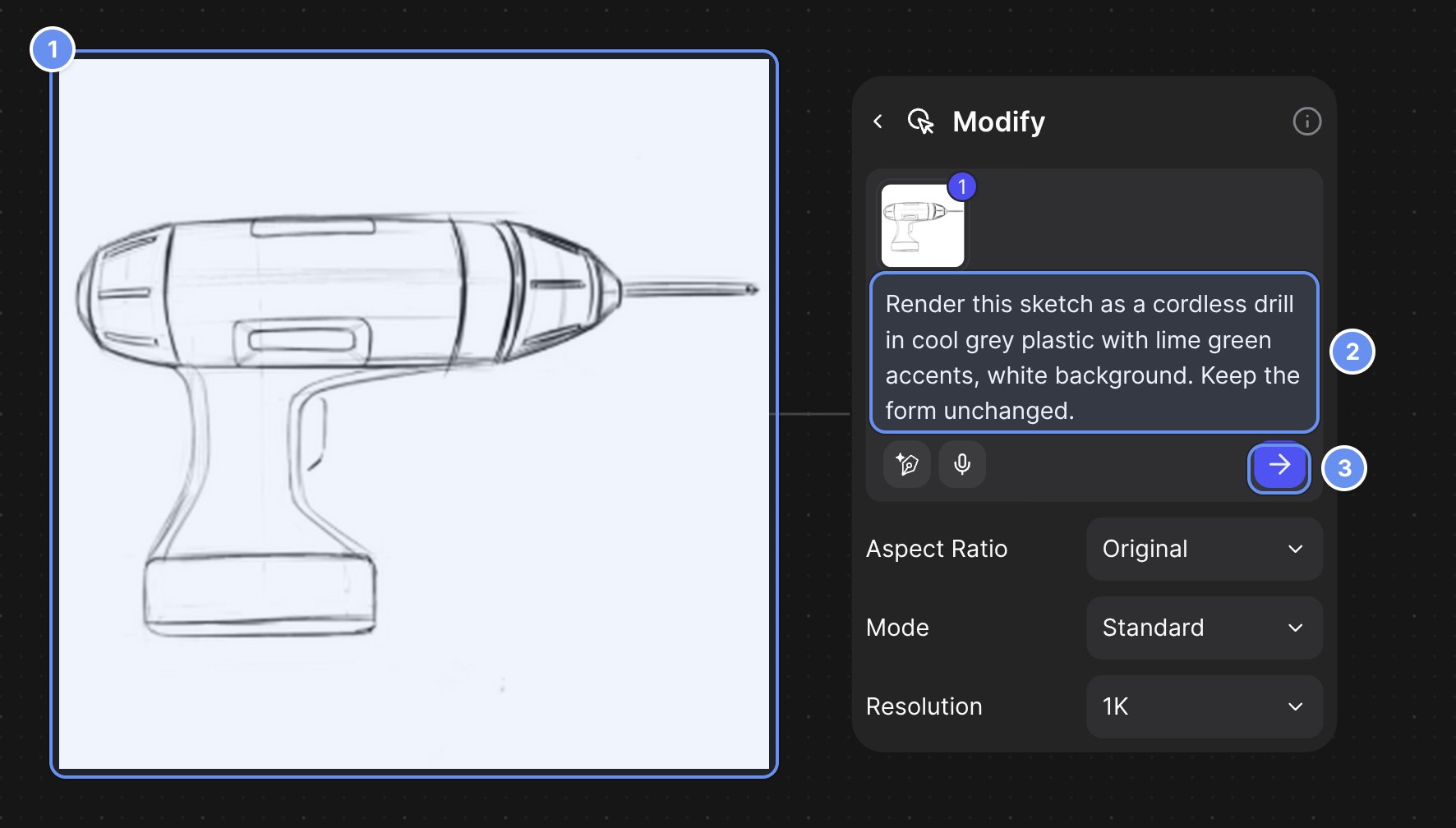
Select the sketch (1), press Q, type the prompt (2) and click the arrow (3).
- Workbench
- Studio
1
Add a Modify block
Select the sketch and press Q.
2
Describe the render
Say how it looks and what stays: “Render this sketch as a photorealistic product photo. Matte black aluminum body, walnut handle, soft studio lighting. Keep the proportions and silhouette exactly as drawn.”
3
Check the settings
Leave Aspect Ratio on Original to keep the sketch’s shape. See Modes and resolution.
4
Generate
Press Enter. The render appears beside the block.
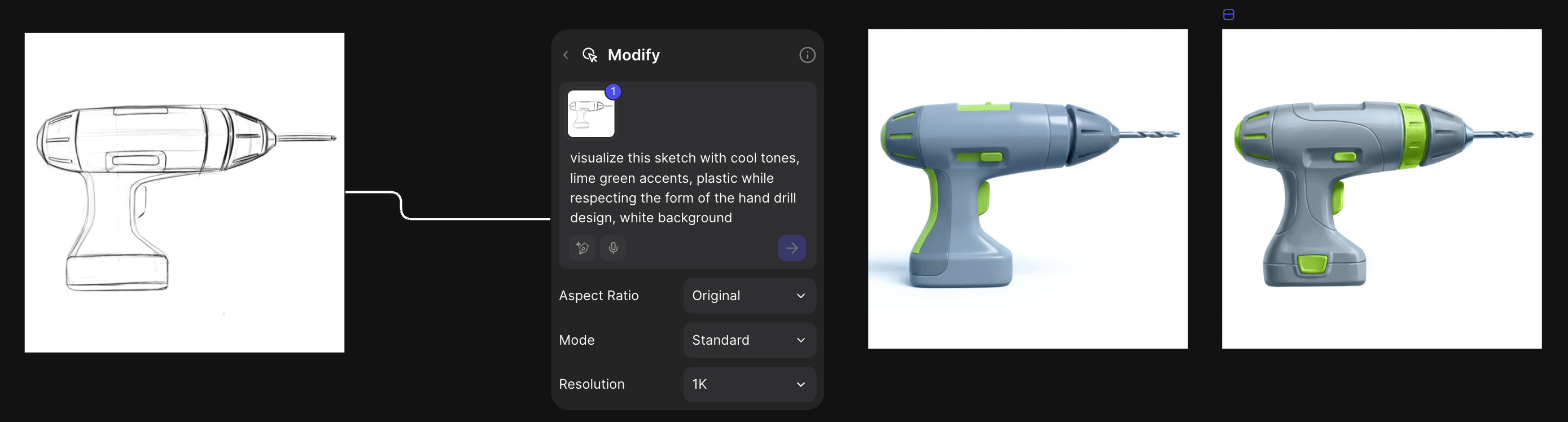
A line sketch connected to a Modify block, and two renders it produced.
Render with Instant Render
Instant Render takes a sketch to its next stage of finish, with no prompt.- Workbench
- Studio
- Click Insert (+) > Instant Render and connect the sketch.
- Set Target fidelity: Auto (next stage) moves up one stage, or pick a stage.
- Optionally add a Reference.
- Click Render.
Keep the render close to your lines
- Say so: “Keep the exact proportions, silhouette and linework.”
- Keep Aspect Ratio on Original. Other ratios recompose the image.
- Step through Instant Render stages instead of jumping to Realistic.
Related
Write prompts that work
Prompt patterns and examples.
Explore variations
Branch out from a render you like.
Instant Render
Every Instant Render setting.
Drawing tools
Every Studio drawing tool.