

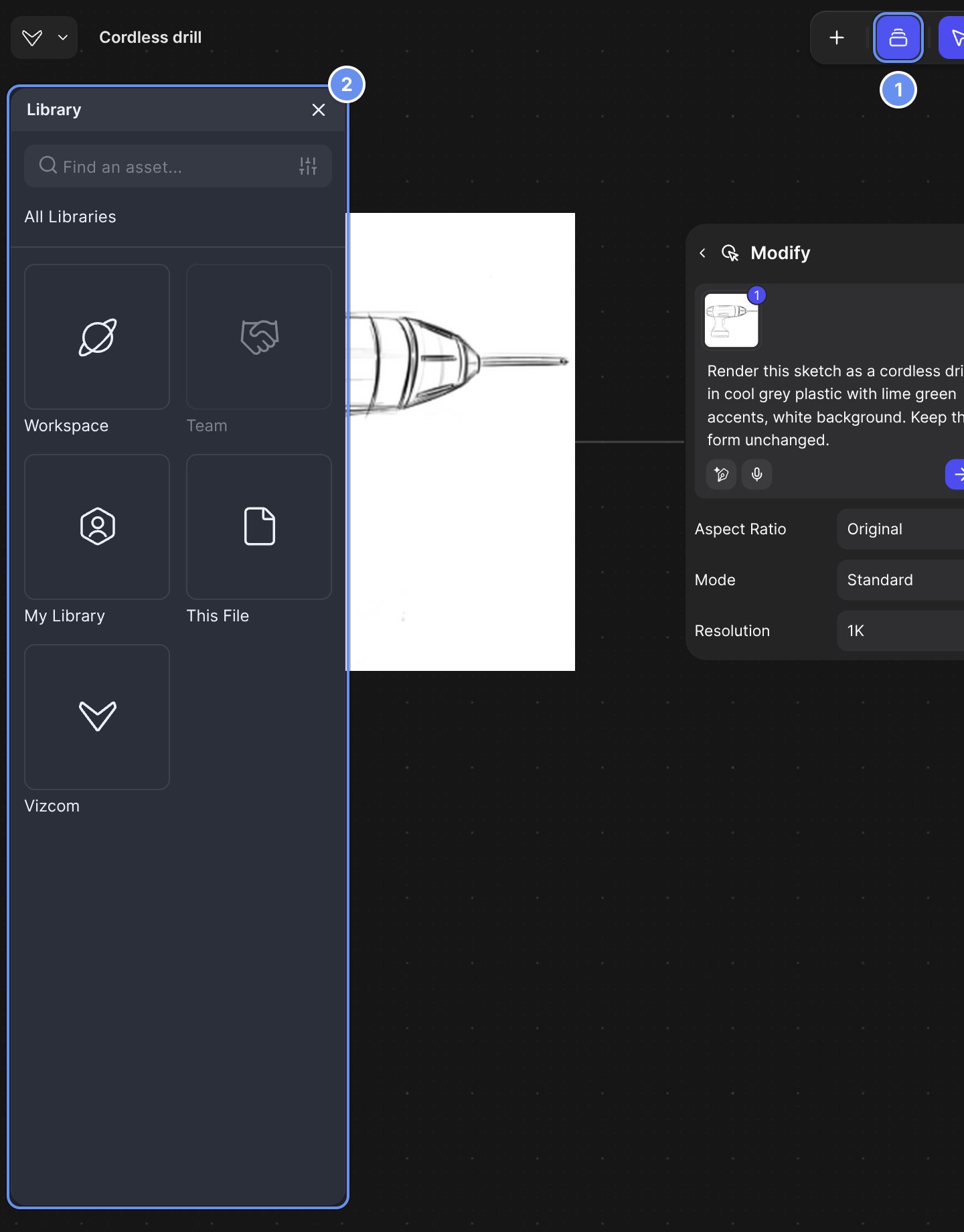
Library (1) opens a panel with every library you can use (2).
Pick a method
Legacy Styles don’t affect Modify. See Legacy tools.
Guide Modify with reference images
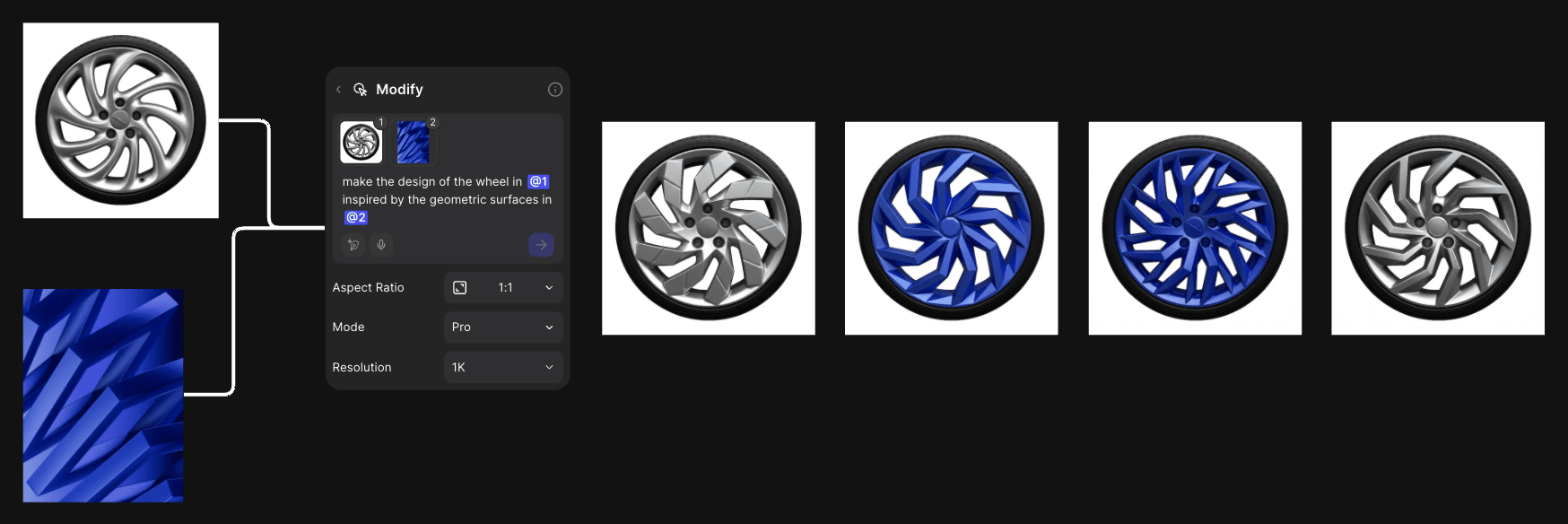
Two connected images referred to as @1 and @2 in the prompt.
1
Connect the images
Select the product and references (up to 4 images), then press Q.
2
Put the product last
Drag thumbnails to reorder. With Aspect Ratio on Original, the last image sets the shape.
3
Give each reference a job
Type, for example, “Apply the material from @2 to the chair in @1. Keep the shape of the chair unchanged.”
4
Generate
Press Enter.
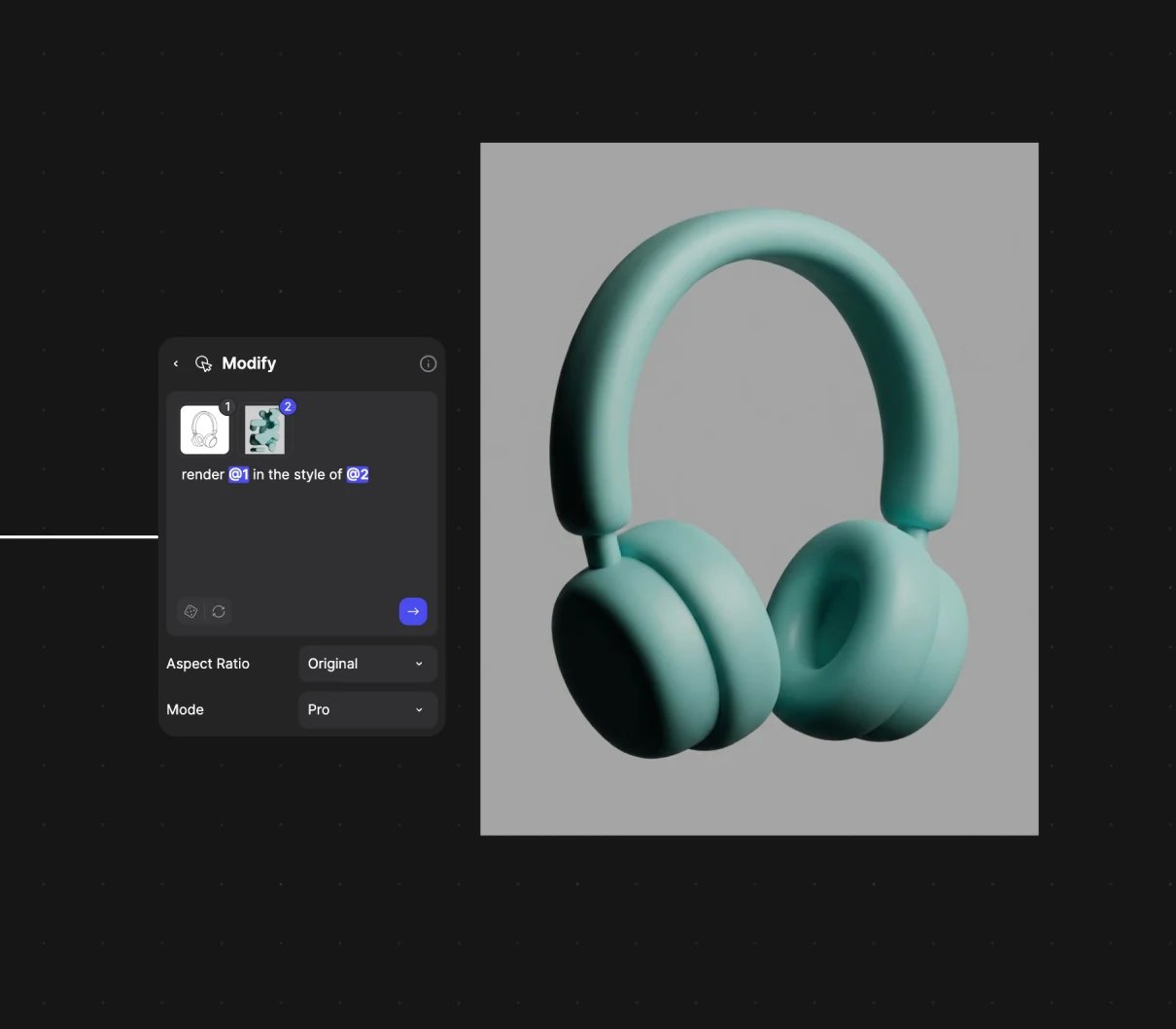
A sketch and a style reference. Prompt: "render @1 in the style of @2" (Pro).
Teach a look with a collection
A collection is up to nine images of one style, object or brand, used as one reference.1
Gather the images
Put up to nine images on the Workbench, such as one product from several angles.
2
Save them as a collection
Select them and click Add to library > Collection.
3
Name it and pick a type
Choose Style, Object, Brand or Custom, and a name you’ll recognize after @.
4
Mention it in a prompt
Type @ and pick it: “Render @Camera 3 onto the sketch composition in @1 hanging from a wrist strap.”
Copy a look with the Smart Dropper
1
Pick what to copy
Press Y and choose Style, Color or Environment from its menu.
2
Sample
Click the image whose look you want.
3
Apply
Click the image to change. Hold Shift to apply it to more images.
4
Put it away
Press Esc.
Get better results
- Say what to keep: “Keep the silhouette and proportions unchanged.”
- Connect several views of one product to keep it consistent across scenes.
- Try Pro, which sticks closer to connected images.
Related
Collections
Make and use collections.
Write prompts that work
Point at references with @.
Smart Dropper
Style, Color and Environment.
Colors and materials
Pull palettes from references.