

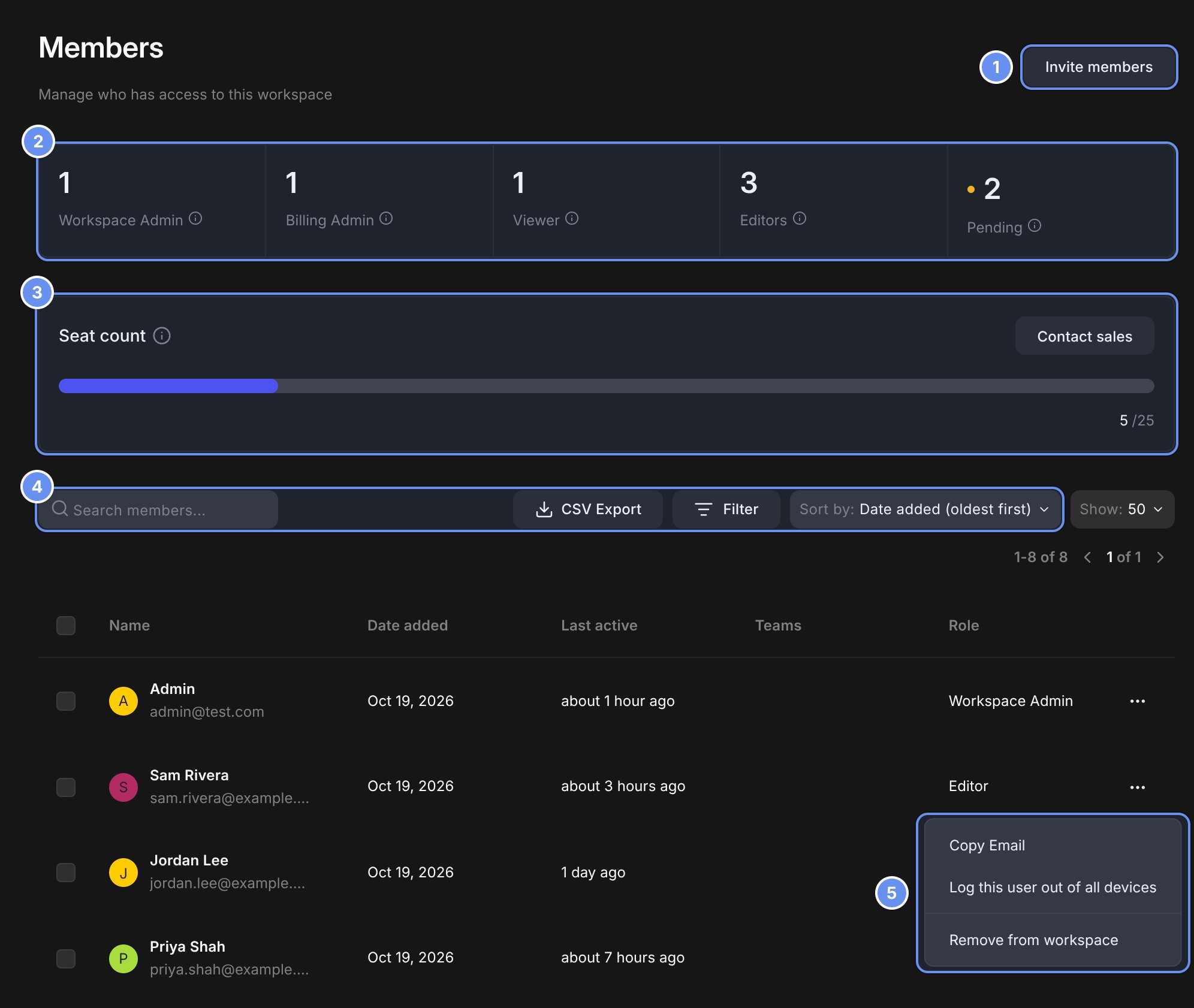
Invite members (1), role cards (2), Seat count (3), find tools (4) and a member's menu (5).
Invite members
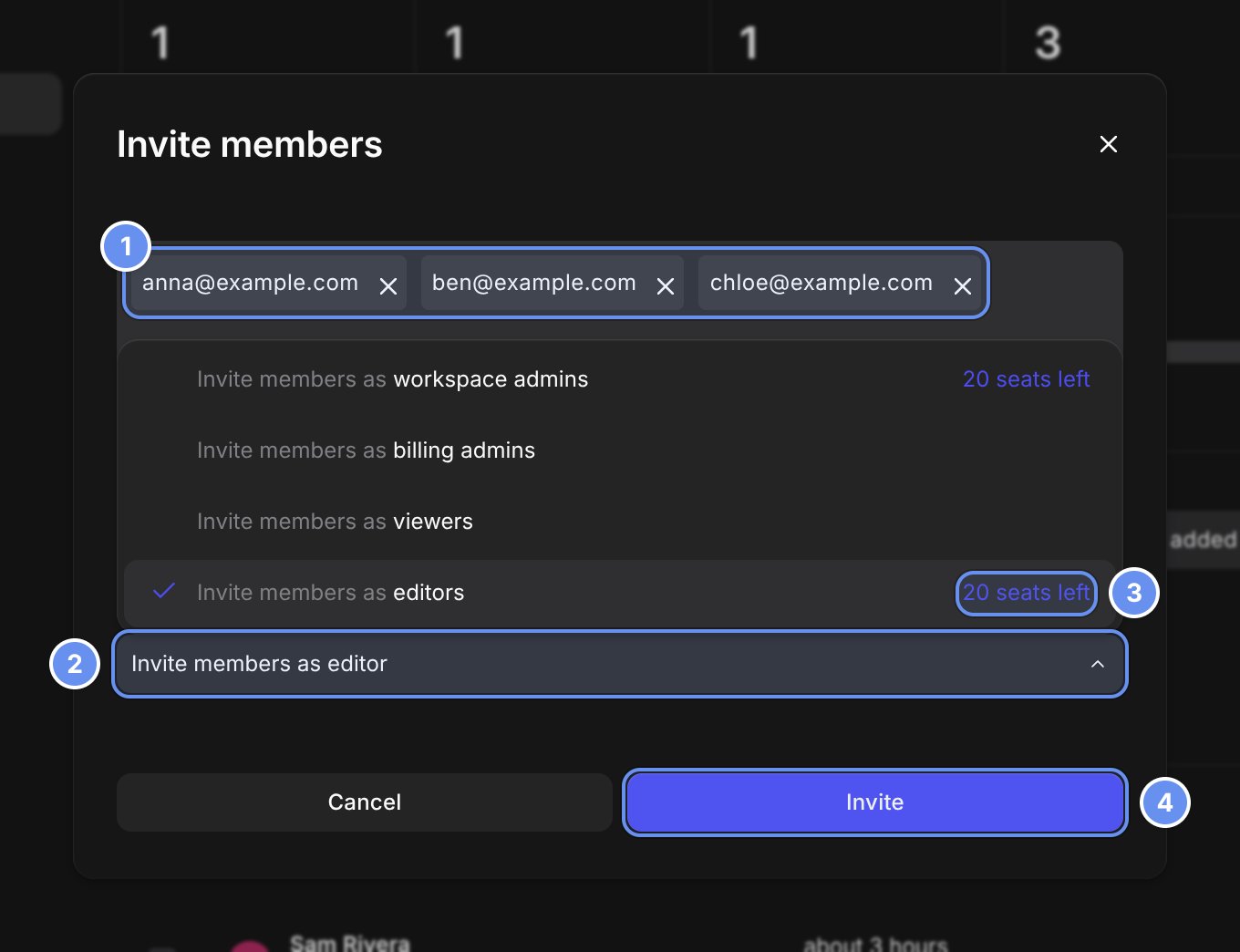
Email addresses (1), the batch's role (2), seats left (3) and Invite (4).
1
Open the window
Click Invite members.
2
Add addresses
Paste one or more email addresses 1.
3
Pick a role
Choose one role for the batch in Invite members as … 2. The default is Editor, and seat roles show seats left 3.
4
Send
Click Invite 4.
- Each admin can send 200 invites an hour. Addresses past the limit stay in the box; click Invite again later.
- People invited to a team who aren’t in the workspace join as Viewers.
- In an organization, seat-role invites may wait for an Org Admin’s approval.
Approve member requests
With Require admin approval to join on, people from your Allowed domains send a request. In Member requests, pick a role (default Viewer) and click Approve, Deny or Approve all.Change a role
Click the member’s row and pick a new Role. It applies in every team. You can’t change the last Workspace Admin or Billing Admin, or give a seat role when none are left. Add them to teams in the panel’s Teams field.Remove a member
Click … on their row > Remove from workspace, and confirm. This frees their seat. On Enterprise, Log this user out of all devices ends their sessions.What happens to their files
Team files stay put. Their My Files move to a folder in Settings > Recovered Files, where Workspace Admins can move them into a team.Seats
In an organization, each person uses one seat from the shared pool.
When you run out of seats
Invite greys out with “Not enough seats available”. Invite as a Viewer and change the role later, or free a seat. On Enterprise, contact sales.When a paid plan ends
On Free, members beyond the one seat become Viewers: pending Workspace Admin and Editor invites first, then members with those roles, newest accounts first. Admins aren’t protected. See Billing.Related
Roles and permissions
What each role can do.
Join your workspace
The invitee’s side.