

Set up SSO
1
Contact Vizcom
Email your account team or [email protected] with your identity provider’s name.
2
Share your details
Send your IT admin’s email and every email domain your members use.
3
Connect your identity provider
IT follows Vizcom’s setup link, as described below.
4
Test and announce
Once Vizcom turns SSO on, have an admin and a member sign in, then send everyone Join your workspace.
What your IT team will need
- Verify your email domain. It can take up to 48 hours; Vizcom can verify it from a screenshot of your domain details.
- Connect the identity provider with the setup link, which shows your Identifier (Entity ID) and Reply URL. For Entra ID, upload the App Federation Metadata URL.
- Run the test connection, then tell Vizcom. Vizcom links your domains and turns SSO on.
Direct SAML values
Use these only if Vizcom tells you to.How members sign in
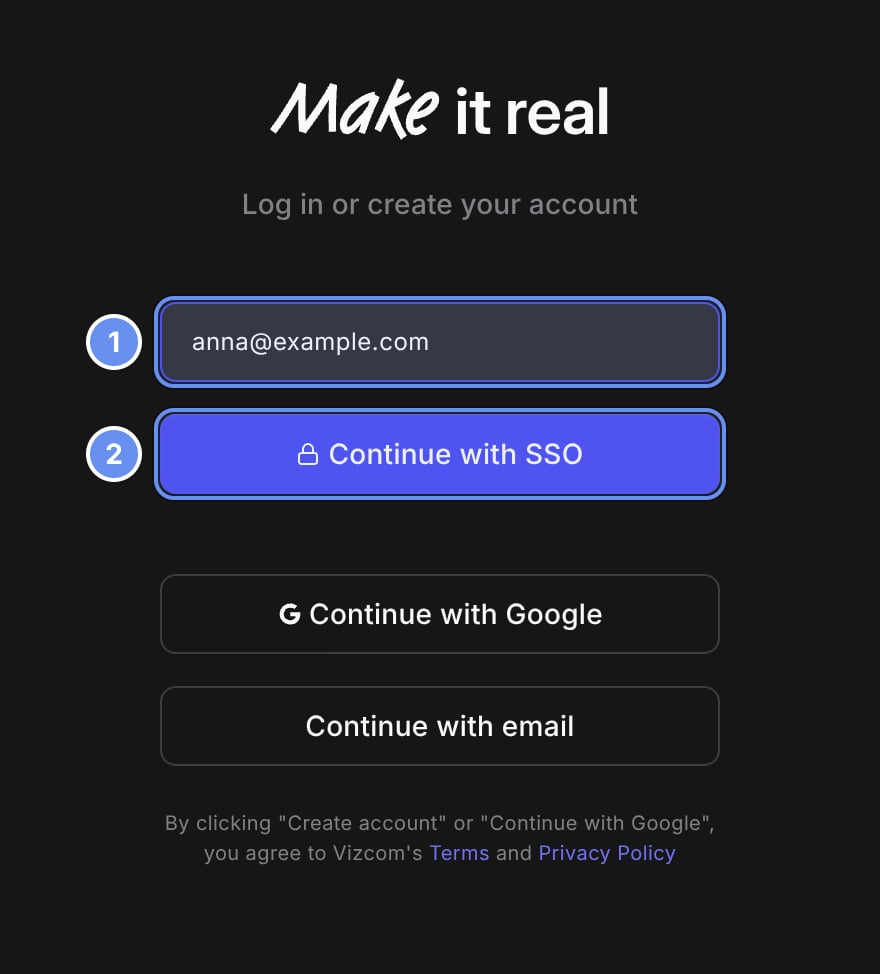
Enter your work email (1) and click Continue with SSO (2).
- On the sign-in page, click Continue with SSO.
- Enter your work email 1 and click Continue with SSO 2.
Provisioning and deprovisioning
- Accounts are created, or linked to an existing password account, at first SSO sign-in.
- Membership needs an invite unless join approval is off. Otherwise people see “No SSO enabled workspace was found”.
- Roles are set in Vizcom, not your identity provider.
- Offboarding is manual, and existing sessions keep working. Remove leavers in Settings > Members, then … > Log this user out of all devices.
Related
Network requirements
Sign-in hosts to allow.
Security and privacy
Allowed domains and session timeout.