

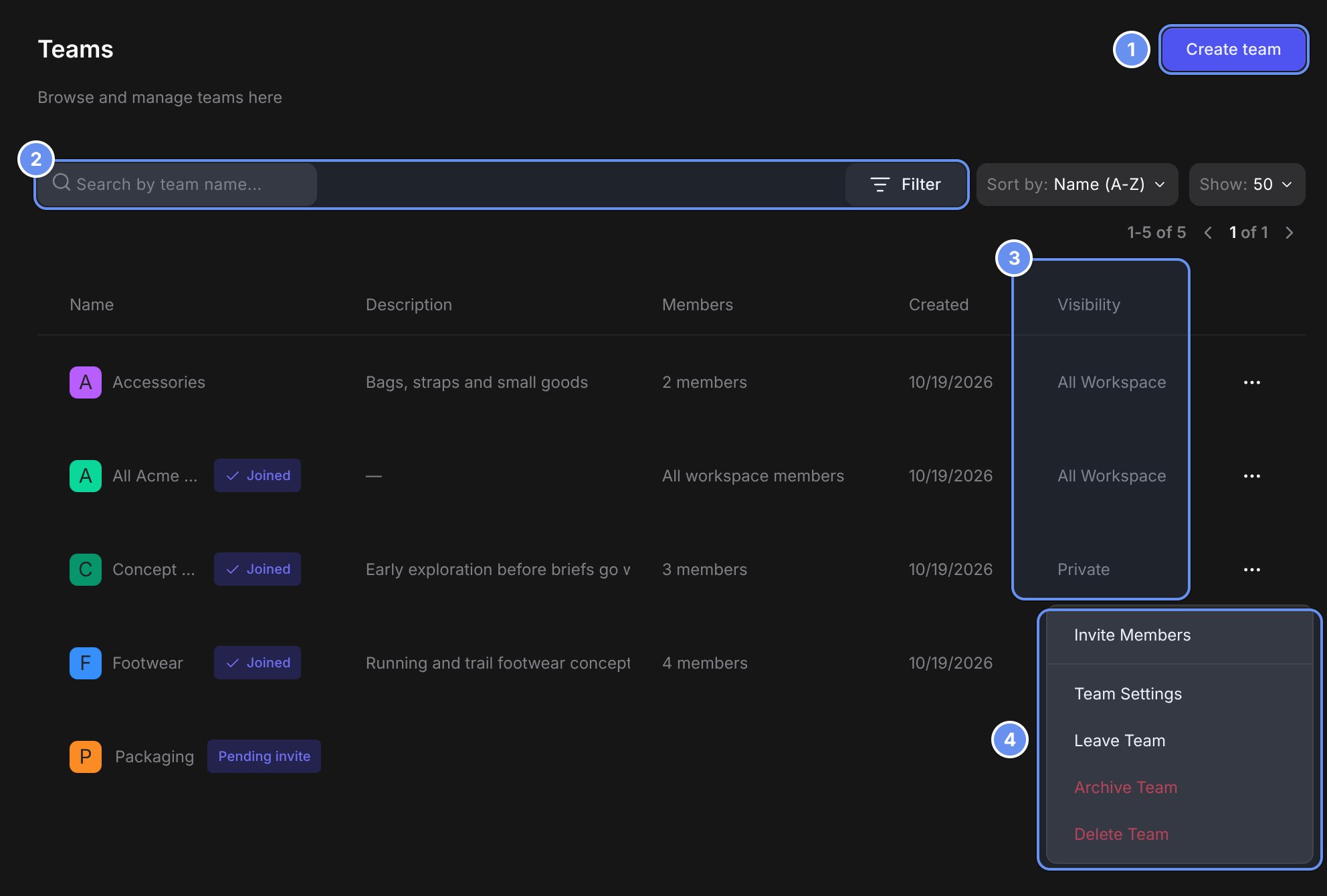
Create team (1), search and filter (2), visibility (3) and the row menu (4).
Create a team
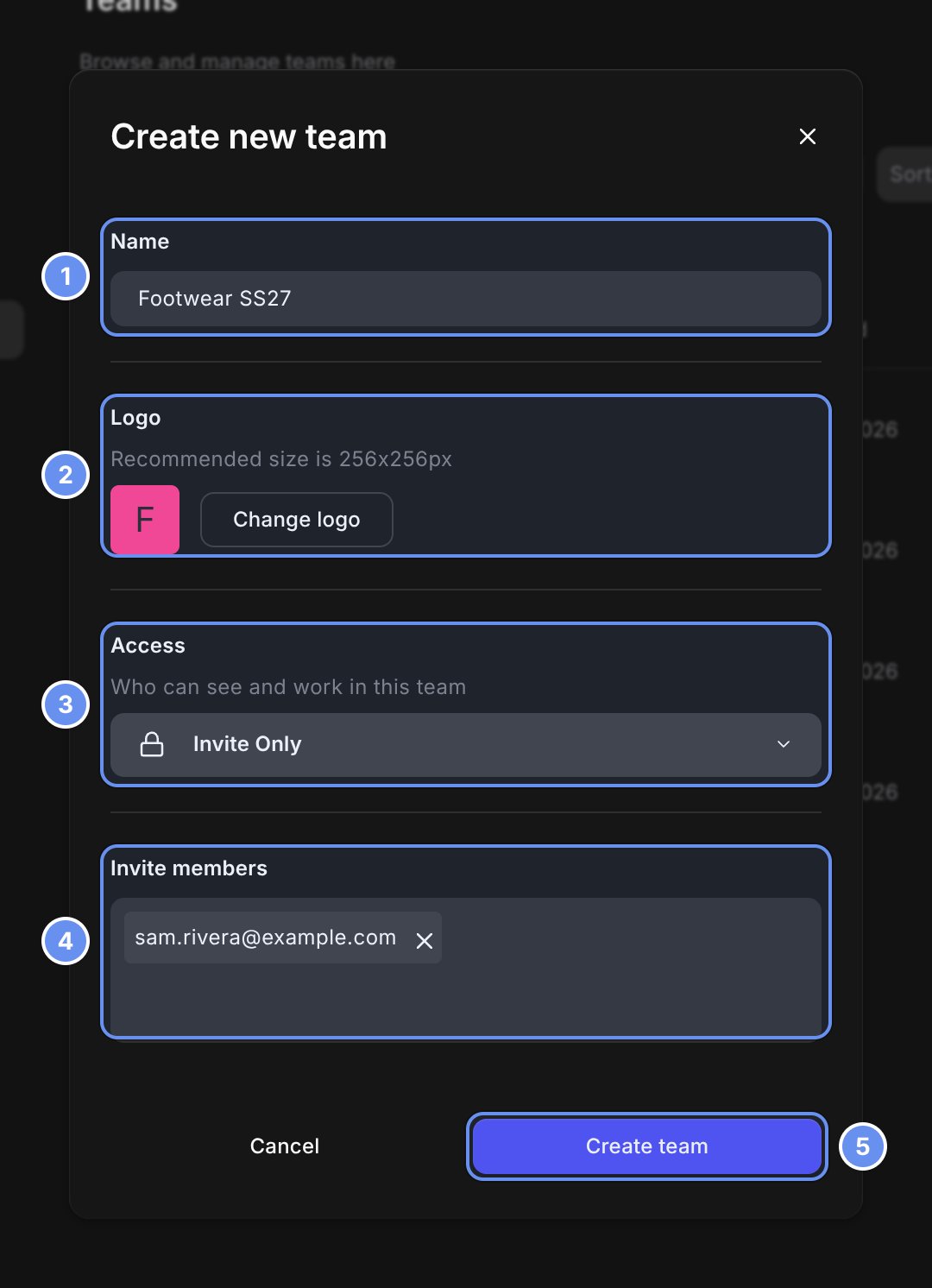
Name (1), logo (2), access (3), members (4) and Create team (5).
1
Open the window
Click + next to Team in the sidebar, or Create team in Settings > Teams.
2
Name it
Type a Name 1. Optionally click Change logo 2 (256x256px).
3
Choose access
Pick All Workspace or Invite Only under Access 3.
4
Create
Optionally add people under Invite members 4, then click Create team 5.
Add or remove team members
In Settings > Teams, click … on the team’s row > Invite Members, or use Invite members in Team Settings. People not yet in the workspace are invited as Viewers; change their role in Settings > Members. To remove someone, open their row in Settings > Members and edit Teams. Team Admins can do this for their own teams. Members join All Workspace teams themselves with … > Join Team.Rename a team or change its access
Click … > Team Settings, edit Team name and click Save, or change Visibility.Archive or delete a team
- Archive Team hides a team from the sidebar and keeps its files. Restore it from Filter > Archived teams > … > Unarchive team.
- Delete Team permanently deletes the team’s files and folders.
Rename, change the logo of, or delete a workspace
In Settings > General, edit Workspace name and click Save, or click Upload logo. To delete, click Delete “your workspace name”, open the confirmation email within 30 minutes, and type the phrase shown. This permanently deletes every file and folder and cancels the subscription. Workspaces on a sales-managed contract, or in an organization with an active contract, can’t be deleted here; contact support.Related
Roles and permissions
Who can do what in a team.
Teams
Teams from a member’s side.